iPhone Live Photos Play No Motion? Fix It
Your Live Photo sits still like an ordinary photo, with no motion at all. Live Photos only move when Live is on, when you press and hold, and when the file is shared as a Live Photo. A still-looking Live Photo is usually a playback or sharing issue, not a lost moment, and the video twin is a video playing sideways, which is also about playback, not capture.
TL;DR / Quick Fix
Quick fix: confirm the photo is a Live Photo, press and hold to play it, check Live was on when shooting, share it as a Live Photo, and check the recipient's device. If it still fails, note exactly when it happens, then try again slowly.
Follow these steps
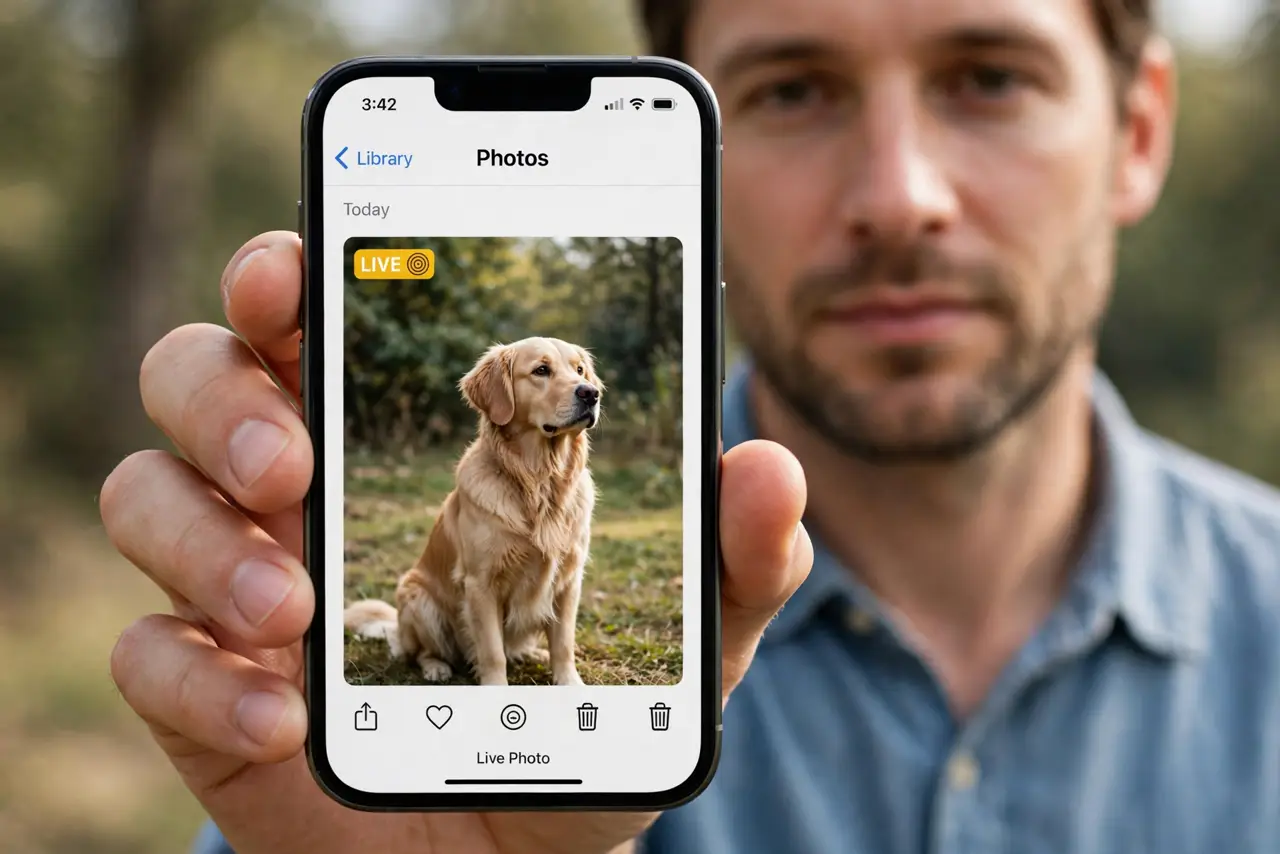
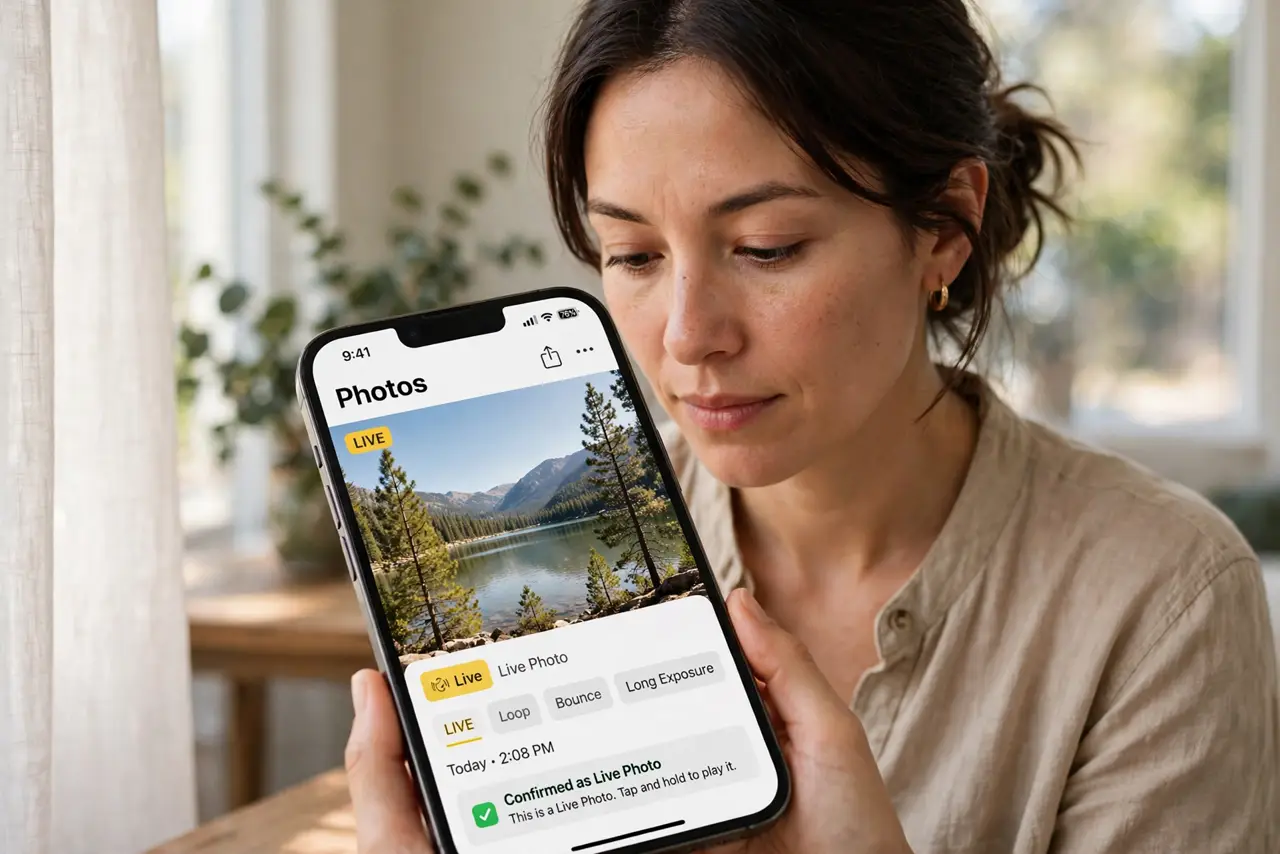
- Confirm it is actually a Live Photo. Open the photo in Photos and look for the Live badge at the top. If there is no badge, it was taken as a still, and no motion exists to play.
- Press and hold to play it. Press and hold the photo in Photos. Live Photos play their motion only while you hold, so a quick tap shows just the still frame.
- Check Live was on when shooting. Open Camera and check the Live icon at the top. If Live was off when you shot, the photo has no motion, and nothing can add it afterwards.
- Share it as a Live Photo. When sharing, choose options that keep it as a Live Photo. Some sharing methods convert it to a still, which removes motion for the recipient.
- Check the recipient's device and app. A Live Photo sent to a non-Apple device or through an app that flattens it may arrive as a still. The motion exists on your phone even if the recipient sees a still.
- Check effects and key photo settings. Swipe up on the Live Photo and check its effects and key photo. A key photo change or an effect can make motion less obvious, so try the original.
What NOT to do
- Do not assume the moment is lost. Check the Live badge and press and hold first, since most still-looking Live Photos are just not being played.
- Do not share through apps that flatten Live Photos if motion matters. Choose a sharing method that preserves Live Photo format.
- Do not turn Live off permanently to save space without thinking. Live Photos capture the moment around the shot, which is their whole point.
- Do not edit a Live Photo into a still and expect motion back. Some edits keep motion, but converting to a still removes it.
Frequently asked questions
Why does my Live Photo not move?
Because you are tapping instead of pressing and holding, or it was shot with Live off, or sharing flattened it.
Can I turn a still into a Live Photo?
No. Motion must be captured at shooting time, with Live on.
Why does the recipient see a still?
Because their device or app does not support Live Photos, or the sharing method converted it.