Copy Text from Photos
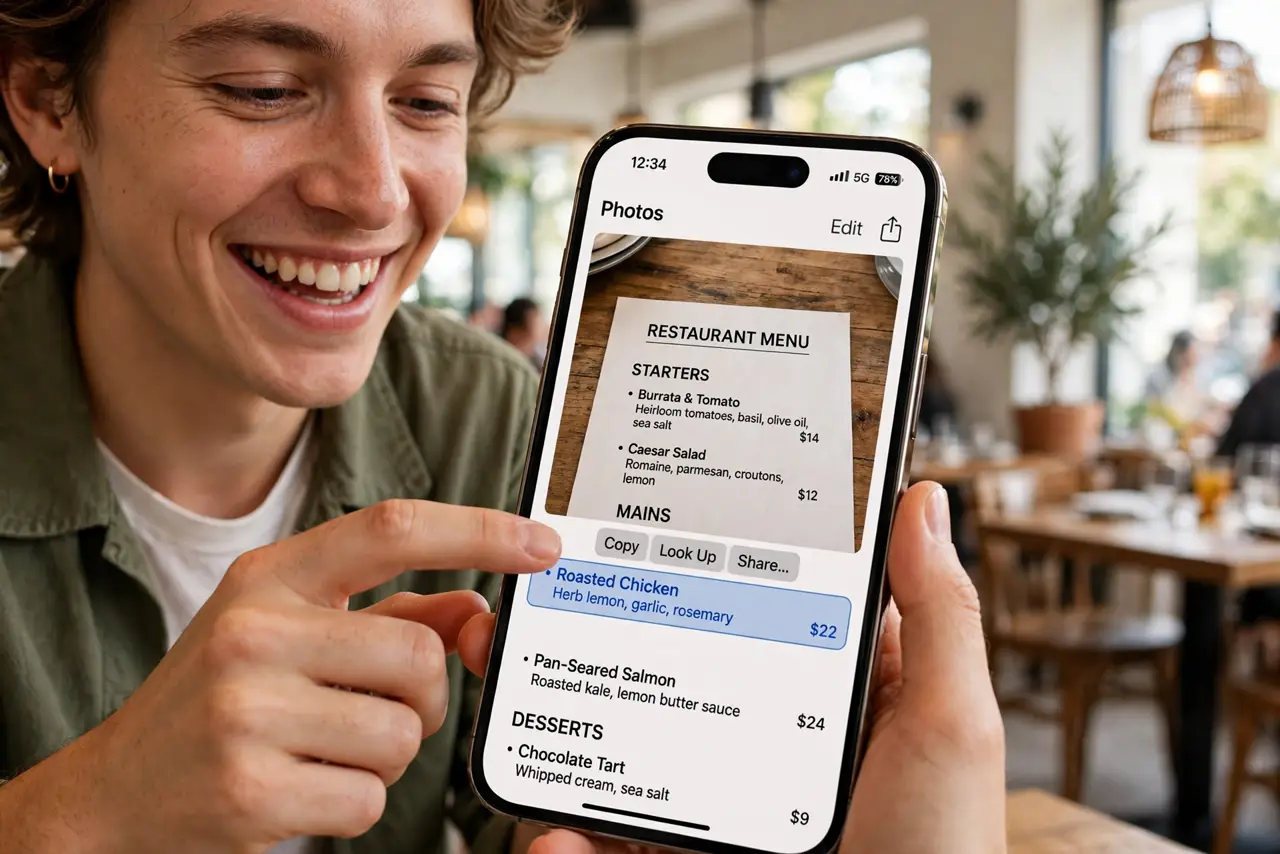
You photograph a menu, a sign, a business card — then retype the whole thing by hand like the photo is just decoration. Live Text turns photos into copyable text: tap the text in the picture, select, copy, paste. The retyping era is over; your camera is now a scanner.
TL;DR / Quick Fix
Quick fix: open the photo, press and hold the text in it until the selection handles appear, then copy. It works in Photos, the camera viewfinder, and screenshots. For best results, shoot the text straight-on and well lit. Your camera is now a scanner.
Follow these steps
- Open the photo. Find the photo with text in your Photos app — a menu, sign, document, whiteboard. Live Text works on existing photos, not just new ones.
- Press and hold the text. Touch and hold directly on the words in the image. The text highlights with familiar selection handles — the phone recognized it as text, not pixels.
- Adjust and copy. Drag the handles to cover what you need, then tap Copy. The text is now on your clipboard, ready to paste anywhere — messages, notes, search.
- Try it live in the camera. Point the camera at text and tap the Live Text icon in the corner — copy without even taking the photo. Menus, signs, and labels become instantly quotable.
- Shoot for accuracy. Straight-on, well-lit, steady — the same rules as any photo. Angled, blurry shots transcribe with errors; a clean capture copies cleanly.
- Use it for translation too. The same selection offers Translate on iPhone. Foreign menus and signs go from photo to understanding in two taps.
What NOT to do
- Do not retype what you photographed. If the text is in the picture, Live Text copies it — retyping is the old way.
- Do not expect handwriting miracles. Print transcribes beautifully; messy handwriting is hit-or-miss — print wins.
- Do not forget screenshots qualify. Screenshots of text are photos too — Live Text works on them identically.
- Do not copy sensitive text carelessly. Clipboard contents paste anywhere — be deliberate with passwords and private data in photos.
Frequently asked questions
Does it work on Android?
Yes — Google Lens does the same job: open the photo, tap Lens, switch to Text, and copy. Same superpower, different button.
Why is the text not selectable?
The photo may be too blurry, too angled, or the text too small. Retake it straight-on and closer — recognition needs clarity.
Can it copy text from videos?
Pause the video on a clear frame and use Live Text on the paused image — on supported phones, yes.