Lock Private Tabs in Safari?
You hand your phone to someone to show a photo, and your private Safari tabs are one tap away. Locking private tabs with Face ID means your private browsing stays private even when the phone is unlocked in someone else's hands. It's a small setting with real peace of mind.
TL;DR / Quick Fix
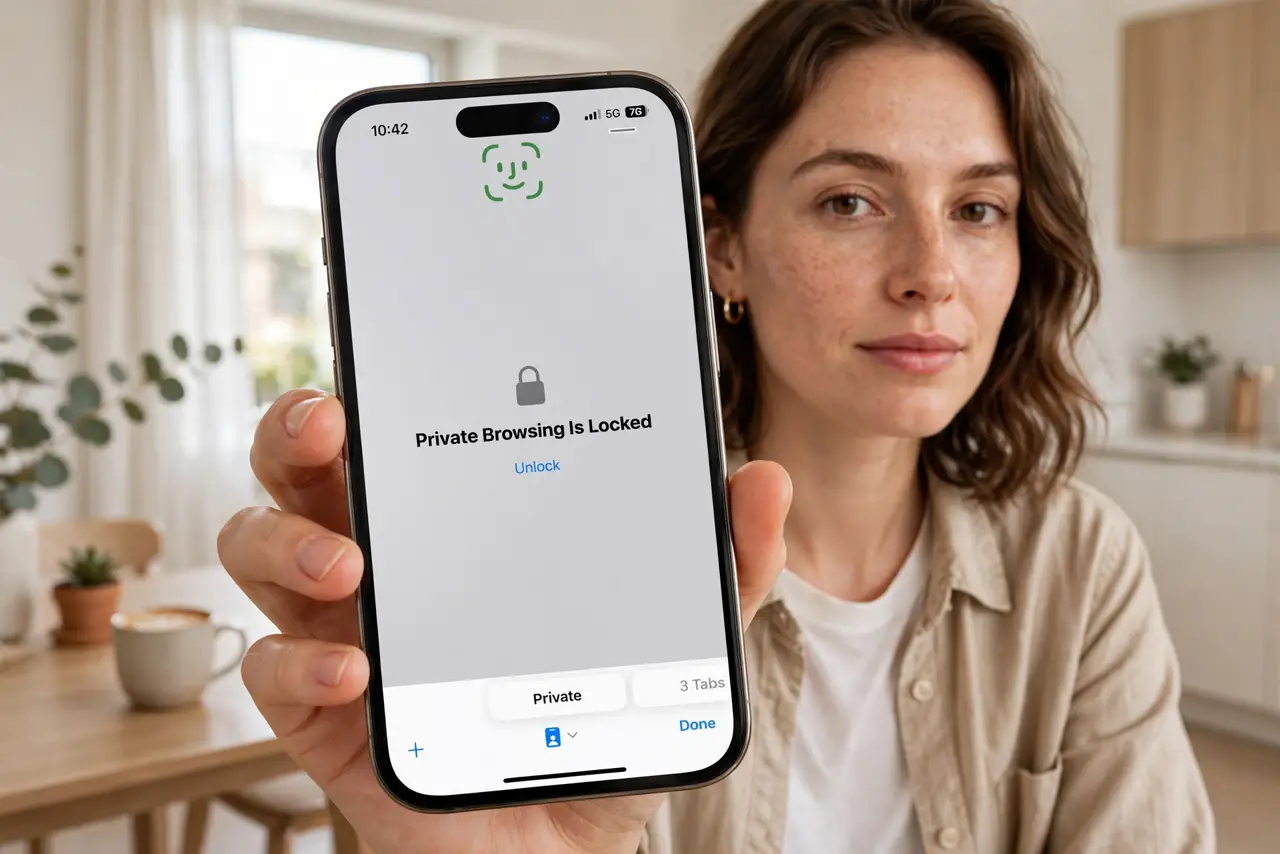
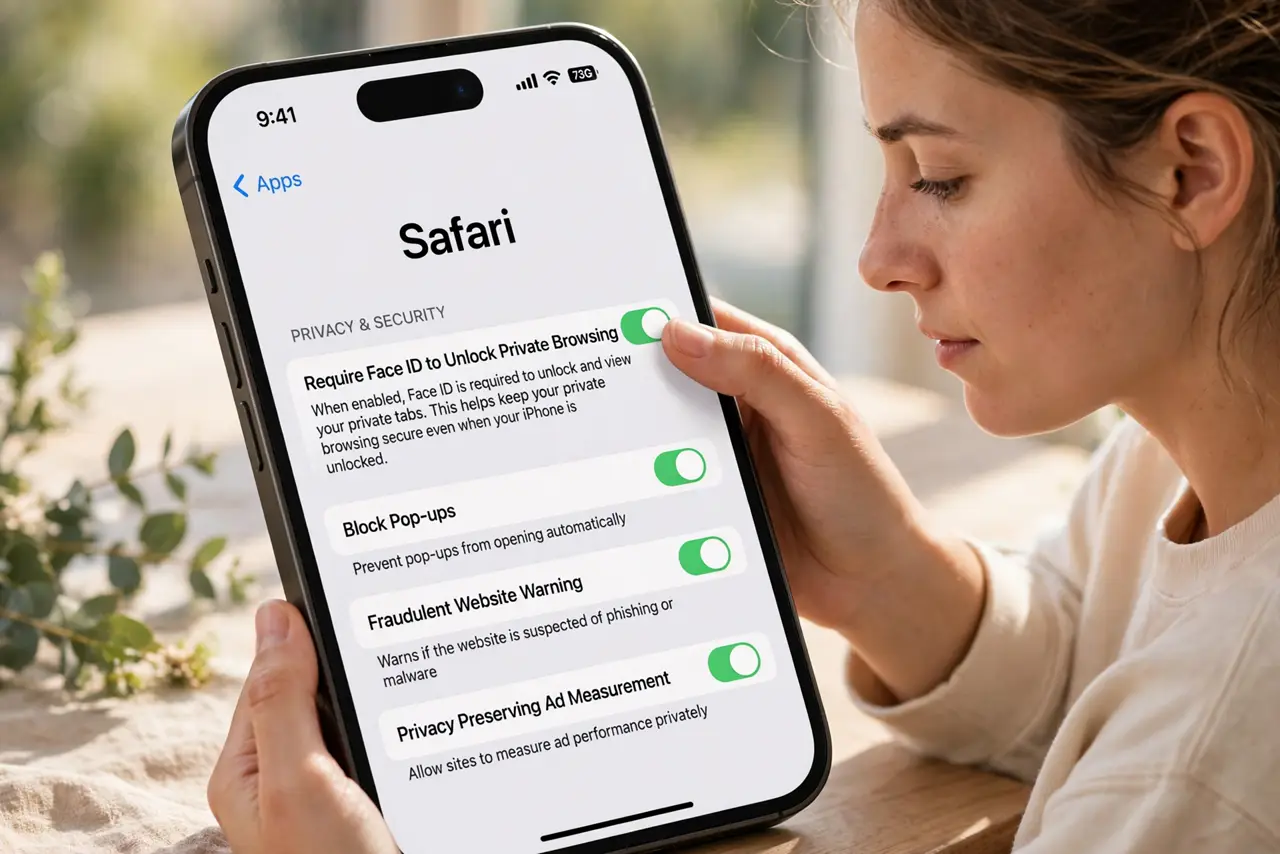
Quick fix: open Settings, Safari, and turn on Require Face ID to Unlock Private Browsing. Now private tabs lock whenever you leave Safari — Face ID reopens them instantly for you and nobody else. Your normal tabs are completely unaffected.
Follow these steps
- Enable the lock. Settings, Safari, scroll to Privacy & Security, and toggle Require Face ID to Unlock Private Browsing. On Touch ID iPhones it uses your fingerprint instead — same protection.
- Test it immediately. Open a private tab, switch to another app, then come back to Safari. You should see the lock screen demanding Face ID — if not, the toggle didn't take; try again.
- Know what it protects. It locks the private tab view behind biometrics. Someone holding your unlocked phone can't peek at private tabs — but your regular tabs and history remain visible as before.
- Use private tabs properly. Private browsing doesn't hide activity from your network, employer, or ISP — it only keeps local history clean. The lock adds device-level privacy on top of that.
- Remember Face ID can fail. With a mask or odd angle, Face ID may ask for your passcode instead — which anyone watching could see. Angle the phone away when unlocking in company.
- Check it after iOS updates. Privacy toggles occasionally reset during major updates. After updating iOS, verify the lock is still on — see vanishing private tabs if tabs behave oddly.
What NOT to do
- Do not assume private tabs make you anonymous. They prevent local history saving — your ISP, network admin, and websites still see your activity.
- Do not rely on the lock against someone who knows your passcode. Face ID falls back to passcode; anyone with your code bypasses the lock.
- Do not forget regular tabs aren't locked. The setting covers private tabs only — sensitive normal tabs should be closed or moved to private.
- Do not confuse this with locked notes or apps. Each Apple privacy lock is separate — tab locking doesn't lock your photos or messages.
Frequently asked questions
Can I lock regular Safari tabs too?
No — the lock applies to private browsing only. For sensitive normal tabs, move them to a private tab group or close them.
Does it work on iPad and Mac?
Yes — the same Require Face ID (or Touch ID / password) option exists in Safari settings on iPad and Mac, protecting private tabs there too.
What if Face ID stops working?
Safari falls back to your device passcode. If biometrics fail entirely, the passcode still guards the tabs — just be discreet entering it.