Low Data Mode? Basics
Low Data Mode tells your iPhone to sip instead of gulp: background app refresh pauses, automatic downloads wait, and streaming quality drops. It is the difference between blowing through a travel data plan in two days and making it last two weeks. It is easy to turn on — and easy to forget you left it on when things start behaving oddly.
TL;DR / Quick Fix
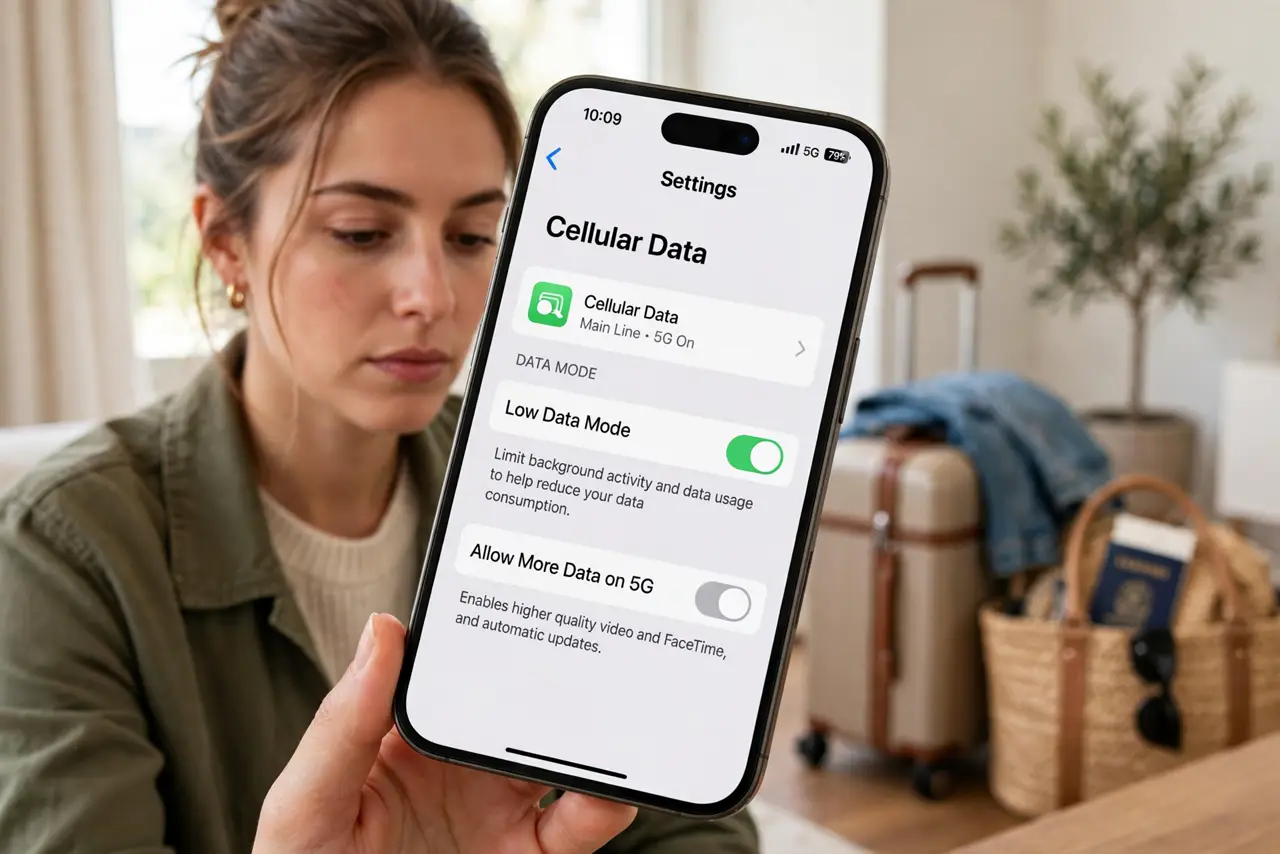
Quick fix: Low Data Mode cuts background data use on iPhone — turn it on in Settings, then Cellular or Wi-Fi, per network. It pauses background refresh, auto-downloads, and photo syncing. Remember to switch it off at home, or apps will seem mysteriously stale.
Follow these steps
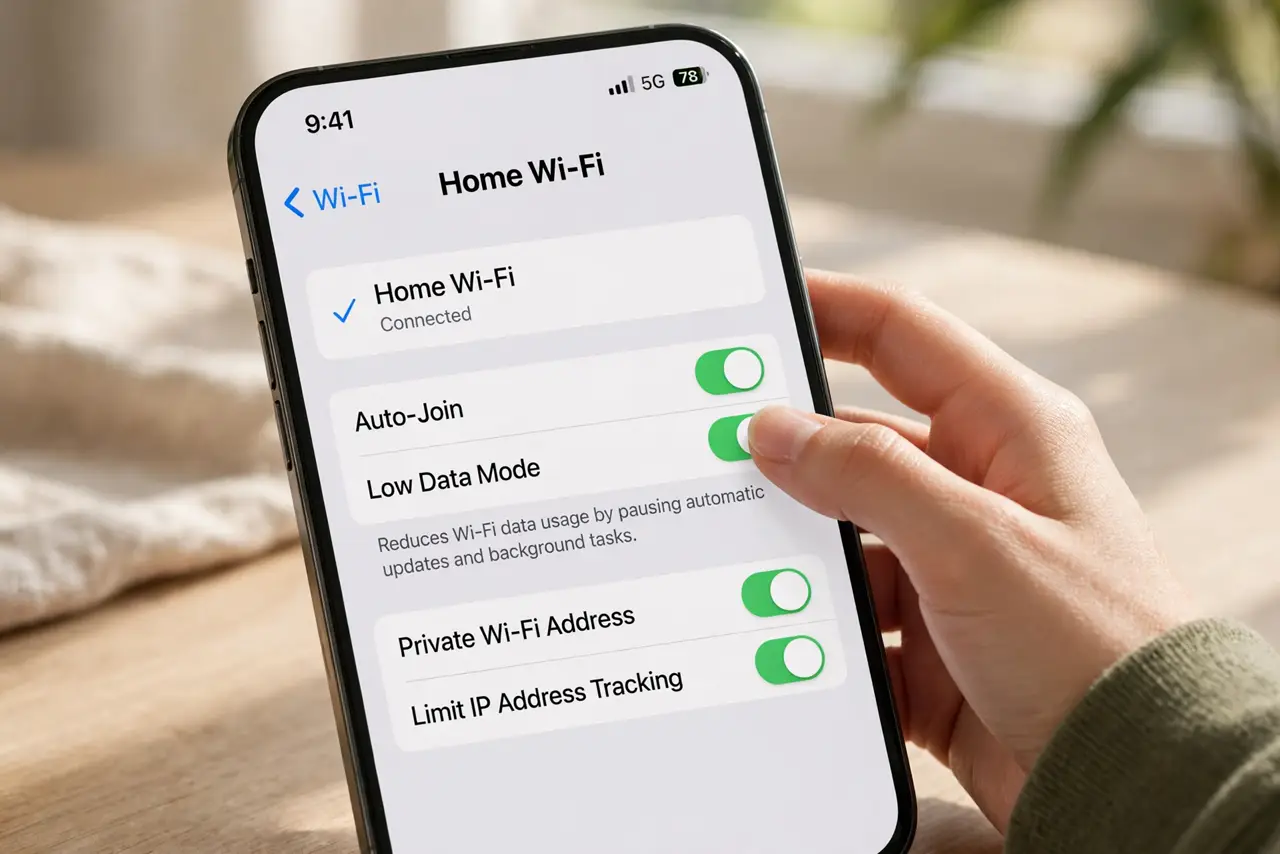
- Turn it on per network. On iPhone, go to Settings, Cellular, Cellular Data Options, and toggle Low Data Mode — it is set per SIM. For Wi-Fi, tap the info icon next to the network name and toggle it there too.
- Know what it pauses. Background app refresh, automatic App Store downloads and updates, iCloud Photos syncing, and high-quality streaming all throttle back. Your foreground browsing works normally — the savings come from the background.
- Use it while traveling. Roaming data and travel eSIMs with small caps are Low Data Mode's home turf. A week of maps and messaging sips data; a week of background photo uploads does not.
- Know the Android equivalent. Android's Data Saver (Settings, Network, Data Saver) does the same job — restricting background data per app. The concept is identical; only the switches differ.
- Watch for stale apps. With background refresh off, apps update only when opened. If your email or news seems frozen in time, that is Low Data Mode working as designed — open the app to refresh.
- Turn it off when you are home. On unlimited home Wi-Fi, Low Data Mode just makes everything slightly worse for no benefit. Make disabling it part of your coming-home routine.
What NOT to do
- Do not leave it on permanently and wonder why apps misbehave. Stale feeds, unsynced photos, and paused backups are the mode doing its job.
- Do not expect it to cut your active usage much. It targets background data — your hour of video streaming is still your hour of video streaming.
- Do not enable it per-network and forget which networks. Check both cellular and Wi-Fi settings; the toggle is not global.
- Do not use it as a substitute for a data plan that fits. If you need it constantly at home, the plan is the problem, not the phone.
Frequently asked questions
Will Low Data Mode break iMessage?
No — messages send and receive normally. It may delay automatic downloads of large attachments until you are on unrestricted data, which is the point.
Does it affect call quality?
No. Voice calls do not go through the data-saving path — call quality is untouched.
Why are my photos not syncing?
iCloud Photos pauses syncing on Low Data Mode to save data. Open Photos on Wi-Fi without the mode, or toggle it off, and the backlog uploads.