Build Your Memoji
Your video calls and messages could star a cartoon you — expressive, customizable, and far more fun than a static profile photo. Memoji is Apple's personalized avatar: built from your face, animated by it in real time, and usable across Messages and FaceTime. This guide builds yours, tunes the details, and puts it to work. For animated photo stickers instead, see live stickers.
TL;DR / Quick Fix
Quick fix: in Messages, open the Memoji sticker drawer and tap the plus to build yours — skin, hair, eyes, accessories, one screen at a time. Save several outfits for moods. Use it in FaceTime to replace your video feed, or send animated Memojis in any conversation.
Follow these steps
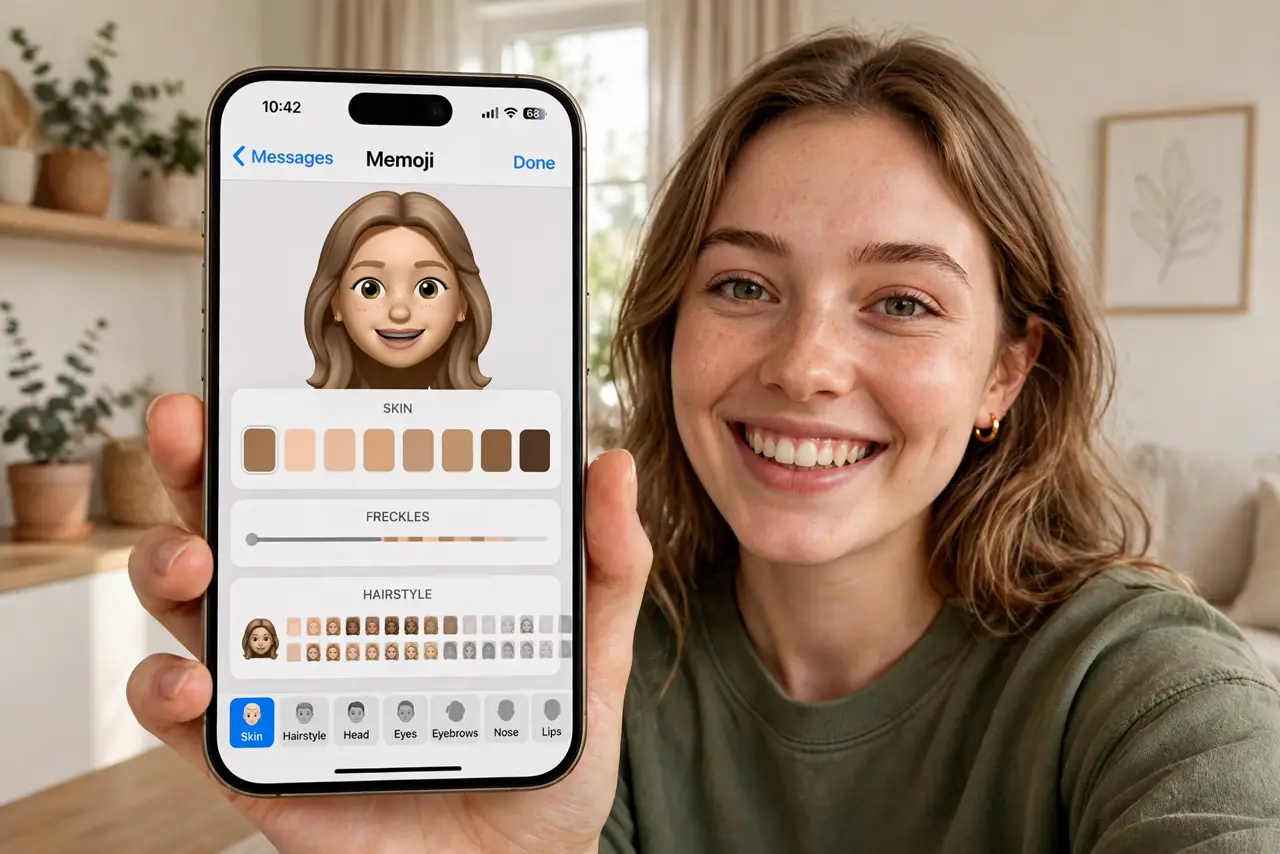
- Open the Memoji builder. In Messages, tap the plus, then Memoji, then the plus again — or find Memoji in the sticker drawer. The builder walks through every feature step by step.
- Build the face first. Skin tone, face shape, eyes, brows, nose, lips — get the structure right before the fun stuff. Resemblance lives in the proportions, not the accessories.
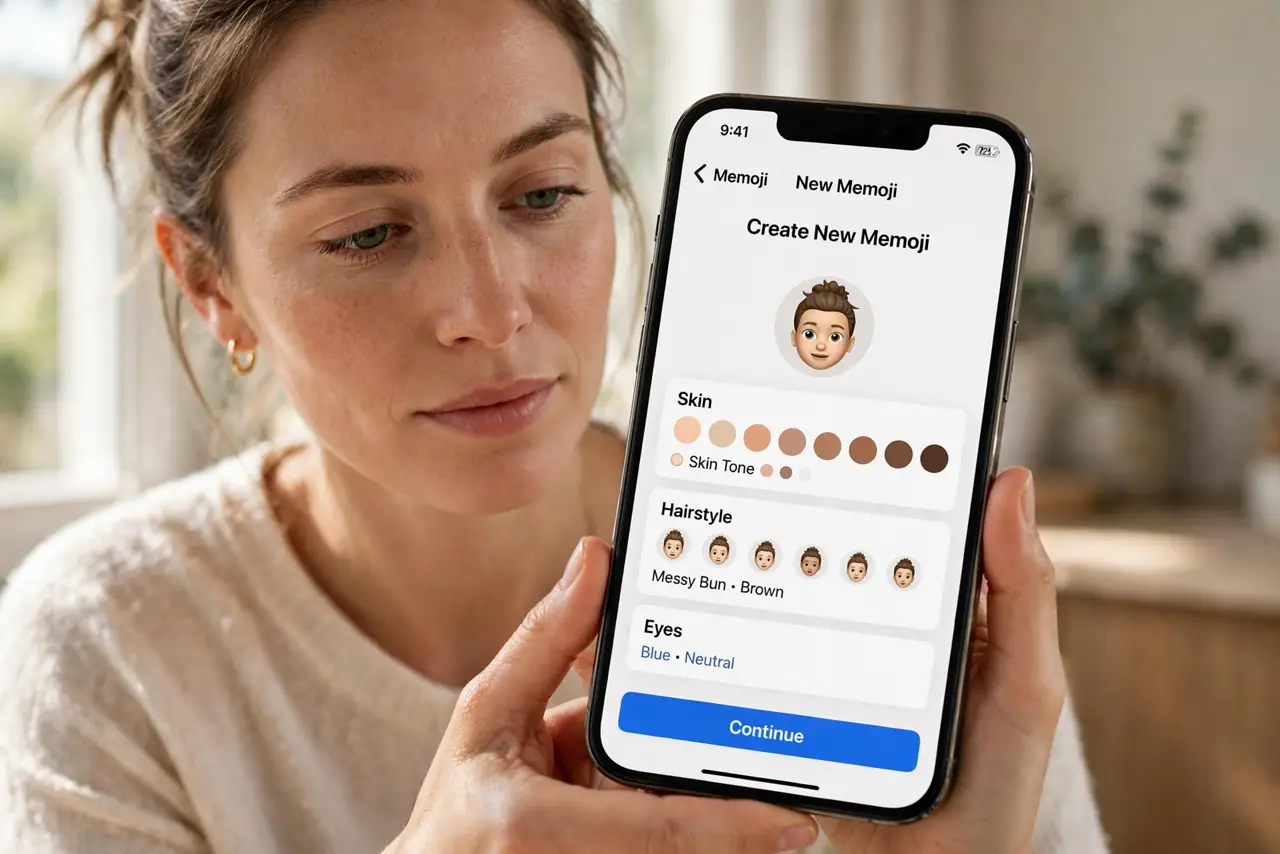
- Add hair and style. Hairstyle, color, facial hair, headwear — this is where personality enters. Try the bold options; you can change everything later.
- Save outfits and variants. Make a few versions: professional, casual, silly. Different contexts want different yous — switching takes seconds.
- Use it in FaceTime. In a FaceTime call, tap Effects and choose your Memoji — it replaces your video with the animated avatar, tracking your expressions live.
- Send animated messages. Record short Memoji videos in Messages — your face drives the avatar's expressions and voice. Ten seconds of Memoji beats a paragraph of text.
What NOT to do
- Do not aim for photorealism. Memoji charm is cartoonish — chasing exact likeness leads to uncanny frustration.
- Do not use someone else's face without asking. Building a Memoji of a friend as a joke needs their okay first.
- Do not forget it needs the TrueDepth camera for live animation. Older devices show stickers but cannot animate in real time.
- Do not leave the builder half-done. An unfinished Memoji with default everything looks odd — spend the five minutes to finish it.
Frequently asked questions
Can I use Memoji on older iPhones?
Stickers work everywhere; live face-tracked animation needs a TrueDepth camera — iPhone X and newer.
Do Memojis sync across devices?
Yes, through iCloud — build once, use on iPhone, iPad, and Mac.
Can I delete a Memoji?
Yes — long-press it in the sticker drawer and delete. Make as many as you like; pruning keeps the drawer tidy.