iPhone Notifications Arrive Late? Fix It
Messages arrive in a batch, minutes or hours late, and you miss the moment. Late notifications are almost always a Focus mode, a power-saving setting, or a per-app toggle, not a broken phone. The same idea drives controlling phone notifications app by app, which is where most late alerts are actually set.
TL;DR / Quick Fix
Quick fix: turn off Focus and Scheduled Summary, turn off Low Power Mode, enable background refresh for the app, allow notifications with sounds and badges, and restart the phone. If it still fails, note exactly when it happens, since that pattern reveals the real cause.
Follow these steps
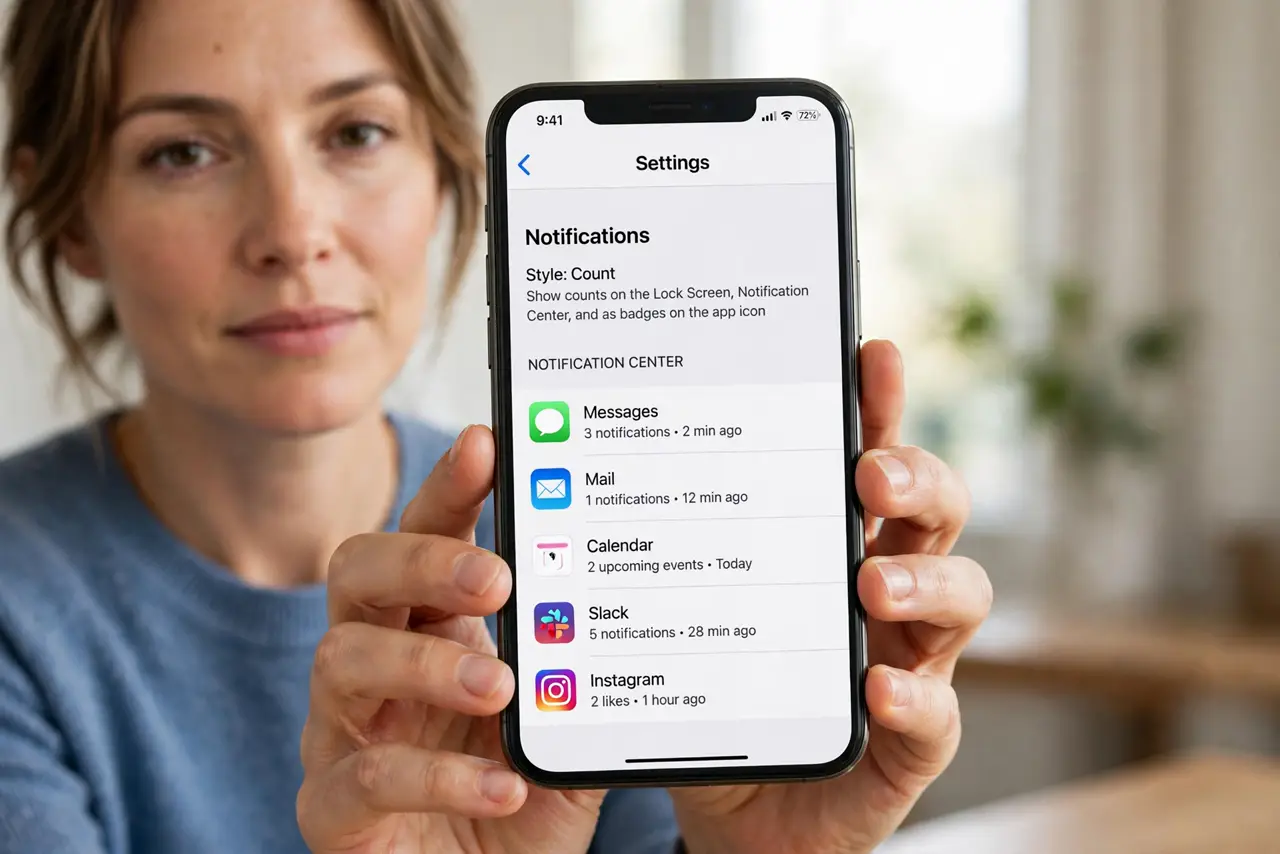
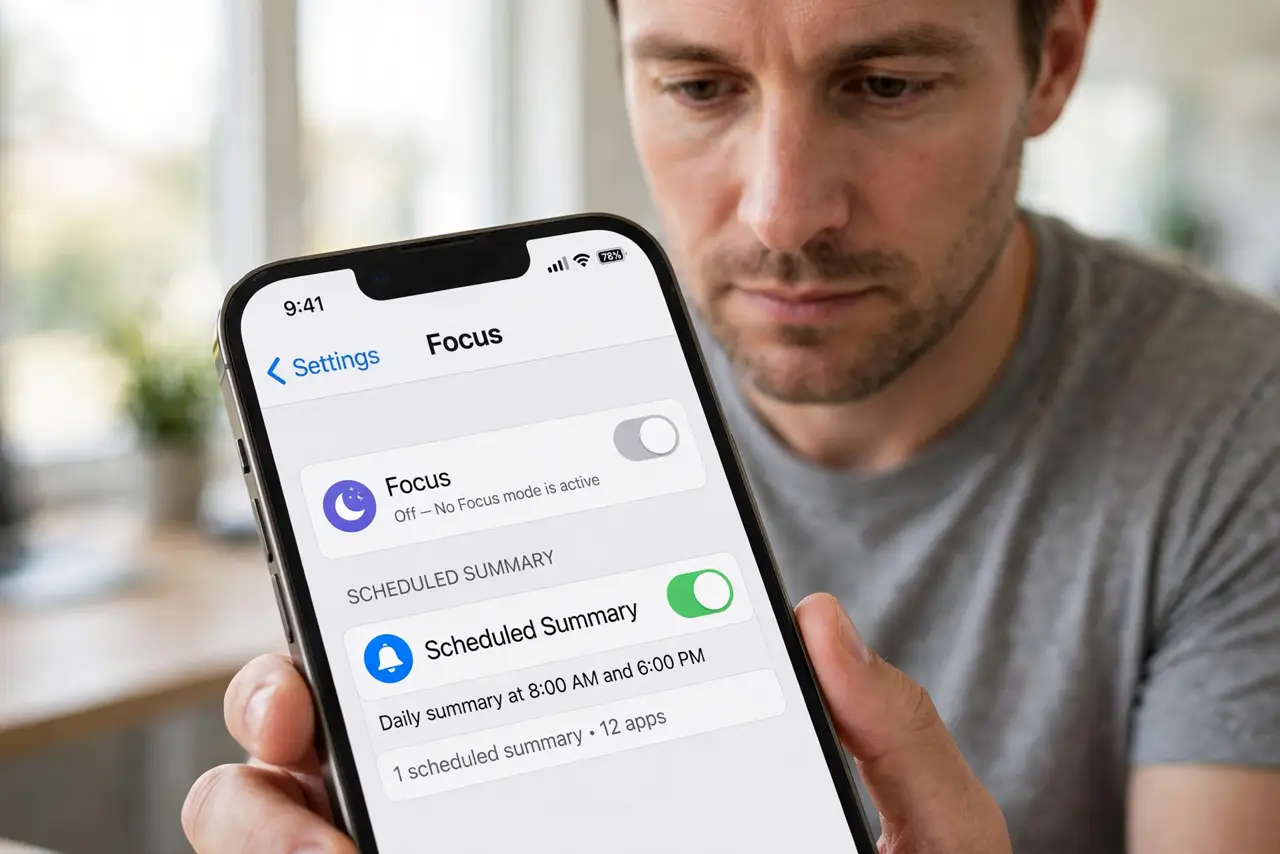
- Turn off Focus and check Scheduled Summary. Open Settings, then Focus, and make sure no Focus is on. Then check Settings, then Notifications, then Scheduled Summary, and remove the late app from any summary.
- Turn off Low Power Mode. Open Settings, then Battery, and turn off Low Power Mode. Low Power Mode delays background activity, which can delay notifications until you open the app.
- Enable background refresh for the app. Open Settings, then General, then Background App Refresh, and turn it on for the late app. Without it, the app may only check for messages when you open it.
- Check the app notification settings. Open Settings, then Notifications, tap the app, and make sure Allow Notifications is on, with Lock Screen, Notification Center, and Banners all enabled.
- Check the in-app notification settings. Open the app itself and check its own notification settings. Some apps have their own quiet hours or notification toggles that override the system setting.
- Restart the phone and test. Restart the iPhone, then send yourself a test message. A restart clears a stuck notification state and shows whether the fix worked.
What NOT to do
- Do not turn off all notifications to fix late ones. That hides the problem instead of fixing the delay, and you will miss more, not less.
- Do not delete and reinstall the app as a first step. Check Focus, Low Power Mode, and per-app settings first, since those fix most delays.
- Do not assume the sender is at fault. If several apps are late, the phone setting is the cause, not each sender.
- Do not leave Scheduled Summary on for urgent apps. Summaries batch alerts by design, so messages and calls should never be in one.
Frequently asked questions
Why do notifications arrive in a batch?
Because Scheduled Summary or a Focus mode held them. Remove the app from summaries and turn Focus off.
Does Low Power Mode delay notifications?
Yes, it can. It limits background activity, so apps check less often until you open them.
Why is only one app late?
Because that app has its own notification or refresh setting off. Check both the system setting and the in-app setting.