Track Orders in Wallet
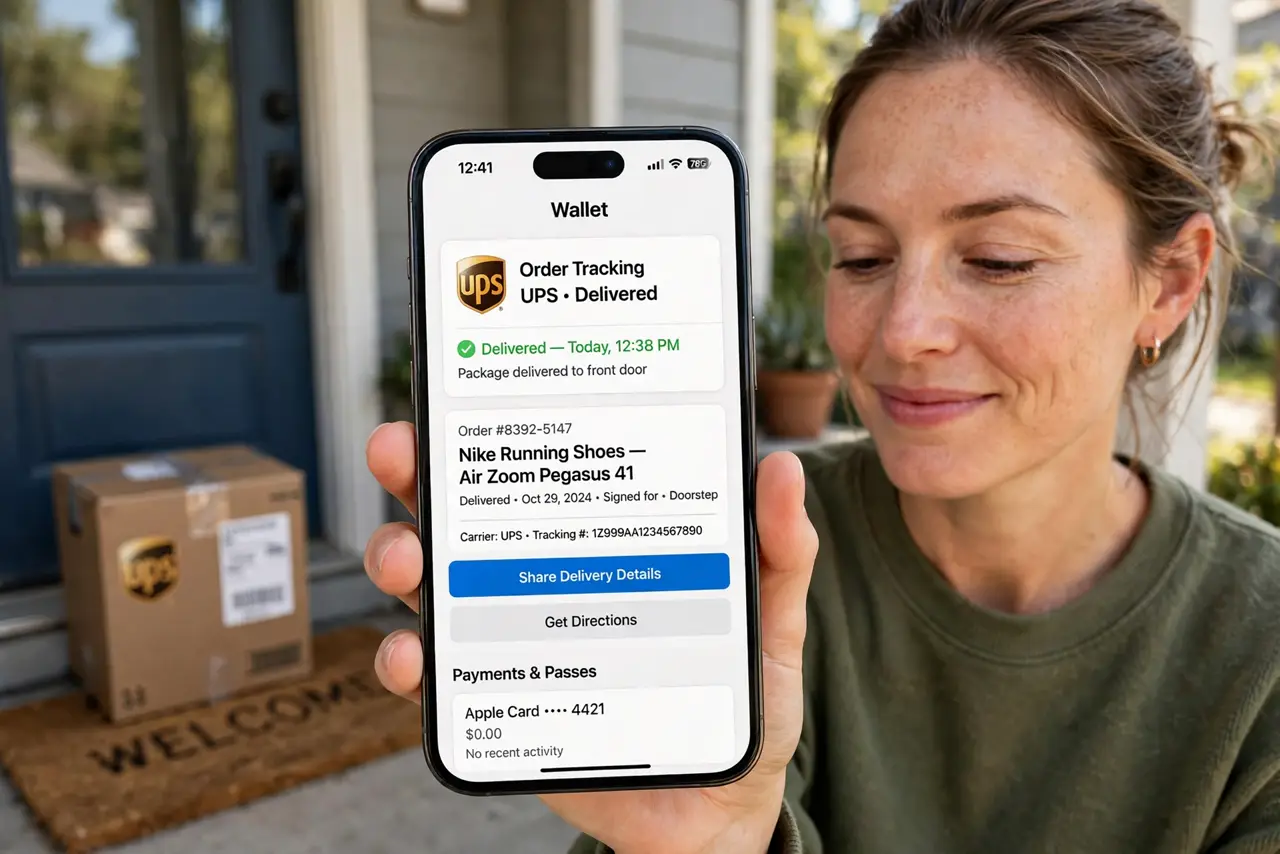
Your packages are scattered across email confirmations, store apps, and text messages, and asking where your order is means a scavenger hunt. Your phone's wallet can pull order tracking into one place, showing status and delivery updates without digging through inboxes. It works with participating stores — not every merchant joins in, so think of it as a helpful hub, not a universal tracker. For travel documents, boarding passes live in the same wallet.
TL;DR / Quick Fix
Quick fix: your phone's wallet can gather order tracking from participating stores into one place — status, tracking numbers, and delivery alerts together. Check that order tracking is enabled, place orders with supported merchants, turn on notifications, and clear out old delivered orders.
Follow these steps
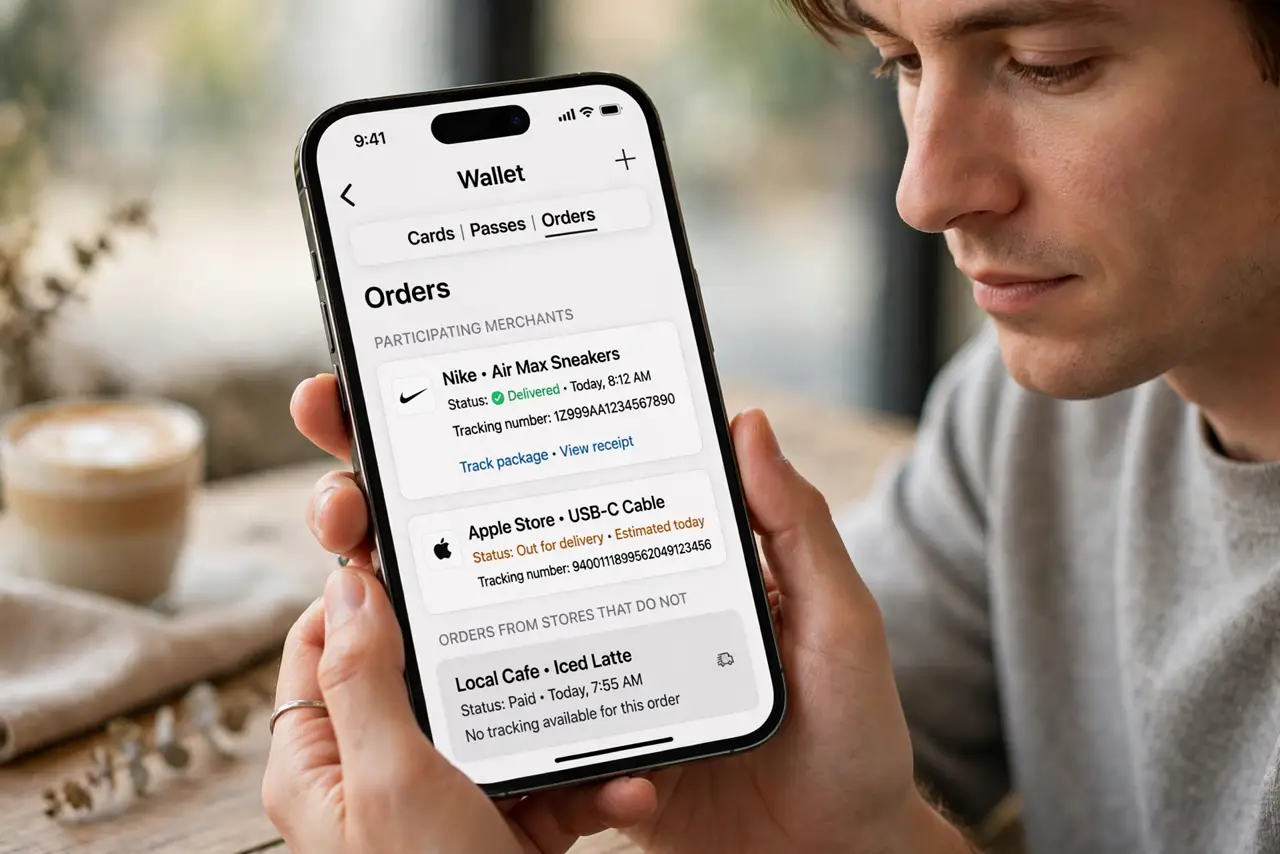
- Understand what the wallet tracks. The wallet shows orders from participating merchants: item, status, and tracking number in one card. Orders from stores that do not participate simply will not appear — that is normal.
- Check that order tracking is on. Open the wallet settings and confirm order tracking is enabled. If it is off, nothing will ever appear no matter how much you order.
- Place orders with participating stores. Tracking appears automatically when you buy from supported merchants with the same account details. There is nothing to scan or enter — the store reports it.
- Read the order card. Tap an order to see its timeline: confirmed, shipped, out for delivery, delivered. The tracking number is there too if you need the carrier's own site.
- Turn on delivery notifications. Enable notifications for the wallet so status changes ping you. One glance tells you the package arrived — no more refreshing a tracking page.
- Remove old orders. Delivered orders pile up. Clear them out periodically so the wallet stays a tracker, not an archive — your email still has the receipts.
What NOT to do
- Do not expect every store to appear. Participation is opt-in for merchants; small shops and marketplaces often do not join.
- Do not ignore the carrier's site for problems. The wallet shows status summaries — disputes and claims still go through the carrier.
- Do not leave tracking notifications off and wonder why nothing updates. The hub only helps if it is allowed to ping you.
- Do not treat the wallet as your receipt archive. Keep email confirmations — the wallet card is for tracking, not proof of purchase.
Frequently asked questions
Why does one of my orders not show up?
The merchant does not participate, or the order used different contact details. Check the store's own confirmation email — nothing is lost, it just lives elsewhere.
Can I track returns in the wallet?
Return tracking depends on the merchant. Most order cards focus on delivery; returns usually live in the store's app or site.
Does this share my purchases with anyone?
Order data stays between you, the merchant, and the wallet app. It is not posted or shared — but review the privacy settings if that matters to you.