Edit Portrait Blur After the Shot
You nailed the portrait but the background blur is too strong — faces look pasted on — or too weak to matter. The iPhone stores depth data with every portrait, so the blur is fully adjustable after the fact: strength, and even which face is in focus. Here is the two-minute edit.
TL;DR / Quick Fix
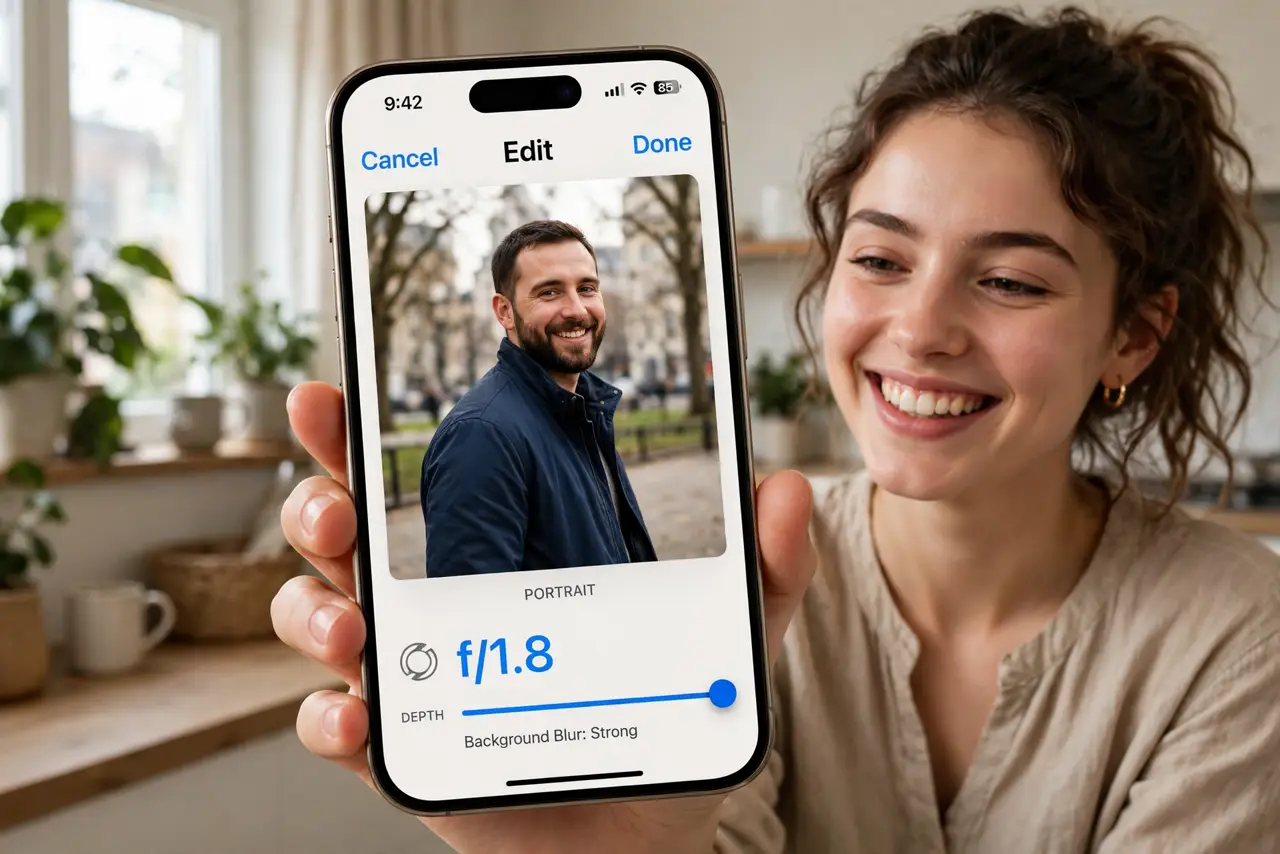
Quick fix: open the portrait photo, tap Edit, and drag the Depth slider — the f-number — to strengthen or soften the background blur. Lower f-numbers mean creamier blur. You can also tap to move the focus point to a different face or object after the shot.
Follow these steps
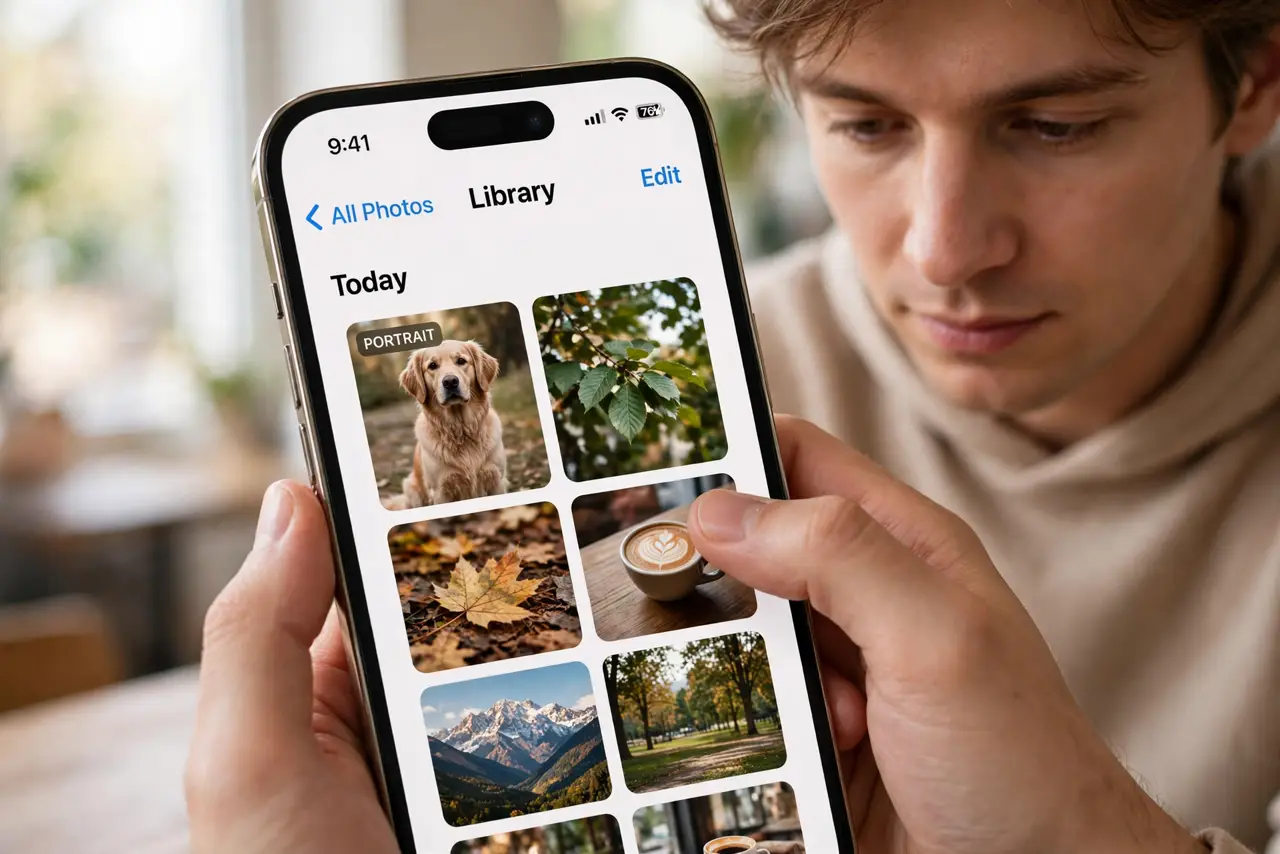
- Open the portrait and tap Edit. Find the photo in your library — portraits carry a small PORTRAIT badge — and tap Edit.
- Drag the Depth slider. The f-number slider runs from f/1.4 (maximum blur) to f/16 (nearly sharp throughout). Watch the background melt or sharpen live.
- Move the focus point. Tap any face or object in the frame to shift focus there. The depth map recalculates — the previously sharp face softens.
- Check edges at full zoom. Pinch in on hair and glasses. Extreme blur settings expose ragged edges; back off one notch if the cutout looks fake.
- Try the studio lights too. The same Edit screen offers Portrait Lighting — Natural, Studio, Contour. Blur plus the right light sells the shot.
- Revert anytime. Tap Revert to return to the original capture. Depth edits are non-destructive — the underlying data never changes.
What NOT to do
- Do not crank blur to maximum on every portrait. f/1.4 on a busy background looks artificial — f/2.8 to f/4 reads natural.
- Do not expect miracles on non-portrait photos. Depth data only exists for shots taken in Portrait mode.
- Do not re-save the photo to 'lock in' the blur. Edits save automatically; exporting a copy just duplicates the file.
- Do not confuse this with the Photographic Style tone. Blur is depth; style is color — different systems.
Frequently asked questions
Can I add portrait blur to a regular photo?
On iPhone 15 and later, the phone captures depth automatically for people and pets, so many regular shots qualify. Older shots need Portrait mode at capture.
Why does the blur look fake around hair?
Depth estimation struggles with fine edges. Reduce the blur one or two stops — the artifact usually vanishes.
Does editing blur reduce photo quality?
No. The depth map is metadata; adjusting it never touches the actual pixels until you export.