Quick Start? Basics
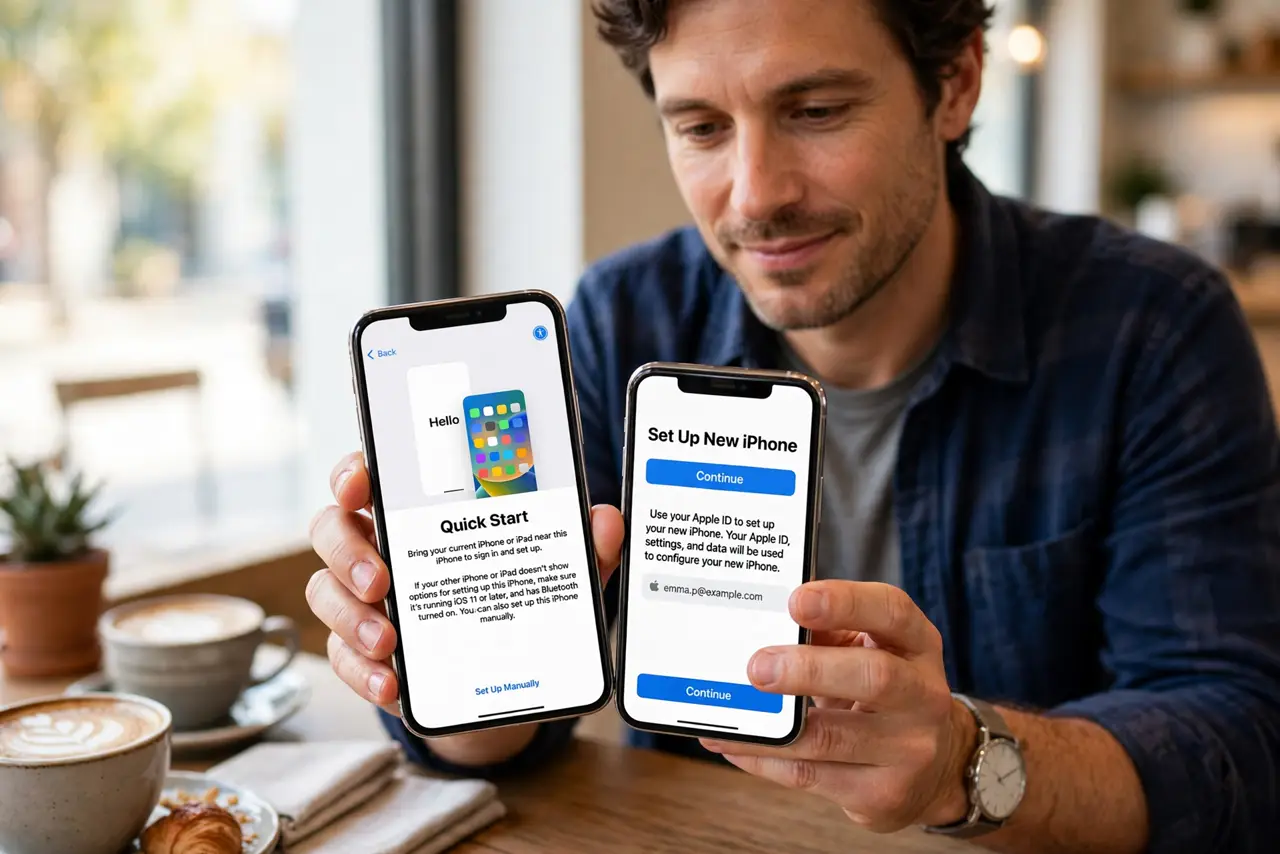
You just unboxed a new iPhone and the old one is sitting right there. Quick Start is Apple's phone-to-phone transfer: hold the two phones near each other and everything — apps, photos, settings, even your wallpaper — moves over directly. It is the fastest, most complete way to switch phones. Here is how to run it without a hiccup.
TL;DR / Quick Fix
Quick fix: turn on the new iPhone, place it next to your unlocked old iPhone, and follow the Quick Start prompt. Choose Transfer from iPhone, keep both phones on Wi-Fi and charging, and do not separate them. The transfer takes 30–90 minutes depending on your data.
Follow these steps
- Prepare both phones. Update the old iPhone to the latest iOS, turn on Bluetooth and Wi-Fi, and charge both phones above 50% or plug them in. Quick Start is picky about readiness — five minutes of prep prevents an hour of retries.
- Start Quick Start on the new iPhone. Power on the new iPhone and place it next to the old one. A 'Set Up New iPhone' prompt appears on the old phone — tap Continue and confirm with your Apple ID.
- Scan the animation. An animated cloud appears on the new phone; hold the old phone's camera over it like pairing AirPods. If the camera fails, tap Authenticate Manually and enter the code shown.
- Choose Transfer from iPhone. When asked how to transfer data, choose Transfer from iPhone for a direct phone-to-phone copy — it is the most complete option. Prefer a cloud restore instead? See our backup restore guide for the iCloud route.
- Keep the phones together and powered. The transfer runs 30–90 minutes. Keep both phones close, on Wi-Fi, and charging — walking away with one of them pauses or breaks the copy.
- Verify before wiping the old phone. Once done, check photos, messages, and banking apps on the new phone. Keep the old phone untouched for a day as a backup — only then consider erasing it for trade-in or sale.
What NOT to do
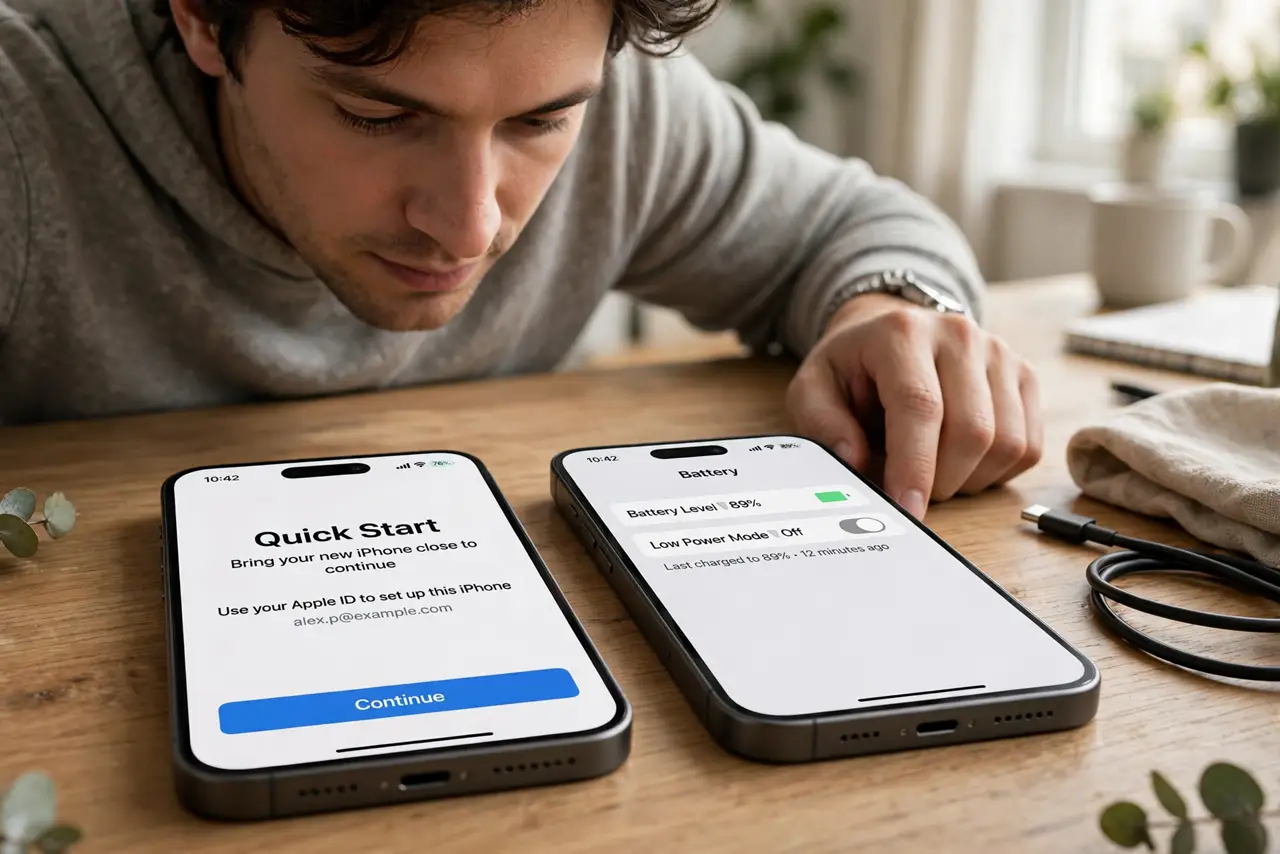
- Do not start with a nearly dead battery on either phone. A shutdown mid-transfer corrupts the copy and forces a full restart.
- Do not separate the phones during the transfer. Distance breaks the direct connection and the transfer stalls or fails.
- Do not skip the old phone's software update. An outdated iOS on the old phone is the most common cause of Quick Start refusing to start.
- Do not sell the old phone the same day. Live with the new phone for 24 hours first to catch anything that did not transfer.
Frequently asked questions
Quick Start is stuck — what do I do?
Keep both phones close, on Wi-Fi, and charging, then wait — stalls often resolve. If it is frozen for over an hour, restart both phones and start Quick Start again; nothing is lost since the old phone is untouched.
Can I use the old phone during the transfer?
Better not to. Using it can slow or interrupt the copy — treat both phones as busy until the transfer finishes.
Does Quick Start move my passwords and health data?
Yes, when you transfer directly phone-to-phone with the devices near each other. An encrypted iCloud backup also carries them; an unencrypted computer backup does not.