Recovery Mode? Basics
Your iPhone is stuck on the Apple logo, frozen on a black screen, or looping restarts — and nothing you press brings it back. Recovery Mode is Apple's deep-reset doorway: it lets a computer reinstall iOS even when the phone cannot boot itself. It sounds scary, but it is a standard repair tool. Here is how to enter it, what to choose, and how to get your data back after.

TL;DR / Quick Fix
Quick fix: connect the iPhone to a computer, then press Volume Up, Volume Down, then hold the Side button until the recovery screen appears. On the computer, choose Update first — it reinstalls iOS without erasing. Only choose Restore if Update fails; then bring everything back from your backup.
Follow these steps
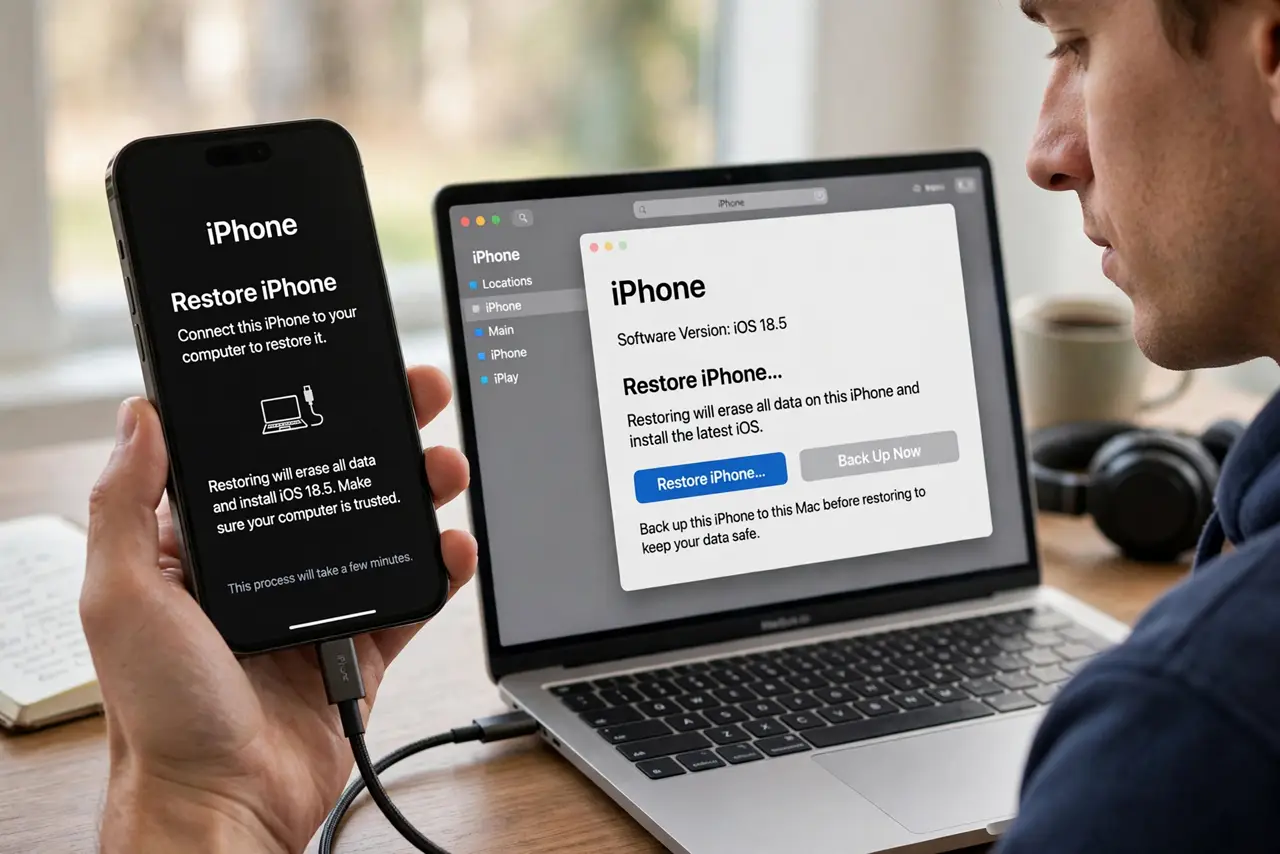
- Connect to a computer first. Plug the iPhone into a Mac (Finder) or PC (Apple Devices app or iTunes) with a real data cable. The computer does the actual repair work — the phone just needs to reach the recovery screen.
- Enter Recovery Mode with the button sequence. Quick-press Volume Up, quick-press Volume Down, then press and hold the Side button. Keep holding past the Apple logo until you see the cable-and-computer screen — about 15 seconds. Timing matters; too short just restarts the phone.
- Choose Update before Restore. The computer offers Update or Restore. Update reinstalls iOS while trying to keep your data — always try this first. It fails sometimes on badly corrupted installs, and only then do you move to Restore.
- Restore only as the last resort. Restore erases the phone completely and installs fresh iOS. Afterward, set it up and restore from your backup to get everything back — this is why current backups matter.
- Exit Recovery Mode if you change your mind. Hold the Side button until the phone restarts normally to leave Recovery Mode without changing anything. Nothing is modified until you click Update or Restore on the computer.
- Know when it is a hardware problem. If Recovery Mode fails repeatedly, the screen stays black, or the computer never sees the phone, you are likely looking at hardware failure — time for Apple Support or a repair shop, not more button sequences.
What NOT to do
- Do not choose Restore before trying Update. Restore erases everything; Update often fixes the same problem with your data intact.
- Do not use a charge-only cable. Recovery Mode needs a data connection to the computer — a power-only cable leaves you staring at the screen with no way forward.
- Do not panic if the phone exits Recovery Mode by itself. It times out after about 15 minutes of inactivity — just re-enter it and continue.
- Do not attempt this with a dying battery. Plug the phone into power; an interruption mid-reinstall can make things worse.
Frequently asked questions
Will Recovery Mode delete my photos?
Choosing Update tries to preserve them; choosing Restore erases everything. Either way, a current backup made beforehand removes the worry entirely.
How is this different from a force restart?
A force restart just reboots the phone. Recovery Mode boots into a special state where a computer can rewrite iOS itself — for problems a reboot cannot touch.
The computer doesn't see my iPhone — now what?
Try a different cable (data-capable), a different USB port, and confirm the computer's software is current. If it still does not appear, suspect the cable or the phone's port first.