Restore From a Backup?
You have a new iPhone in your hand, or your old one was just wiped, and everything you care about lives in a backup. Restoring from a backup is the moment your new phone becomes your phone again — photos, messages, apps, and settings all flow back. It is a safe process as long as you restore the right backup, with the right account, on Wi-Fi. This guide walks through iPhone and Android restores step by step, with the checks that keep anything from being lost.
TL;DR / Quick Fix
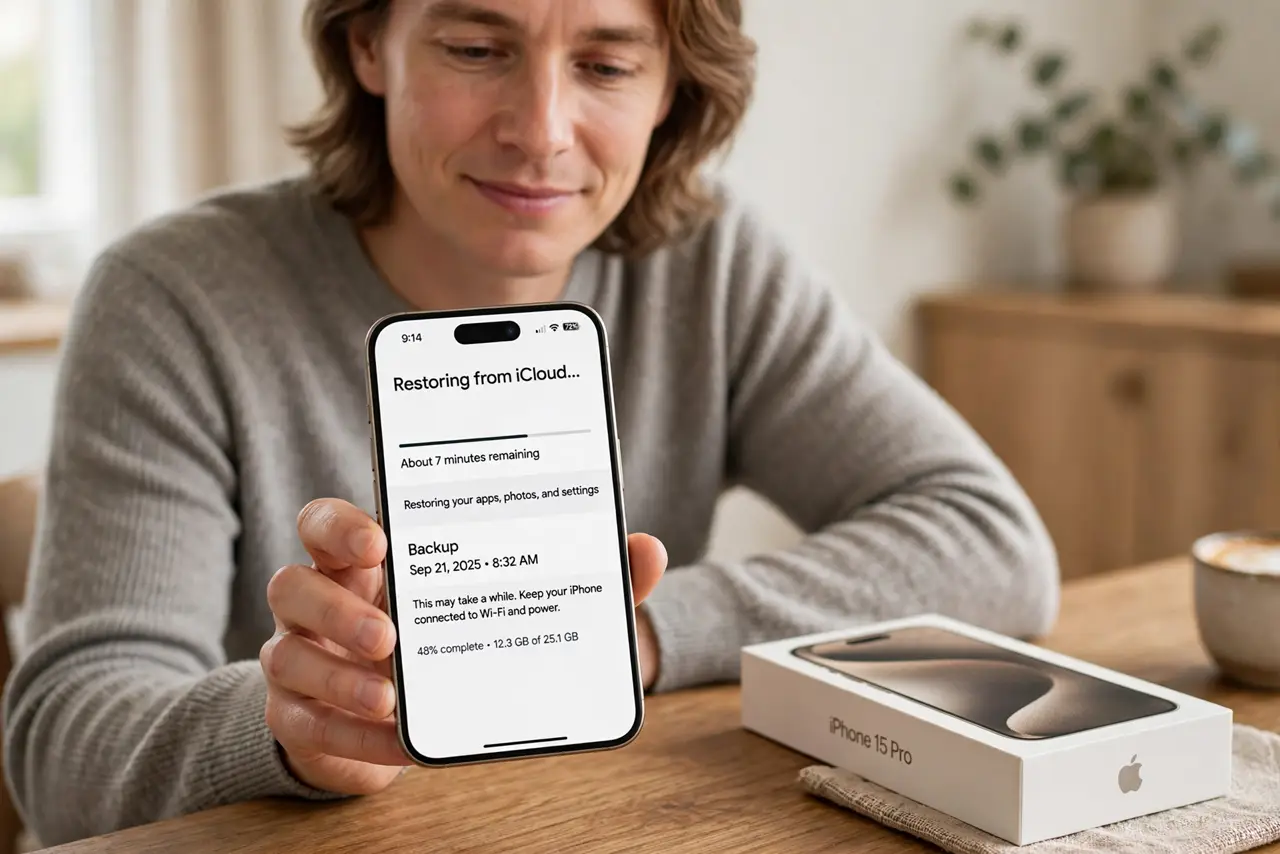
Quick fix: on iPhone, erase the phone and choose Restore from iCloud on the Apps & Data screen. On Android, sign in to your Google account during setup and pick your backup. Use the same account as the original backup, stay on Wi-Fi, and let it finish.
Follow these steps
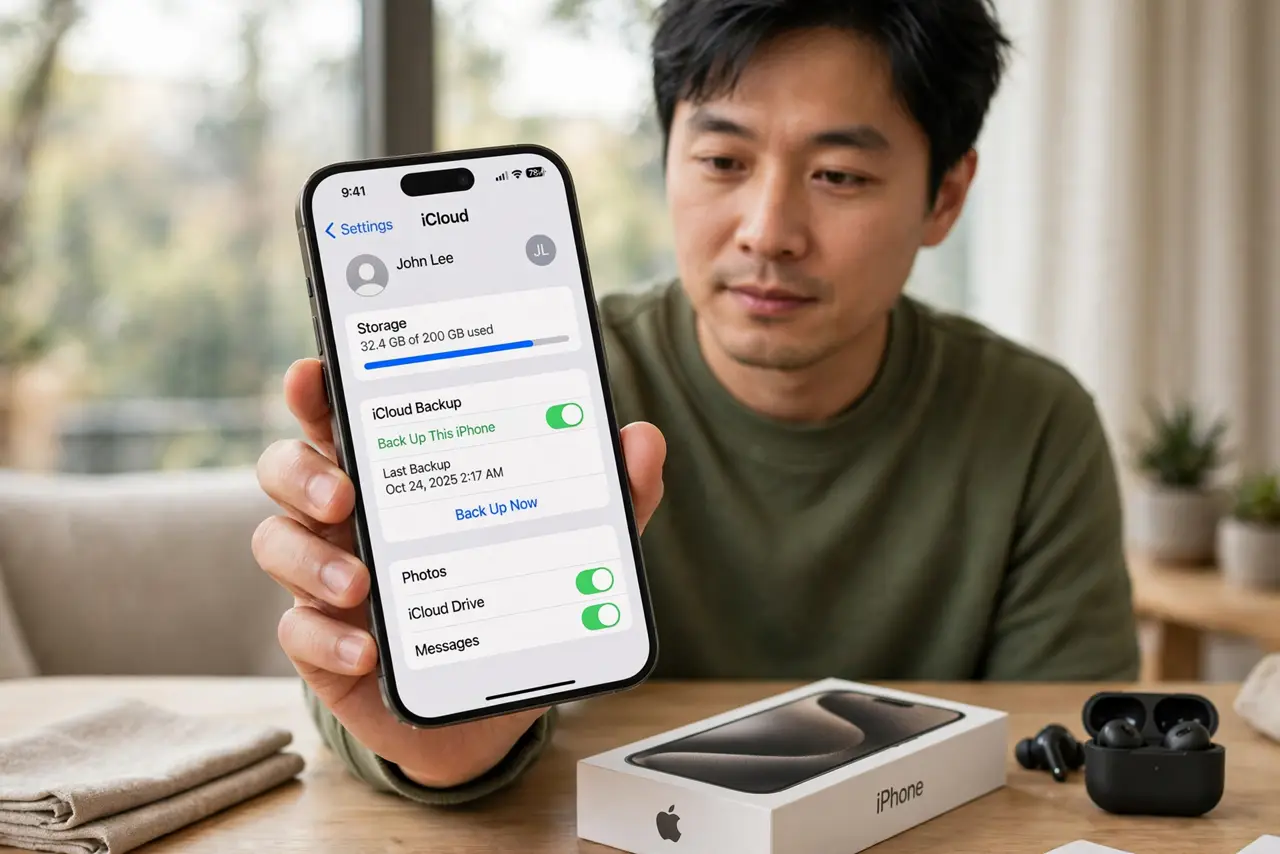
- Check the backup date before you touch anything. On iPhone, go to Settings, tap your name, then iCloud, and look at the last backup date. On Android, check Settings > Google > Backup for the backup details. If the newest backup is weeks old, make a fresh one now — restoring a stale backup is the top reason people lose recent photos.
- Sign in with the original account. A backup is tied to an Apple ID on iPhone and a Google account on Android. Sign in with the same account that made the backup, or the restore option will not appear at all. Double-check the email address before you proceed.
- Restore from the right screen during setup. On iPhone, choose Restore from iCloud on the Apps & Data screen after erasing or during new setup. On Android, choose your backup when setup asks. Moving from one iPhone to another in person? Quick Start handles transfer and backup restore together.
- Stay on Wi-Fi and plugged into power. Restores can take an hour or more on large backups, and a dead battery or dropped connection mid-restore forces a restart. Plug the phone in, connect to reliable Wi-Fi, and leave it alone while it works.
- Let photos and apps finish downloading after the phone boots. The phone becomes usable before everything is back — apps download in the background and photos sync over time. Open Photos and the App Library and give them a few hours on Wi-Fi before deciding something is missing.
- Verify the important things before wiping the old phone. Check contacts, messages, photos, and one logged-in app on the new phone. Only erase or sell the old device once you are sure everything arrived — erasing the old phone is one-way.
What NOT to do
- Do not restore using a different Apple ID or Google account. The backup belongs to the account that made it, and you will not see it otherwise.
- Do not interrupt the restore to 'speed it up.' Rebooting mid-restore can corrupt the transfer and force you to start over.
- Do not restore over mobile data with a large backup. It will eat your plan and likely stall; wait for Wi-Fi.
- Do not wipe the old phone until the new one is fully verified. The old phone is your safety net until everything checks out.
Frequently asked questions
Will restoring erase what is already on the phone?
On iPhone, you erase the phone first, then restore onto the blank device — that is the intended flow. On Android, restoring during setup writes over a fresh install. Either way, start with a current backup so the erase costs you nothing.
Why can't I see my backup during setup?
Almost always a wrong account — you are signed in with a different Apple ID or Google account than the one that made the backup. Sign out, sign in with the original, and the backup will appear.
How long does a restore take?
Usually 30 minutes to a few hours, depending on backup size and Wi-Fi speed. Large photo libraries are the slow part; the phone is usable while apps and photos keep downloading in the background.