Run iPhone Safety Check
If you are leaving a controlling relationship or any unsafe situation, your phone can quietly share your location, messages, and accounts with the wrong person. iPhone Safety Check is built for exactly this moment: one screen that cuts off sharing or lets you review every connection. Android has its own equivalent — see the Android Safety Check. For device theft rather than personal safety, also turn on Stolen Device Protection.
TL;DR / Quick Fix
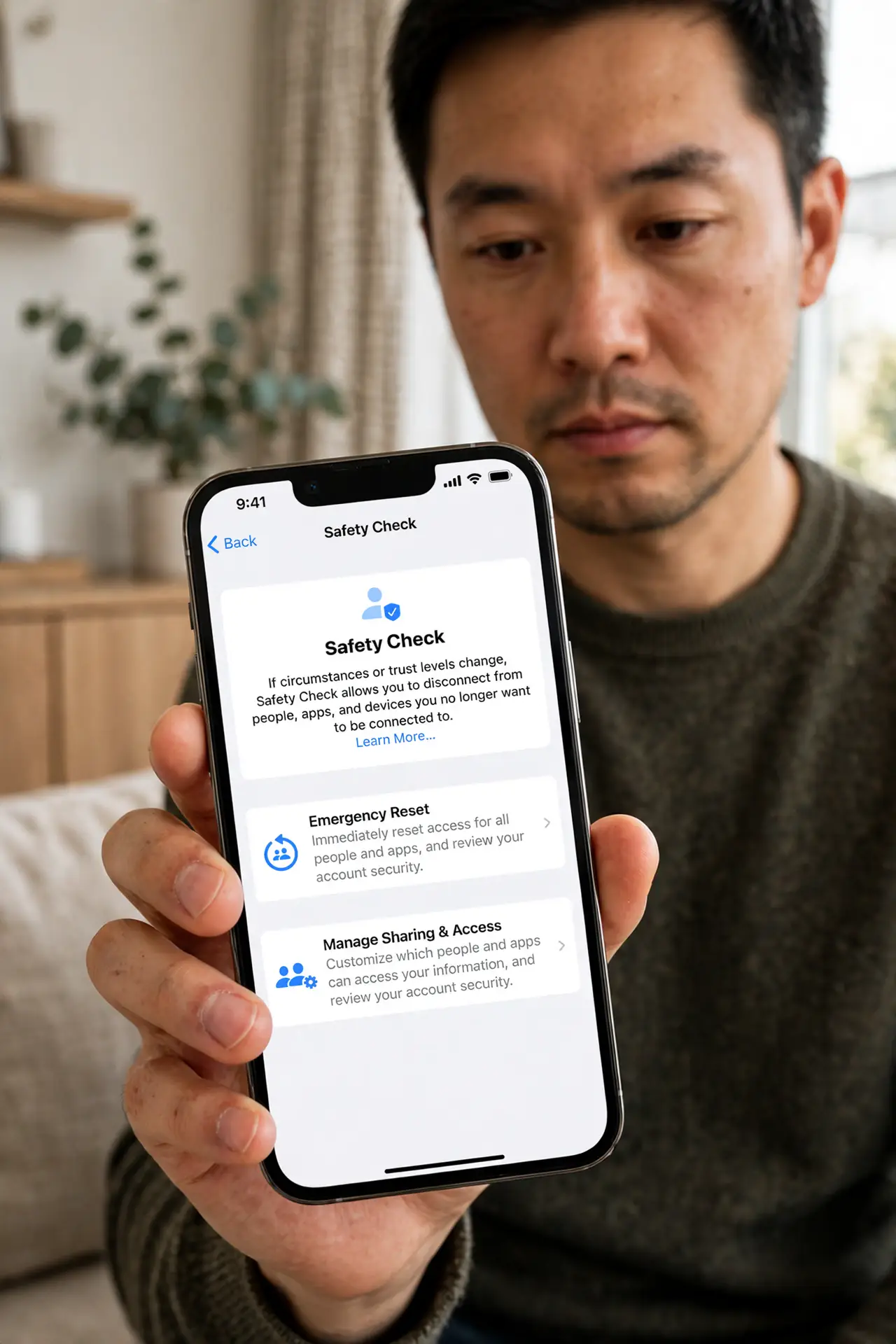
Quick fix: iPhone Safety Check, under Settings, Privacy and Security, cuts off location and data sharing with people and apps, or lets you review each connection. Use Emergency Reset to stop everything at once. If someone may be monitoring your phone, get help from a trusted person first.
Follow these steps
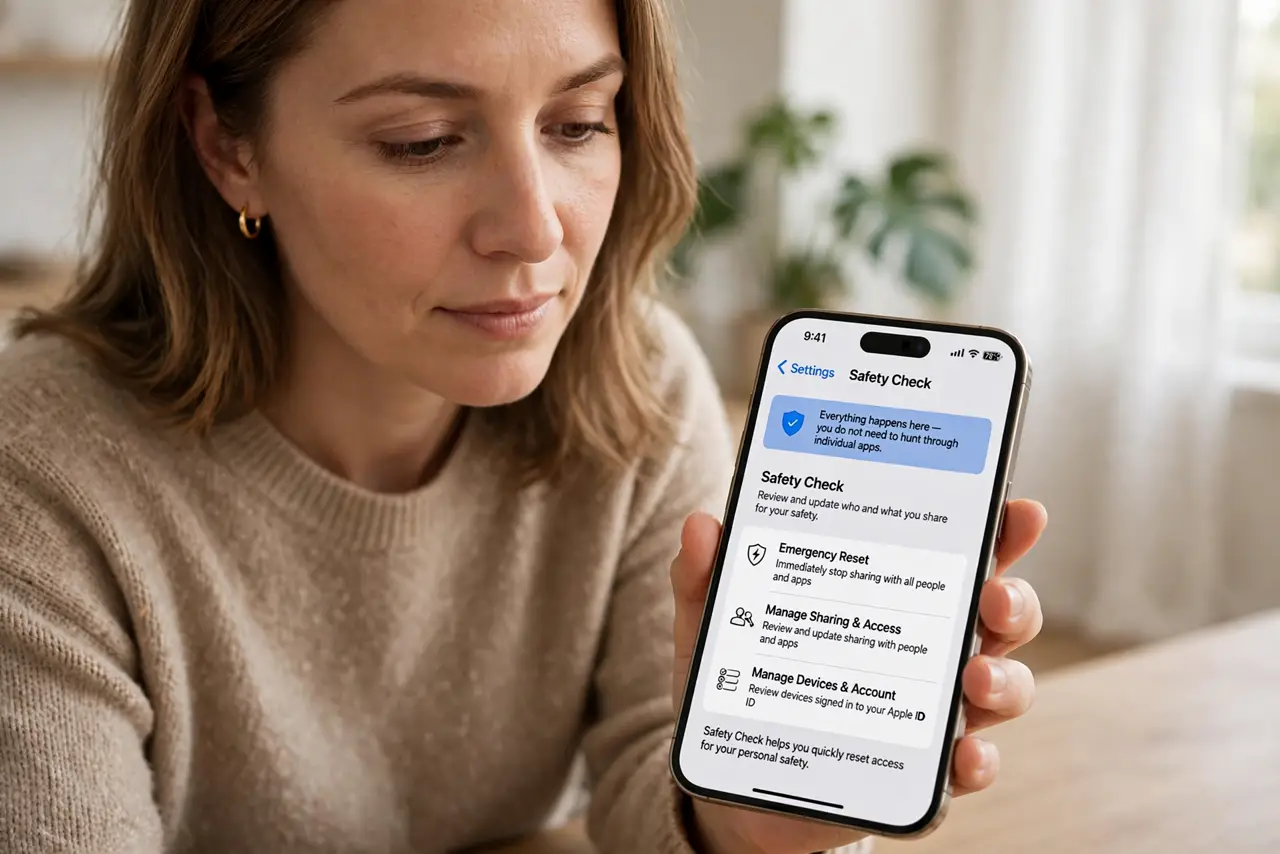
- Open Safety Check. Go to Settings, then Privacy and Security, then Safety Check. Everything happens here — you do not need to hunt through individual apps.
- Choose Emergency Reset or Manage Sharing. Emergency Reset immediately stops sharing with all people and apps and secures your accounts. Manage Sharing and Access lets you review each connection one by one if you need finer control.
- Review people with access to your location. Look through everyone who can see your location in Find My and related apps. Remove anyone who should not have it — changes apply silently.
- Review which apps see your data. Check which apps can access your location, photos, microphone, and other data. Revoke access for anything you do not recognize or no longer trust.
- Secure your accounts on this device. Safety Check can sign you out of iCloud on your other devices and prompt you to change your device passcode, so old logins cannot be used against you.
- Plan your next step safely. If you believe someone is actively monitoring your phone, do this from a device they cannot access, or ask a trusted person for help. A settings screen cannot replace real-world safety planning.
What NOT to do
- Do not run Safety Check on a phone someone is watching over your shoulder. Use a trusted person's device or a safe computer instead.
- Do not assume one reset covers everything. Some apps have their own sharing settings outside Apple's screen — check messaging apps separately.
- Do not forget your Apple ID password. If someone knows it, they can undo your work — update it and turn on two-factor authentication.
- Do not treat this as a substitute for professional help. If you are in danger, contact local support services, not just your settings.
Frequently asked questions
Will the other person know I cut them off?
They simply stop receiving your location and shared data — there is no notification that you used Safety Check. They may notice the sharing stopped, which is unavoidable.
Does Safety Check delete my photos or messages?
No. It stops sharing and secures accounts; nothing is deleted. Your data stays on your phone.
I have an Android phone. Is there an equivalent?
Android does not have one single screen, but you can do the same review step by step — see the Android walkthrough.