iPhone Screen Dims During Calls? Fix It
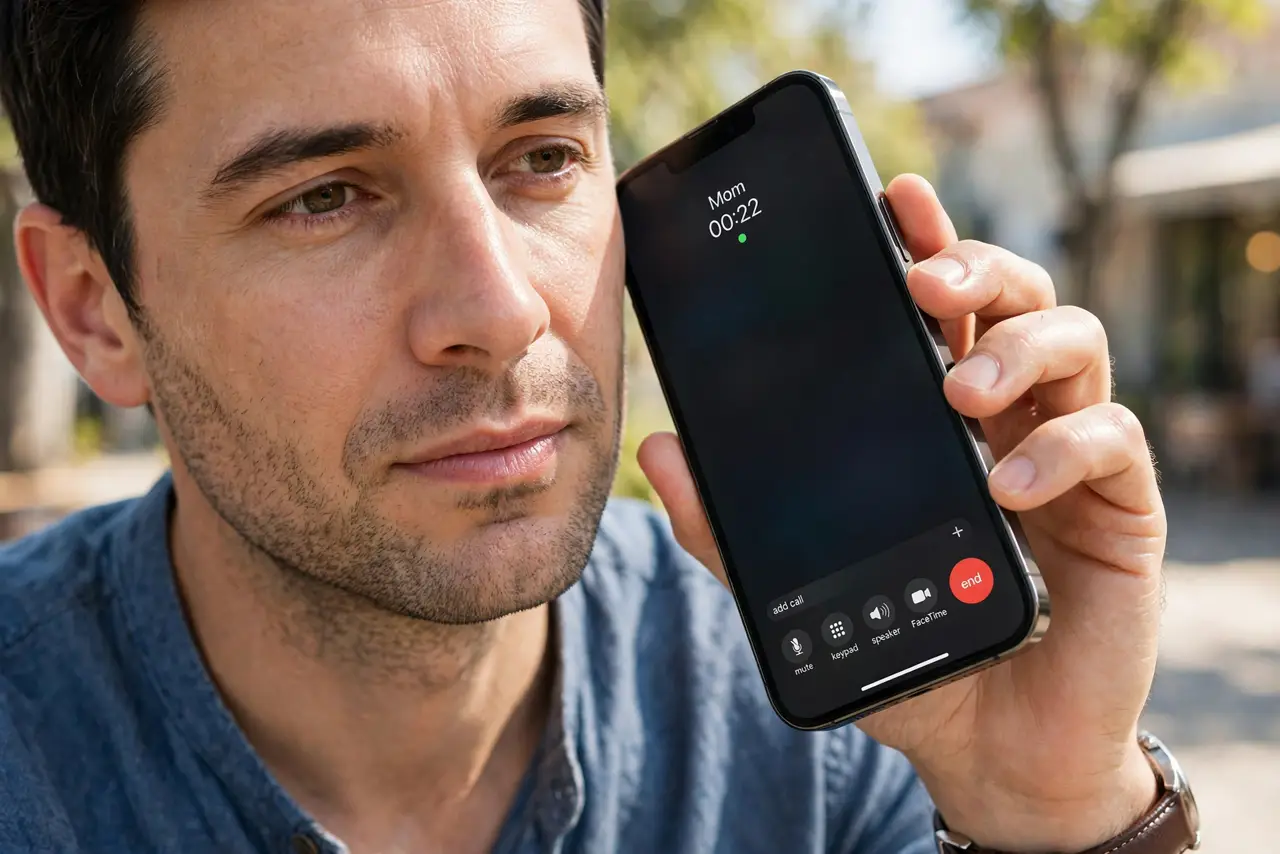
Your iPhone screen goes dark the moment you lift it to your ear, and sometimes it stays dark when you pull it away. That is the proximity sensor doing its job, but a case or protector can fool it. This is a sensor problem first, not a brightness problem, unlike a screen that is too dim outdoors, which is about brightness settings.
TL;DR / Quick Fix
Quick fix: understand the proximity sensor, remove any case or protector covering the top of the phone, clean the top edge, test without the case, restart the phone, and check auto-brightness. If it still fails, note exactly when it happens, then try again slowly once.
Follow these steps
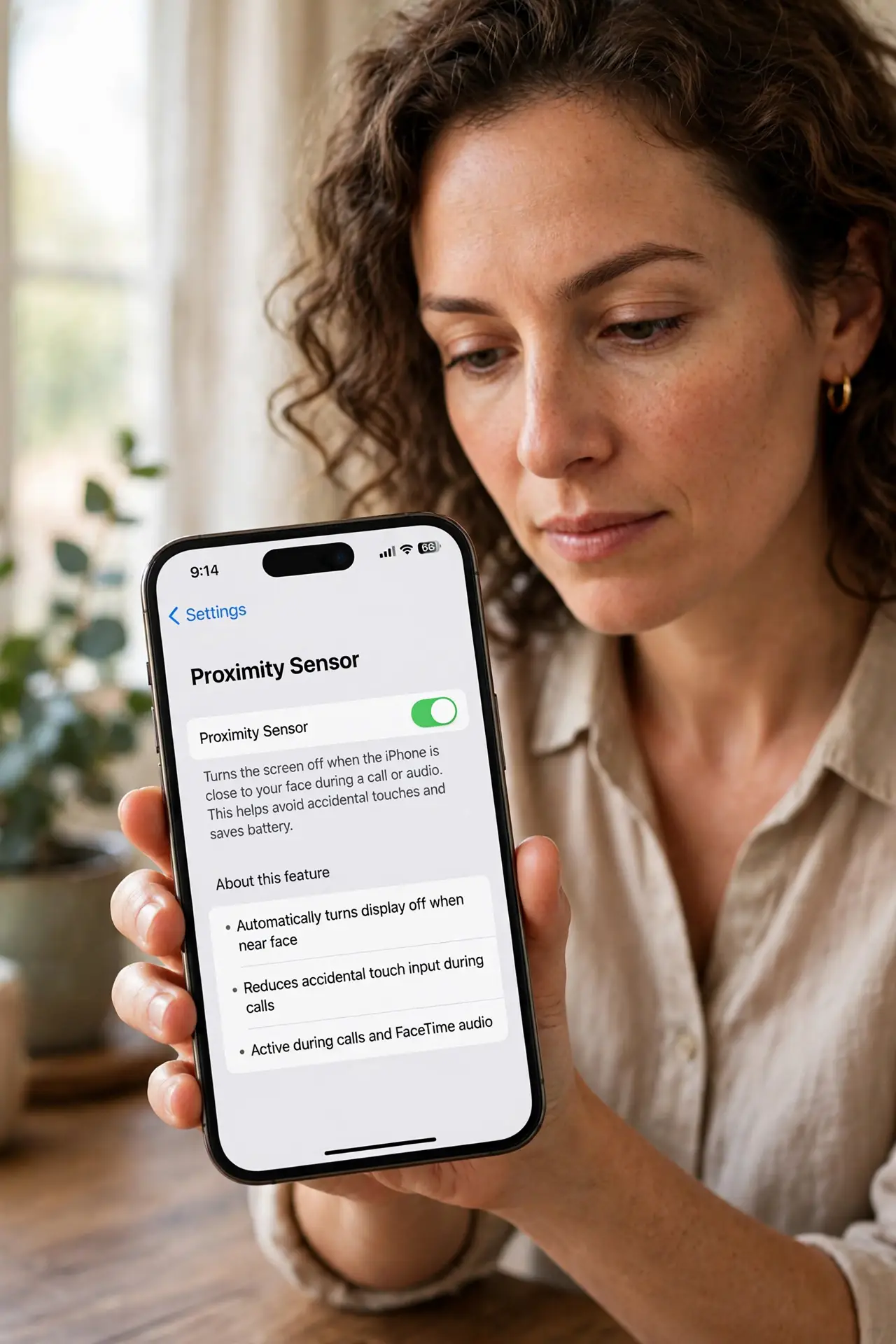
- Understand the proximity sensor. During a call, the sensor near the top of the phone turns the screen off when it is near your ear. That prevents accidental taps, and the screen should return when you move the phone away.
- Remove anything covering the top of the phone. Take off the case and check whether a screen protector covers the sensor area at the top. A thick case lip or a misaligned protector can keep the sensor covered.
- Clean the top edge of the screen. Wipe the top edge and the earpiece area with a soft, dry cloth. Dust, makeup, or grime over the sensor can make the phone think it is still at your ear.
- Test a call without the case. Make a test call with the case removed. If the screen returns normally, the case is the cause, and a case with a wider top cutout will fix it.
- Restart the phone. Restart the iPhone and test another call. A stuck sensor state after an update or a long call sometimes clears with a restart.
- Check auto-brightness if it dims but stays on. If the screen dims rather than turning off, open Settings, then Display and Brightness, and check auto-brightness. A dim screen during a call can also be brightness, not the sensor.
What NOT to do
- Do not disable the proximity sensor with a hack or app. It prevents accidental taps and hang-ups during calls, and workarounds can break calls.
- Do not press buttons wildly when the screen stays dark. Use the side button or move the phone away first, so you do not accidentally end the call.
- Do not replace the screen for a sensor issue. A case or protector is far more likely, so test without them before paying for a repair.
- Do not ignore a sensor that fails after a drop. If the screen never returns during calls after damage, the sensor may need professional repair.
Frequently asked questions
Why does the screen go dark during every call?
Because the proximity sensor turns it off near your ear. That is normal, and it should return when you pull the phone away.
Why does it stay dark after I pull it away?
Usually a case, protector, or dirt is still covering the sensor. Remove them and clean the top edge.
Can I keep the screen on during calls?
Not reliably, and you should not try. The sensor protects you from accidental taps with your cheek.