Record the Screen With Mic Audio
You screen-recorded the perfect tutorial — and your voice is nowhere on it. The iPhone's screen recorder captures system audio by default but leaves the microphone off until you explicitly enable it. One long-press fixes it, and the setting sticks until you change it back.
TL;DR / Quick Fix
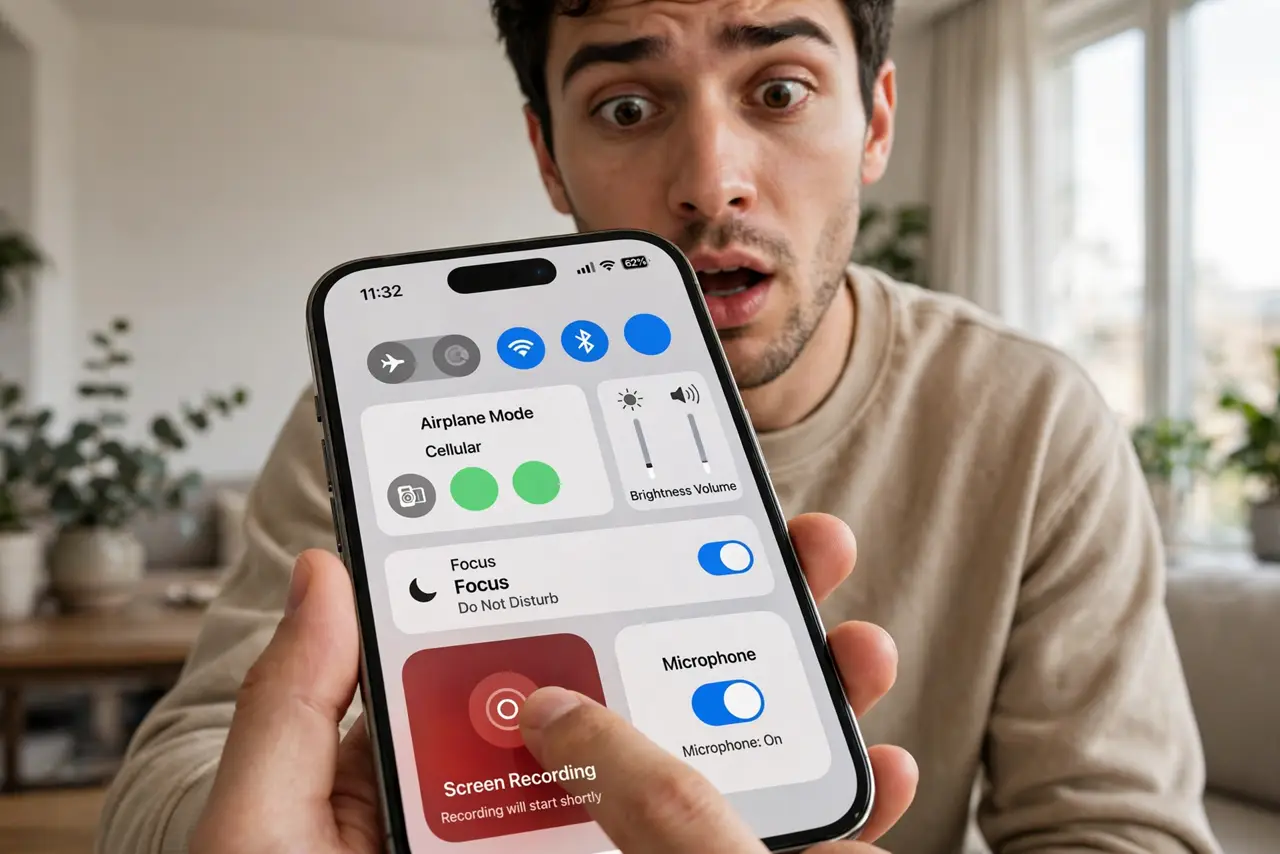
Quick fix: open Control Center, long-press the screen recording button, and turn Microphone on — it defaults to off. Then tap Start Recording. Your narration records alongside the screen. The mic stays on for future recordings until you toggle it off, so check before each take.
Follow these steps
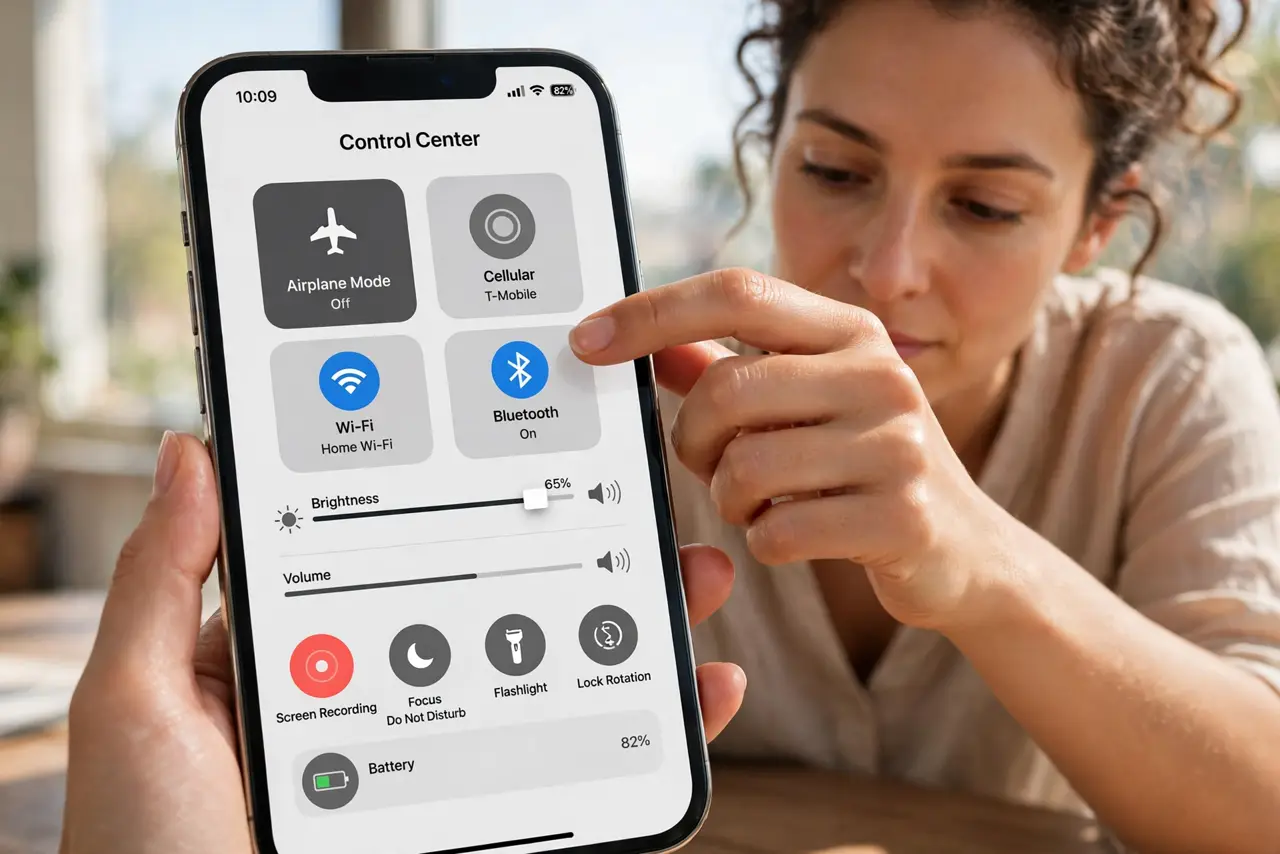
- Open Control Center. Swipe down from the top-right corner. Find the screen recording button — the circle in a circle.
- Long-press for options. Press and hold the recording button. A panel appears with the Microphone toggle and the app to record.
- Turn the Microphone on. Tap Microphone so it shows On. Red means recording with mic; this is the step everyone misses.
- Start recording and narrate. Tap Start Recording, wait out the three-second countdown, then demonstrate and talk. The mic captures your voice plus room sound.
- Stop from the red bar. Tap the red status bar or pill at the top and confirm Stop. The video saves to Photos automatically.
- Check the toggle next time. The mic setting persists. Before a silent demo recording, long-press again and switch it off — or your typing and breathing join the video.
What NOT to do
- Do not assume the mic was on because you hear app sounds. System audio records by default; your voice needs the toggle.
- Do not record in a noisy room and expect clean narration. The mic hears everything — fans, traffic, keyboard clatter.
- Do not narrate sensitive information. Screen recordings with mic capture passwords you read aloud — script it first.
- Do not forget Do Not Disturb. One text notification mid-recording becomes part of your tutorial forever.
Frequently asked questions
Why is there no voice in my screen recording?
The microphone defaults to off. Long-press the screen recording button in Control Center and turn Microphone on before recording.
Does screen recording capture phone call audio?
No — calls are excluded for privacy. The mic captures your voice and room sound, not the call.
Where do screen recordings save?
To the Photos app, in Recents and in the Screen Recordings album. Trim the countdown tail in Photos > Edit.