Name That Song Fast
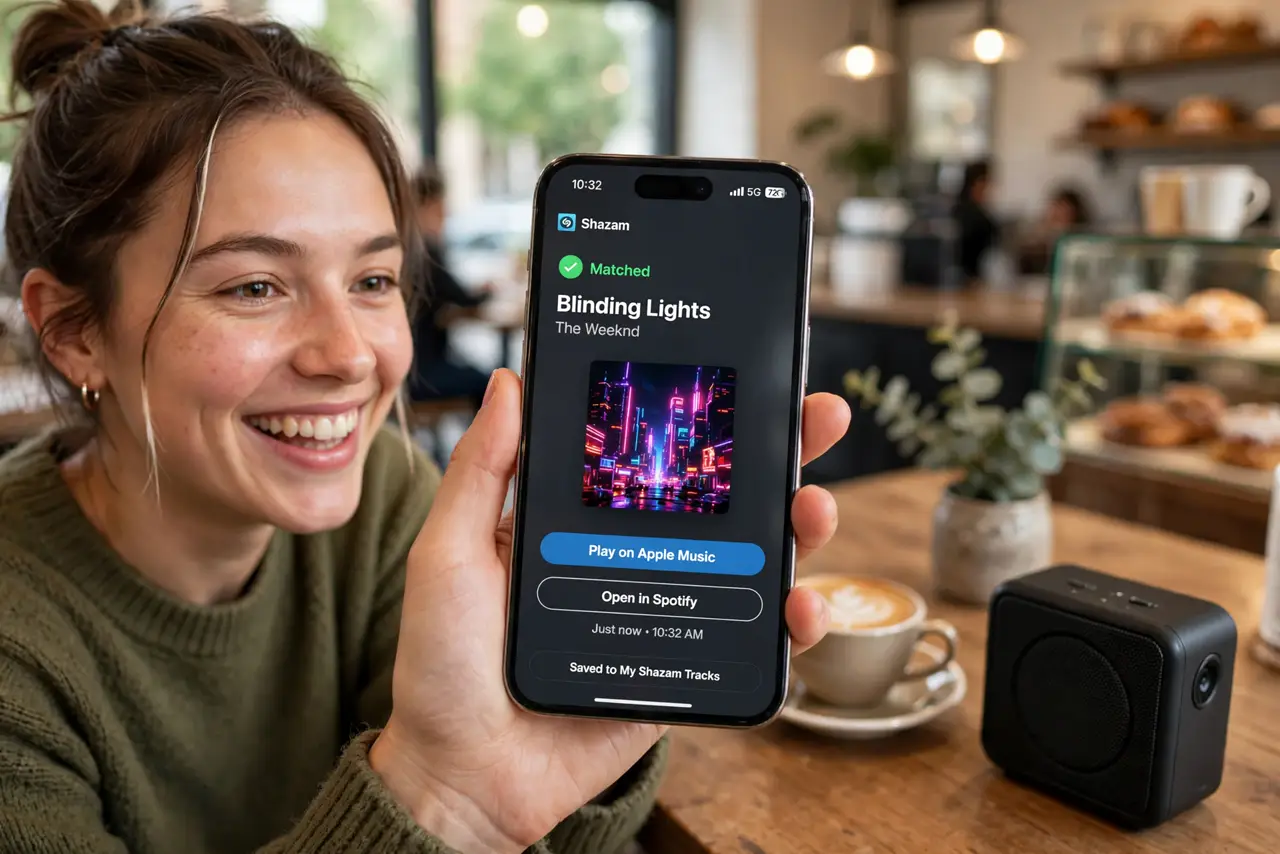
A song plays in the cafe — perfect, unknown, and fading out in thirty seconds. Shazam names it in seconds: hold the phone up, tap once, and the title, artist, and a link to listen again are yours. It is built into your iPhone's Control Center, and the Android app is one install away.
TL;DR / Quick Fix
Quick fix: on iPhone, add Shazam to Control Center in Settings, then tap it whenever music plays — it listens and names the track in seconds. On Android, install the Shazam app or use Google's Now Playing. Save finds to a playlist so they do not vanish.
Follow these steps
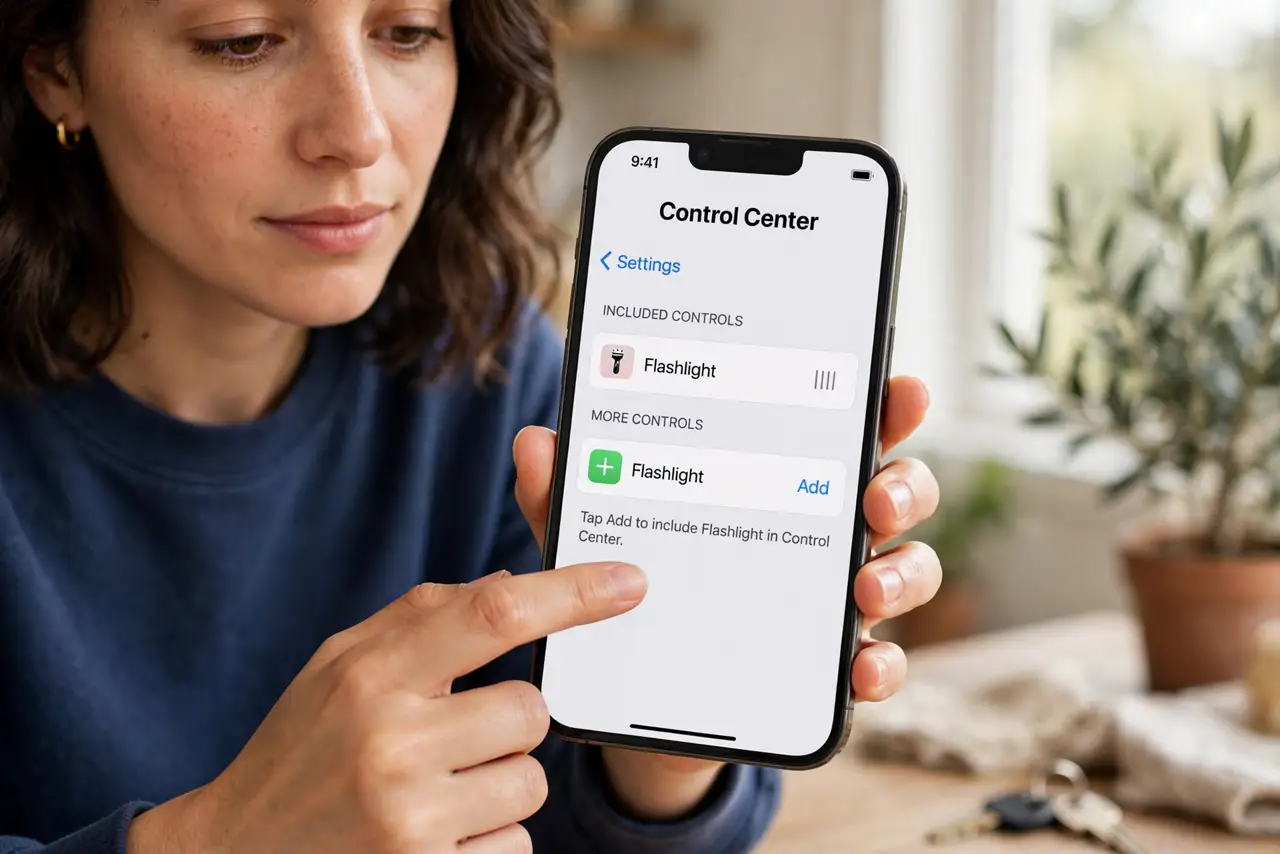
- Add it to Control Center. On iPhone, go to Settings, then Control Center, and add Music Recognition. Now Shazam is one swipe away — no app to open, no unlocking needed.
- Tap when music plays. Swipe into Control Center and tap the Shazam button while the song plays. Hold the phone toward the sound — ten seconds of clear audio is usually enough.
- Read the result. The banner names the song and artist. Tap it for the full card — album, lyrics, and links to play it in your music app.
- Save your discoveries. Shazam keeps a history of everything it names. Link it to a playlist in your music app so discoveries accumulate instead of evaporating.
- Use Auto Shazam for sets. Long-press the button for Auto Shazam at concerts or DJ sets — it keeps identifying track after track hands-free. Remember to turn it off after.
- Try humming when it is gone. If the moment passed, Google's hum-to-search (in the Google app) identifies songs from your humming. Shazam needs the recording; humming needs only your memory.
What NOT to do
- Do not wait for the chorus. Identify early — songs end, and Shazam cannot name silence. Tap at the first verse.
- Do not Shazam in a noisy room and blame the app. Heavy chatter over the music is the hardest case — get closer to the speaker.
- Do not forget the history. The identified banner vanishes; the history list is where discoveries live — check it after.
- Do not retry endlessly on a misidentification. Retry once with a clearer section — the chorus usually works best.
Frequently asked questions
Is Shazam free?
Yes — the app and the iPhone Control Center integration are free, with no identification limits that matter.
Does it work offline?
It can capture the audio offline and identify when you reconnect. The listening works; the lookup waits for data.
What is the difference from SoundHound?
Both identify music; Shazam is the Apple-integrated one, SoundHound leans on singing and humming. Use whichever is at hand.