Automate with Shortcuts
You do the same ten taps every morning — open the app, tap through menus, send the same text. The Shortcuts app turns those routines into one-tap (or zero-tap) automations, no coding required. Start small, feel the magic, then automate bigger. See the automation examples for ideas and NFC triggers for tap-to-run magic.
TL;DR / Quick Fix
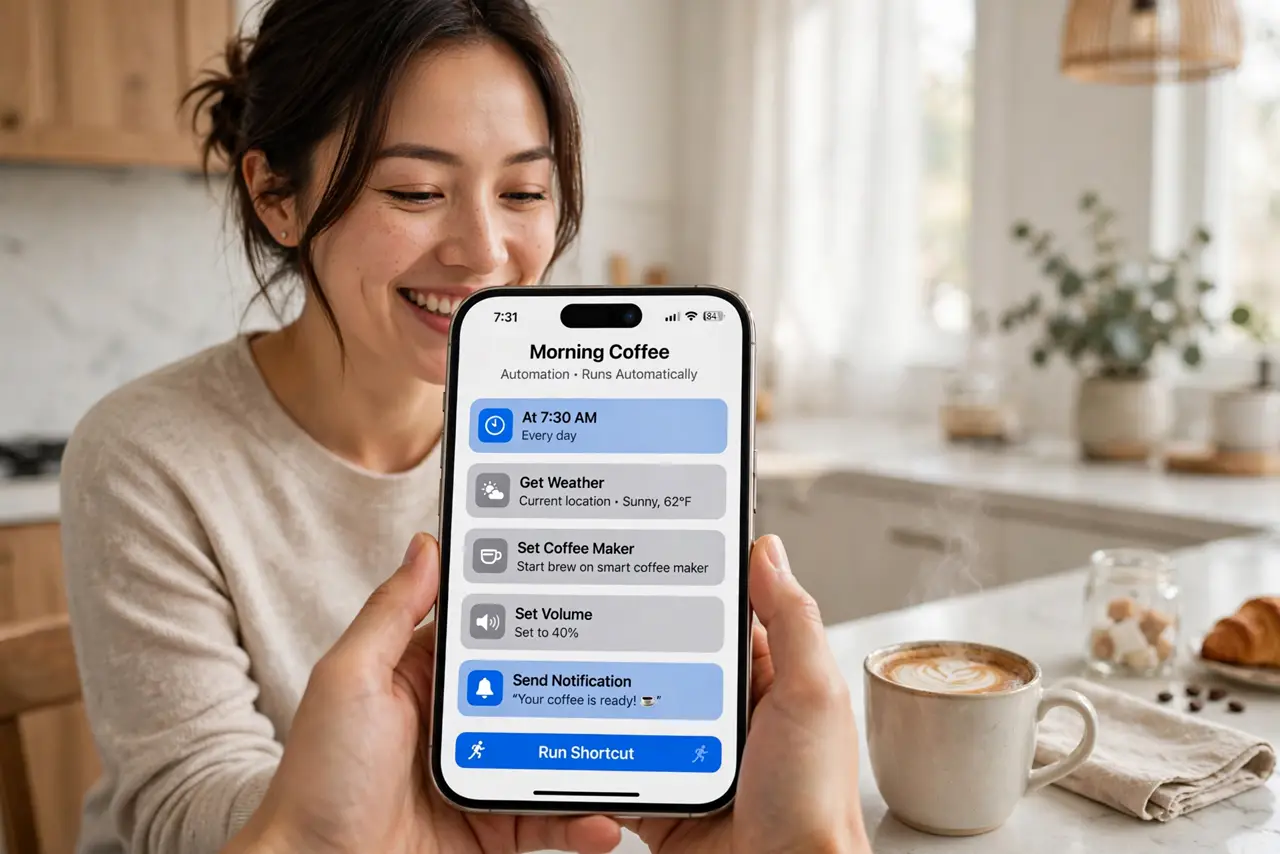
Quick fix: the Shortcuts app turns repetitive taps into one-tap automations — build a shortcut from ready-made actions, no coding needed. Start with something small like a morning routine text. Once one shortcut saves you daily taps, you will start seeing automation opportunities everywhere.
Follow these steps
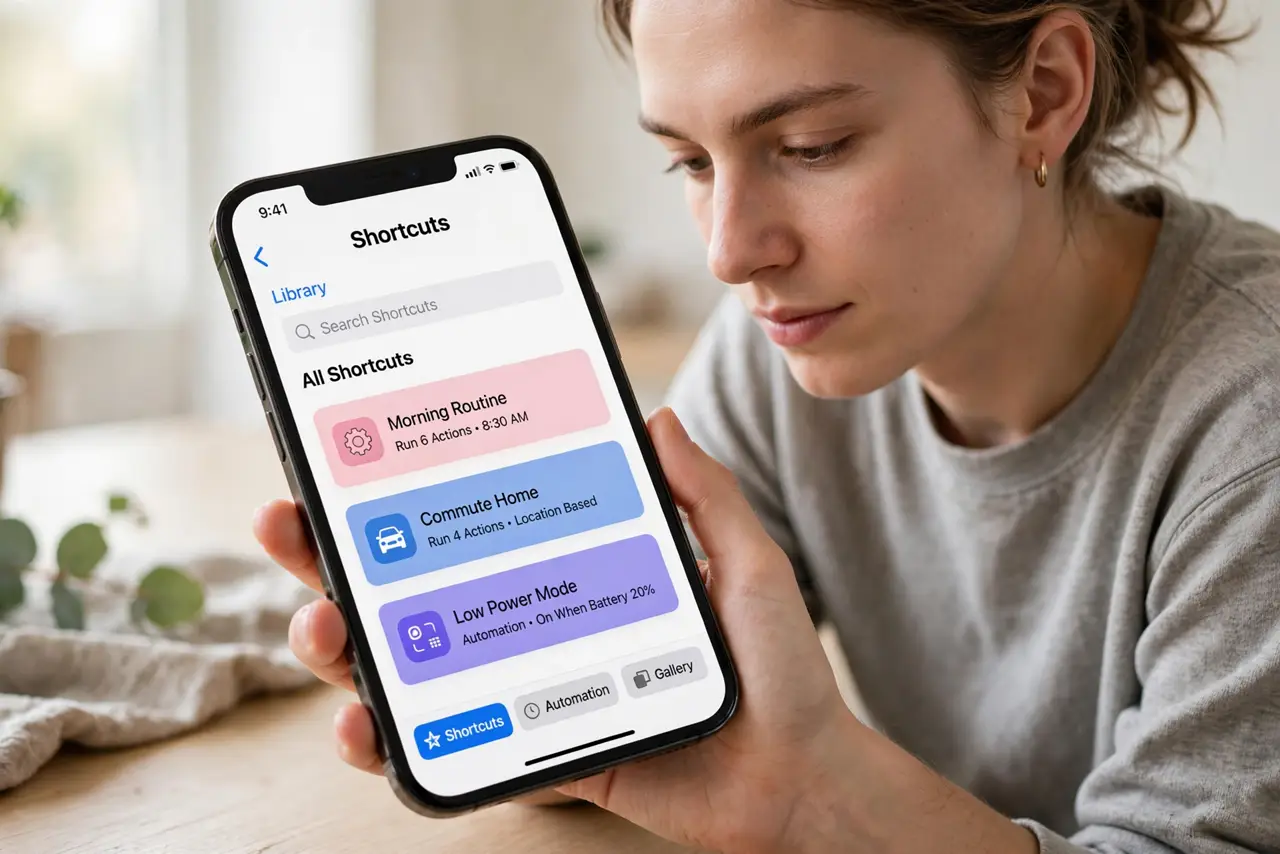
- Open the Shortcuts app. It comes with your iPhone — find it in the App Library if it is not on your home screen. This is your automation workshop.
- Browse the gallery first. The gallery holds ready-made shortcuts for common tasks. Using one as-is teaches you how shortcuts are built.
- Build a simple shortcut. Tap the plus button and add actions in order: get the weather, then send a text, for example. Each action is a plain-language step.
- Test it immediately. Run the shortcut and watch each step. Fix what misbehaves now — a shortcut you do not trust is a shortcut you will not use.
- Add it where you will tap it. Put it on the home screen, in a widget, or behind a Siri phrase. An automation buried in the app might as well not exist.
- Start with one daily routine. Automate the thing you do every single day first. Daily savings compound; occasional automations barely pay back the setup time.
What NOT to do
- Do not automate chaos. If the manual process is a mess, the shortcut will be a faster mess — simplify first.
- Do not build ten shortcuts on day one. One working automation beats ten half-built ones you abandon.
- Do not grant permissions blindly. Shortcuts ask for access as they run — approve only what the task genuinely needs.
- Do not forget shortcuts need maintenance. Apps update and break steps; revisit your key shortcuts every few months.
Frequently asked questions
Do I need to know coding?
No. Shortcuts are built from visual building blocks in plain language — if you can follow a recipe, you can build one.
Can shortcuts run automatically?
Yes — automations can trigger on time, location, or events like connecting to CarPlay. Set them in the Automation tab.
Will this drain my battery?
Negligibly. Shortcuts run briefly and sleep; they are far lighter than the apps they replace.