Turn On Stolen Protection
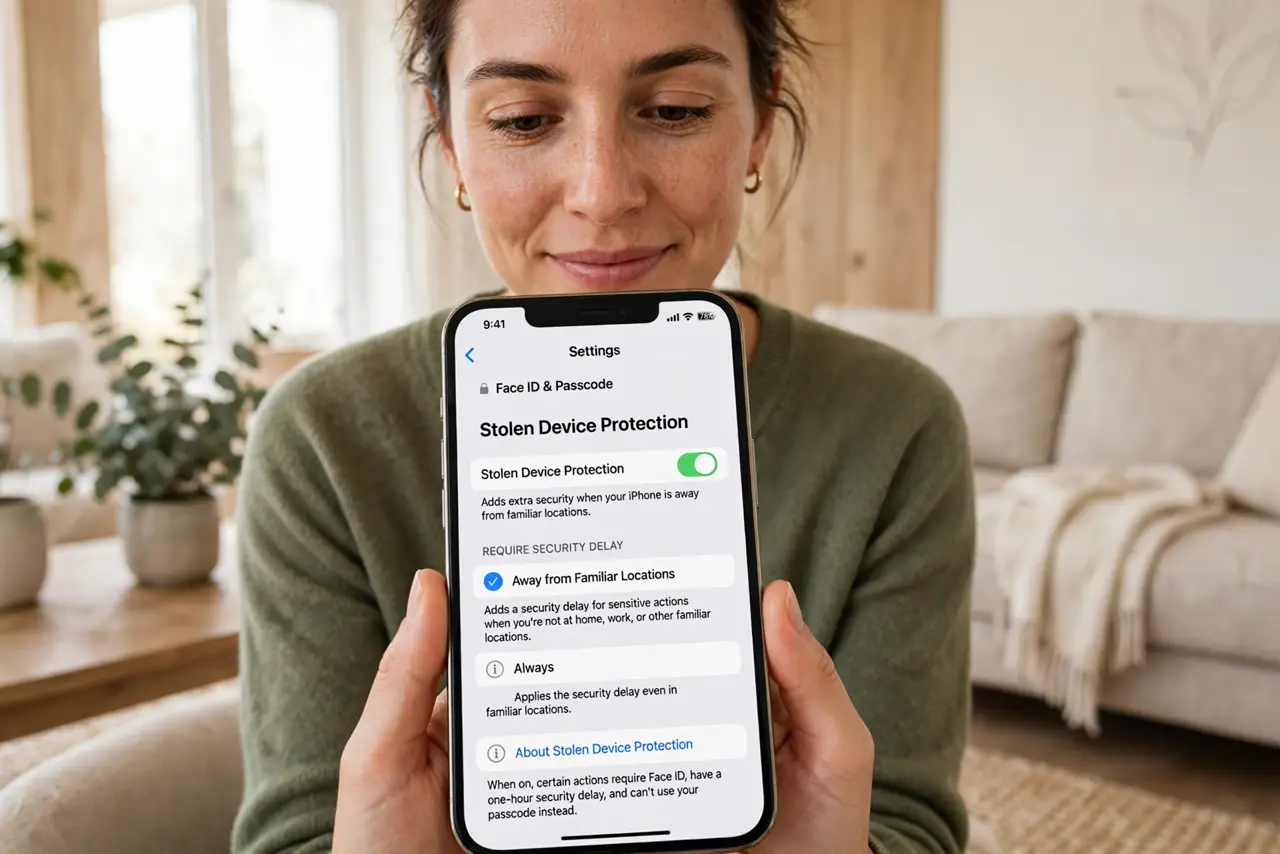
The nightmare scenario: someone watches you type your passcode, then steals your phone — and the passcode alone used to unlock everything, including your Apple ID. Stolen Device Protection closes that hole: critical changes then require Face ID plus a one-hour delay, so a stolen passcode is not enough. Read the protection details and pair it with a Safety Check review.
TL;DR / Quick Fix
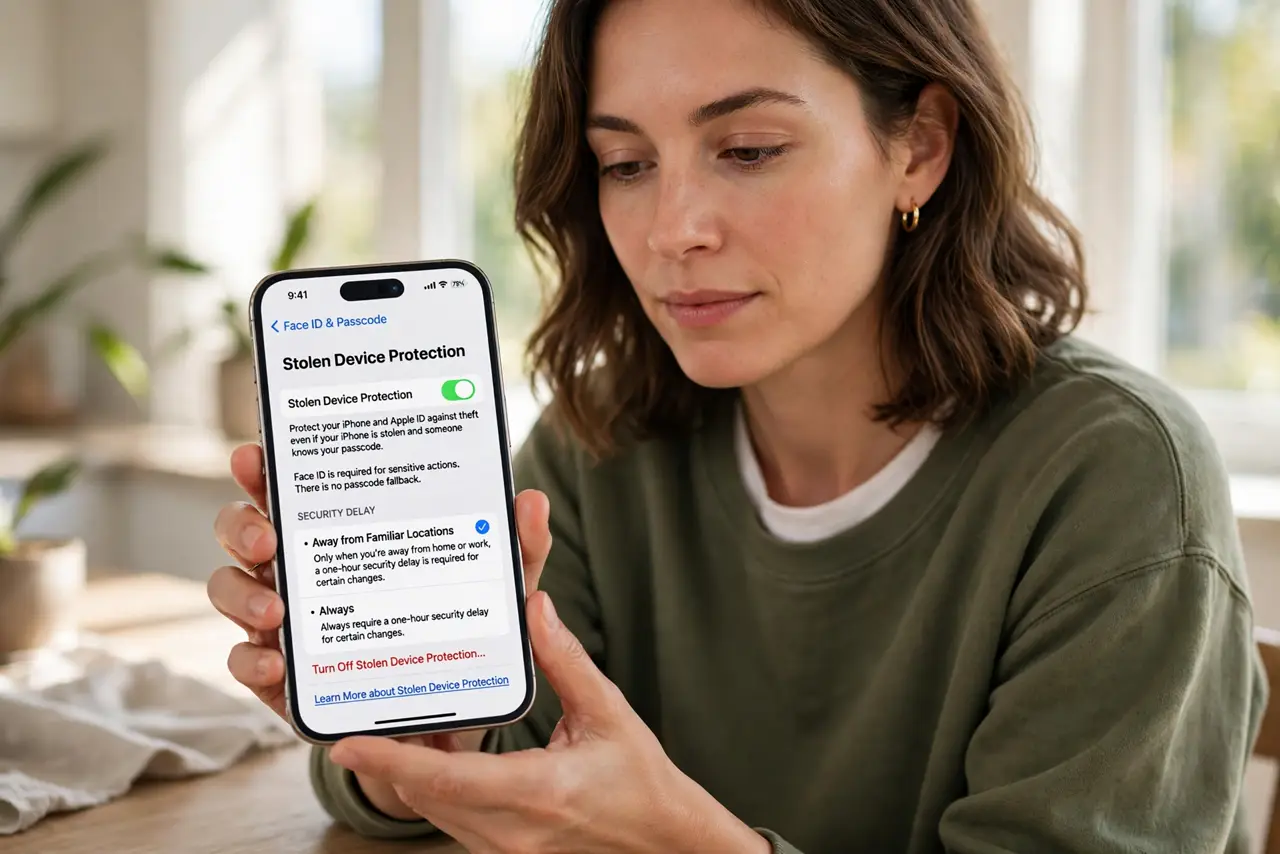
Quick fix: Stolen Device Protection stops a thief who knows your passcode — changing your Apple ID password or turning off Find My then needs Face ID plus a one-hour delay. Turn it on under Settings, Face ID and Passcode. It is the best defense against passcode-snooping theft.
Follow these steps
- Open the right settings page. Go to Settings, then Face ID and Passcode. Scroll to Stolen Device Protection — it lives with the other device-security options.
- Turn it on. Enable Stolen Device Protection. From now on, security-critical actions need biometric authentication, not just the passcode.
- Understand the security delay. Away from familiar locations, actions like changing your Apple ID password or turning off Find My require Face ID and then a one-hour wait. That hour is your window to mark the phone lost.
- Know what it protects. It guards account changes, passcode changes, Find My settings, and recovery keys — the exact things a thief needs to lock you out of your own digital life.
- Keep Face ID working well. Since biometrics become the gatekeeper, make sure Face ID is set up and reliable. Add an alternate appearance if you often wear glasses or masks.
- Mark the phone lost fast if stolen. If theft happens, use Find My from another device to mark it lost immediately. The delay plus the lock buys you the time to do it.
What NOT to do
- Do not skip this because your passcode is secret. Shoulder-surfing is real — the protection exists for exactly that scenario.
- Do not forget it at home too. The delay applies away from familiar places; at home the rules relax, which is by design.
- Do not turn it off casually later. Every month it stays on is another month a snooped passcode is useless to a thief.
- Do not rely on it alone. It is one layer — Find My, a strong passcode, and backups complete the picture.
Frequently asked questions
Will it annoy me daily?
Barely. In familiar locations like home, most actions work as before. The friction appears mainly when you are out — which is when you need it.
What if Face ID fails?
You can still use the passcode for unlocking the phone itself; the extra protection applies to security-critical changes, where biometrics are required.
Does Android have this?
Android has its own theft-protection features with similar ideas. Check your phone's security settings for the current options.