iPhone Stuck on the Apple Logo? Fix It
The Apple logo appears, the progress bar creeps — and then nothing, for an hour. A stuck logo means the update wrote most of itself but cannot finish booting. The fix ladder runs from a forced restart up to a computer restore, and most people never need the top rung.
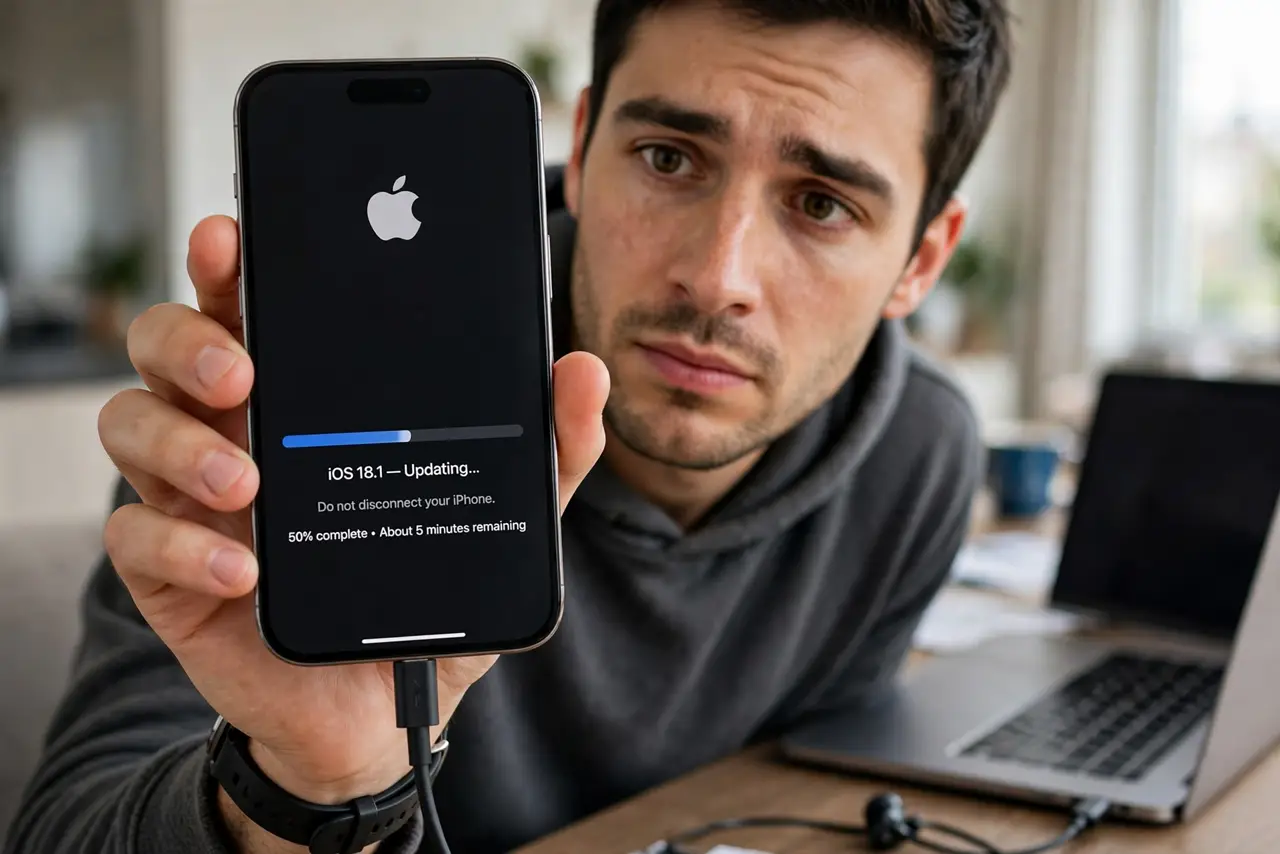
TL;DR / Quick Fix
Quick fix: force-restart — quick-press volume up, volume down, then hold the side button until the logo reappears. If it sticks again, connect to a computer and choose Update (not Restore) to reinstall the system without erasing. Give the reinstall up to 40 minutes before judging.
Follow these steps
- Force-restart with the button sequence. Quick-press volume up, quick-press volume down, then press and hold the side button until the Apple logo appears. Release when you see it.
- Give it one more patient boot. After the forced restart, wait up to 15 minutes. First boots after a troubled update run migrations that look like a freeze.
- Connect to a computer and choose Update. On a Mac or PC with Apple Devices/iTunes, select the iPhone and choose Update — not Restore. This reinstalls the system while keeping your data.
- Try recovery mode if Update is unavailable. With the phone connected, repeat the button sequence but keep holding through the logo until the recovery screen appears, then choose Update.
- Use Restore only as the last resort. Restore erases the phone. Only choose it when Update fails twice — and only if you have a backup or iCloud copy to restore from.
- Check the cable and port. A flaky cable can corrupt the reinstall mid-write. Use an Apple or certified cable, plugged directly into the computer.
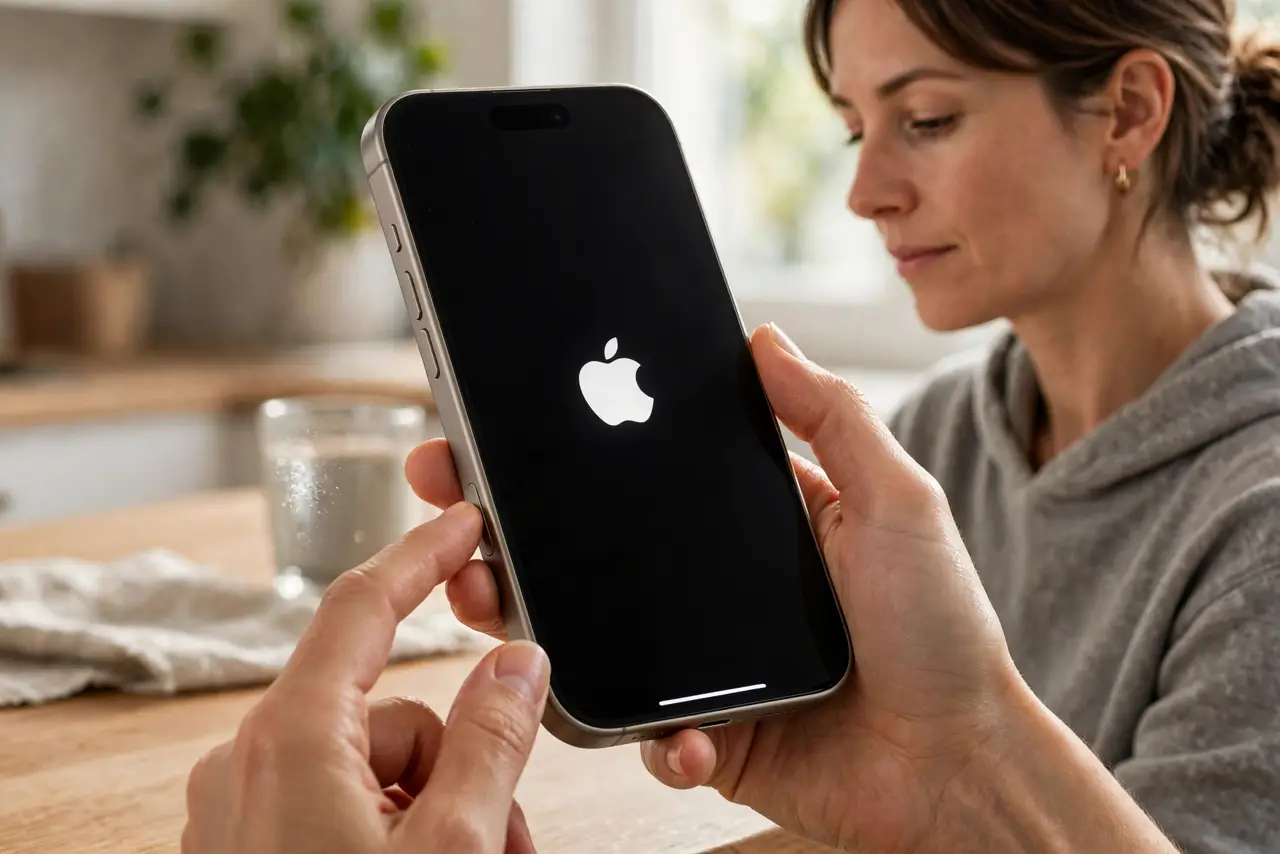
What NOT to do
- Do not choose Restore first. Update preserves your data; Restore erases it. The buttons sit next to each other — read carefully.
- Do not unplug during the computer reinstall. Interrupting it is how phones end up truly bricked.
- Do not panic at a long progress bar. System reinstalls legitimately take 20 to 40 minutes on older phones.
- Do not try random button combos from forums. Wrong sequences can enter DFU mode and complicate a simple fix.
Frequently asked questions
Will I lose my photos if the iPhone is stuck on the logo?
Not from the stuck logo itself, and not from the Update reinstall. Only the Restore option erases — which is why the order of operations matters.
How long is too long on the Apple logo?
Past one hour with zero progress-bar movement, treat it as stuck. Under that, especially right after an update, patience is still the right call.
Why does this happen after updates?
Usually a low-battery or interrupted install leaves the system half-written. Keeping the phone charged and untouched during updates prevents most cases.