iPhone Watch Notifications Missing? Fix It
Notifications reach your iPhone but never buzz your watch. Watch alerts depend on the phone being locked, the Watch app settings, and Do Not Disturb mirroring. The phone-side version is iPhone notifications arriving late, which shares the Focus and per-app causes.
TL;DR / Quick Fix
Quick fix: lock the iPhone, allow notifications for the app in the Watch app, turn off Do Not Disturb mirroring issues, check wrist detection, and restart both devices. If it still fails, note exactly when it happens, since that pattern usually reveals the real cause.
Follow these steps
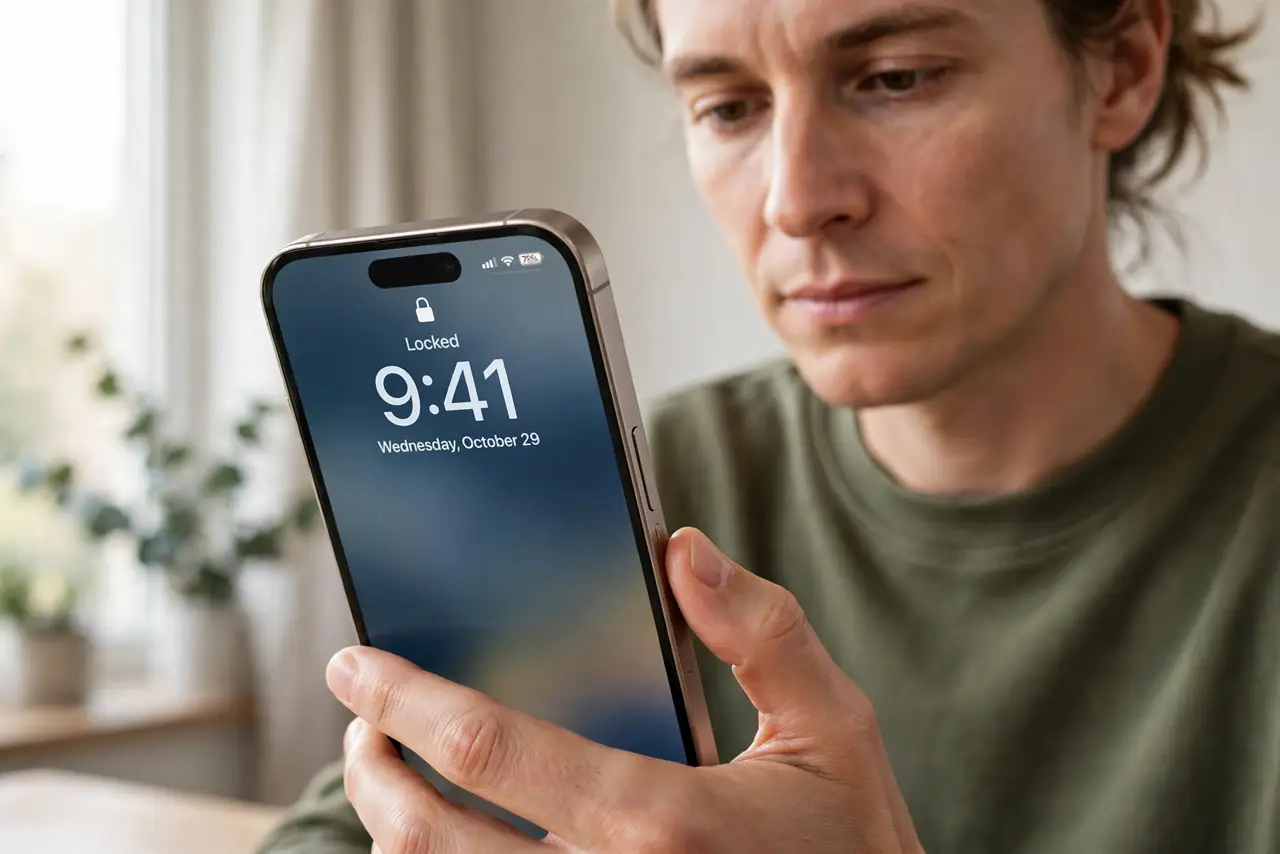
- Lock the iPhone first. Lock your iPhone and test a notification. The watch only mirrors alerts when the phone is locked and the watch is on your wrist.
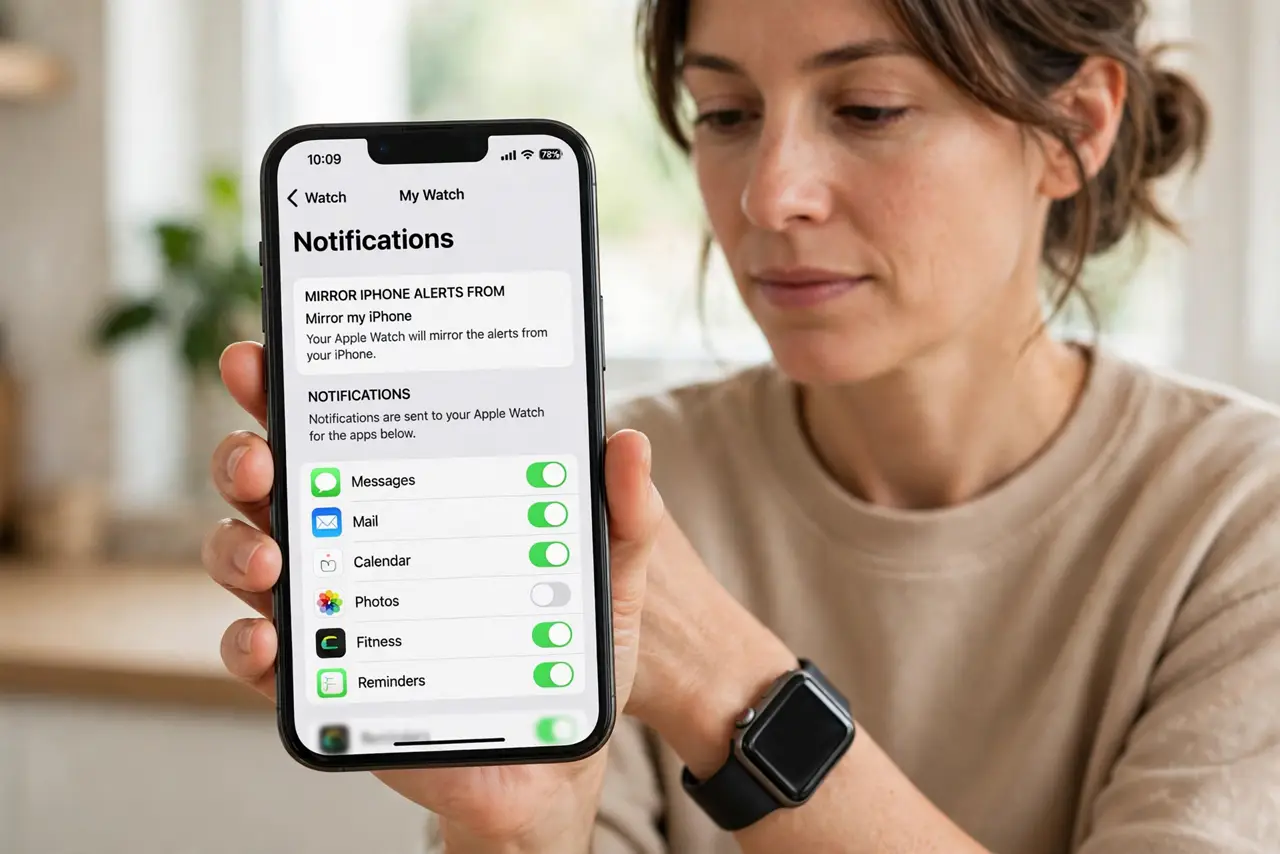
- Allow notifications for the app in the Watch app. Open the Watch app, then Notifications, and confirm the app is allowed to mirror. An app off in this list never reaches the watch.
- Check Do Not Disturb mirroring. Open the Watch app, then General, then Do Not Disturb, and check mirroring. A mirrored Do Not Disturb silences the watch exactly like the phone.
- Check wrist detection and fit. Wear the watch snugly and confirm Wrist Detection is on in the Watch app under Passcode. A loose watch or disabled detection stops alerts.
- Check notification settings on the iPhone itself. Open Settings, then Notifications, tap the app, and confirm alerts are allowed. If the phone never gets the alert, the watch cannot mirror it.
- Restart both devices. Restart the iPhone and the watch, then test with a message. A restart clears a stuck mirroring state that settings alone miss.
What NOT to do
- Do not expect watch alerts while using the phone unlocked. Mirroring is designed for a locked phone, so unlocked use goes to the phone instead.
- Do not turn off all watch notifications to fix one missing app. Allow the specific app in the Watch app instead.
- Do not ignore a loose watch fit. A watch that loses wrist contact stops alerts, so tighten it before changing settings.
- Do not unpair the watch as a first step. Check lock state, mirroring, and per-app settings first, since those fix most cases.
Frequently asked questions
Why does my watch not buzz when my phone does?
Because the phone is unlocked, the app is not allowed to mirror, or Do Not Disturb is mirrored.
Do watch notifications work when the phone is unlocked?
No. The watch mirrors alerts when the phone is locked and the watch is worn.
Why is only one app missing on the watch?
Because that app is off in the Watch app Notifications list. Allow it there specifically.