Use iPhone Writing Tools
Apple Intelligence puts an editor inside every text field on your iPhone — proofread, rewrite, summarize, and change tone without switching apps. It works in Mail, Notes, Messages, and anywhere else you type. Most people never find it because it hides behind a text selection.
TL;DR / Quick Fix
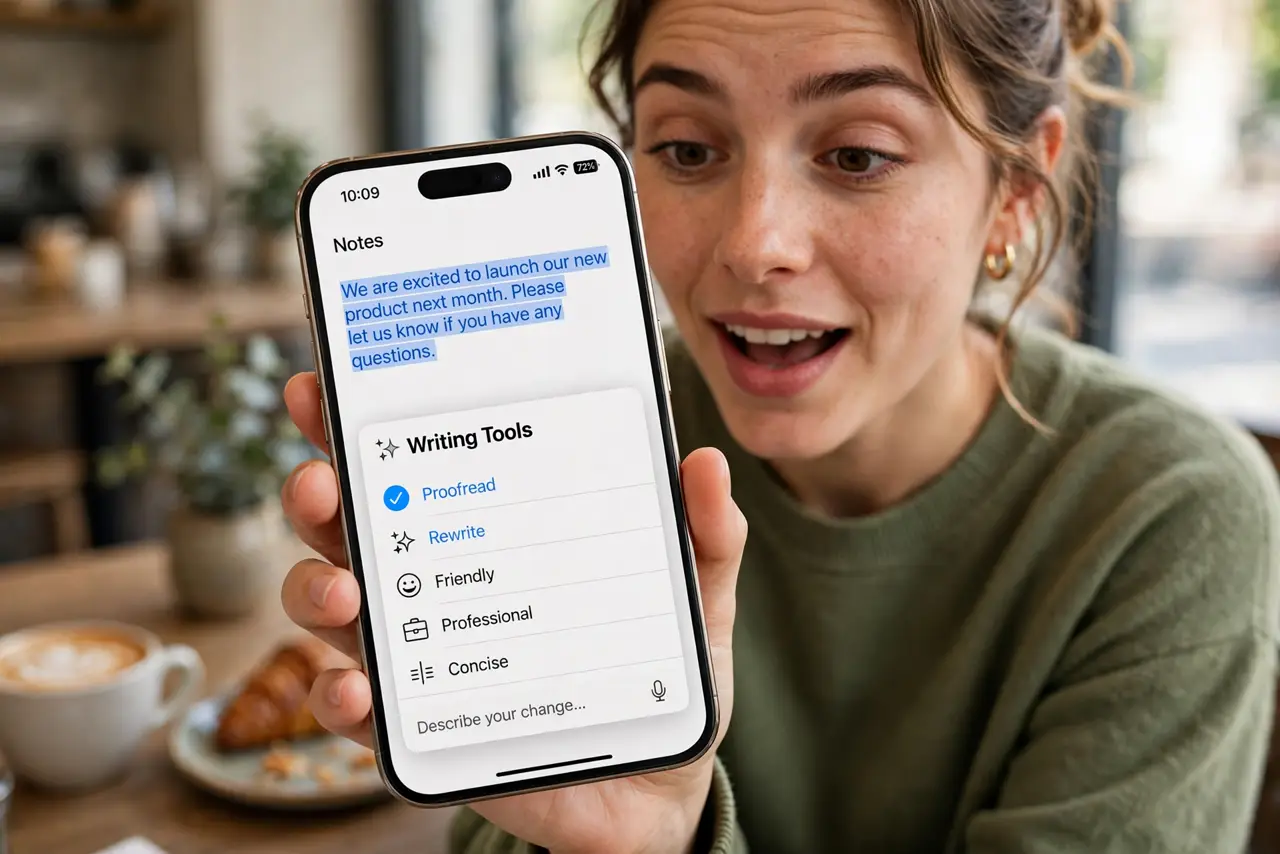
Quick fix: select any text on your iPhone, tap Writing Tools, and choose Proofread, Rewrite, Summary, or a tone like Friendly or Professional. It works in most apps wherever you type. Review the result before sending — AI rewrites can subtly change your meaning.
Follow these steps
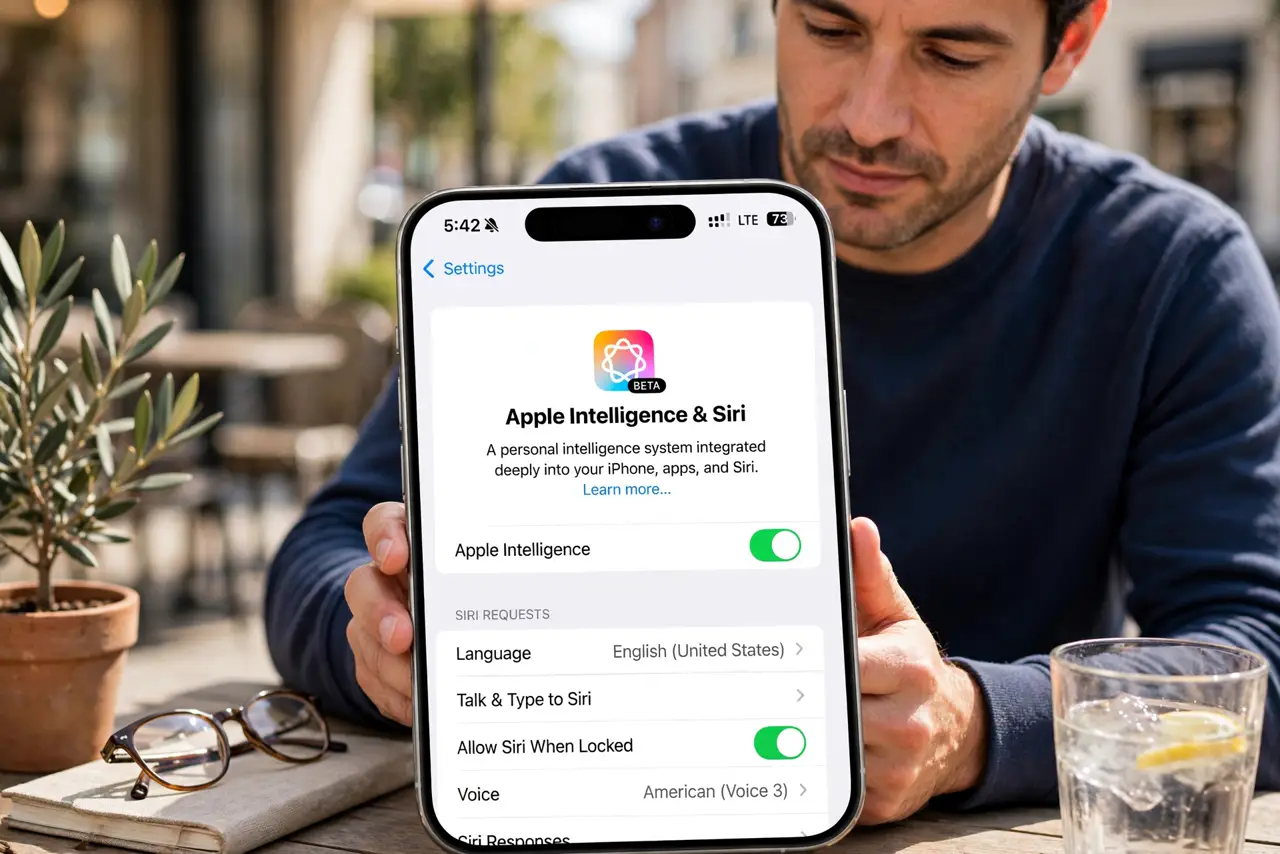
- Check you have Apple Intelligence. Writing Tools needs a supported iPhone with Apple Intelligence enabled — see what Apple Intelligence is if the option is missing.
- Select text anywhere. Long-press to select text in Mail, Notes, Messages, or Safari. The option appears in the popup menu wherever text is editable.
- Tap Writing Tools. Choose from Proofread, Rewrite, Summary, Key Points, Table, List, or tone changes like Friendly, Professional, and Concise.
- Try Proofread first. Proofread fixes grammar and spelling while keeping your voice. It is the safest starting point and genuinely useful daily.
- Use Rewrite with care. Rewrite rephrases in your chosen tone. Read the result — tone shifts can accidentally soften a firm message or stiffen a casual one.
- Summarize long threads. Select a wall of text and get the key points. Perfect for long emails you need to understand in ten seconds.
What NOT to do
- Do not send a rewrite unread. AI can flip emphasis or drop a qualifier that mattered.
- Do not use it for legal or medical wording. Tone-perfect text is not the same as correct text.
- Do not expect it in every app. Some third-party apps with custom text fields do not offer the menu.
- Do not let it flatten your voice. If everything you write sounds the same, you are overusing it.
Frequently asked questions
Is Writing Tools free?
Yes — it is part of Apple Intelligence on supported iPhones, no subscription needed.
Does my text get sent to Apple?
Much of it processes on-device; some requests use Apple's servers with privacy protections. Either way, avoid pasting secrets into any AI tool.
Why don't I see Writing Tools?
Your iPhone may not support Apple Intelligence, or it is not enabled in Settings. Both are required.