Zoom with the Controller
The iPhone magnifier is powerful, but dragging the screen to pan while zoomed feels like steering a boat with chopsticks. The Zoom Controller adds a small on-screen joystick that pans smoothly and keeps your place. This guide enables it and tunes it for comfortable reading.
TL;DR / Quick Fix
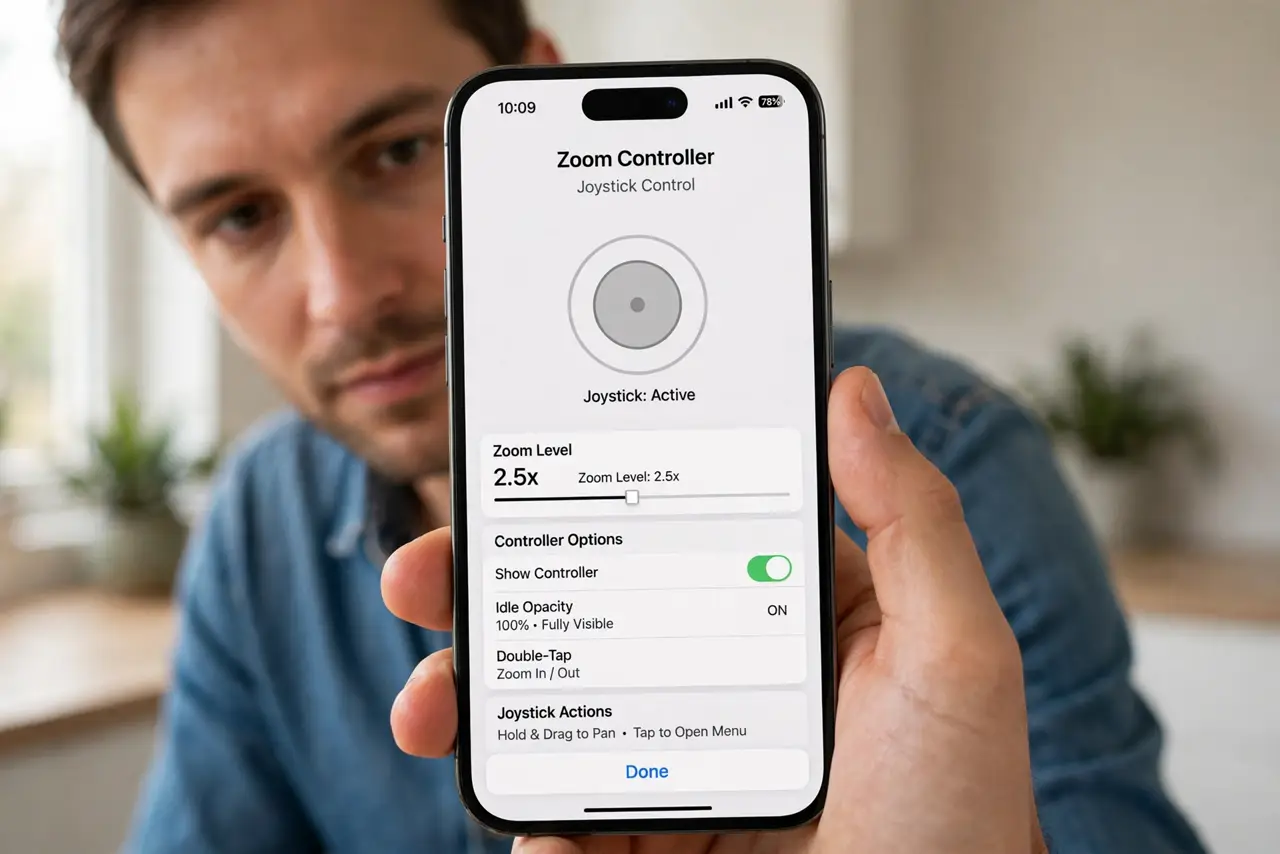
Quick fix: the Zoom Controller is a small on-screen joystick for the iPhone magnifier — enable it in Accessibility, Zoom, so you can pan smoothly without dragging the screen. It keeps your place while you zoom deeper. Pair it with a larger zoom window for reading tiny print comfortably.
Follow these steps
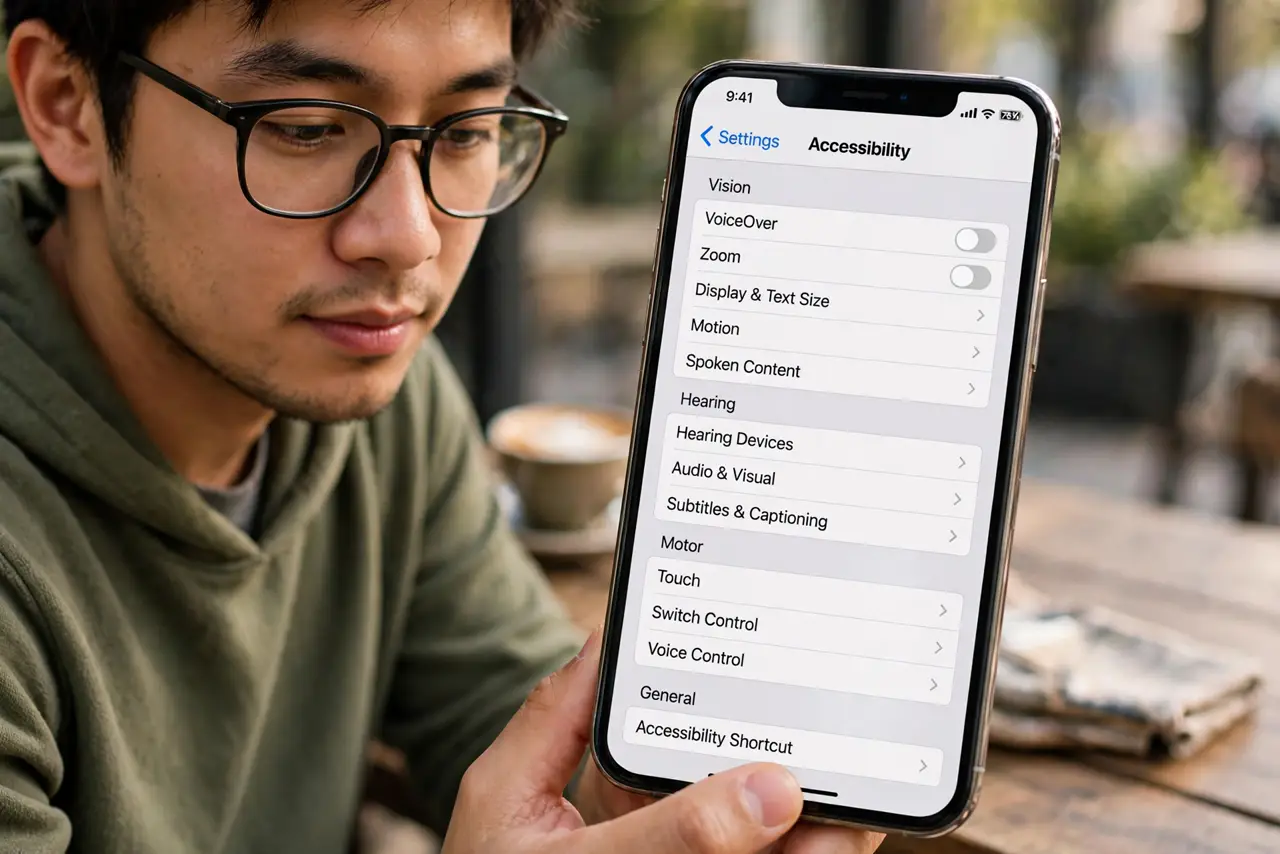
- Open Accessibility settings. Go to Settings, Accessibility, Zoom. This is mission control for all iPhone magnification.
- Turn on Zoom first. Enable the Zoom feature itself — the Controller is an add-on, and it needs Zoom active to appear.
- Enable the Zoom Controller. In the Zoom settings, turn on Zoom Controller. A small circular joystick appears on screen whenever Zoom is active.
- Drag the joystick to pan. Push the controller in any direction to glide across the magnified view. It is far steadier than dragging the content with a finger.
- Adjust the zoom region. Choose full-screen or windowed zoom. Windowed zoom plus the controller is the comfortable reading combo — magnified patch, stable navigation.
- Customize the controller's look. Make it larger, more opaque, or idle-transparent in the settings. A controller you can find at a glance beats a pretty one you lose — and for quick magnification without Zoom, the iPhone magnifier is the lighter tool.
What NOT to do
- Do not enable Zoom without the controller and suffer. The controller exists precisely because finger-panning while zoomed is miserable.
- Do not set maximum zoom as the default. Start moderate — extreme zoom disorients and makes the controller twitchy.
- Do not forget the triple-click shortcut. Set Accessibility Shortcut to Zoom for fast on/off without digging through Settings.
- Do not confuse Zoom with text size. For generally bigger text, Display settings beat full-screen Zoom.
Frequently asked questions
Why did the controller disappear?
Zoom may have turned off, or the controller toggle reset after an update. Re-check both in Accessibility, Zoom.
Can I move the controller?
Yes — drag it anywhere on screen. Park it where your thumb naturally rests.
Does it work in every app?
System-wide, yes. A few games and video apps handle their own rendering and may behave oddly.