Lock Screen Photo Changed? Fix It
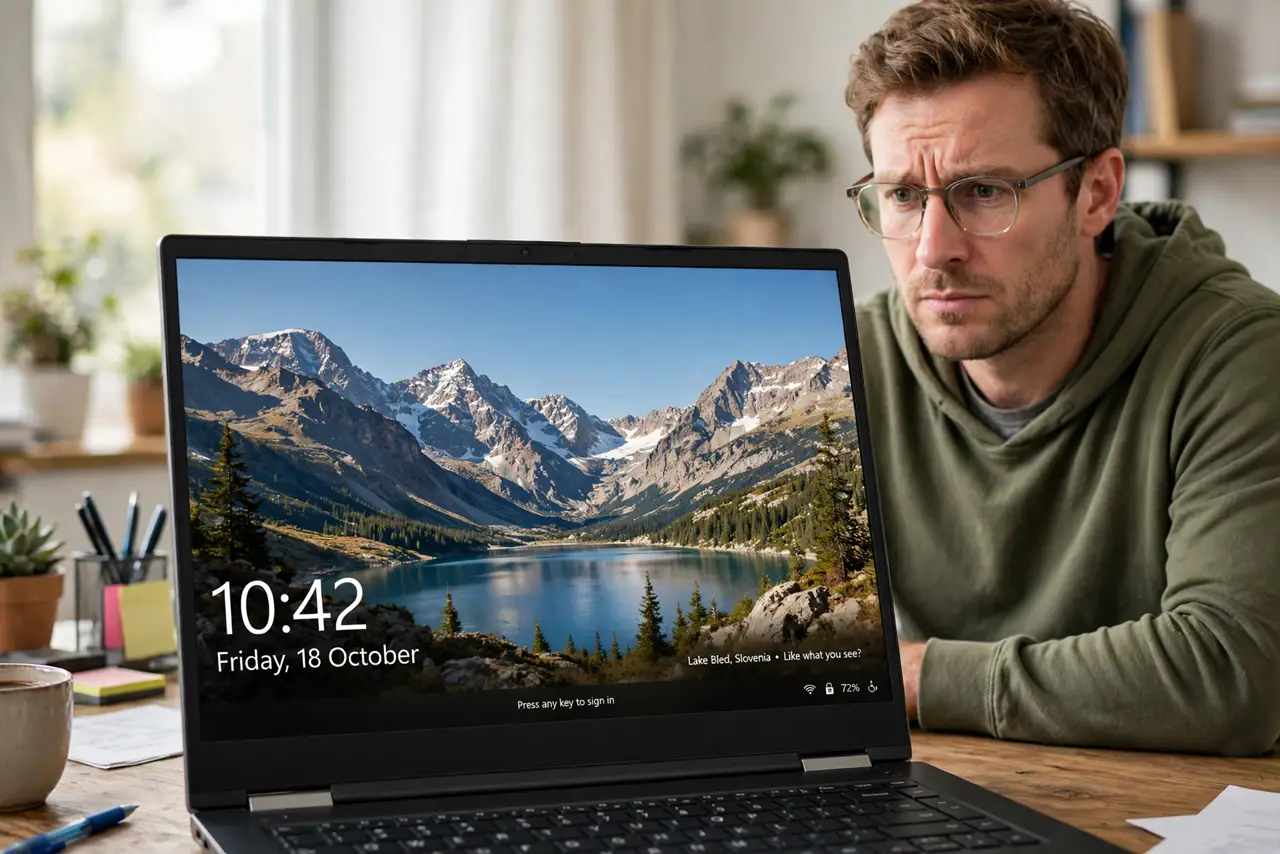
When the lock screen photo changes on its own, Windows Spotlight is rotating pictures for you. That is a feature, not a fault, and picking a fixed picture stops the rotation.
TL;DR / Quick Fix
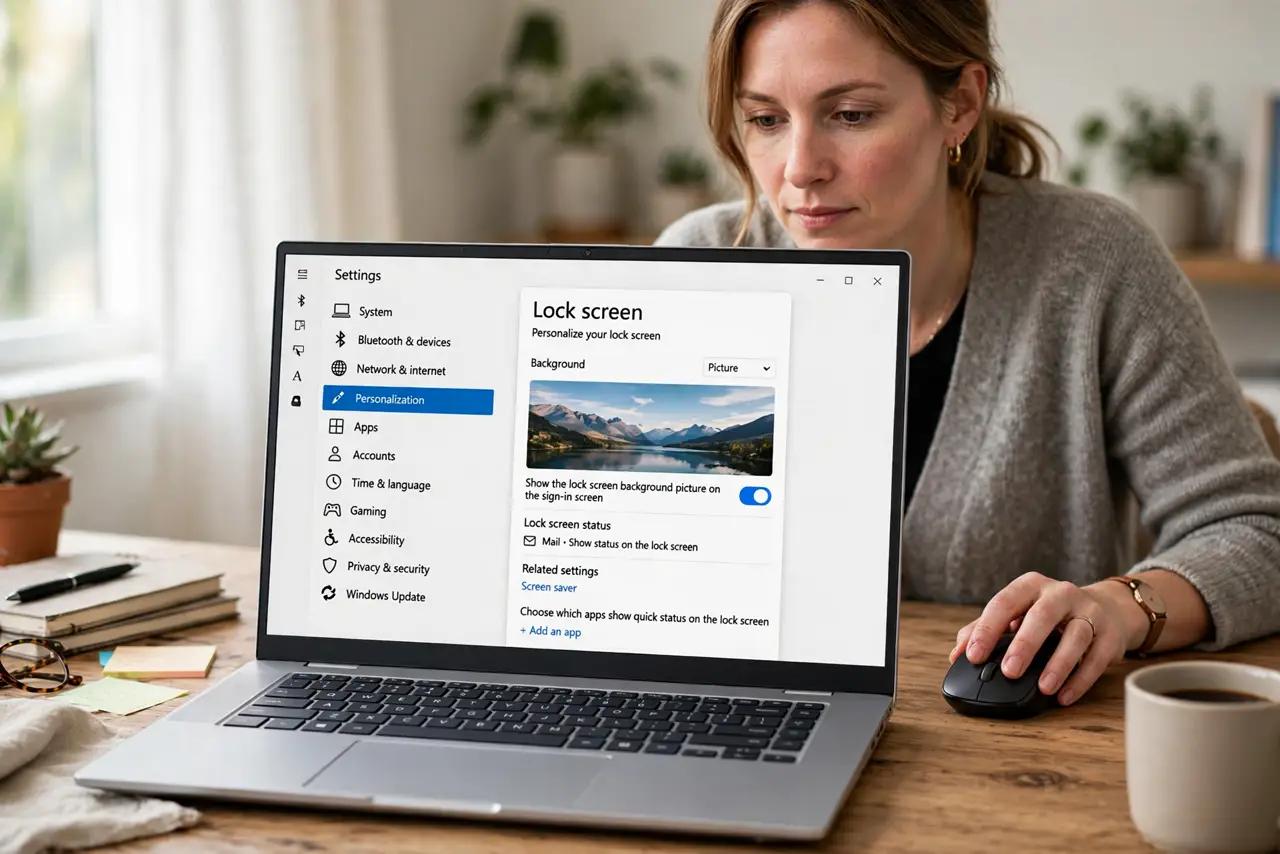
Quick fix: open Settings, then Personalization, then Lock screen, and change the background from Windows Spotlight to Picture. Pick the photo you want, then lock the computer and check that it stays the same. Test it once more after a restart to confirm the fix holds.
Follow these steps
- Open Lock screen settings. Open Settings, then Personalization, then Lock screen. This page controls what shows when the computer is locked.
- Change Spotlight to Picture. Change the background option from Windows Spotlight to Picture. Spotlight rotates photos, while Picture keeps one photo until you change it.
- Pick the photo you want. Choose a photo from the list, or browse to a photo you like. Pick a photo that looks good at full screen, because the lock screen crops edges.
- Lock and check it. Press Windows and L to lock the computer, and look at the lock screen. If your photo shows, the change worked. Unlock and lock again to confirm.
- Turn off fun facts if they bother you. On the same page, turn off the option that shows fun facts and tips on the lock screen, if you want a clean photo only.
- Check sync if it changes back. If the photo changes again after signing in elsewhere, check theme and personalization sync. Another device can pull its lock screen setting back.
What NOT to do
- Do not delete Spotlight photos to stop rotation. Deleting cached photos does not change the setting, and Spotlight will download new ones.
- Do not pick a personal photo you would not want others to see. The lock screen shows before sign-in, so anyone near the computer can see it.
- Do not change the sign-in background separately and expect the lock photo to follow. They are related but separate settings, so check both.
- Do not assume a changed photo means someone used your computer. Spotlight rotation is the usual cause, and it happens without anyone signing in.
Frequently asked questions
Why does the lock photo change every day?
Windows Spotlight rotates photos daily. Changing the background to Picture stops the rotation and keeps your chosen photo.
Can I use my own photo?
Yes. Choose Picture, then Browse, and pick any photo on the computer. It will stay until you change the setting again.
Why does it change back after a restart?
Sync from another device, or a theme change, can restore Spotlight. Check sync and theme settings if it keeps reverting.