About This Mac? Read the Specs
Someone asks what Mac you have — for a repair quote, a software requirement, or selling it — and 'the silver one' isn't enough. About This Mac lists the model, chip, memory, and macOS version in one panel. Here's how to read it like a spec sheet.
TL;DR / Quick Fix
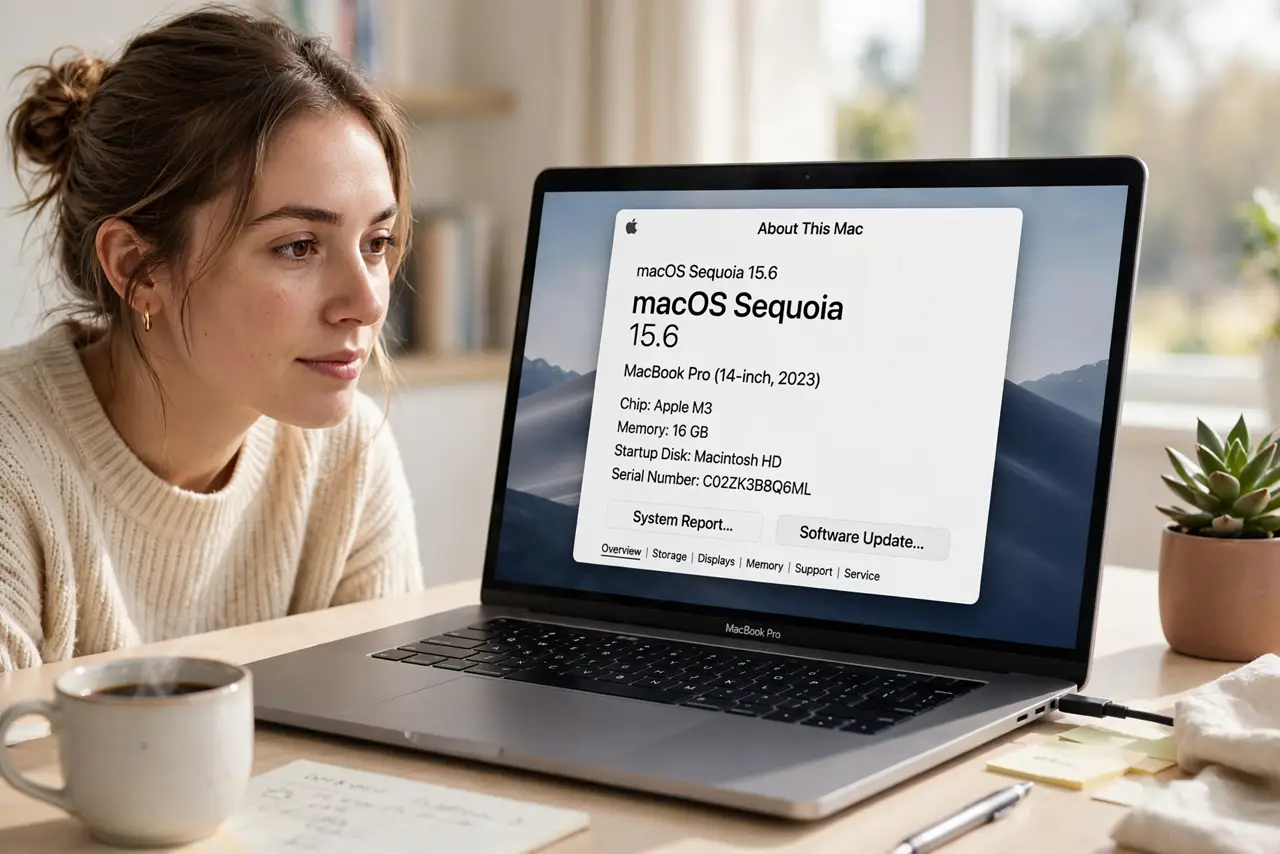
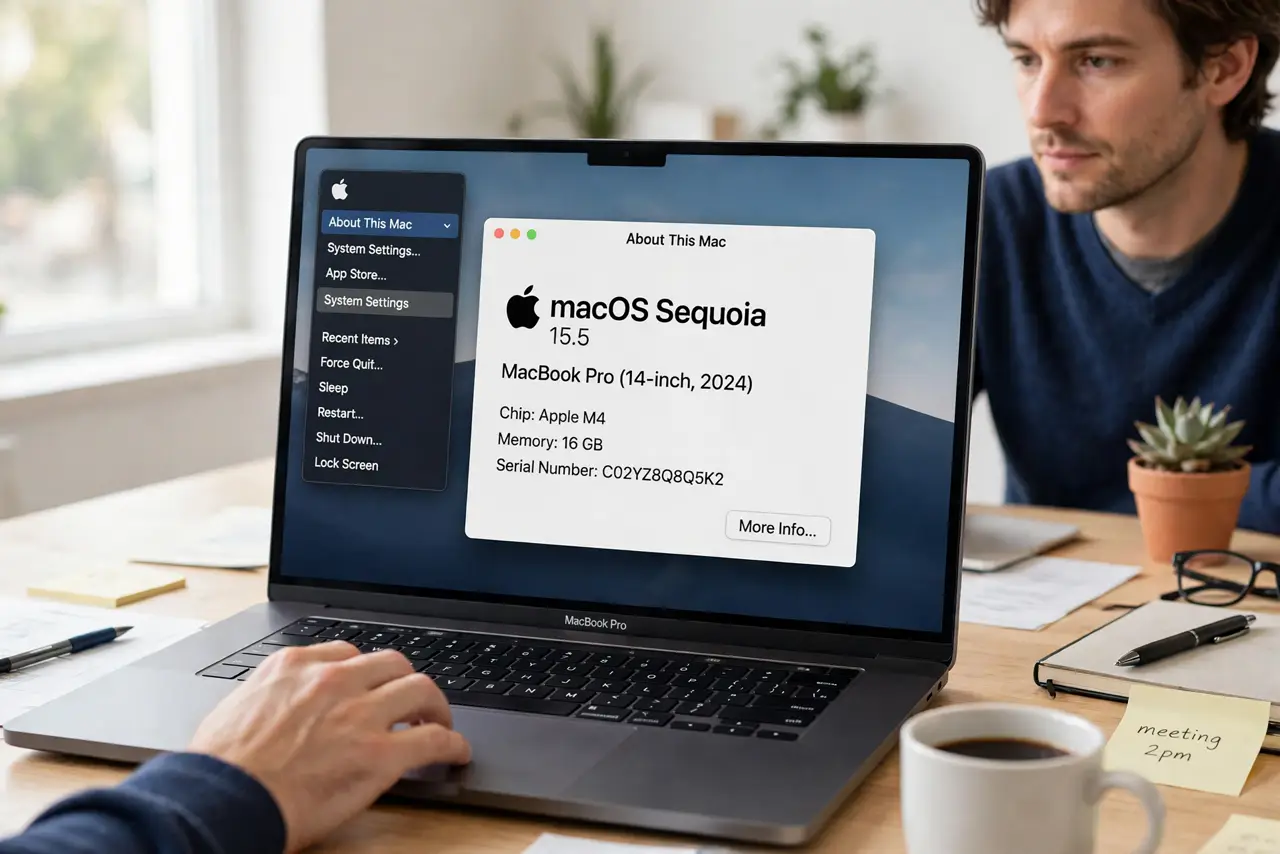
Quick fix: click the Apple menu and choose About This Mac. The Overview tab shows your model, chip, memory, and macOS version. Click More Info for the full system report with serial number, storage, and every hardware detail when you need it.
Follow these steps
- Open About This Mac. Click the Apple logo in the top-left corner, then About This Mac. It opens instantly — no digging through System Settings.
- Read the Overview tab. Model name and year, chip (Apple silicon or Intel), memory size, and serial number. This is the identity card of your Mac.
- Check the macOS version. The version number sits right under the Mac name. Software requirements always cite this number — compare before installing anything.
- Open the full System Report. Click More Info (or System Report on older macOS). Every component — storage, graphics, network, power — gets its own detailed page.
- Find the specs buyers ask for. Chip, RAM, storage size, and cycle count cover 90% of resale and repair questions. Screenshot the Overview tab and you're done answering.
- Note what's missing when storage runs low. If the storage line looks alarming, check what's eating it with the free up space guide before assuming you need a new Mac.
What NOT to do
- Do not share your serial number publicly. It's fine for support chats and repair quotes — not for forum posts or marketplace listings.
- Do not confuse the chip name with the model year. 'M2' is the chip; the year tells you which generation of Mac it's in.
- Do not trust a seller's word over this panel. Ask for a screenshot of About This Mac before buying used — it can't be faked from outside.
- Do not panic at 'Apple silicon' vs 'Intel' for everyday apps. Most software runs on both now; it matters mainly for very old or niche tools.
Frequently asked questions
How do I tell if my Mac is Apple silicon or Intel?
About This Mac says 'Chip' followed by M1/M2/M3 (Apple silicon) or 'Processor' followed by Intel. The wording itself tells you.
Where's the serial number?
On the Overview tab, or etched on the Mac's underside. You'll need it for warranty checks and Apple support.
Why does Apple care about the exact model year?
Repairs, trade-in values, and software compatibility all key off the precise model — 'MacBook Air' alone covers a dozen different machines.