'Other' Storage on Mac? Explained
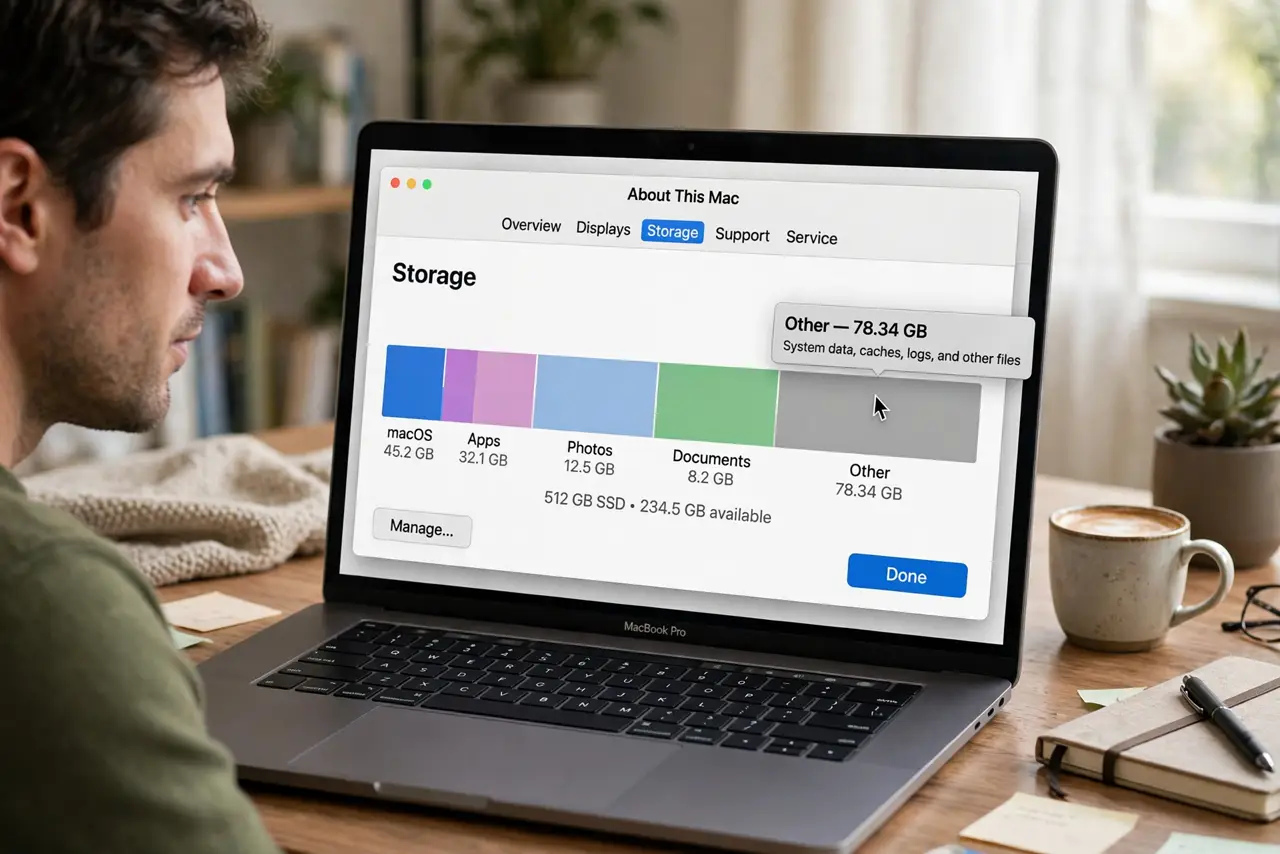
Your Mac says the disk is full, and a giant gray bar labeled 'Other' is eating half of it. Other is macOS's junk drawer — caches, logs, plug-ins, and leftovers it can't categorize. It's shrinkable, but only if you know which drawers are safe to empty.

TL;DR / Quick Fix
Quick fix: 'Other' is mostly caches, logs, and app leftovers — safe to trim but not to nuke blindly. Clear browser caches, delete old downloads, and remove apps you don't use. For a deeper clean, follow a full free-up-space pass rather than guessing.
Follow these steps
- See the breakdown. Apple menu > About This Mac > Storage (or System Settings > General > Storage). Hover the gray 'Other' segment to see its size — now you know the target.
- Clear browser caches. Browsers hoard gigabytes of cached files under 'Other.' Clear cache in each browser's settings — you'll stay signed in, just re-download images once.
- Empty the Downloads folder. Installers and zips pile up here for years. Sort by size, keep what you need, trash the rest, then empty the Trash.
- Remove apps you don't use. Drag unused apps to the Trash, then hunt their leftover support files. An app's leftovers stay in 'Other' long after the app is gone.
- Check for runaway logs. A misbehaving app can write gigabytes of logs. If 'Other' is enormous (tens of GB), that's the suspect — update or remove the culprit app.
- Do a full cleanup pass. For the systematic version — including purgeable space and Optimized Storage — work through the free up space guide.
What NOT to do
- Do not delete the Library folders by hand. 'Other' lives partly in ~/Library, and deleting the wrong subfolder breaks apps or the system.
- Do not buy a 'Mac cleaner' app for this. The built-in storage tools plus manual cleanup do the job without subscriptions or scareware.
- Do not assume Other is all deletable. System files legitimately live there — aim to shrink it, not zero it.
- Do not empty caches daily as 'maintenance.' Caches exist to speed things up; clearing them constantly just makes everything slower.
Frequently asked questions
What exactly counts as 'Other' storage?
Caches, logs, app plug-ins, fonts, disk images, and anything macOS can't categorize. It's a real category, not an error — just an unhelpfully broad one.
Why did Other grow suddenly?
Usually one app gone rogue — writing huge logs or cache files. Check which apps updated recently and inspect their cache sizes.
Can I just reinstall macOS to clear it?
It works but it's the nuclear option. A targeted cleanup reclaims nearly as much space with none of the risk or downtime.