Accessibility Zoom Follows the Mouse Oddly
Accessibility Zoom that follows the mouse oddly usually has a zoom style or tracking setting that does not match how you use it. Full-screen zoom, picture-in-picture zoom, and different tracking modes each follow the pointer differently, and the wrong combination feels erratic.
TL;DR / Quick Fix
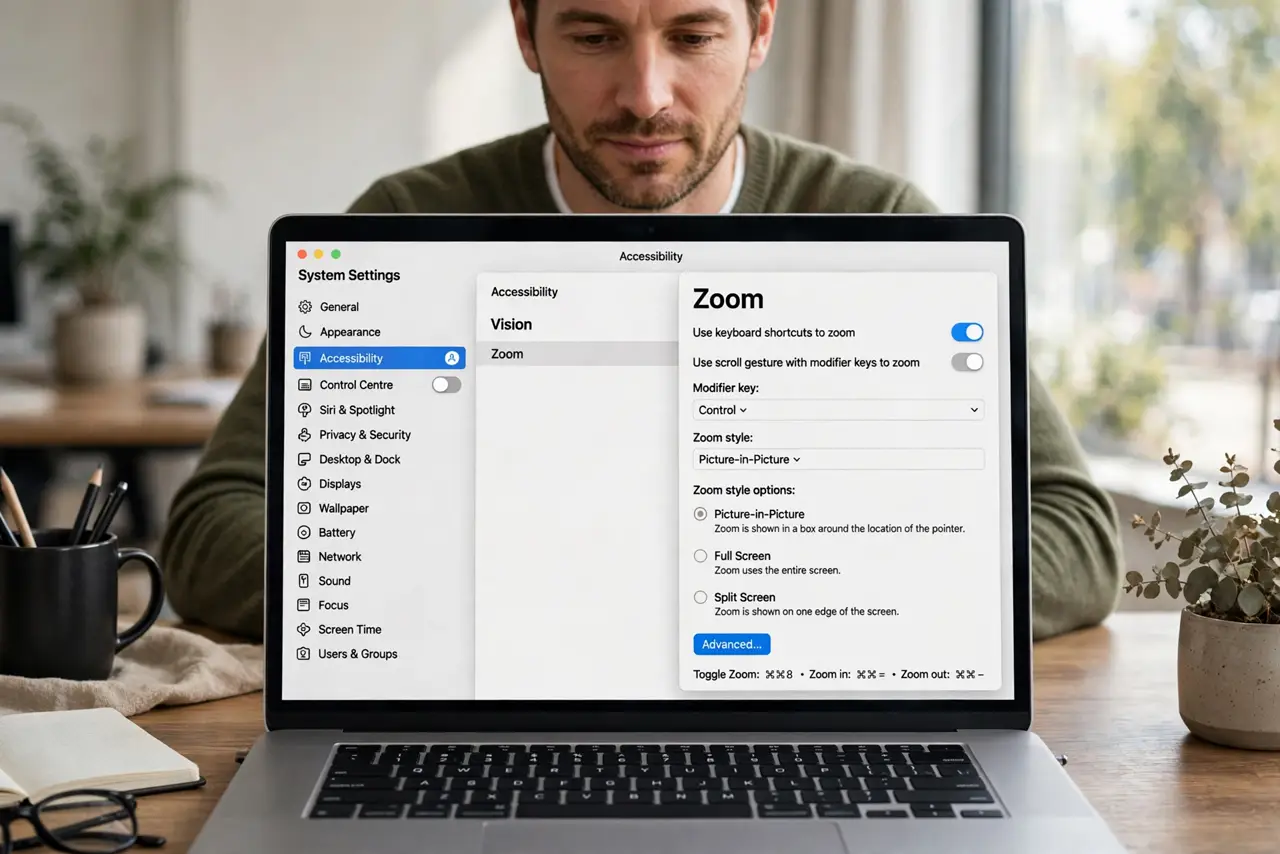
Quick fix: open System Settings, then Accessibility, then Zoom, and try a different zoom style, such as picture-in-picture instead of full screen. Then set pointer tracking to follow the mouse smoothly, and test at a lower magnification first. Test the fix, then keep the setting that works.
Follow these steps
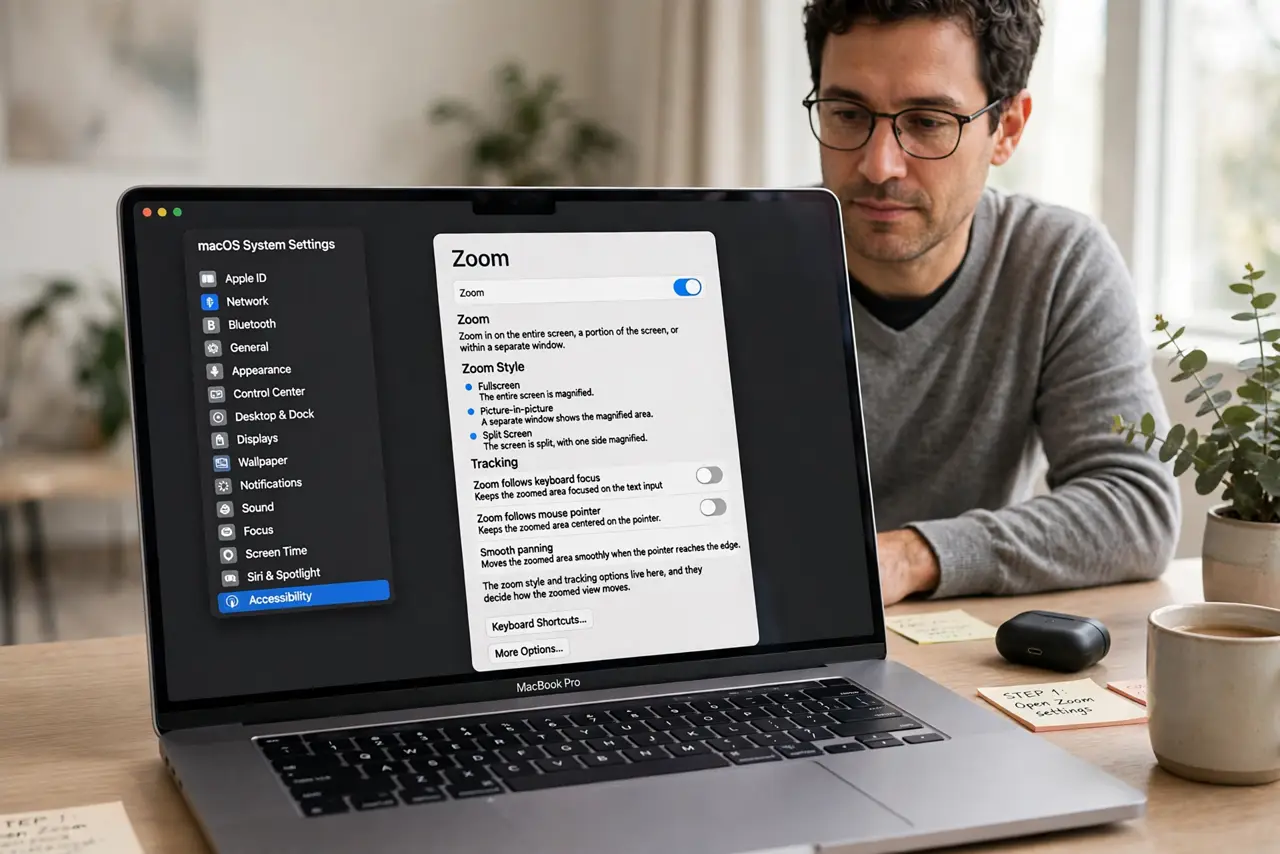
- Open Zoom settings. Open System Settings, then Accessibility, then Zoom. The zoom style and tracking options live here, and they decide how the zoomed view moves.
- Try another zoom style. Switch between full screen and picture-in-picture zoom and test each. Picture-in-picture keeps an unzoomed view visible, which feels steadier for many people.
- Adjust pointer tracking. Set how the zoomed view follows the pointer, and try the smooth or centered option. A jumpy tracking mode makes the view leap with every small mouse movement.
- Lower magnification first. Reduce magnification to a lower level while testing. High magnification exaggerates every pointer movement, so odd following feels worse at high zoom.
- Test slow mouse movement. Move the mouse slowly across the screen and watch the zoomed view. Slow movement reveals whether tracking is smooth or jumpy far better than fast flicks.
- Reset zoom if tangled. If settings are tangled, reset zoom options to defaults and change one setting at a time. A clean baseline with single changes finds the setting that caused the odd behavior.
What NOT to do
- Do not set magnification to maximum while troubleshooting. Maximum zoom exaggerates tracking problems and makes the settings themselves hard to use.
- Do not change zoom style, tracking, and magnification all at once. One change at a time is the only way to know which setting fixed the odd following.
- Do not assume the mouse is faulty. Odd zoom following is a zoom setting behavior, and a new mouse follows the same settings just as oddly.
- Do not turn Zoom off permanently over odd tracking. A different style or tracking mode usually makes it usable again without losing the feature.
Frequently asked questions
Why does Zoom follow the mouse oddly?
Because the zoom style or pointer tracking mode does not match your use. Full-screen zoom with jumpy tracking feels erratic, while picture-in-picture can feel steadier.
What is the difference between zoom styles?
Full screen magnifies the whole display, while picture-in-picture magnifies a windowed area and leaves the rest unzoomed.
Will lower magnification help?
Often yes for testing. Lower magnification exaggerates pointer movement less, so tracking feels smoother while you find the right settings.