Mac Accessibility Zoom Stuck On? Turn It Off
The Mac screen is suddenly magnified, and you cannot see the whole desktop. Accessibility Zoom turned on, often by a shortcut you pressed by accident. Turn it off with the same shortcut, then check the settings so it stops happening.
TL;DR / Quick Fix
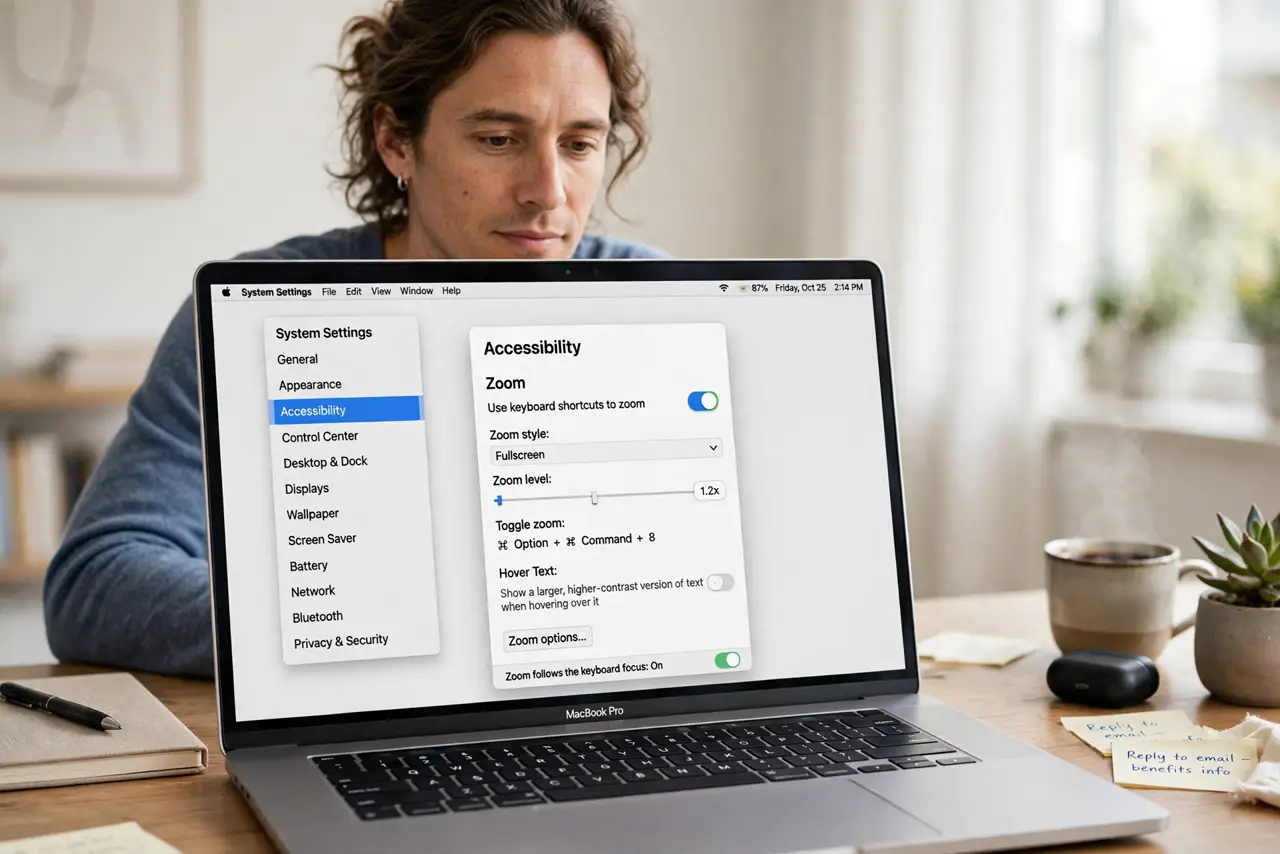
Quick fix: press Option, Command, and 8 together to toggle Zoom off. If the screen stays magnified, open System Settings, then Accessibility, then Zoom, and turn Zoom off there. Then test the fix for a full day before changing anything else.
Follow these steps
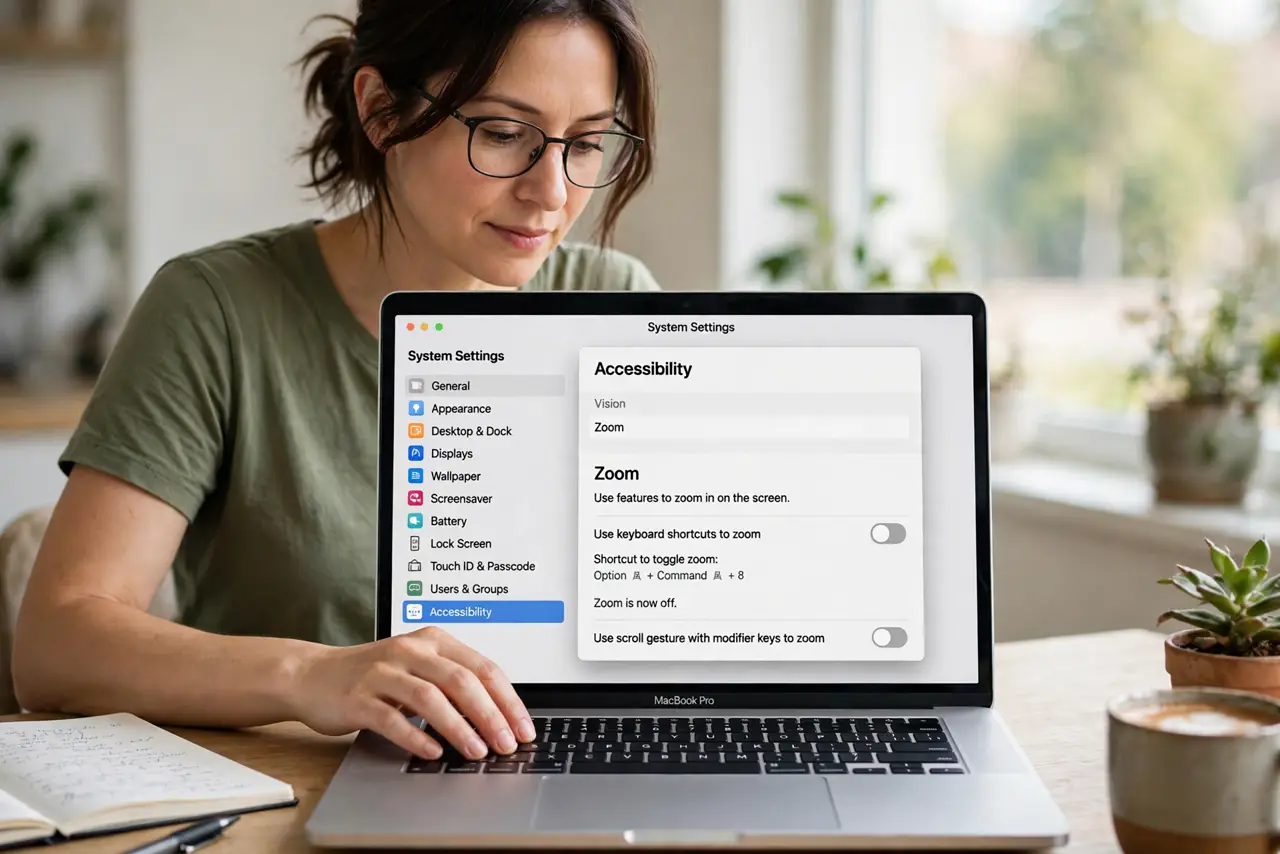
- Toggle Zoom off with the shortcut. Press Option, Command, and 8 together. This is the standard toggle for Zoom, and it turns magnification off at once in most cases.
- Use the Zoom settings pane. Open System Settings, then Accessibility, then Zoom, and turn off Use keyboard shortcuts to zoom if you keep triggering it by accident.
- Check the Zoom style. In the same Zoom pane, check whether Zoom uses full screen or a window. Full screen magnification feels most dramatic, so knowing the style explains the view.
- Turn off scroll gesture zoom. If Zoom turns on while scrolling, turn off Use scroll gesture with modifier keys to zoom. Accidental scroll gestures are a common trigger.
- Restart the app or Mac if stuck. If the screen stays magnified, quit the current app, then restart the Mac if needed. A restart clears a stuck Zoom state.
- Re-enable only if you need it. If you actually use Zoom, turn it back on deliberately with settings you understand. If you never use it, leave it off to prevent repeats.
What NOT to do
- Do not restart the Mac in a panic before trying the shortcut. Option, Command, and 8 fixes most stuck Zoom cases instantly.
- Do not change display resolution to fix Zoom. Resolution is separate from magnification, and changing it adds confusion.
- Do not ignore the shortcut that triggered Zoom. If you do not turn off the trigger, Zoom will keep turning on.
- Do not press random accessibility shortcuts to escape. Use the Zoom toggle first, then check settings calmly.
Frequently asked questions
What shortcut turns Mac Zoom off?
Option, Command, and 8 together toggles Zoom. Press it once and wait for the screen to return to normal.
Why does Zoom turn on by itself?
Usually an accidental shortcut or scroll gesture triggers it. Turning off those triggers in Zoom settings stops repeats.
Is Zoom the same as larger text?
No. Zoom magnifies the whole screen, while larger text only increases text size. They are separate settings.