Mac VoiceOver Turns On by Accident? Stop It
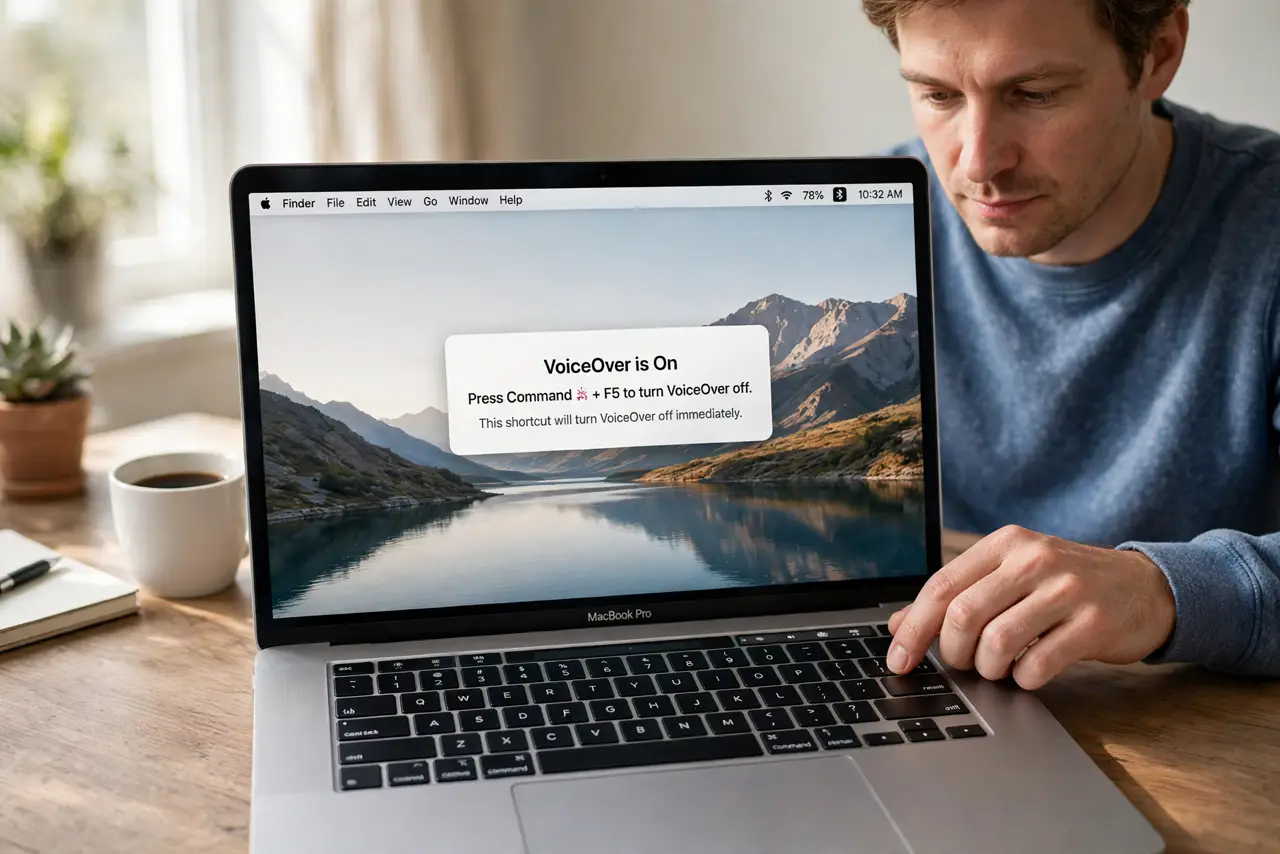
The Mac suddenly starts speaking everything on screen, and you did not ask for a screen reader. VoiceOver turned on by its shortcut, usually Command and F5 pressed by accident. Turn it off the same way, then disable the trigger if you never use it.
TL;DR / Quick Fix
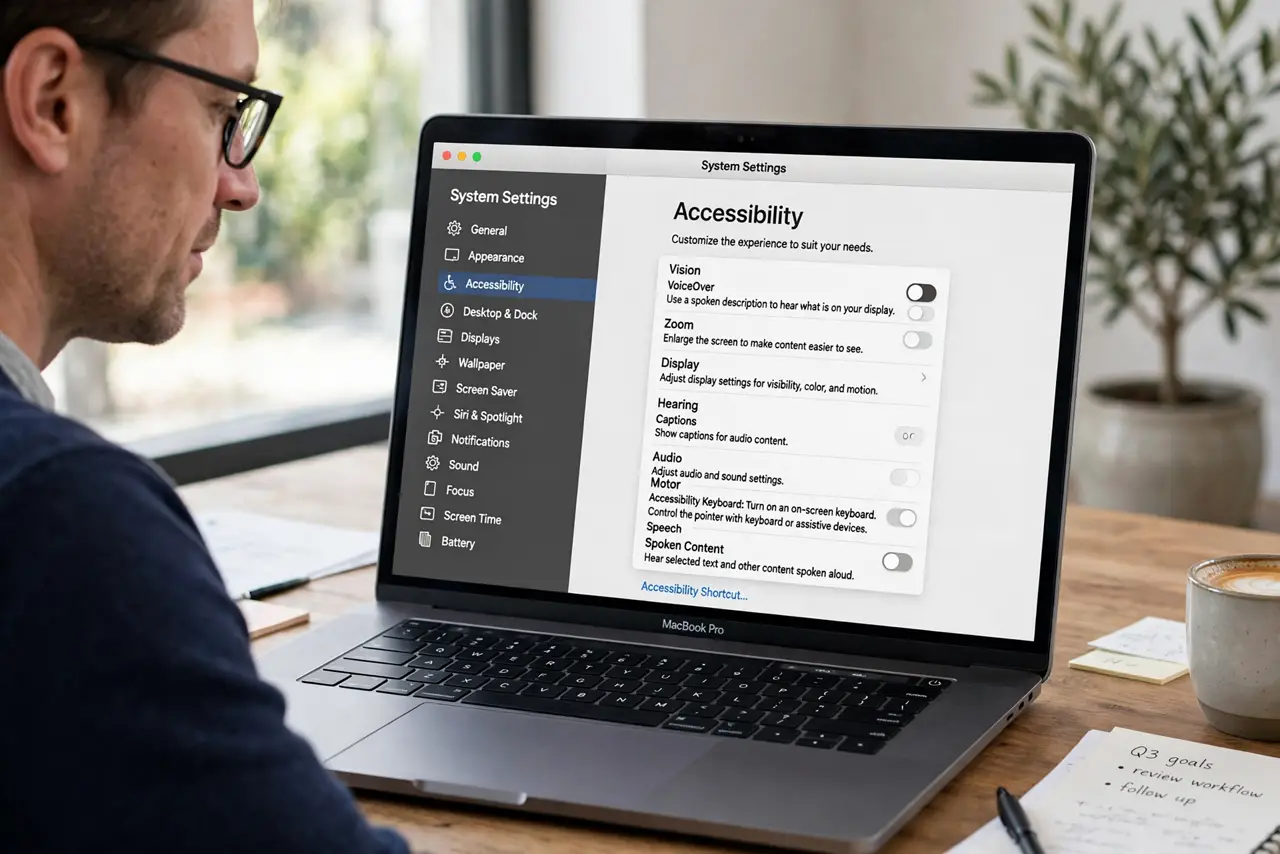
Quick fix: press Command and F5 together to turn VoiceOver off. If speech continues, open System Settings, then Accessibility, then VoiceOver, and turn VoiceOver off there. Then test the fix for a full day before changing anything else. Test again tomorrow and confirm the fix still holds.
Follow these steps
- Turn VoiceOver off with the shortcut. Press Command and F5 together. This toggles VoiceOver, so one press should stop the speech if the shortcut is still enabled.
- Use VoiceOver settings if speech continues. Open System Settings, then Accessibility, then VoiceOver, and turn VoiceOver off. Wait a few seconds for speech to stop fully.
- Disable the shortcut trigger. In Accessibility settings, check the shortcut options for VoiceOver. If you never use VoiceOver, turn off the shortcut that keeps triggering it.
- Check the Accessibility shortcut menu. Press Option, Command, and F5 to see the Accessibility shortcut menu, and confirm VoiceOver is not checked there by accident.
- Restart the Mac if speech persists. Restart the Mac and check whether VoiceOver starts again at login. If it does, check Login Items and Accessibility settings for a startup trigger.
- Leave VoiceOver for those who need it. If someone else uses this Mac with VoiceOver, do not disable it permanently. Learn the toggle instead, so you can turn it off quickly.
What NOT to do
- Do not mute the Mac to hide VoiceOver. Muting silences alerts too, while the screen reader keeps running underneath.
- Do not delete accessibility settings to stop speech. Turning VoiceOver off and disabling its shortcut is enough and safer.
- Do not press every function key to stop speech. Use Command and F5 first, then settings, instead of random key presses.
- Do not assume the Mac is broken because it speaks. VoiceOver is a built-in accessibility tool, not a fault or a virus.
Frequently asked questions
How do I turn VoiceOver off quickly?
Press Command and F5 together. That shortcut toggles VoiceOver off in most cases.
Why does VoiceOver keep turning on?
Usually the Command and F5 shortcut is pressed by accident, or it is checked in the Accessibility shortcut menu.
Should I disable VoiceOver permanently?
Only if nobody uses it on this Mac. If someone relies on it, keep it available and learn the toggle instead.