Get Aerial Screensavers
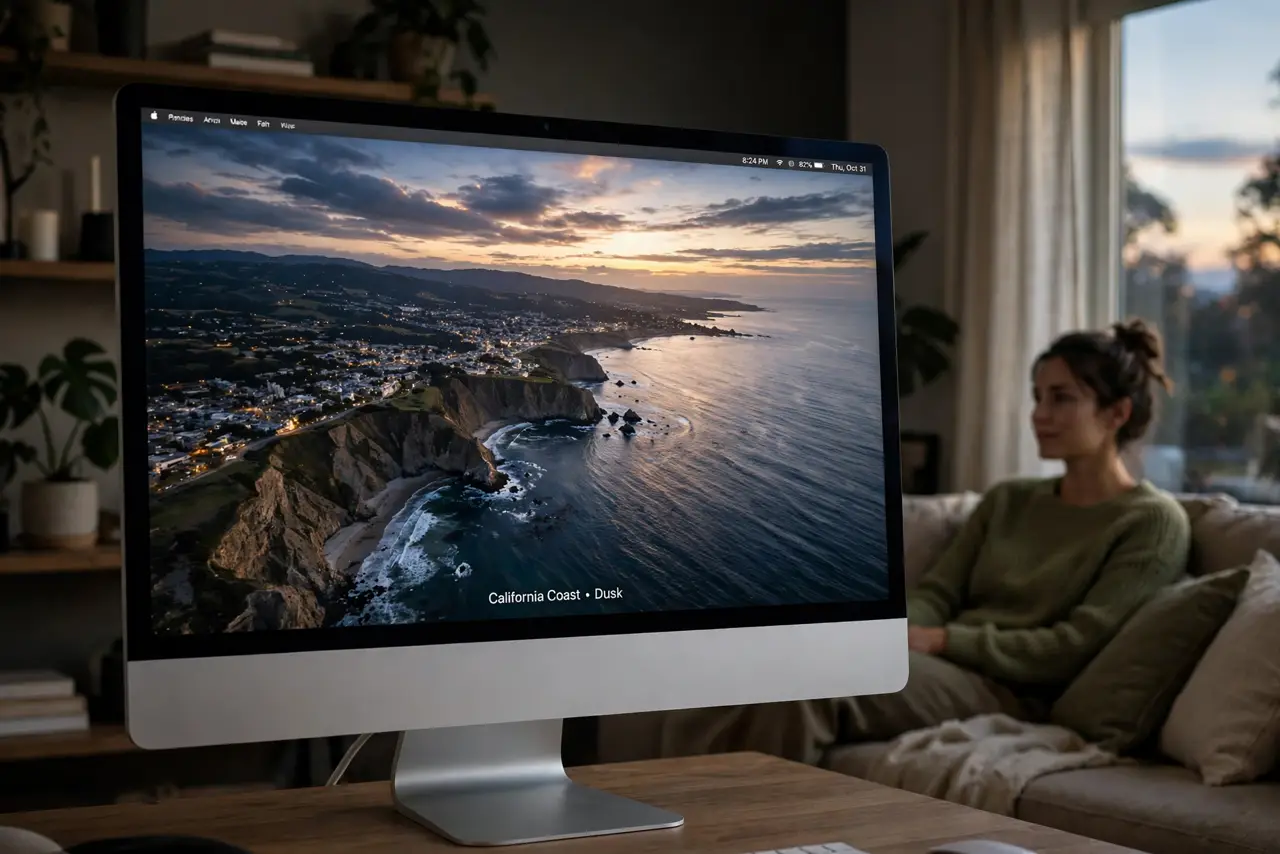
Your screensaver choices are boring — the same swirling colors since forever — while your Mac quietly includes some of the most beautiful screensavers ever made: slow aerial footage of coastlines, cities, and landscapes drifting across the screen. They are built into recent macOS versions, free, and gorgeous. Pair one with the matching video wallpaper for the full effect.
TL;DR / Quick Fix
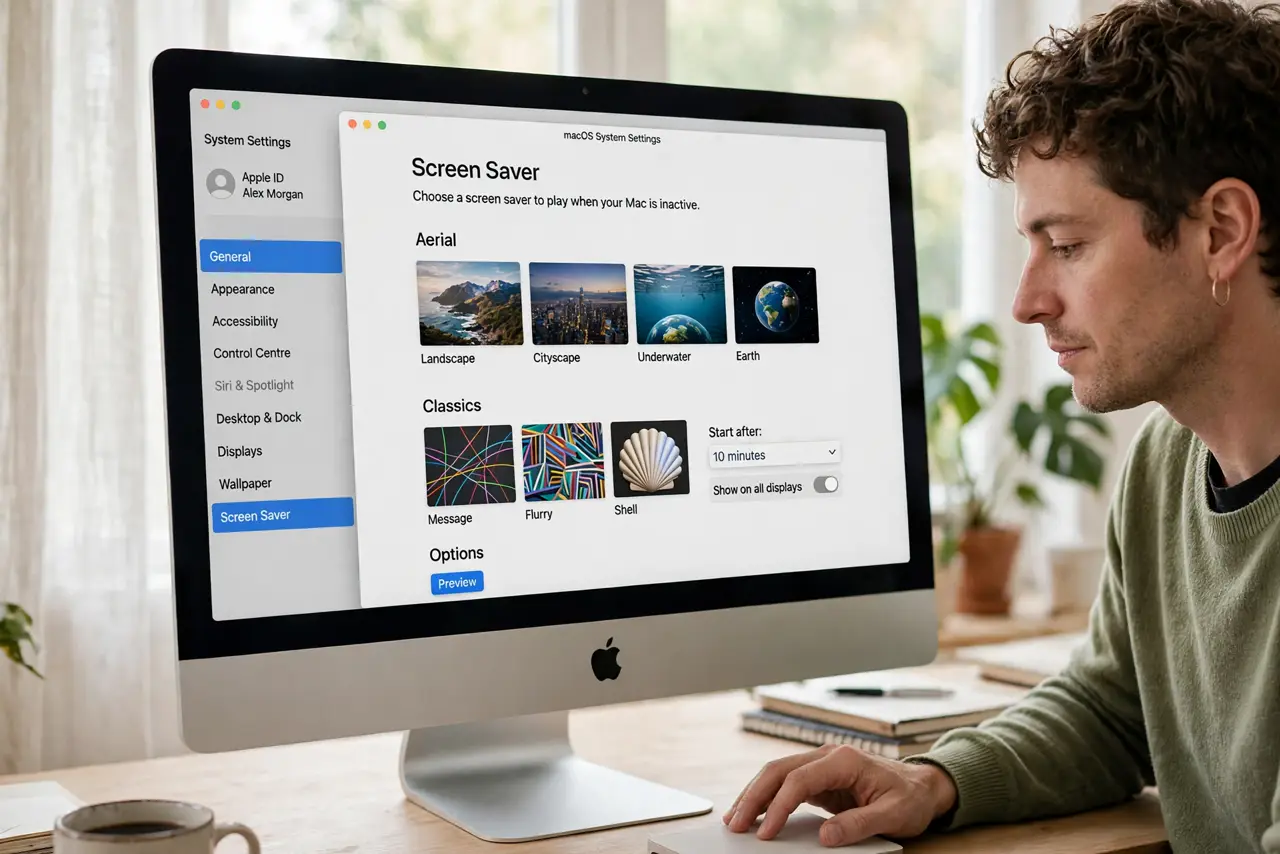
Quick fix: on a recent macOS, open System Settings, then Screen Saver, and choose one of the built-in aerial screensavers — slow landscape footage that looks stunning on any display. Set a short idle time so you actually see it, and pair it with the matching video wallpaper.
Follow these steps
- Open the Screen Saver settings. Go to System Settings and choose Screen Saver. The gallery includes the aerial collection alongside the classics — preview each with a click.
- Pick your aerial scene. Choose from coastlines, cities, deserts, and more. They are slow, cinematic shots — pick the one you will not tire of seeing daily.
- Set a sensible idle time. A screensaver you never see is pointless. Set the start time to a few minutes of inactivity — short enough to enjoy, long enough not to interrupt reading.
- Pair it with the wallpaper. Use the matching video wallpaper and the handoff from desktop to screensaver looks like one continuous film. It is a small touch that feels premium.
- Mind the laptop battery. On a MacBook running on battery, a video screensaver uses more power than a blank screen. The system dims and sleeps anyway — just know the tradeoff exists.
- Enjoy it on the big screen. Aerial screensavers shine on large external displays. If your Mac drives a TV or big monitor, this is where the footage earns its keep.
What NOT to do
- Do not download screensavers from random sites. The built-ins are free and safe — third-party screensaver downloads are a historic malware vector.
- Do not set the idle time to an hour. A screensaver that never appears might as well not exist — a few minutes is the sweet spot.
- Do not confuse screensavers with security. The screensaver is decoration; the lock that follows it is the protection — require a password on wake.
- Do not expect them to save modern screens. Screensavers are ambiance now, not burn-in prevention — pretty, not functional.
Frequently asked questions
Do screensavers still serve a purpose?
Mostly aesthetic now — modern displays do not need them. They are ambiance and a privacy screen when you step away.
Can I use my own photos?
Yes — the classic photo screensavers still exist alongside the aerials. Mix personal photos with the cinematic ones if you like.
Why does mine never activate?
Check the idle timer and whether an app is preventing sleep — video players and presentations often block it deliberately.