Add iPhone Widgets to Mac
Your Mac's widgets feel limited — weather, calendar, clock, and not much else. But your iPhone is full of widgets for the apps you actually use, and your Mac can borrow them. With the iPhone nearby, its widgets appear in the Mac's widget gallery, live on your desktop, and stay interactive. It is one of the quieter Continuity tricks and genuinely useful. Your iPhone's own lock screen widgets are a separate setup.
TL;DR / Quick Fix
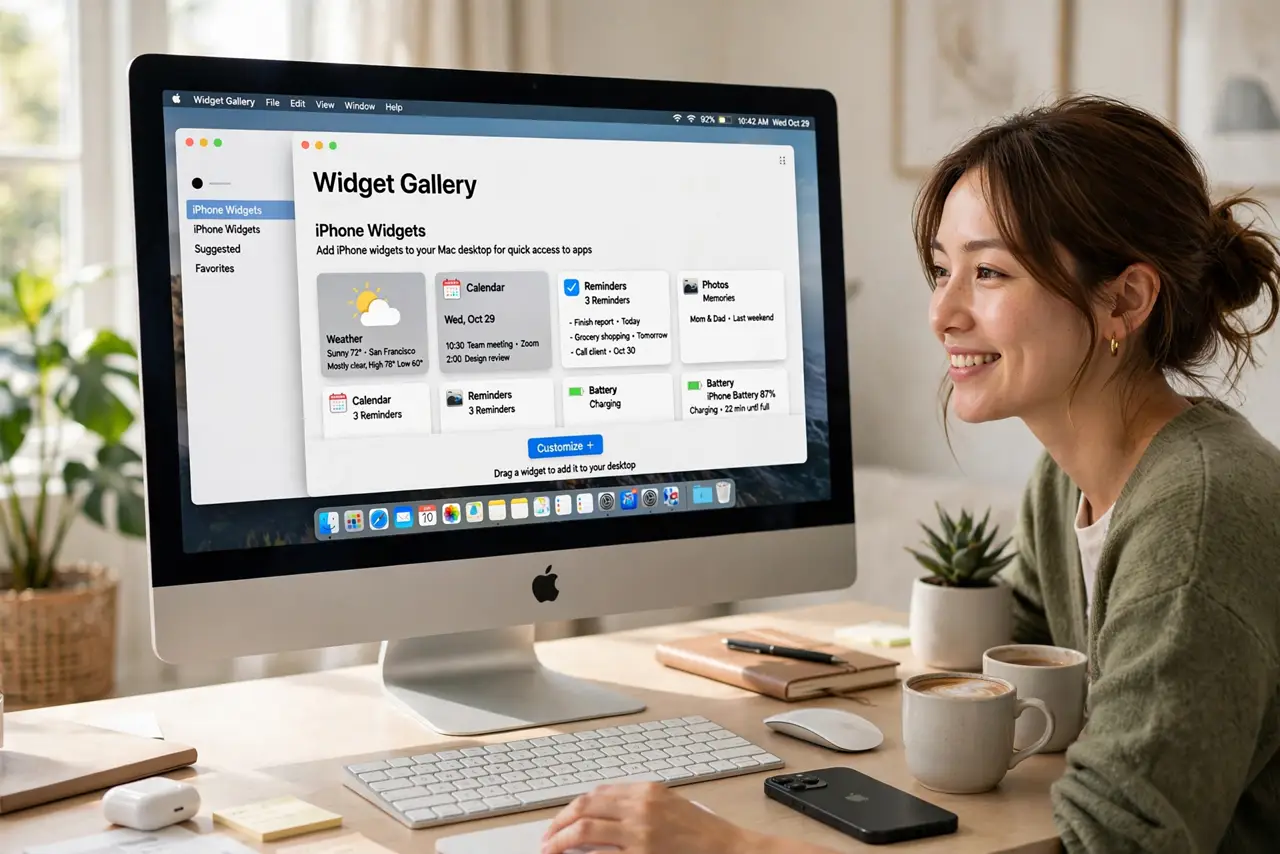
Quick fix: on a recent macOS, right-click the desktop, choose Edit Widgets, and browse the gallery — your nearby iPhone's widgets appear there automatically. Drag the ones you want onto the desktop. They stay live and interactive while the iPhone is close by.
Follow these steps
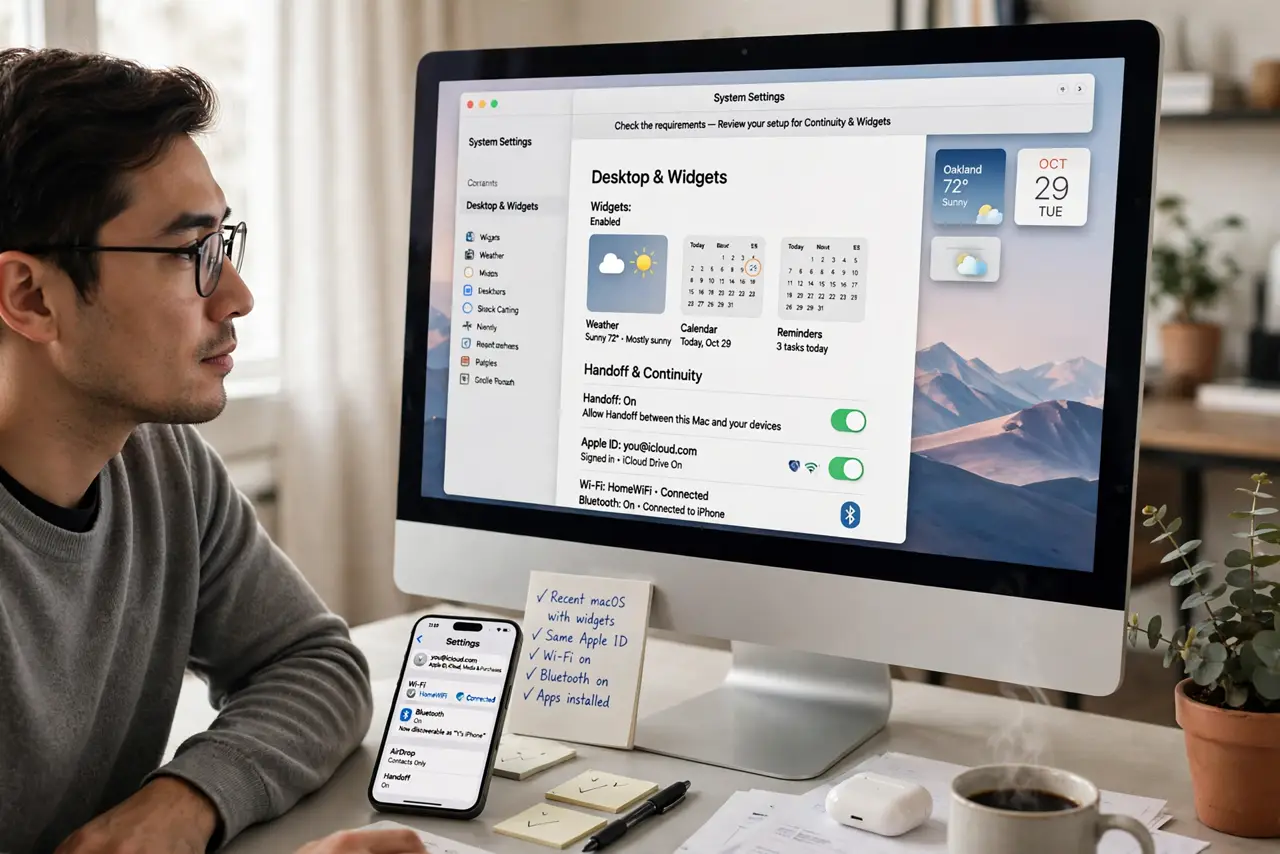
- Check the requirements. You need a recent macOS with desktop widgets and an iPhone with the apps installed, both signed into the same Apple ID, with Wi-Fi and Bluetooth on and the phone nearby.
- Open the widget gallery. Right-click the desktop and choose Edit Widgets, or open Notification Center and click Edit Widgets at the bottom. The gallery shows Mac widgets and, when available, iPhone ones.
- Find your iPhone's widgets. In the gallery, look for apps marked as coming from your iPhone. These are the widgets your Mac does not have natively — the whole point of the trick.
- Drag them onto the desktop. Drag a widget out of the gallery to place it. Arrange a few you check daily — calendar, reminders, smart home — and skip the rest; a crowded desktop helps nobody.
- Use them interactively. Desktop widgets are not just displays: check off reminders, control music, and toggle smart home devices right from the widget without opening the app.
- Know the phone needs to stay close. iPhone widgets refresh while the phone is nearby. If the phone leaves, the widget shows the last data until it returns — fine for a coffee run, stale after a trip.
What NOT to do
- Do not clutter the desktop with widgets you never check. Three useful widgets beat twelve decorative ones.
- Do not expect iPhone widgets to work with the phone far away. They need the nearby connection to stay fresh.
- Do not forget the phone's apps must be installed. A widget cannot appear for an app that is not on the iPhone.
- Do not ignore Mac-native alternatives. If a Mac version of the widget exists, prefer it — it works even when the phone is gone.
Frequently asked questions
Why don't my iPhone widgets appear?
Check the same Apple ID on both, Wi-Fi and Bluetooth on, and the phone nearby and unlocked. Also confirm the app actually offers a widget on the iPhone.
Do widgets drain the iPhone battery?
Barely — they refresh on a schedule, not constantly. Heavy widget users might notice a small difference, nothing dramatic.
Can I use iPhone widgets without an iPhone nearby?
They will show, but with stale data. The live connection needs the phone close; without it, they are snapshots.