AirPlay to Mac Not Listed? Fix It
When AirPlay to Mac is not listed, your iPhone or iPad cannot find the Mac as a receiver, even though both devices are nearby. The Mac receiver setting, the network, and the account all matter, so checking them in order usually makes the Mac appear.
TL;DR / Quick Fix
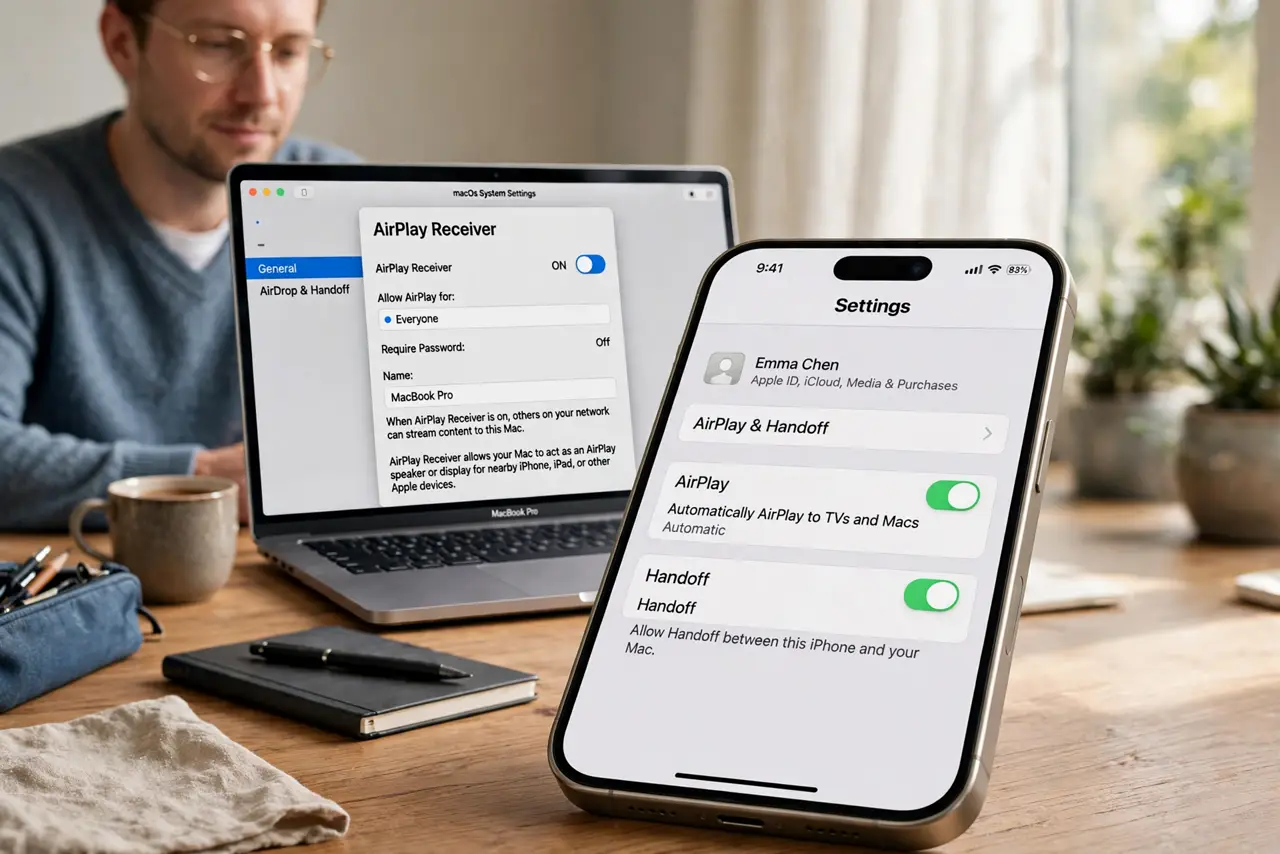
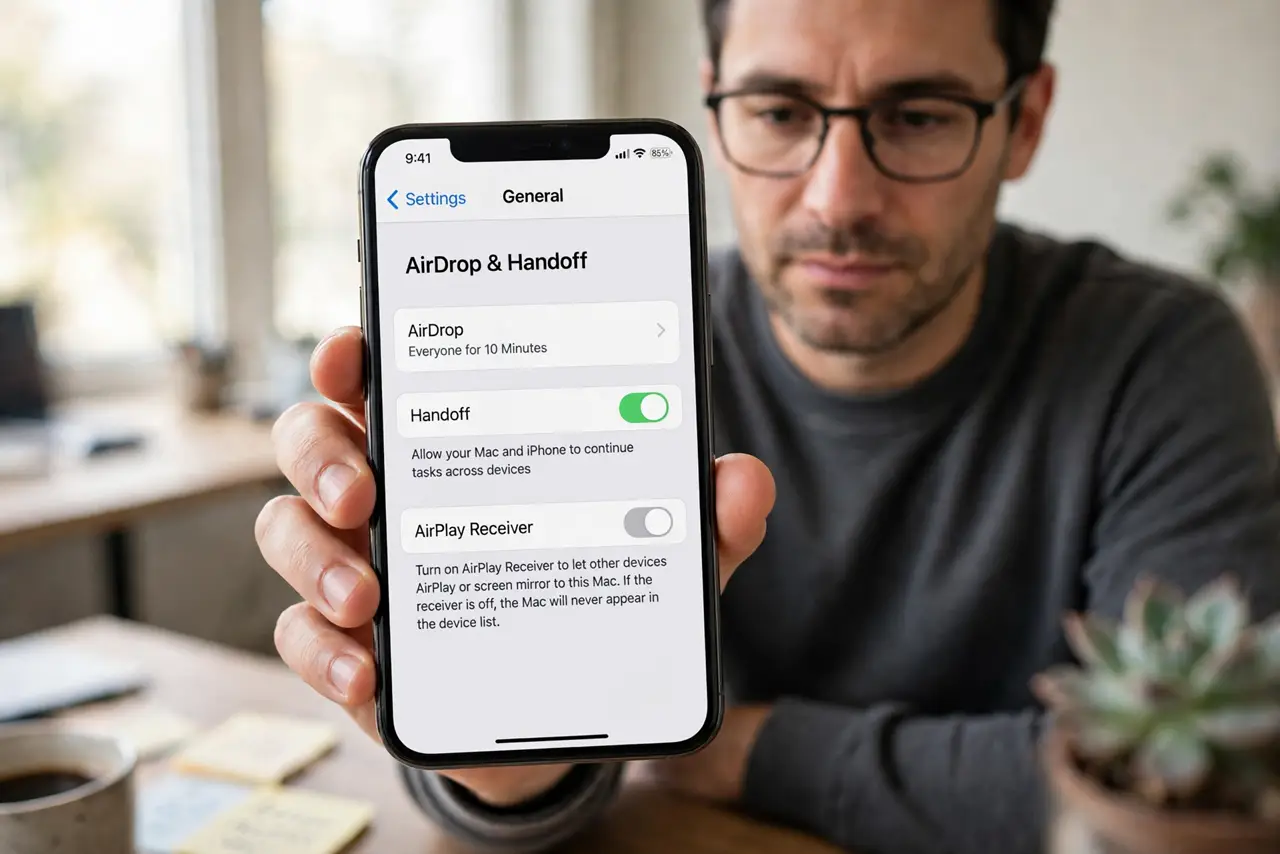
Quick fix: on the Mac, open System Settings, then General, then AirDrop and Handoff, and confirm AirPlay Receiver is on. Then, on the iPhone or iPad, open Control Center, tap Screen Mirroring, and look for the Mac by name on the list.
Follow these steps
- Turn on AirPlay Receiver on the Mac. Open System Settings, then General, then AirDrop and Handoff, and turn on AirPlay Receiver. If the receiver is off, the Mac will never appear in the device list.
- Check who can AirPlay to this Mac. On the same settings page, check whether AirPlay is allowed for the current user, anyone on the network, or everyone. Set it to a level that includes your iPhone or iPad.
- Put both devices on the same network. Connect the Mac and the iPhone or iPad to the same Wi-Fi network. AirPlay discovery works best on a shared network, and different networks can hide the Mac entirely.
- Restart Wi-Fi on both devices. Turn Wi-Fi off and back on, on both devices, then open Screen Mirroring again. A fresh network discovery often reveals a Mac that was hidden by a stale listing.
- Restart both devices if it still hides. Restart the Mac and the iPhone or iPad, then check Screen Mirroring again. A restart on both sides clears a discovery state that settings alone may not reset.
- Check Mac compatibility. Confirm your Mac model supports AirPlay Receiver. Older Macs may not offer the feature at all, in which case no setting will make the Mac appear.
What NOT to do
- Do not buy an Apple TV because AirPlay to Mac failed once. A receiver setting or network fix usually makes the Mac appear, and extra hardware is a separate purchase you may not need.
- Do not set AirPlay Receiver to everyone permanently to fix discovery. Use the narrowest setting that includes your devices, and widen it only for a test.
- Do not keep toggling AirPlay Receiver rapidly. Toggling needs a few seconds to take effect, and rapid toggles can leave the receiver in an unclear state.
- Do not assume the Mac is broken because it is not listed. Discovery depends on settings, network, and compatibility, all of which are cheaper to check than a repair.
Frequently asked questions
Why is my Mac not in the Screen Mirroring list?
Usually AirPlay Receiver is off, the devices are on different networks, or the Mac model does not support receiving. Check those three in order.
Do both devices need the same account?
For the current user setting, yes. For a wider setting, nearby devices can AirPlay without sharing the account, depending on the level you choose.
What if the Mac appears but connection fails?
Move the devices closer, restart Wi-Fi on both, and try again. Discovery succeeding but connection failing usually points to a weak or busy network link.