Fix Mac Wi-Fi Dropping After Sleep
Wi-Fi that works fine until the Mac sleeps, then drops or refuses to reconnect, is usually a wake-up or network memory problem rather than a broken Wi-Fi card. The Mac, the router, and the saved network all interact when waking. Test one change at a time.
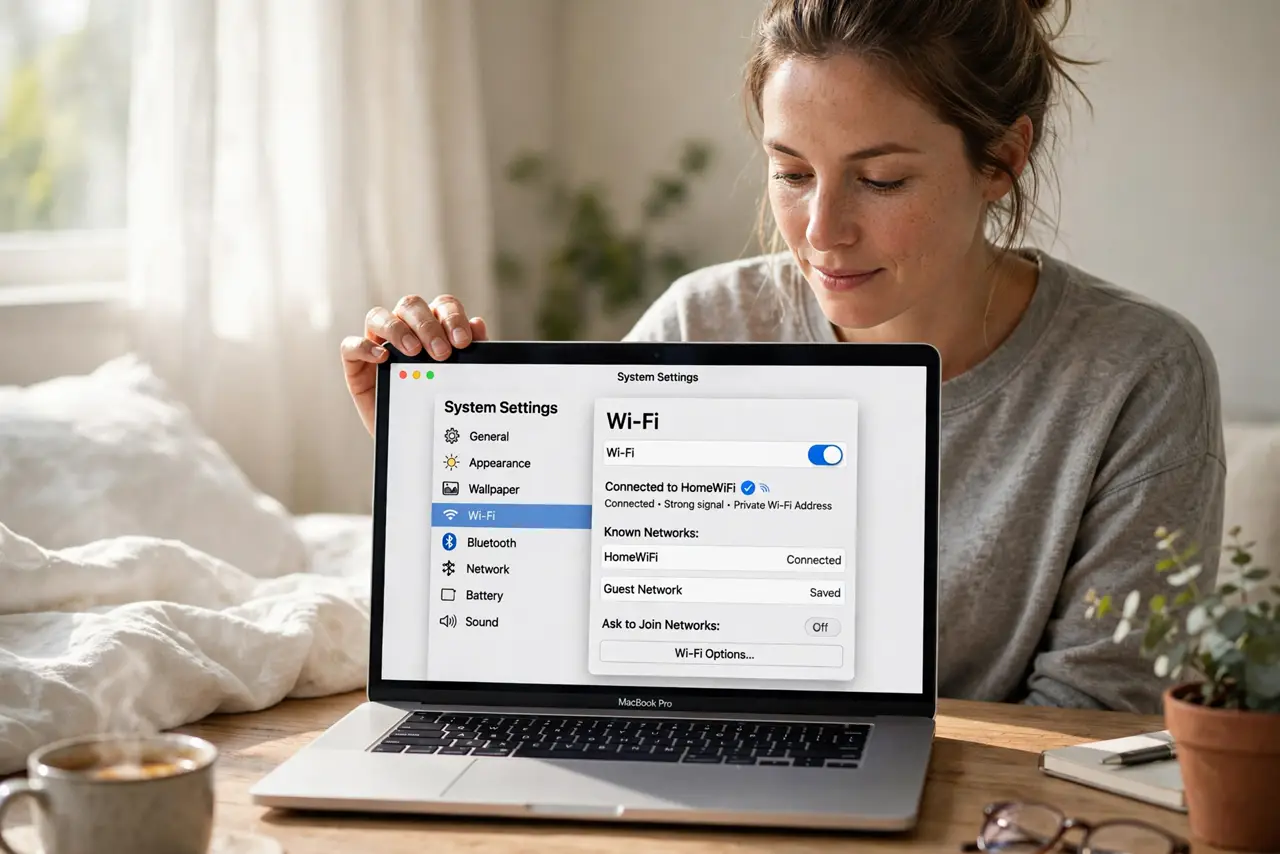
TL;DR / Quick Fix
Quick fix: wake the Mac, turn Wi-Fi off and on, and rejoin your network. If it drops after every sleep, forget the network in Wi-Fi settings and join it again fresh. Then test sleep and wake once more before changing router settings.
Follow these steps
- Turn Wi-Fi off and on after waking. After waking, open Control Center or Wi-Fi settings, turn Wi-Fi off, wait a few seconds, and turn it back on. This forces a fresh connection attempt.
- Forget and rejoin the network. Open System Settings, then Wi-Fi, find your network, choose Forget This Network, then join it again with the password. A fresh join clears a stale saved connection.
- Restart the Mac and test sleep once. Restart, connect to Wi-Fi, let the Mac sleep for a few minutes, then wake it and check whether Wi-Fi reconnects on its own.
- Move closer to the router for the test. Test sleep and wake with the Mac closer to the router. A weak signal at wake-up can look like a sleep problem when it is really a range problem.
- Restart the router. Unplug the router for thirty seconds, plug it back in, wait for it to fully restart, then test sleep and wake again. Routers can drop waking devices after running for weeks.
- Test on another network. Try sleep and wake on a different Wi-Fi network if you can. If Wi-Fi survives sleep there, the problem is likely your home network or router, not the Mac.
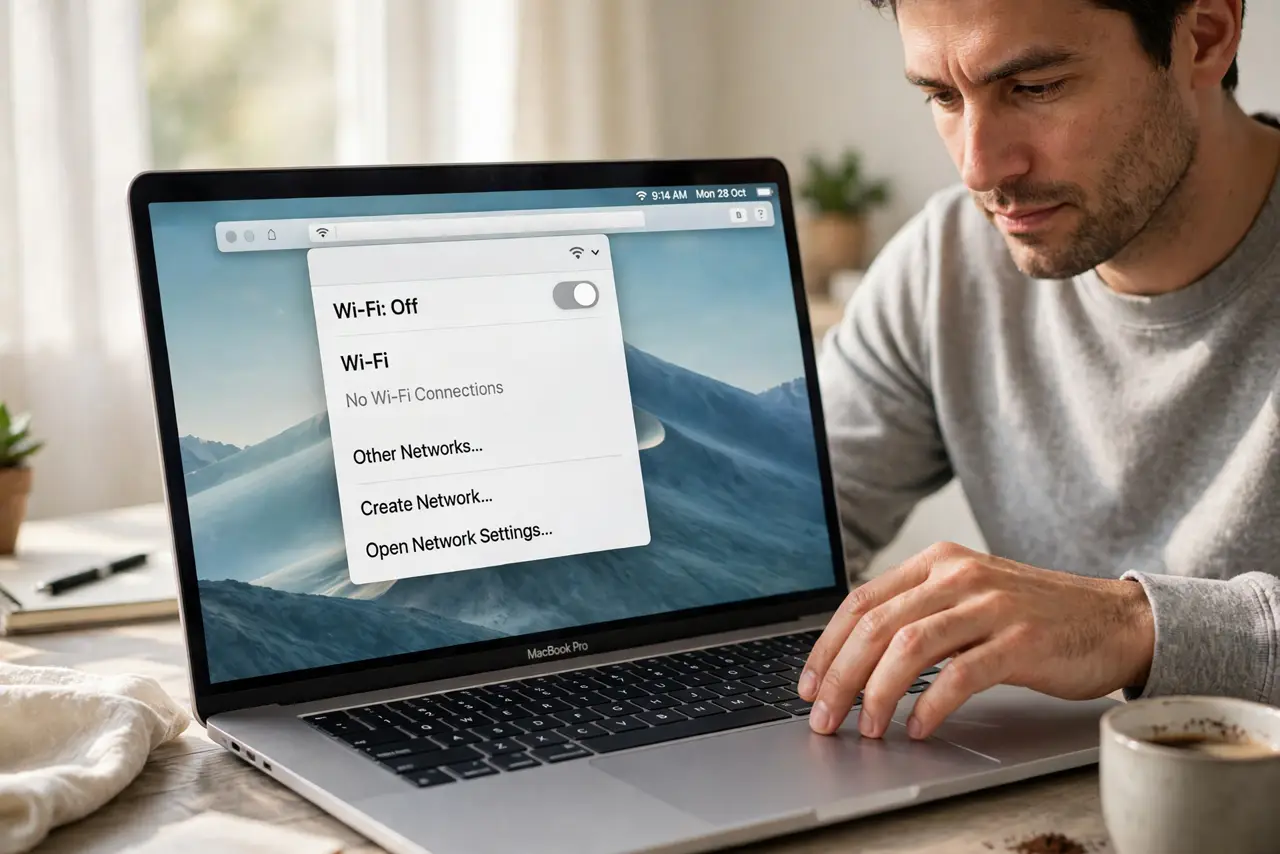
What NOT to do
- Do not reset network settings on the whole Mac first. Forgetting and rejoining one network is enough to test the saved-connection theory.
- Do not buy a Wi-Fi adapter first. Test another network and a router restart before concluding the Mac's Wi-Fi hardware is at fault.
- Do not leave Wi-Fi off as a workaround. Fix the wake reconnect, so the Mac is ready to use the moment you open it.
- Do not change router settings you do not understand. Restart the router first, and note any setting before you change it.
Frequently asked questions
Why does Wi-Fi drop only after sleep?
Waking reconnects the network from scratch, so a stale saved connection, a weak signal, or a tired router shows up exactly at wake-up.
Does forgetting the network delete anything else?
No. It only removes that saved network and its password from the Mac. You rejoin it by entering the password again.
What if it drops on every network?
Then the Mac side is more likely at fault. Restart, rejoin a network fresh, and check for a macOS update.