AirPods Keep Switching Devices? Fix It
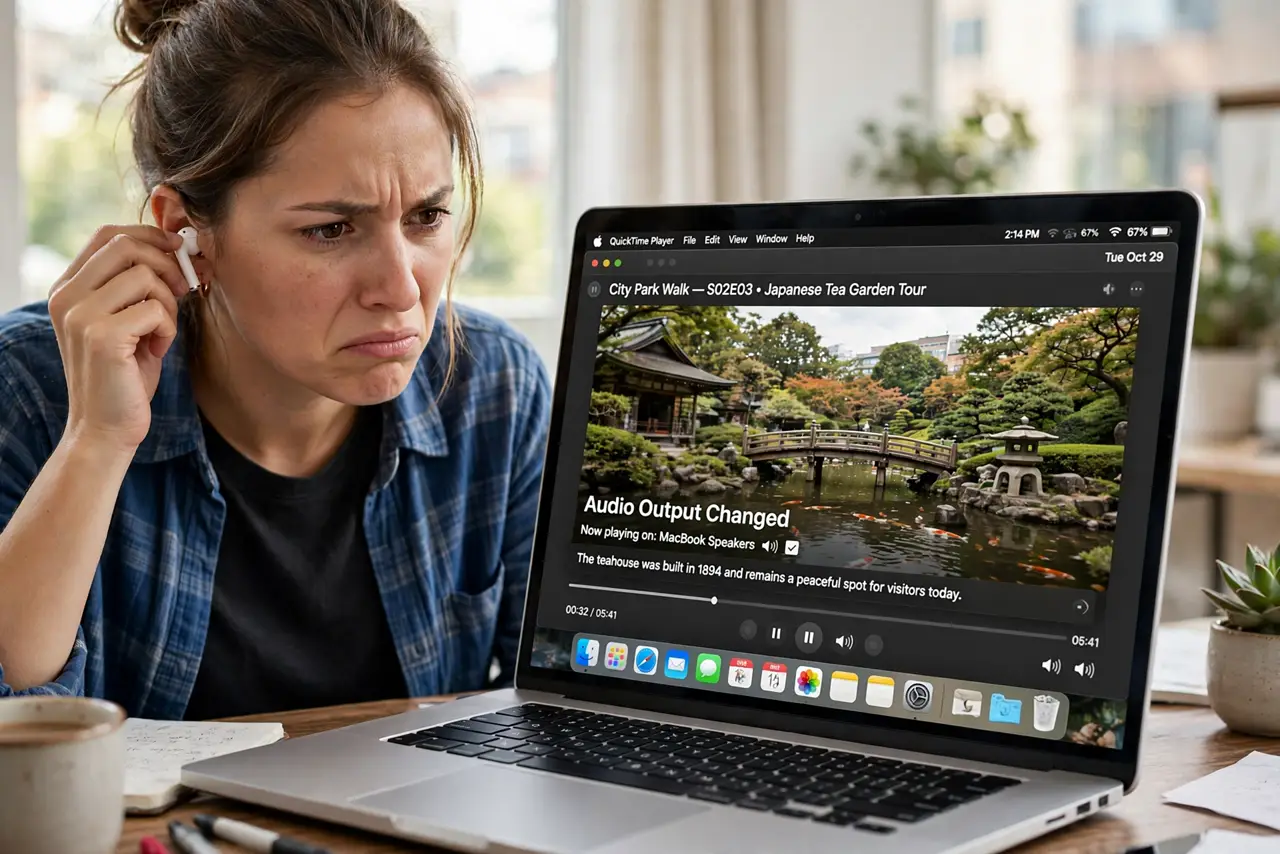
Your AirPods keep jumping from the Mac to your iPhone mid-video — the audio vanishes, the video keeps playing silently, and you scramble to switch back. Automatic switching is guessing wrong about which device you are using. This guide pins the AirPods to the device you actually want.
TL;DR / Quick Fix
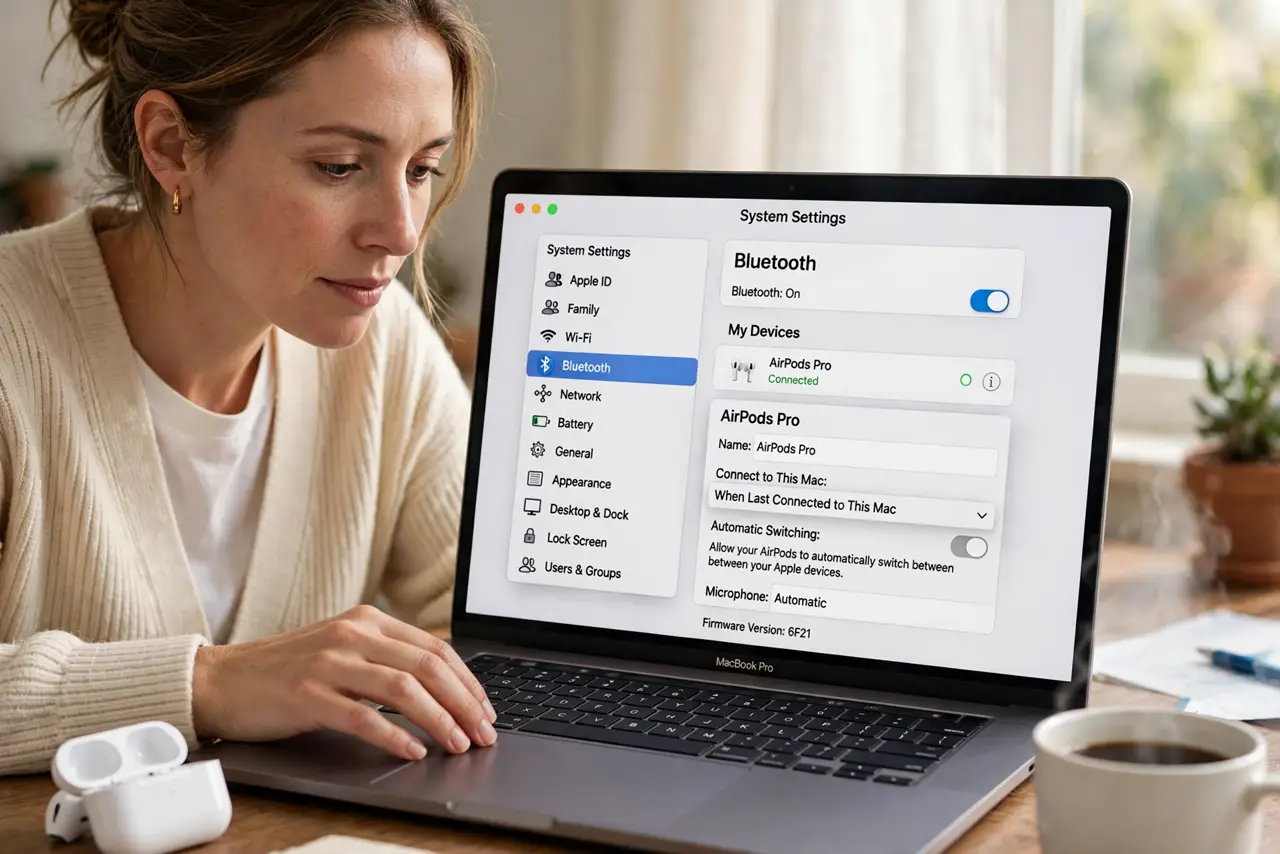
Quick fix: on the Mac, go to System Settings > Bluetooth, click the info button on your AirPods, and set 'Connect to This Mac' to 'When Last Connected to This Mac.' Do the same on the iPhone for full control.
Follow these steps
- Change the Mac's auto-connect setting. In System Settings > Bluetooth, open your AirPods' settings and set 'Connect to This Mac' to 'When Last Connected to This Mac.' Automatic mode is what causes the random jumps.
- Change the iPhone's setting too. On the iPhone, go to Settings > Bluetooth > your AirPods and set 'Connect to This iPhone' the same way. Both devices must agree, or one keeps stealing the connection.
- Stop audio on the other device. Pause music, videos, and calls on the iPhone before using the Mac. Active audio on the other device is the trigger that yanks the AirPods away.
- Turn off the competing device's Bluetooth. For an important call or recording, temporarily disable Bluetooth on the device you are not using. No radio, no steal — simple and certain.
- Update the AirPods firmware. Keep the AirPods in their case near the iPhone to receive firmware updates. Apple quietly fixes switching bugs in firmware updates.
- Reset the AirPods as a last resort. Forget the AirPods on all devices, reset them with the case button, and pair fresh. A corrupted pairing causes switching no setting can tame.
What NOT to do
- Do not disable Bluetooth entirely on the iPhone forever. You lose your watch, car, and everything else — use the per-device AirPods setting instead.
- Do not blame the AirPods hardware. Random switching is a settings behavior, and new AirPods with the same settings switch just as randomly.
- Do not forget the Mac side of the setting. Changing only the iPhone leaves the Mac in automatic mode, still grabbing the connection.
- Do not reset the AirPods first. The settings fix takes a minute; a full reset and re-pair takes far longer.
Frequently asked questions
Why do my AirPods switch to my iPhone by themselves?
Automatic switching hands the AirPods to whichever device seems active. A notification or background audio on the iPhone counts as 'active.'
Can I stop switching without losing the feature?
Yes. 'When Last Connected' keeps manual switching available while stopping the automatic jumps.
Do all AirPods models support this setting?
Most recent ones do. Very old models may lack the per-device option and need Bluetooth toggled manually.