What Is a Finder Alias?
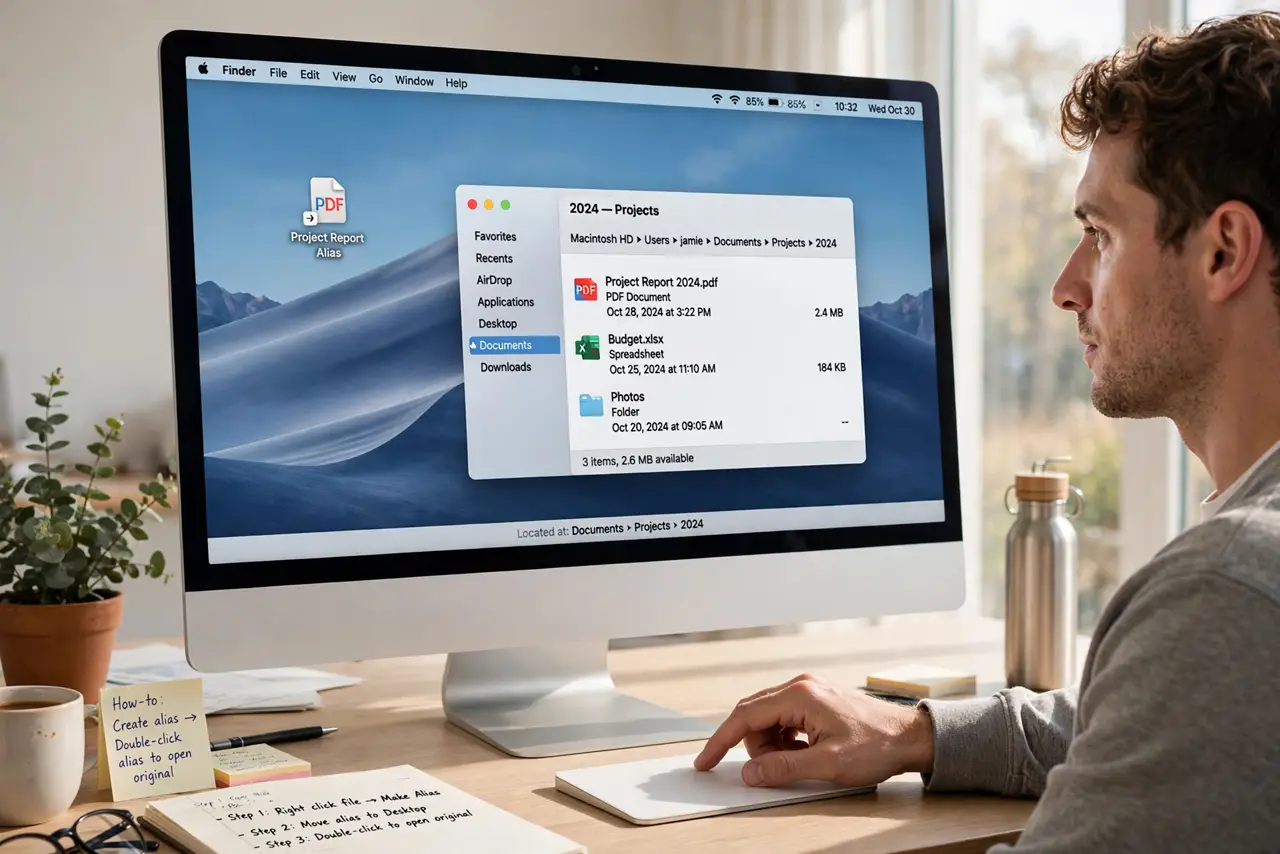
Deep in your folders sits a file you open daily — five clicks away, every time. A Finder alias is a lightweight stand-in: put it on the Desktop or in the Dock, double-click, and the real file opens wherever it actually lives. It is not a copy, not a shortcut to confusion — just a pointer.
TL;DR / Quick Fix
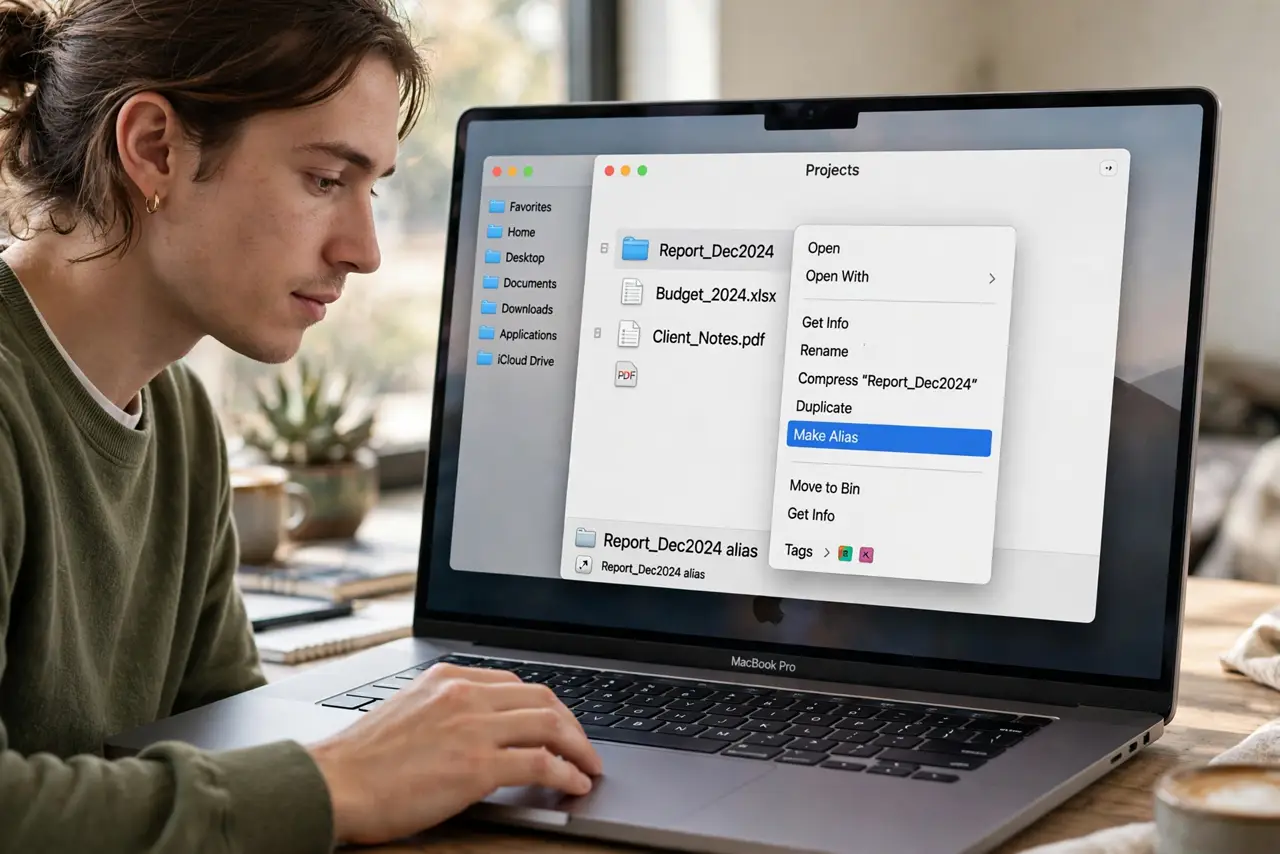
Quick fix: an alias is a lightweight pointer to a file or folder — double-click it and the original opens, wherever it actually lives. Right-click any item and choose Make Alias, then drag the alias wherever handy. Delete an alias freely; the original stays untouched.
Follow these steps
- Make an alias. Right-click (or Control-click) any file or folder and choose Make Alias. macOS creates the alias right beside the original, marked with a little arrow badge.
- Put it where you need it. Drag the alias to the Desktop, the Dock, or a project folder. It weighs almost nothing — aliases are pointers, not copies, so duplicates cost no disk space.
- Open things through it. Double-click the alias and the original opens — the file itself never moves. Rename the alias freely; the original keeps its name.
- Delete aliases fearlessly. Trashing an alias never touches the original. This is the opposite of deleting the real file — aliases are safe to create and destroy at will.
- Find the original anytime. Right-click the alias and choose Show Original to jump to the real file’s location. Handy when you inherit someone else’s alias and wonder where things live.
- Use them for deep-folder shortcuts. Pair aliases with Column View navigation and the alias guide for advanced tricks — deep files become one click away.
What NOT to do
- Do not confuse an alias with a copy. Editing ‘through’ the alias edits the original — there is only one file.
- Do not move the original and panic. Aliases usually track moved originals, but if one breaks, remake it in seconds — no harm done.
- Do not alias entire Applications. Alias the app, not the folder — cleaner, and the Dock prefers it that way.
- Do not expect aliases to work cross-platform. An alias is a Mac concept; Windows shortcuts and Linux symlinks are different beasts. Moving files between systems breaks the magic.
Frequently asked questions
Alias vs symbolic link — what’s the difference?
Aliases are user-friendly and track moved files; symlinks are Unix-level and break if the target moves. For daily use, aliases win.
Why does my alias show a broken icon?
The original was deleted or moved somewhere the alias cannot follow (like another volume that is offline). Remake the alias once the original is back.
Can I alias a network drive?
Yes — handy for frequently used shares. The alias reconnects when you open it, assuming the network location is reachable.