Always Allowed Apps? Basics
Downtime just blocked the school app during homework hour, or your work chat went silent mid-day — because Screen Time's limits do not know which apps are essential. The Always Allowed list is the escape hatch: apps on it ignore Downtime and App Limits entirely. This guide sets it up so the important stuff never gets blocked.
TL;DR / Quick Fix
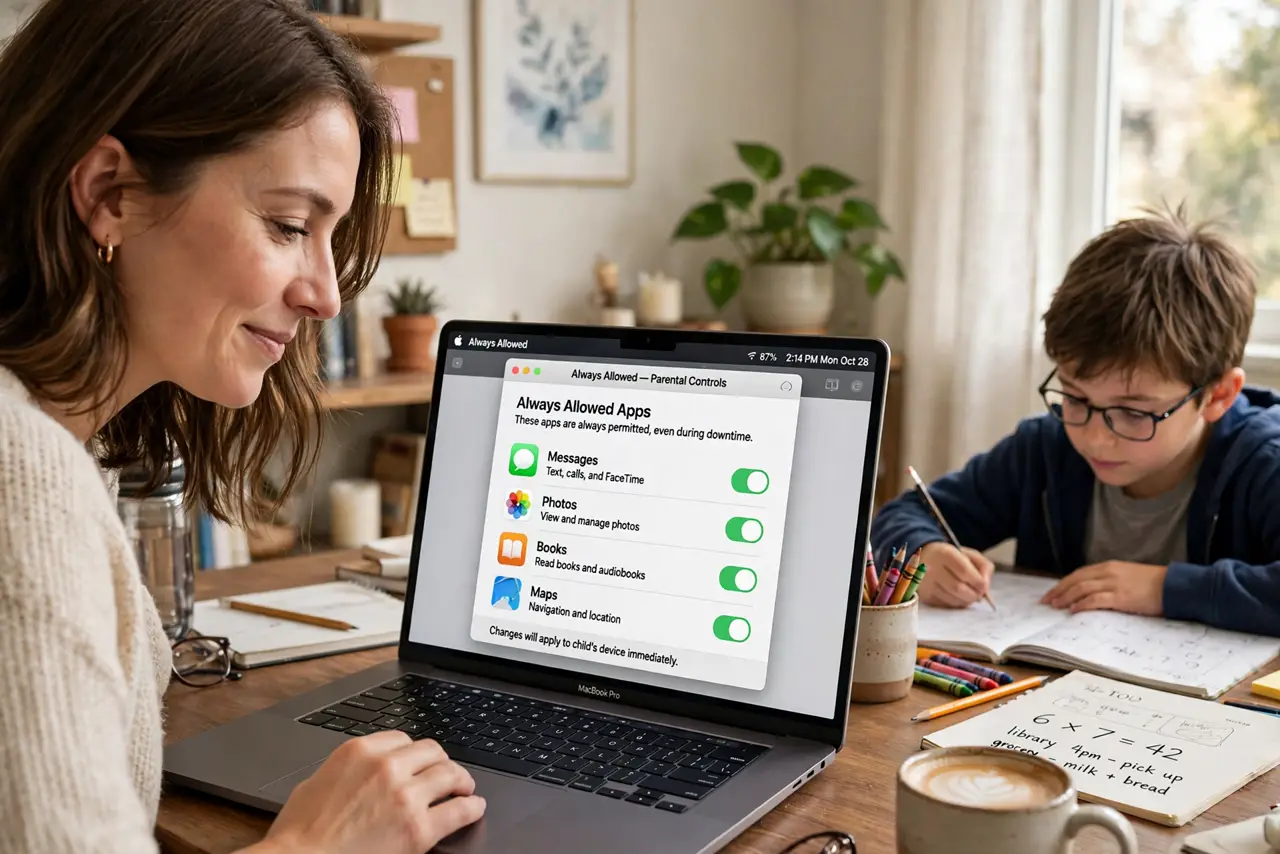
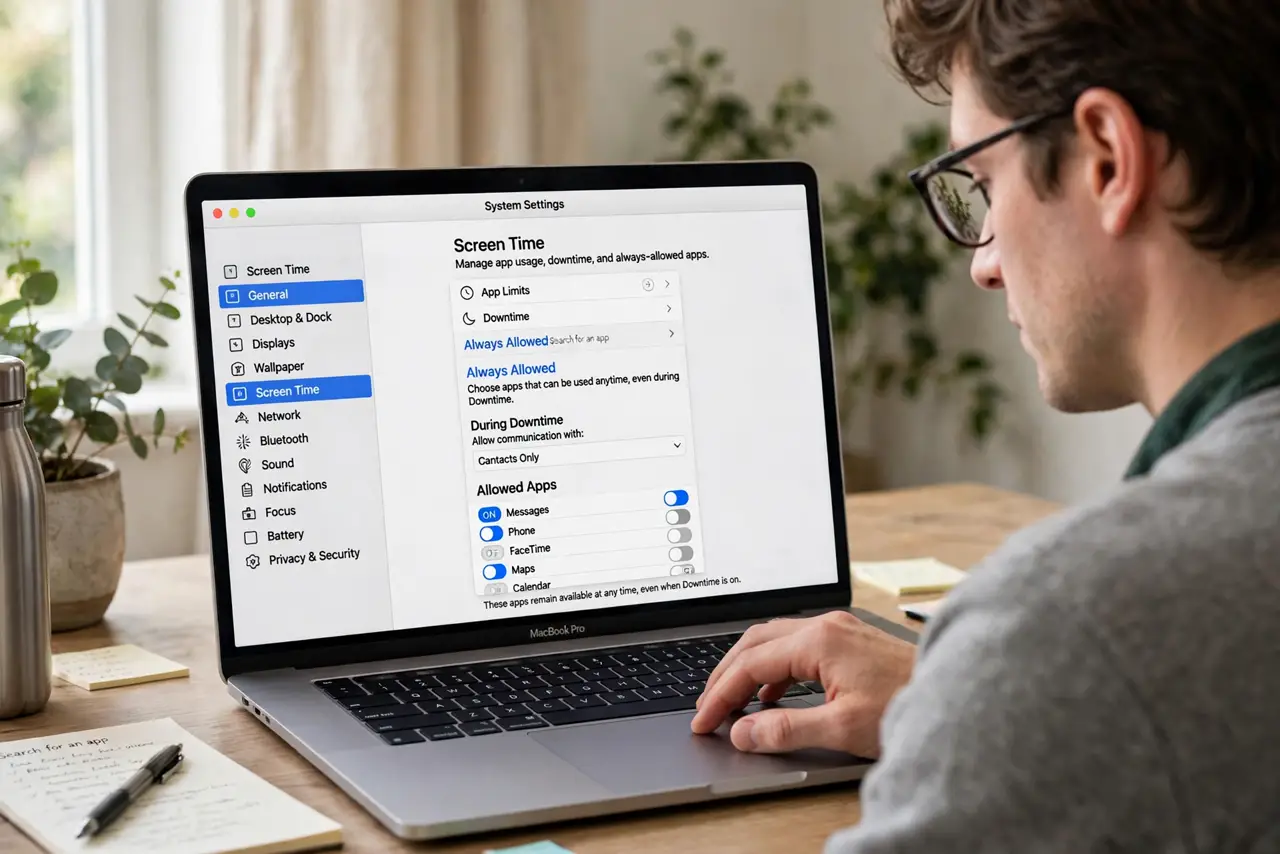
Quick fix: open System Settings, then Screen Time, then Always Allowed. Add every essential app — school tools, work chat, phone, maps, music for focus. These apps bypass Downtime and App Limits completely. Review the list whenever Downtime blocks something it should not.
Follow these steps
- Open the Always Allowed list. Go to System Settings, Screen Time, then Always Allowed. You will see the current exemptions — probably shorter than it should be.
- Add essential apps. Click the plus and add school apps, work communication, navigation, and anything safety-related. If Downtime blocks it, it belongs on this list — that is the entire purpose of the list.
- Think like an emergency planner. Phone, messages, maps, and medical apps stay reachable no matter what. Ask: if this were blocked at midnight, would it be a problem? If yes, allow it.
- Include focus aids. Music, white noise, and calculator apps support homework and work. Blocking the tools that help focus defeats the point of the limits.
- Review after complaints. Every 'my app was blocked' report is a list update waiting to happen. Add the app once and the complaint never repeats.
- Protect the list with a passcode. A Screen Time passcode keeps the list from being edited around the limits. Without it, Always Allowed is just a suggestion.
What NOT to do
- Do not leave the list empty. An empty Always Allowed list means Downtime blocks nearly everything — including things you need.
- Do not add games 'just in case.' Every exemption weakens the limits; keep the list to genuine essentials.
- Do not forget new apps. A newly installed school app needs adding manually — limits do not learn your intentions.
- Do not skip the passcode. Anyone can edit an unprotected list, which makes the whole Screen Time setup decorative.
Frequently asked questions
What's the difference from App Limits?
App Limits cap usage time; Always Allowed exempts apps from all limits and Downtime. They are opposites that work together.
Do allowed apps still count toward limits?
No — time in Always Allowed apps does not count against App Limits. That is why the list must stay short and honest.
Can I allow websites too?
Screen Time handles websites separately under content restrictions. Always Allowed covers apps; web limits live elsewhere.