Always Open Files with One App
Every PDF opens in Preview when you want your reader, or JPEGs launch the wrong editor. macOS picks default apps per file type, and changing it is a thirty-second fix — once you know it is per file type, not per file. Here is how to set it once and for all.

TL;DR / Quick Fix
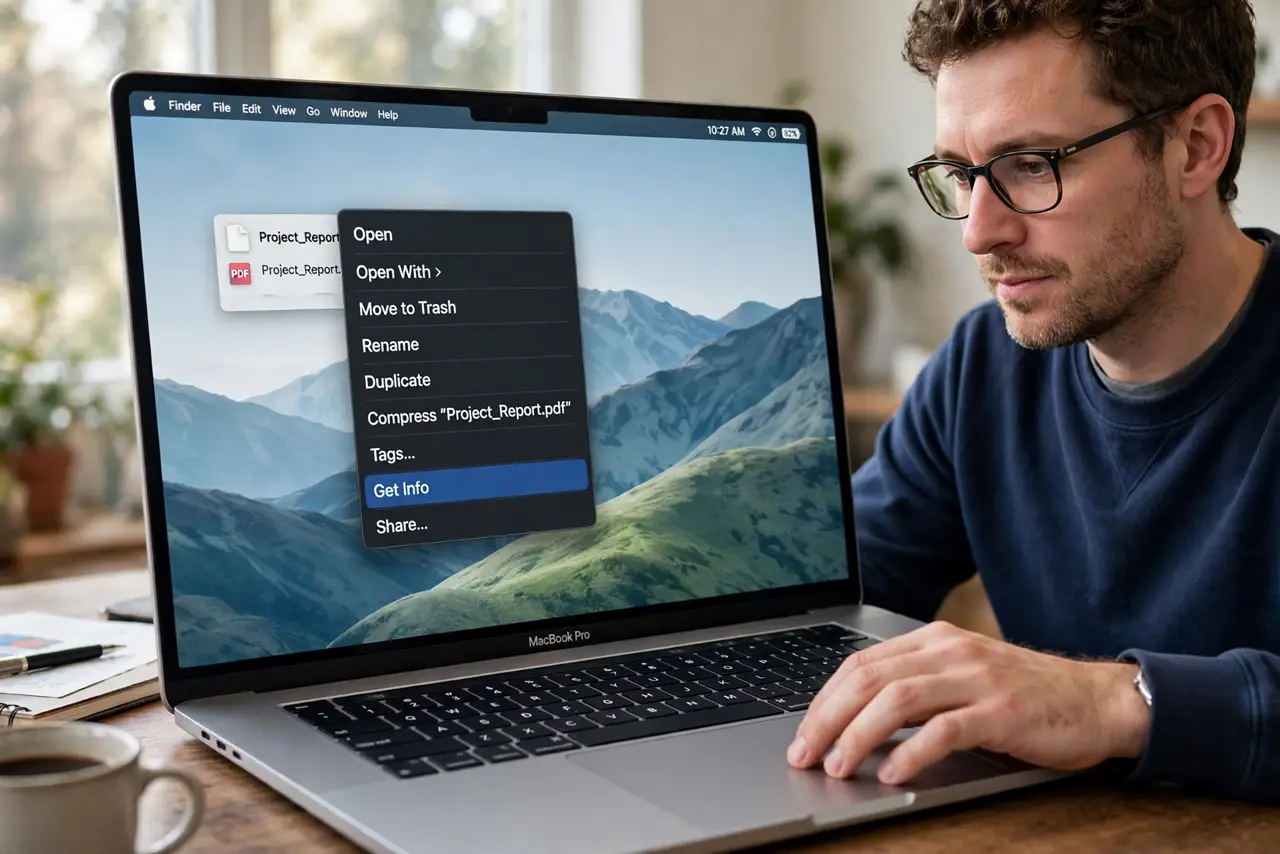
Quick fix: right-click any file, choose Get Info, pick your app under 'Open with,' then click 'Change All' — every file of that type opens with your choice from now on. Repeat per file type. It takes thirty seconds and survives reboots.
Follow these steps
- Right-click and Get Info. Select any file of the type you want to change, right-click, and choose Get Info. The panel shows the current default app.
- Pick your app under 'Open with.' Use the dropdown to choose the app you want. If it is not listed, choose Other and find it in Applications.
- Click 'Change All.' This is the step everyone misses — without Change All, you changed one file. With it, every file of that type follows.
- Repeat for each file type. PDFs, JPEGs, MP4s — each type has its own default. Set the handful you actually use and ignore the rest.
- Know the 'Open with' submenu. Right-click, Open with lets you pick a different app for one file without changing the default. Handy for exceptions.
- Reset if an app hijacks types. Some installers grab file types aggressively. Revisit Get Info and Change All to take them back.
What NOT to do
- Do not skip 'Change All.' Changing one file's app and wondering why others did not follow is the classic mistake.
- Do not set a default to an app you are testing. Trial apps that get deleted leave broken associations behind.
- Do not fight per-type defaults. macOS will not let one app own everything — set each type deliberately.
- Do not reinstall macOS to fix associations. Get Info and Change All resolves it without drama.
Frequently asked questions
Why did my defaults change after an update?
New app installs and major updates sometimes reclaim types. Reapply Change All — it takes seconds.
Can I set different apps for different folders?
No — defaults are per file type system-wide, not per folder.
What is the Windows equivalent?
Default apps settings — see Windows defaults.