App Limits on Mac? Basics
Your Mac locks you out of an app mid-work, or your kid's Mac blocks something it should allow — Screen Time's App Limits are doing their job a little too well. App Limits cap daily usage per app or category, but the setup flow hides the important options. This guide sets limits that actually match your intent.
TL;DR / Quick Fix
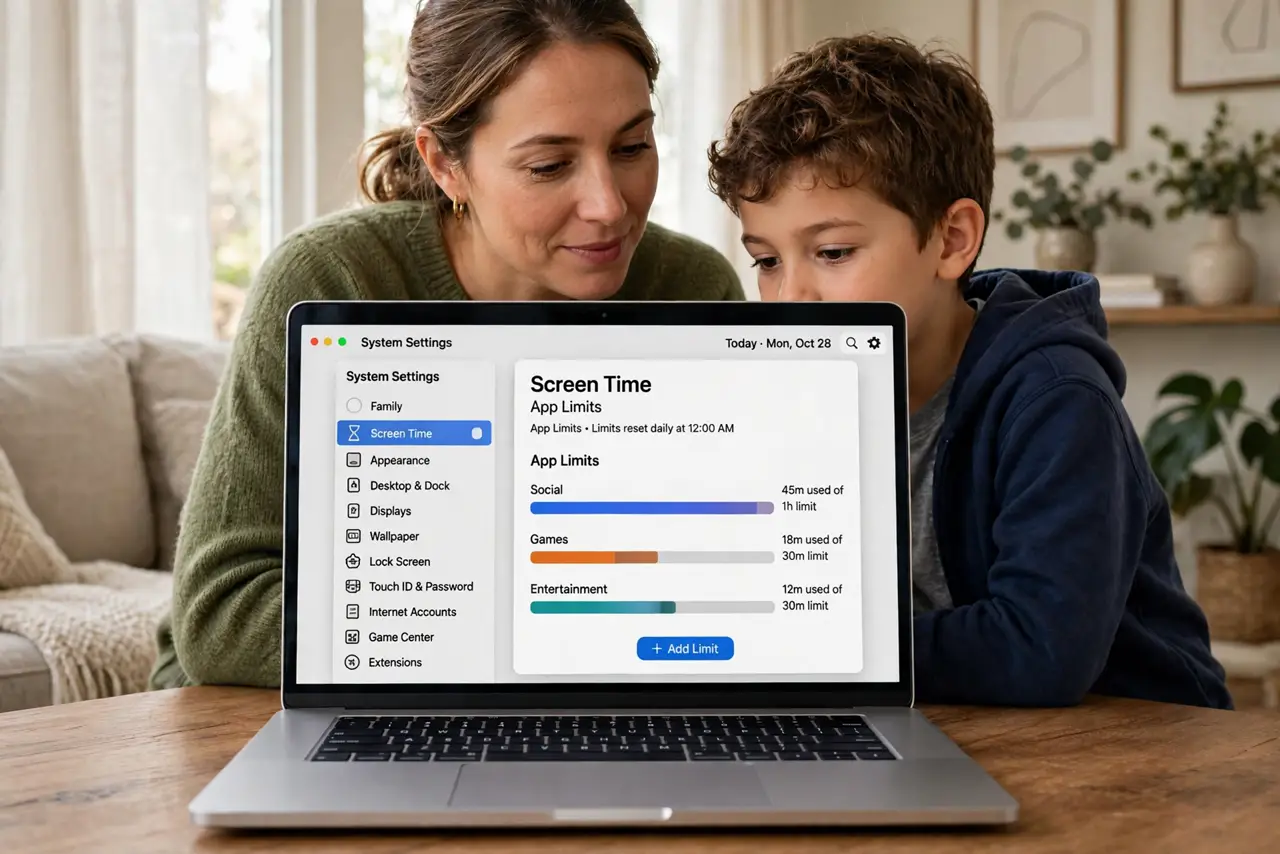
Quick fix: open System Settings, then Screen Time, then App Limits, and review each limit. Select one to adjust its time or days. Turn off Block at End of Limit for a warning instead of a hard block. Remember the Screen Time passcode — without it you cannot change anything.
Follow these steps
- Open App Limits in Screen Time. Go to System Settings, then Screen Time, then App Limits. You will see every active limit with its daily allowance — this overview is the fastest way to spot the limit that is misbehaving.
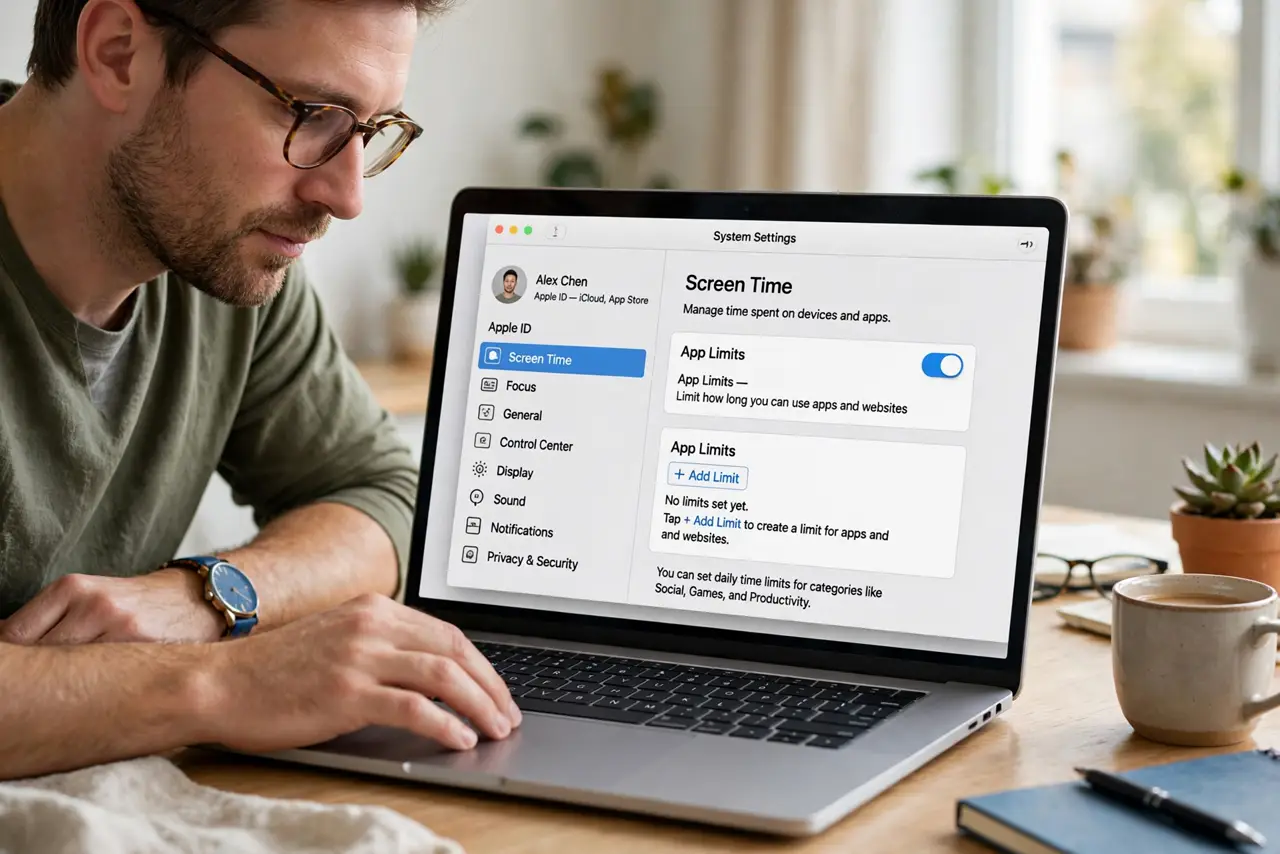
- Edit the limit that is wrong. Select the limit and change the hours, the days it applies, or the apps it covers. A work app caught in a downtime block is the most common complaint — move it to Always Allowed instead.
- Choose block versus remind. Block at End of Limit locks the app hard; turning it off shows a reminder you can dismiss. Kids need the block; adults managing their own habits often do better with the reminder.
- Set a Screen Time passcode. In Screen Time settings, set a passcode so limits cannot be changed on a whim — by a kid or by future-you at 11 PM. Write it down somewhere safe.
- Use categories wisely. Limiting Social Networking covers all social apps at once, including new ones. Per-app limits are precise but need maintenance as apps come and go.
- Recover a forgotten passcode. If the passcode is lost, Apple ID recovery resets it — the forgotten passcode guide walks through it. Do not reinstall macOS over a passcode; that is never the fix.
What NOT to do
- Do not set limits without a passcode. Without one, limits are suggestions anyone can dismiss in two taps.
- Do not limit by app when a category fits. New apps slip past per-app limits; categories catch them automatically.
- Do not forget Always Allowed. Phone, messages, and work tools belong there — limits should never block essentials.
- Do not use App Limits as a punishment surprise. Tell the kid what is limited and why, or you get conflict instead of habits.
Frequently asked questions
Why is my work app blocked?
It is caught in a limit or Downtime. Move it to Always Allowed in Screen Time and it stays reachable around the clock.
Can I set different limits for weekdays and weekends?
Yes — when creating or editing a limit, tap Customize Days to set different hours per day.
Do App Limits sync to iPhone?
Yes, if Screen Time syncs across devices on the same Apple ID. One limit can cover the Mac, iPhone, and iPad together.