Give an App Full Disk Access on Mac
Your backup or security app complains it cannot scan everything, or it silently skips files. macOS locks sensitive areas behind Full Disk Access, and apps must be granted it explicitly. This guide grants it safely to apps you trust.
TL;DR / Quick Fix
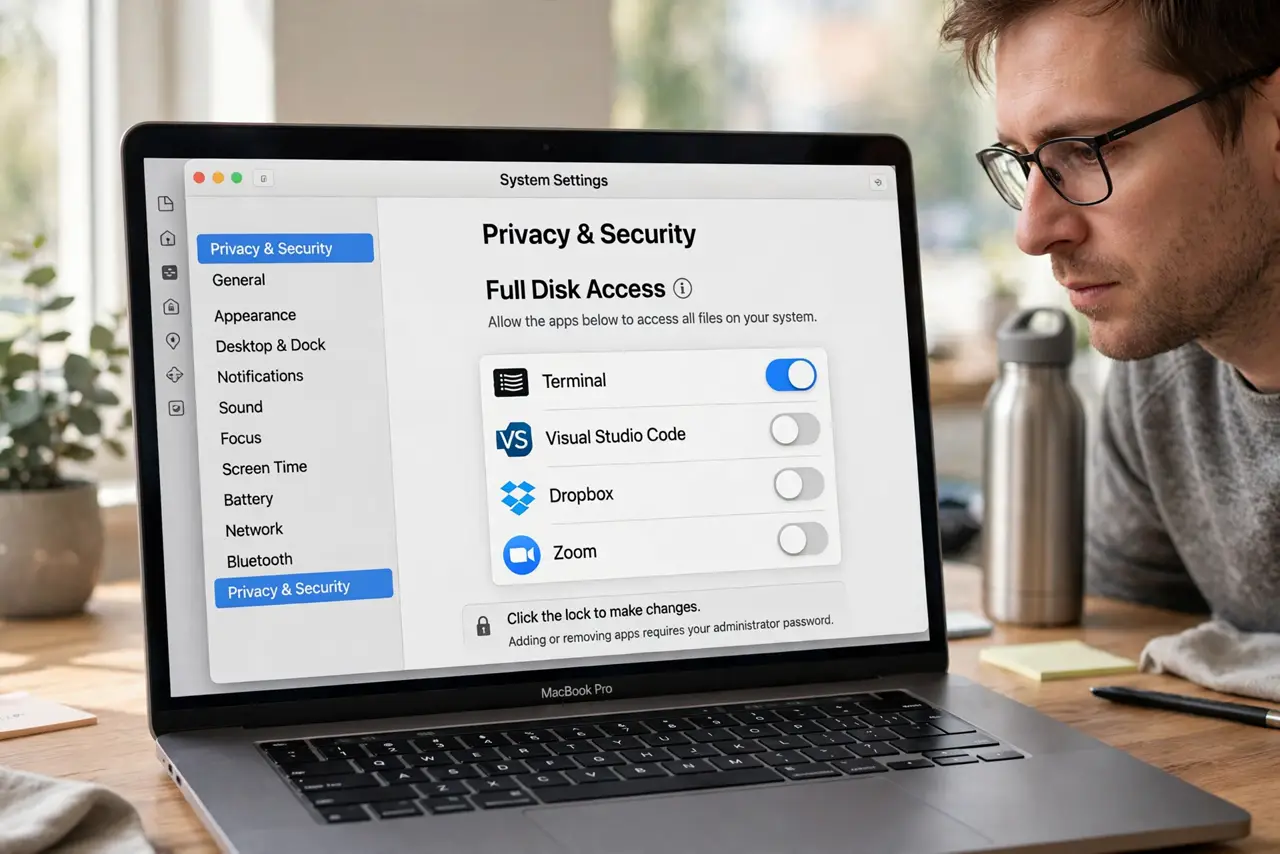
Quick fix: open System Settings, go to Privacy and Security, then Full Disk Access, and toggle on the app that needs it. Fully restart the app afterward to apply the change, and grant access only to apps you installed deliberately from trusted sources.
Follow these steps
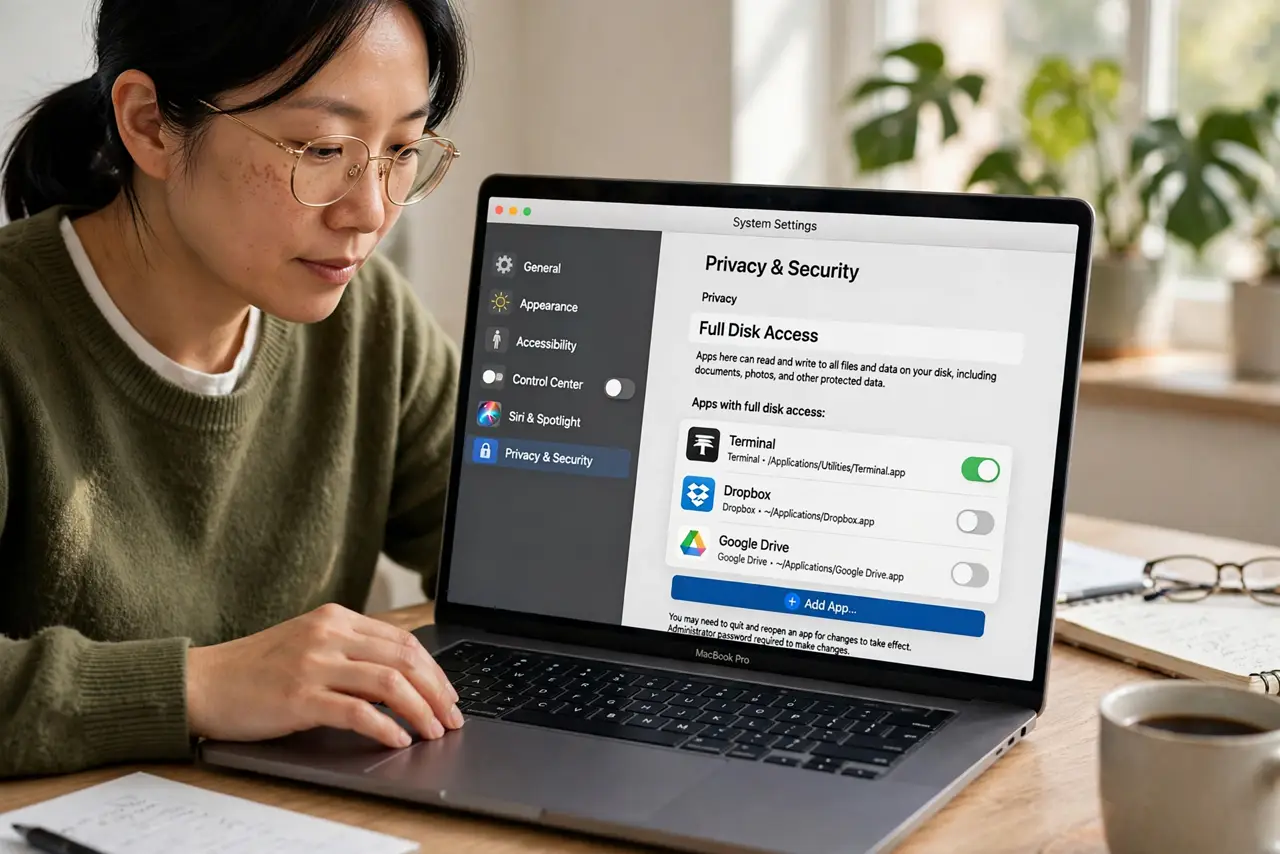
- Open the Full Disk Access pane. Go to System Settings, then Privacy and Security, then Full Disk Access. This is the single gate for deep file access on modern macOS.
- Add or toggle your trusted app. Find the app in the list and switch it on, or click the plus button to add it. A Time Machine or backup utility is the classic legitimate need.
- Restart the app after granting. The permission applies on next launch. Quit the app fully and reopen it, then check whether the blocked scan or backup now completes.
- Grant only to apps you chose. Give Full Disk Access solely to apps you deliberately installed from known developers. A random utility asking for it deserves suspicion, not a quick yes.
- Remove access you no longer need. If you uninstalled the app or stopped using the feature, switch its access off. Least privilege is a habit, not a one-time setup.
- Check for a companion helper. Some apps need their background helper granted too, not just the main app. If access still fails, look for the helper in the same list.
What NOT to do
- Do not grant Full Disk Access to every app that asks. Most apps work fine without it; only backup, security, and disk tools truly need it.
- Do not download the app from a sketchy site first. Granting deep access to a repackaged app hands your whole disk to strangers.
- Do not ignore the restart step. The toggle alone changes nothing until the app relaunches and picks up the permission.
- Do not confuse this with Files and Folders access. That narrower permission covers user folders only; Full Disk Access includes system areas.
Frequently asked questions
What is Full Disk Access?
A macOS permission letting an app read protected areas like Mail, Messages, and system files. Apps must request it explicitly.
Is it safe to grant?
To reputable backup and security apps you installed deliberately, yes. To unknown utilities, no.
Why does the app still fail after I grant it?
It probably needs a restart, or its background helper needs the same permission in the list.