The App Store? Basics
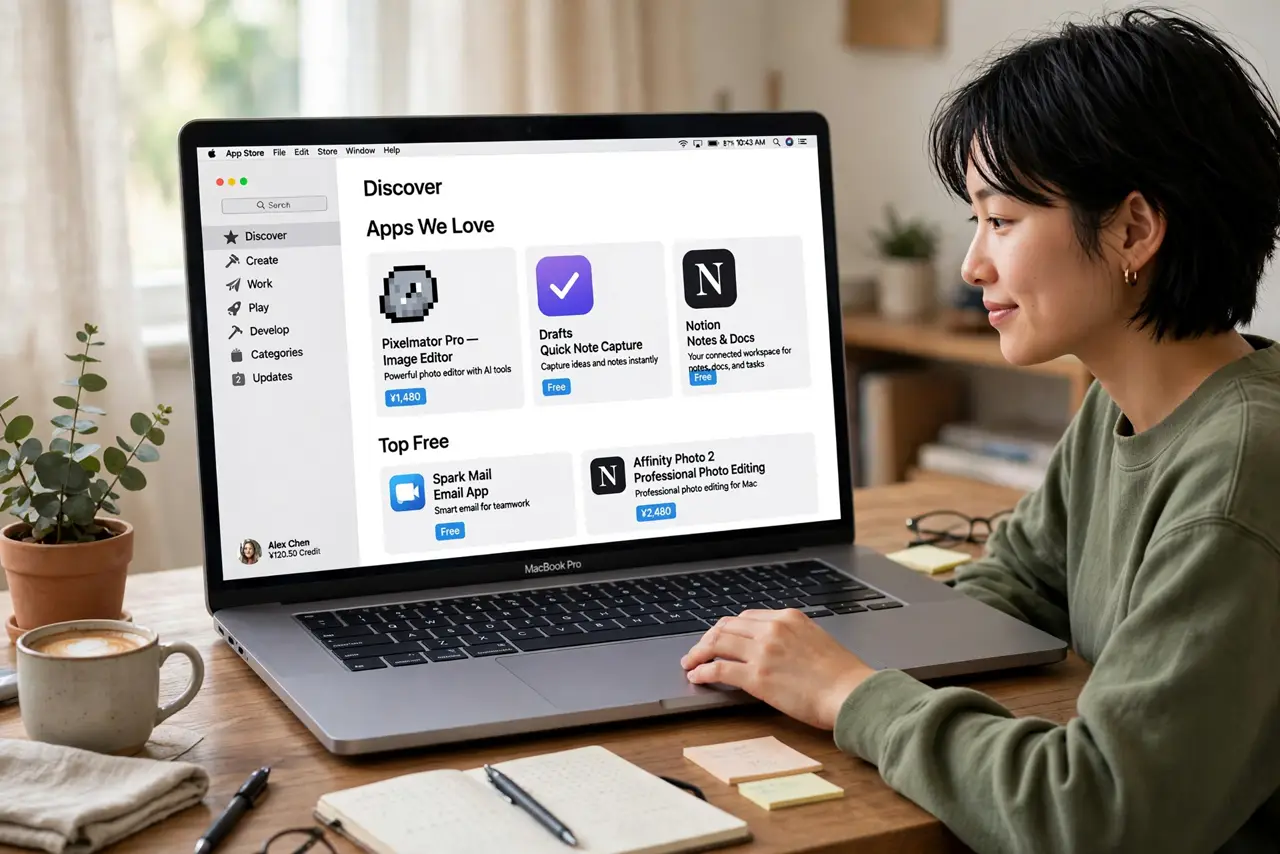
The Mac App Store is Apple's shop for Mac software — the safest place to get apps, with automatic updates and sandboxed security built in. It is simpler than hunting down installers, but it has quirks: sign-in loops, stuck downloads, and apps that exist only outside it. Here is how to use it well and fix it when it sulks.
TL;DR / Quick Fix
Quick fix: the Mac App Store is the safest source for Mac apps — search, install, and updates happen automatically. Sign in with your Apple ID, and if downloads stall, check your connection and restart the store. For apps missing from the store, follow the safe-install checklist.
Follow these steps
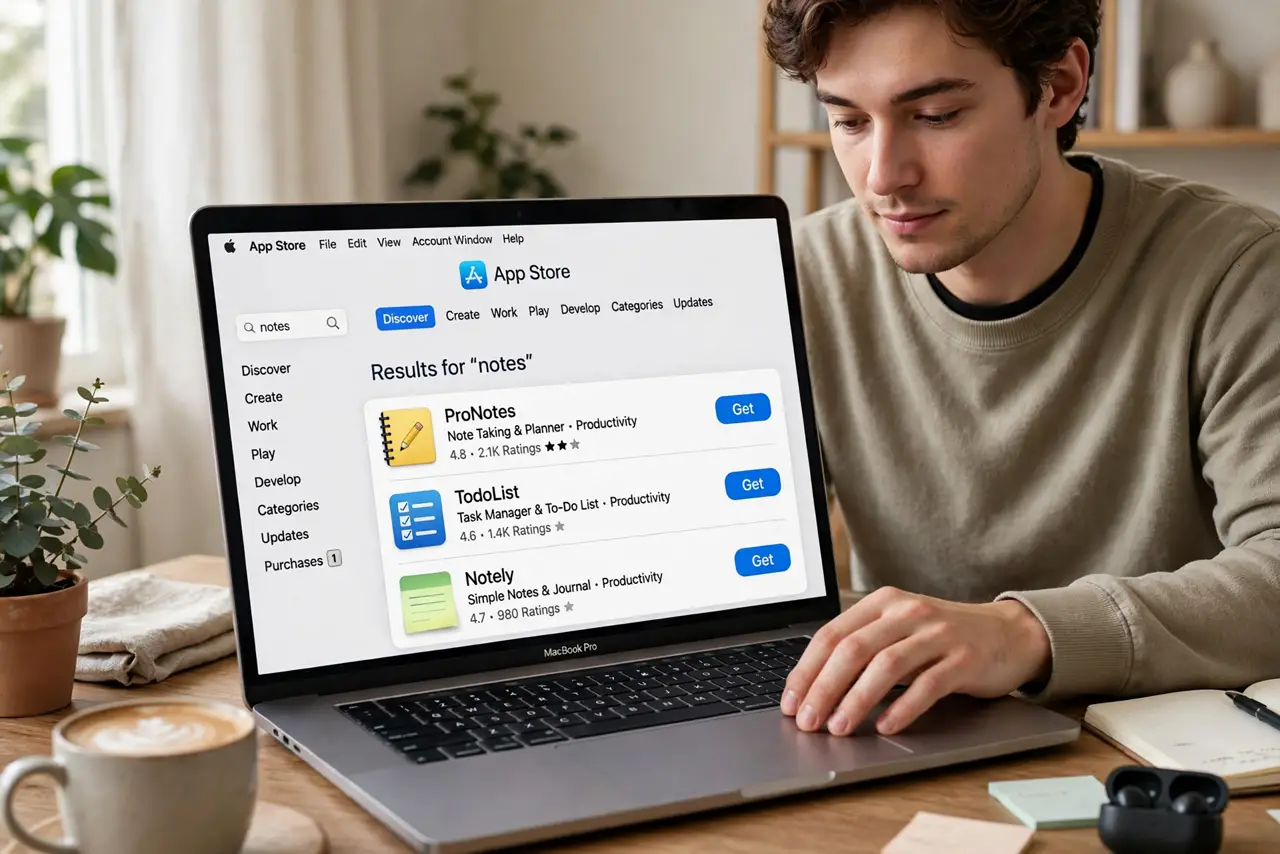
- Search and install. Open the App Store, search for the app, and click Get or the price. Installation is automatic — no installers, no drag-and-drop. Updates arrive automatically too, which is half the value.
- Sign in correctly. Use your Apple ID in the Store menu. Most sign-in loops come from an old password or a second Apple ID — sign out and back in with the right one before trying anything drastic.
- Fix stuck downloads. Pause and resume the download first. If it stays stuck, check your connection, restart the App Store, and as a last resort restart the Mac. Stuck downloads are almost never a broken Mac.
- Understand what is missing. Some great Mac apps are not in the store — developers avoid Apple's rules or fees. For those, install safely from the developer instead of hunting sketchy download sites.
- Manage your purchases. The Purchased section lists everything you have ever gotten, so you can reinstall on a new Mac without paying again. Family Sharing can extend many purchases to the whole family.
- Check for updates manually. Automatic updates usually just work, but glitches happen. Open the App Store, go to Updates, and refresh if an app misbehaves — the fix you need may already be waiting.
What NOT to do
- Do not create a second Apple ID for the store. One ID keeps purchases, iCloud, and subscriptions together — two IDs create permanent confusion.
- Do not download 'App Store' apps from websites. If it claims to be from the App Store but arrives as a download, it is not from the App Store.
- Do not ignore the update badge for months. Those updates include security fixes — a red badge is a to-do, not decoration.
- Do not pay again for an app you own. Check the Purchased tab before rebuying on a new Mac — it is probably already yours.
Frequently asked questions
An app I bought is not in the store anymore. What now?
Check your Purchased tab — delisted apps usually remain downloadable there. If it is gone entirely, contact the developer for a direct version.
Why do some apps cost more in the store?
Apple takes a cut, and some developers pass it on. Compare with the developer's direct price — but weigh the store's auto-updates and sandboxing in the value.
Can I get a refund?
Apple offers refunds for recent purchases through reportaproblem.apple.com. It is not guaranteed, but legitimate 'this does not work' claims usually succeed.