Update Your Apps? Basics
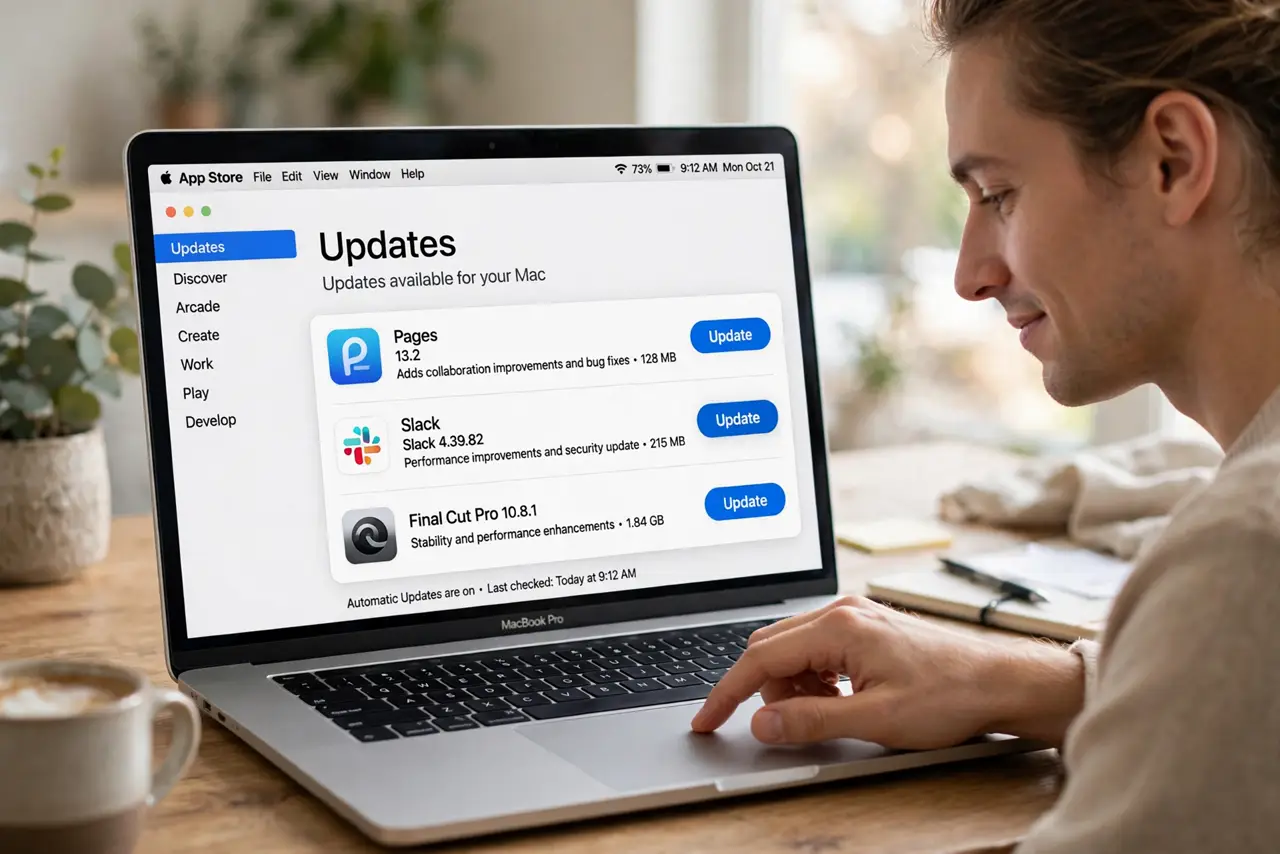
That red badge on the App Store icon keeps growing, and some apps now nag you directly about updates. Keeping Mac apps updated matters — updates fix security holes and bugs — but blindly clicking 'update all' occasionally breaks a workflow you depend on. Here is the sane approach to staying current without surprises.
TL;DR / Quick Fix
Quick fix: update Mac apps regularly — the App Store handles its apps automatically, and direct-download apps update from their own menus or the developer's site. Turn on automatic updates, but check critical work apps' changelogs before major version jumps.
Follow these steps
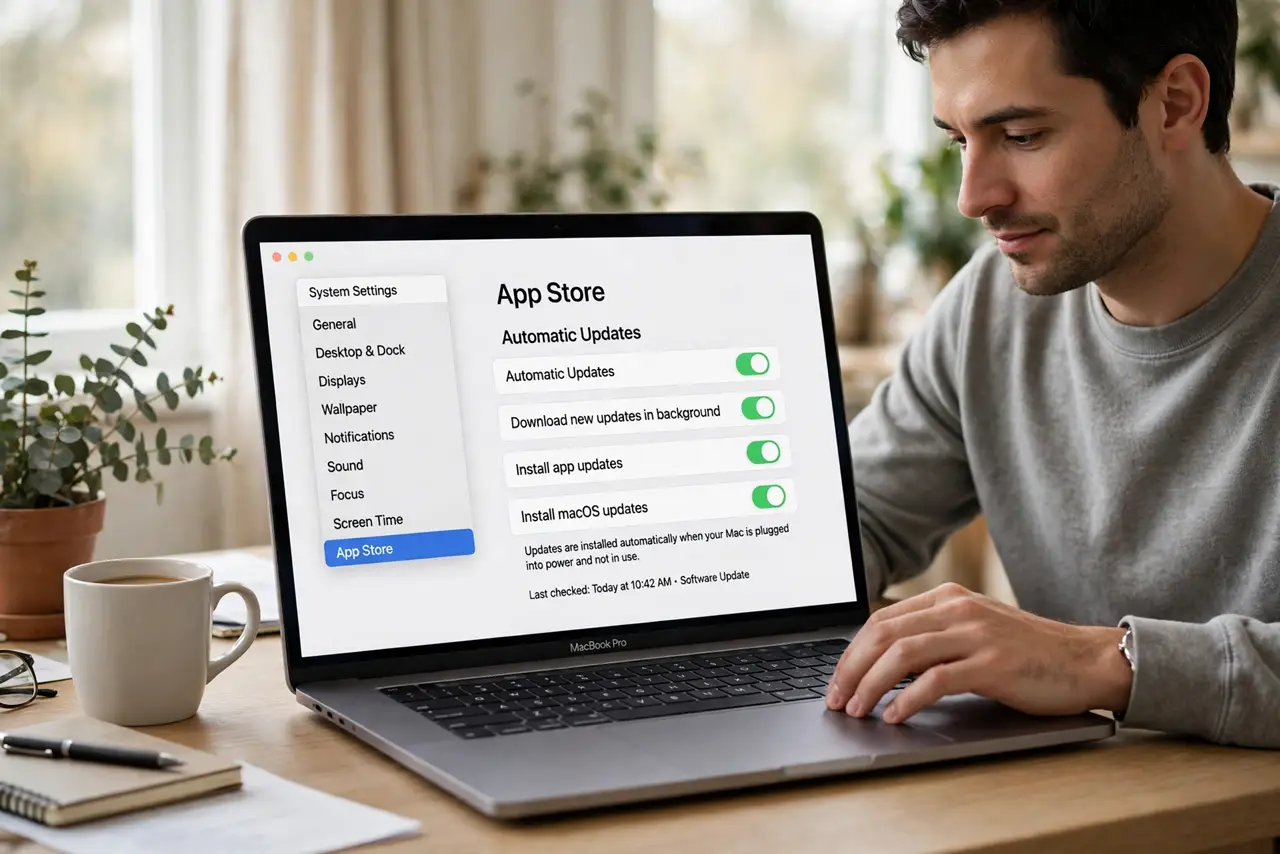
- Turn on automatic App Store updates. In App Store settings, enable automatic updates. Store apps then update silently in the background — security fixes included. This covers the majority of most people's apps with zero effort.
- Update direct-download apps deliberately. Apps from outside the store update themselves (check the app's menu for 'Check for Updates') or from the developer's site. These need your attention — see the safe install checklist if you are unsure about a source.
- Read before major version jumps. A 2.x to 3.0 update can change features or drop old file support. For apps your work depends on, skim the changelog or wait a week while others find the bugs.
- Update when the badge nags. The App Store's red badge is a to-do list, not decoration. Updates include security patches — a month-old badge means a month of known vulnerabilities sitting unpatched.
- Restart apps after updating. An updated app often needs a relaunch to actually run the new version. If an app misbehaves right after updating, quit and reopen it before troubleshooting further.
- Keep macOS itself updated too. App updates and system updates are separate. Check System Settings > General > Software Update periodically — some app features require a minimum macOS version.
What NOT to do
- Do not ignore updates for months. Security patches are the main event — stale apps are open doors.
- Do not update a critical work app mid-deadline. Wait until the project ships, then update — a surprise UI change during crunch time is avoidable.
- Do not download 'updates' from pop-up ads. Real updates come from the App Store or the app itself — a browser pop-up offering one is malware.
- Do not assume updating fixes everything. If an app was already broken, update first, then troubleshoot — but keep expectations honest.
Frequently asked questions
Why do updates need so much space?
The updater downloads the full new version before replacing the old. If space is tight, delete the app's caches or move files first — then update.
Can I go back to the old version?
From the App Store, generally no — Apple does not offer rollbacks. Direct-download apps sometimes keep old versions on the developer's site. This is why reading changelogs matters.
Should I update macOS and apps together?
Update apps first, then macOS — that way your apps are ready for the new system. Or do macOS first and update apps right after; just do not leave a gap.