Rewrite with Apple Intelligence
Your draft is correct but sounds like a robot wrote it — terse, blunt, maybe a little rude. macOS Writing Tools, part of Apple Intelligence, can proofread that email and rewrite it in a friendlier or more professional tone without changing what you meant. It works in Mail, Notes, and most apps where you type. See the Apple Intelligence overview for the full picture, or the simple off switch if you want it gone.
TL;DR / Quick Fix
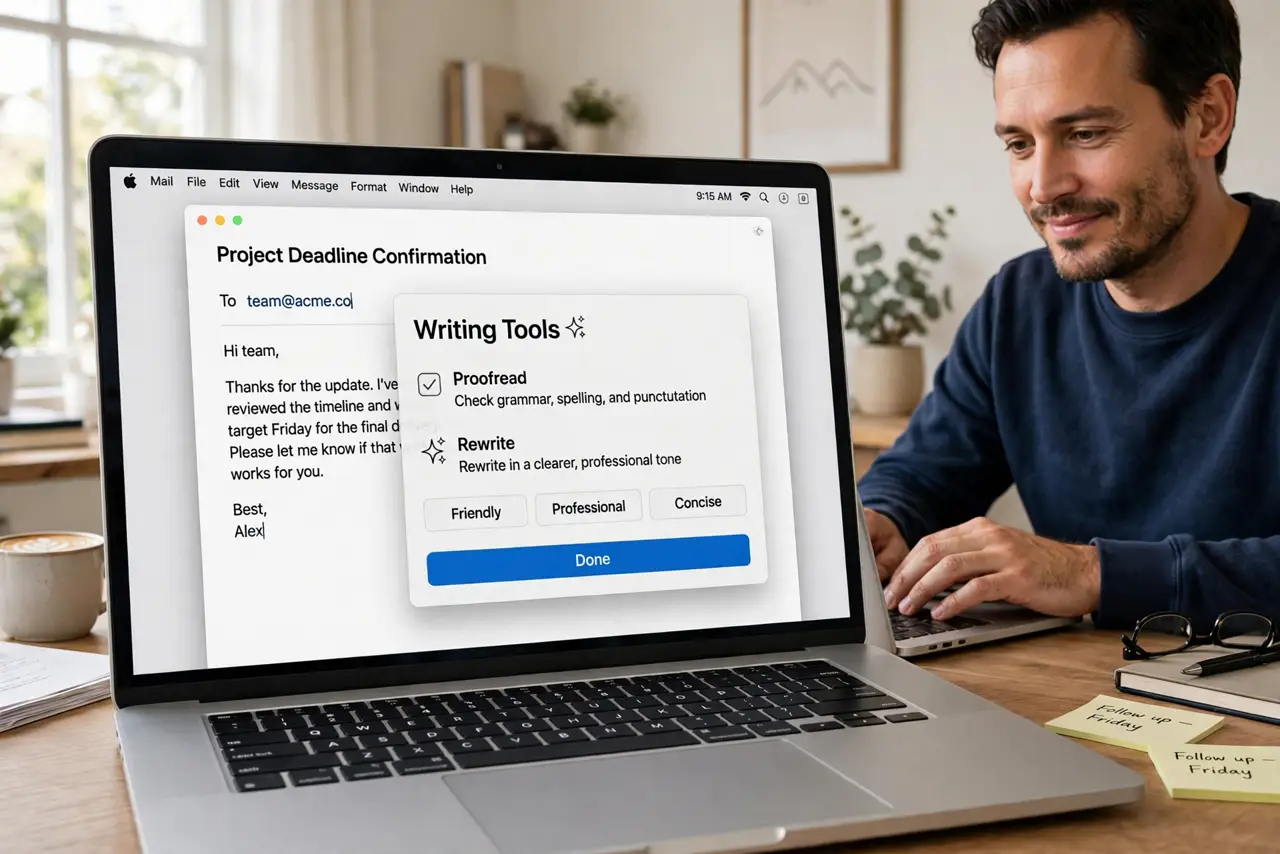
Quick fix: select any text on your Mac, right-click, and open Writing Tools to proofread, rewrite, or change the tone to friendly, professional, or concise. It polishes blunt drafts fast. Always read the result before sending — the tools improve wording, but your judgment decides what the message really says.
Follow these steps
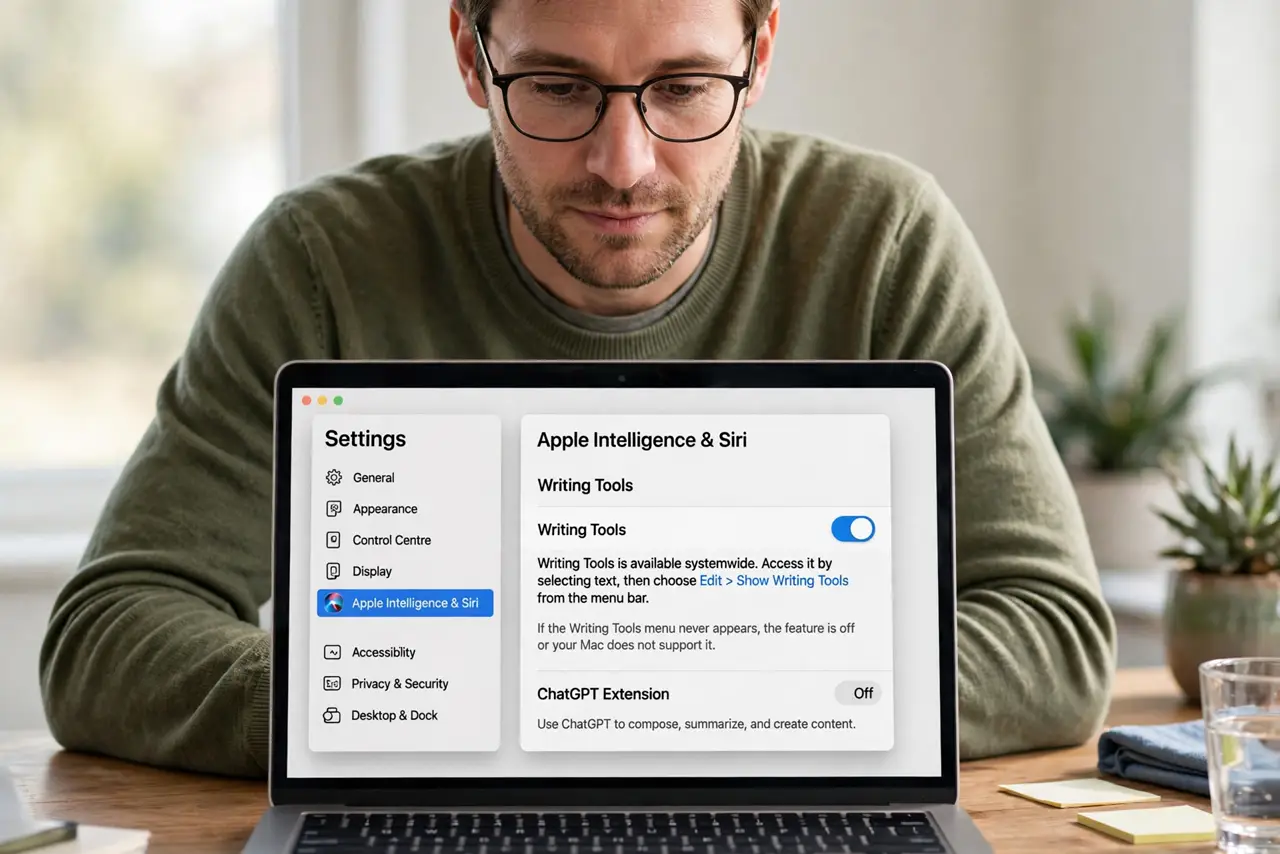
- Check Writing Tools is available. You need a Mac with Apple Intelligence support and the feature turned on in Settings. If the Writing Tools menu never appears, the feature is off or your Mac does not support it.
- Select the text to fix. Highlight the sentence, paragraph, or whole draft that sounds wrong. Writing Tools works on your selection, so be deliberate about what you include.
- Open Writing Tools. Right-click (or Control-click) the selected text and choose Writing Tools from the menu. You will see options like Proofread, Rewrite, and tone choices.
- Start with Proofread. Proofread fixes grammar and spelling while keeping your voice. It underlines suggested changes so you can accept the ones you like and skip the rest.
- Try Rewrite for tone. Rewrite rephrases the text; then pick Friendly, Professional, or Concise to steer it. A blunt send me the file becomes a polite request without you rethinking every word.
- Read the result before sending. AI rewrites can soften meaning or add words you would never say. Skim the final version and adjust anything that does not sound like you — especially names, dates, and commitments.
What NOT to do
- Do not send an AI rewrite without reading it. Tone tools can change emphasis in ways that matter in work emails.
- Do not use Rewrite on legal or contractual wording. Rephrasing can shift meaning — keep the original phrasing for anything binding.
- Do not assume it fixes facts. Writing Tools polishes language; it does not check whether what you wrote is true.
- Do not expect it in every app. Some third-party apps do not support the Writing Tools menu yet.
Frequently asked questions
Why is Writing Tools missing?
Either Apple Intelligence is off, or your Mac model does not support it. Check Settings for the Apple Intelligence section first.
Does Apple read what I rewrite?
Processing happens with Apple's privacy design for these features, and the tool works on the text you select. If that still worries you, you can turn the feature off.
Can it make text shorter?
Yes — choose Concise to trim wordy drafts. It is handy for long explanations that need to become a few clear lines.