Separate Work and Play in Safari
One Safari for everything means work logins collide with personal ones, and your history is one long mixed list. Safari profiles split your browsing into separate worlds — work and personal each get their own history, cookies, extensions, and tab groups. Switching takes one click. Combine with Safari tab groups inside each profile, and watch the bookmark mixing fix if your bookmarks crossed streams.
TL;DR / Quick Fix
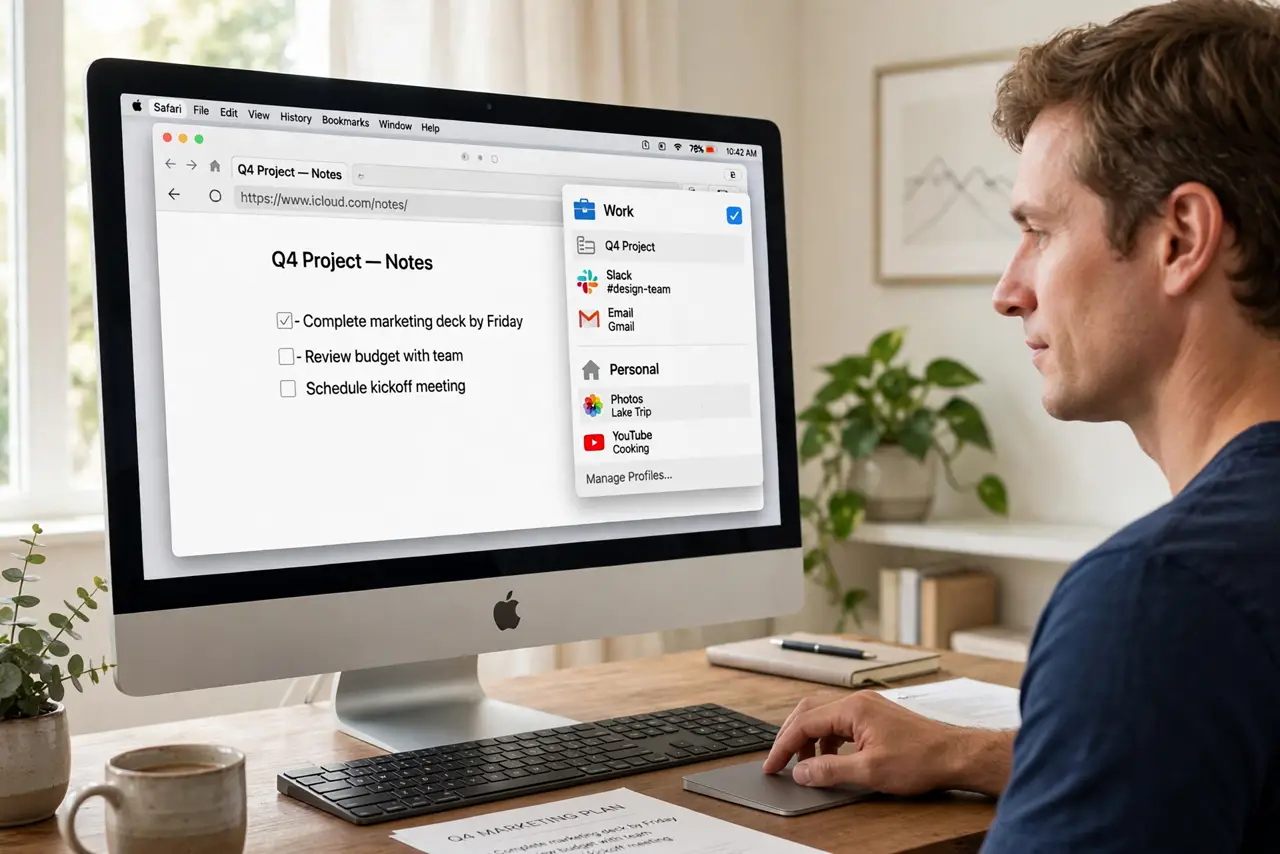
Quick fix: Safari profiles keep work and personal browsing in separate worlds — different history, cookies, extensions, and tab groups per profile. Set up one profile for work and one for play, and logins stop colliding. Switching takes one click, and each profile remembers its own tabs.
Follow these steps
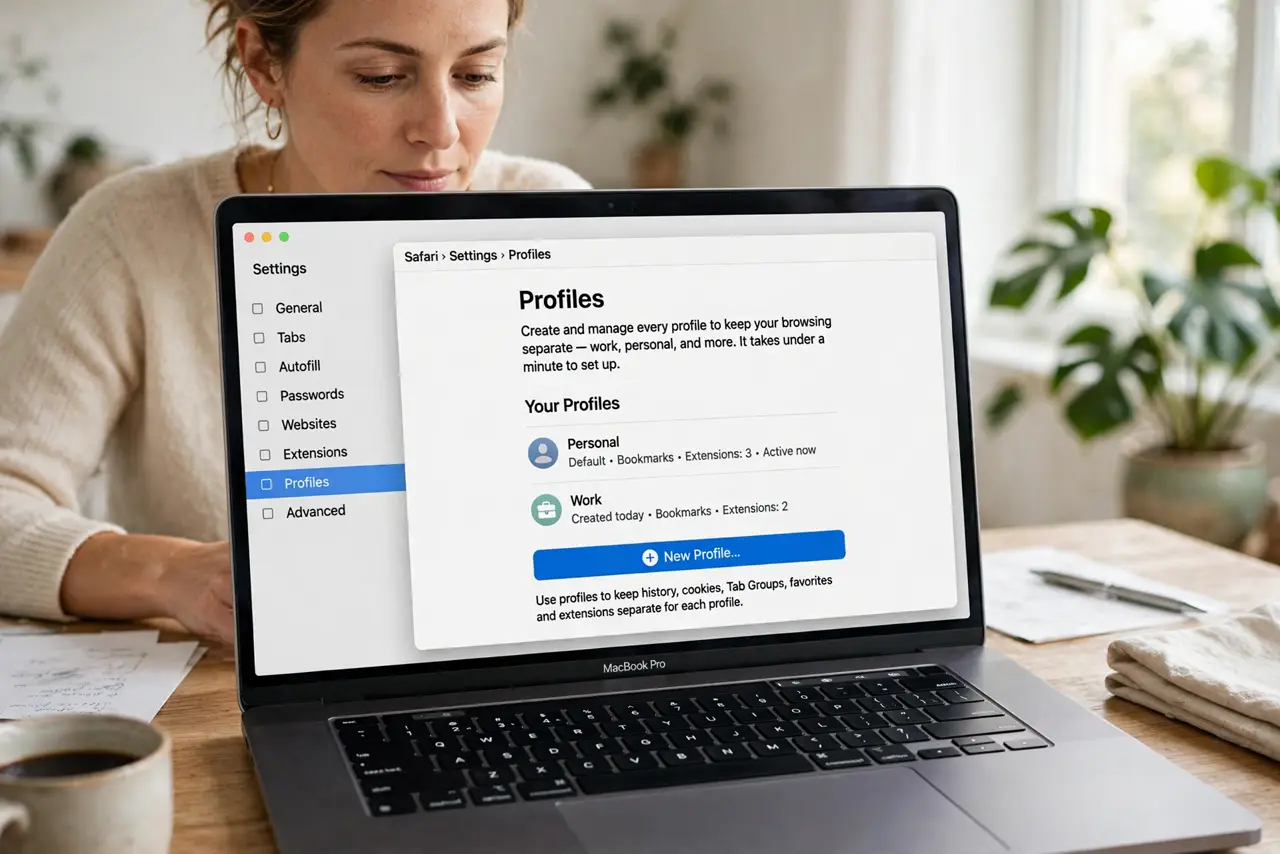
- Open the profiles setting. In Safari, go to Settings, then Profiles. This is where you create and manage every profile — it takes under a minute to set up.
- Create a work profile. Add a profile named Work, pick an icon and color so it is obvious at a glance. Safari creates a fresh, separate browsing space for it.
- Create a personal profile. Add a second profile for personal browsing. Each profile starts clean — no shared history, cookies, or logins between them.
- Log in to each world separately. In the work profile, sign in to work accounts; in the personal profile, sign in to personal ones. The same site can now hold two different logins at once.
- Customize extensions per profile. Enable work extensions (password manager, blockers) in the work profile and leave them off personally, or vice versa. Each profile keeps its own set.
- Switch with one click. Use the profile button in the toolbar to jump between worlds. Your tabs, history, and logins swap instantly — no signing out and back in.
What NOT to do
- Do not mix logins inside one profile. The whole point is separation — if work Gmail lives in the personal profile, you have defeated it.
- Do not forget which profile you are in. The icon and color are your cues; check before entering passwords on sensitive sites.
- Do not expect profiles to sync passwords selectively. Your keychain still fills passwords everywhere — profiles separate browsing, not credentials.
- Do not create a profile per website. Two or three profiles is the sweet spot; a dozen becomes its own mess.
Frequently asked questions
Do profiles share bookmarks?
By default each profile can have its own setup, and mixing is a known annoyance — there is a fix for crossed bookmarks if yours tangled.
Will this log me out of anything?
No. Creating profiles does not touch existing logins — your current setup becomes the default profile, untouched.
Can I use profiles with tab groups?
Yes — tab groups live inside profiles, so work tab groups and personal tab groups stay in their own worlds.