Apple Pay on Mac? Basics
You are checking out on your Mac and the Apple Pay button either never appears or fails when you click it. Apple Pay on Mac works through Safari with Touch ID (or your iPhone/Watch approving), and it needs the right setup on both the Mac and the paired device. This guide gets the one-click checkout working.
TL;DR / Quick Fix
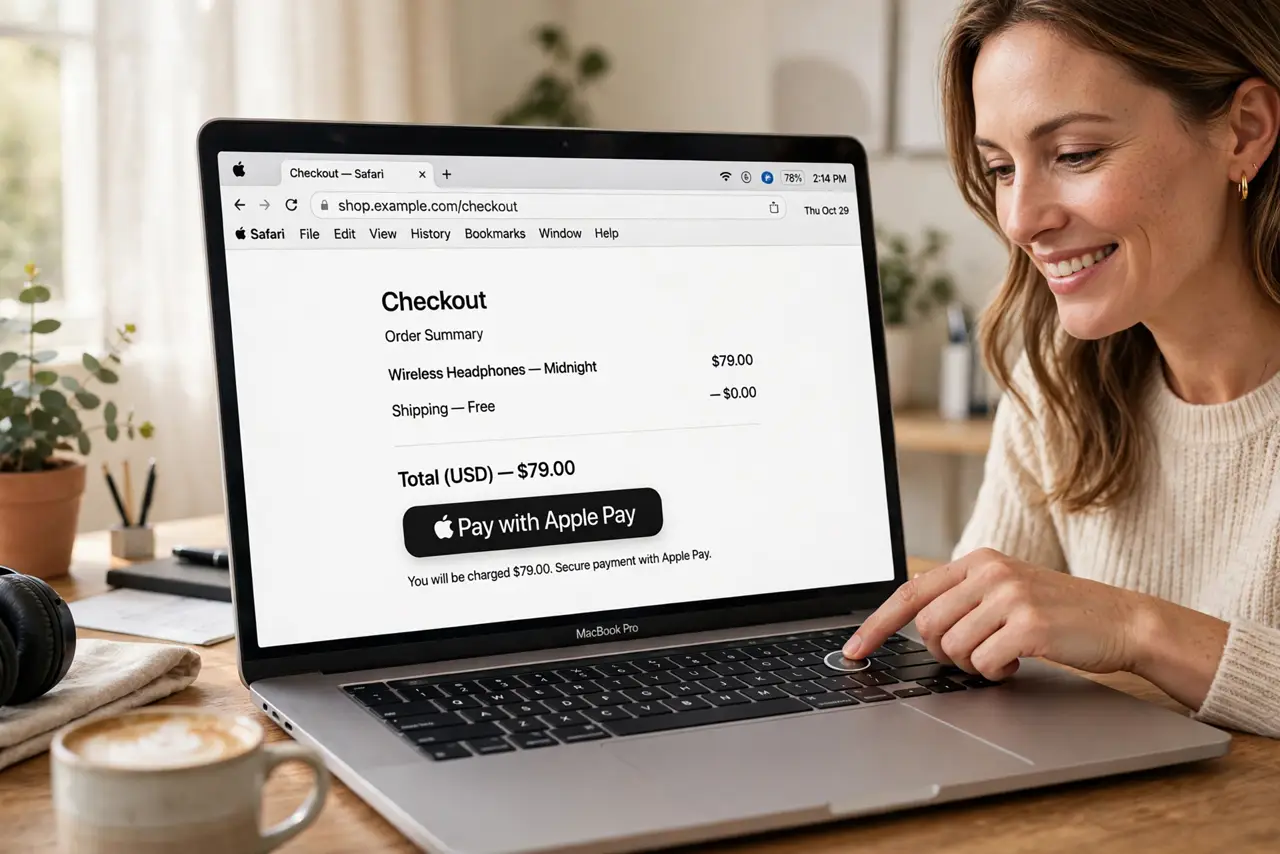
Quick fix: shop in Safari — Apple Pay does not work in Chrome or Firefox on Mac. Add a card under System Settings, Wallet and Apple Pay. Approve with Touch ID, or with your iPhone or Watch nearby. If a card is declined, check with your bank before retrying.
Follow these steps
- Use Safari. Apple Pay on Mac only works in Safari — the button will not appear in other browsers. If you prefer Chrome, you will need to check out there the old-fashioned way.
- Add a card in Wallet settings. Go to System Settings, Wallet & Apple Pay, and add a card. Verify it with your bank — an unverified card sits there looking ready while declining everything.
- Set up Touch ID or a paired device. Macs with Touch ID approve with a finger. Without Touch ID, approve on your nearby iPhone or Apple Watch — keep it unlocked and close by at checkout.
- Check the site supports it. The merchant must accept Apple Pay — look for the Apple Pay button at checkout. No button means the store does not take it, not that your Mac is broken.
- Handle a declined card calmly. A single decline is usually the bank's fraud check, not your setup — see the declined-card notes. Call the bank, confirm the purchase, and retry.
- Keep everything updated. macOS, Safari, and your iPhone all play a role. An outdated link in the chain breaks the handoff — updates keep Apple Pay smooth.
What NOT to do
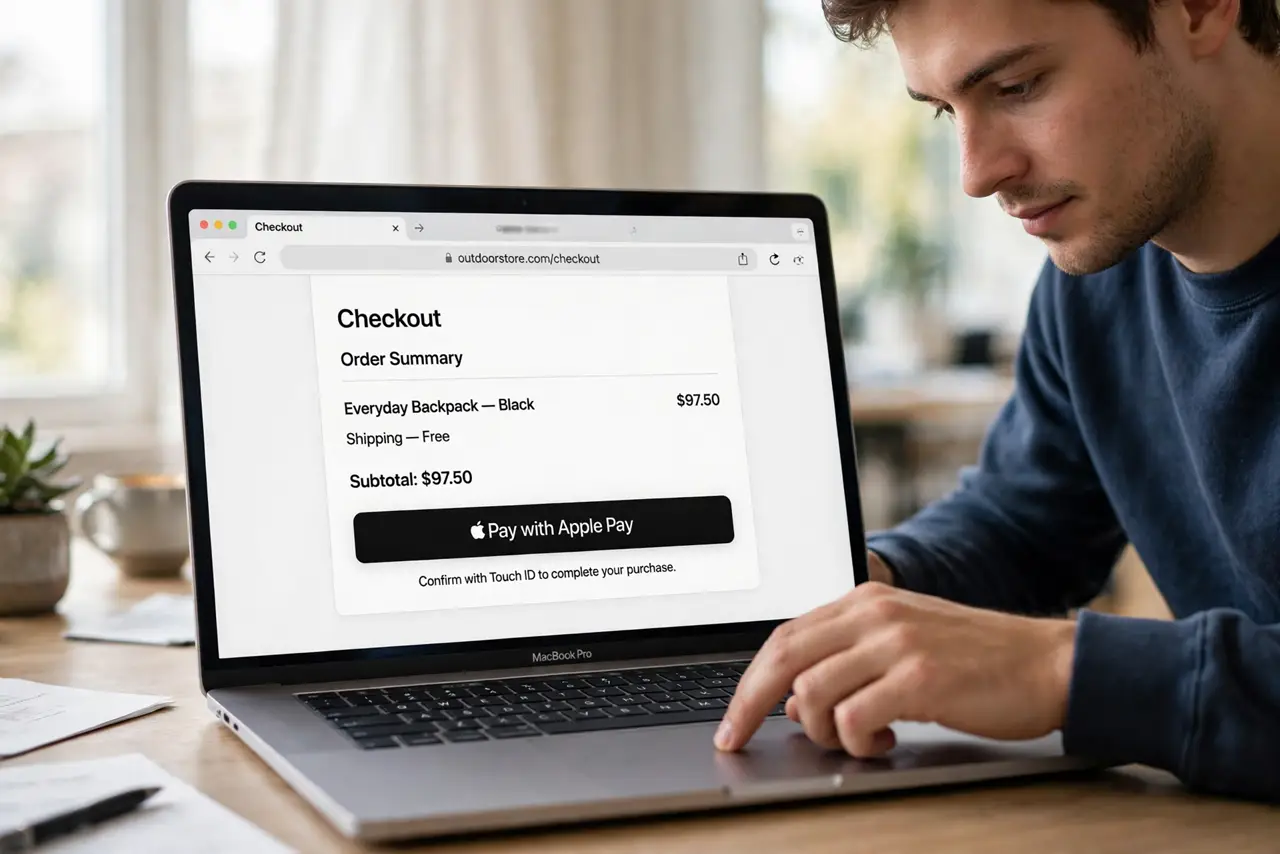
- Do not enter card numbers manually when Apple Pay is offered. The whole point is never exposing the real number — use the button.
- Do not approve on a locked iPhone. The approving device must be unlocked and nearby — a locked phone silently fails the handoff.
- Do not assume every site takes Apple Pay. The button's absence means the merchant opted out, not that your setup failed.
- Do not retry a declined card repeatedly. Multiple rapid declines look like fraud — call the bank instead of hammering retry.
Frequently asked questions
Why doesn't the Apple Pay button appear?
You are not in Safari, the site does not accept Apple Pay, or no card is added. Check those three in order.
Can I use Apple Pay on Mac without Touch ID?
Yes — approve the payment on your nearby iPhone or Apple Watch instead. It works just as well.
Is Apple Pay safer than typing my card?
Yes — the merchant never sees your real card number, just a one-time token. It is the safest way to pay online.