Auto-Hide the Dock? Basics
Your Mac's Dock eats a strip of screen all day, even though you only glance at it a few times an hour. Auto-hide makes the Dock slide away when you are not using it and reappear the moment your cursor touches the screen edge. It is the easiest way to reclaim vertical space on a laptop. Here is how to turn it on and tune it.

TL;DR / Quick Fix
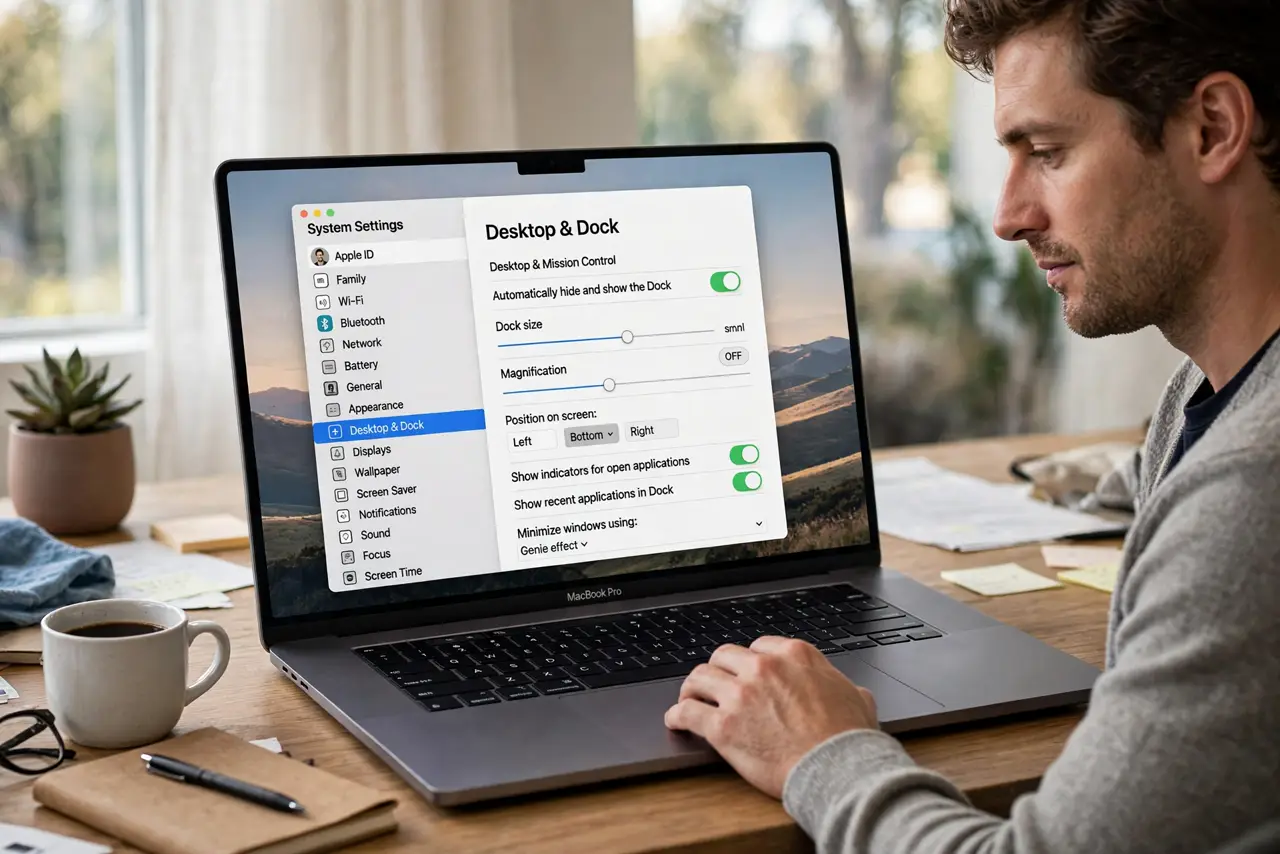
Quick fix: open System Settings, go to Desktop & Dock, and turn on 'Automatically hide and show the Dock.' Nudge your cursor to the screen edge to reveal it. If it feels sluggish, reduce the animation delay — or turn auto-hide off again just as easily.
Follow these steps
- Turn on auto-hide. Open System Settings > Desktop & Dock and enable 'Automatically hide and show the Dock.' The Dock slides off-screen immediately; move your cursor to the bottom edge and it glides back.
- Learn the reveal gesture. Push the cursor firmly against the edge where the Dock lives (bottom, left, or right) and pause half a second. A timid hover sometimes is not enough — give it a deliberate nudge.
- Fix a slow-feeling Dock. If the reveal feels laggy, the animation delay is the culprit, not your Mac. Our Dock auto-hide delay guide shows how to shorten it.
- Move the Dock to the side. In the same settings pane, set 'Position on screen' to Left or Right. A side Dock steals no vertical space, which pairs beautifully with auto-hide on small laptop screens.
- Keep magnification and hiding together. Dock magnification still works with auto-hide on — icons swell as you hover the revealed Dock. The two features do not conflict, so keep both if you like them.
- Turn it off just as easily. Hate it? Flip the same switch off and the Dock parks itself permanently again. Nothing about auto-hide changes your apps or files — it is pure preference.
What NOT to do
- Do not confuse a hidden Dock with a broken Dock. If the Dock vanished, check this setting first — it probably just auto-hid.
- Do not set the reveal to an edge you constantly hit by accident. If your cursor lives at the bottom, a left-side Dock hides more peacefully.
- Do not assume auto-hide saves battery. It is cosmetic; the Dock uses negligible resources either way.
- Do not forget fullscreen apps hide the Dock anyway. If you live in fullscreen, auto-hide changes almost nothing — try it there first.
Frequently asked questions
Why won't the Dock reappear?
Usually the cursor is not pushed firmly enough against the edge, or an app is holding the screen. Nudge deliberately; if it still will not show, toggle the setting off and on.
Does auto-hide work with an external monitor?
Yes, per display — the Dock reveals on whichever screen edge your cursor touches. Each monitor behaves independently.
Can I hide the menu bar too?
Yes — System Settings > Desktop & Dock has a matching 'Automatically hide and show the menu bar' option. Both hidden gives you a truly clean screen.