Unlock Mac With Your Watch?
Walking up to your Mac and having it unlock itself because your Apple Watch is on your wrist feels like living in the future. Auto Unlock uses your watch to confirm it is really you, so you can skip typing your password dozens of times a day. It needs a few settings in the right place on both devices. Here is how to set it up and what to check when it refuses to work.
TL;DR / Quick Fix
Quick fix: Auto Unlock lets your Apple Watch unlock your Mac when you wake it — no password typing. Turn on Wi-Fi and Bluetooth on both devices, sign both into the same Apple Account with two-factor authentication, then enable it in Mac System Settings under Touch ID and Password.
Follow these steps
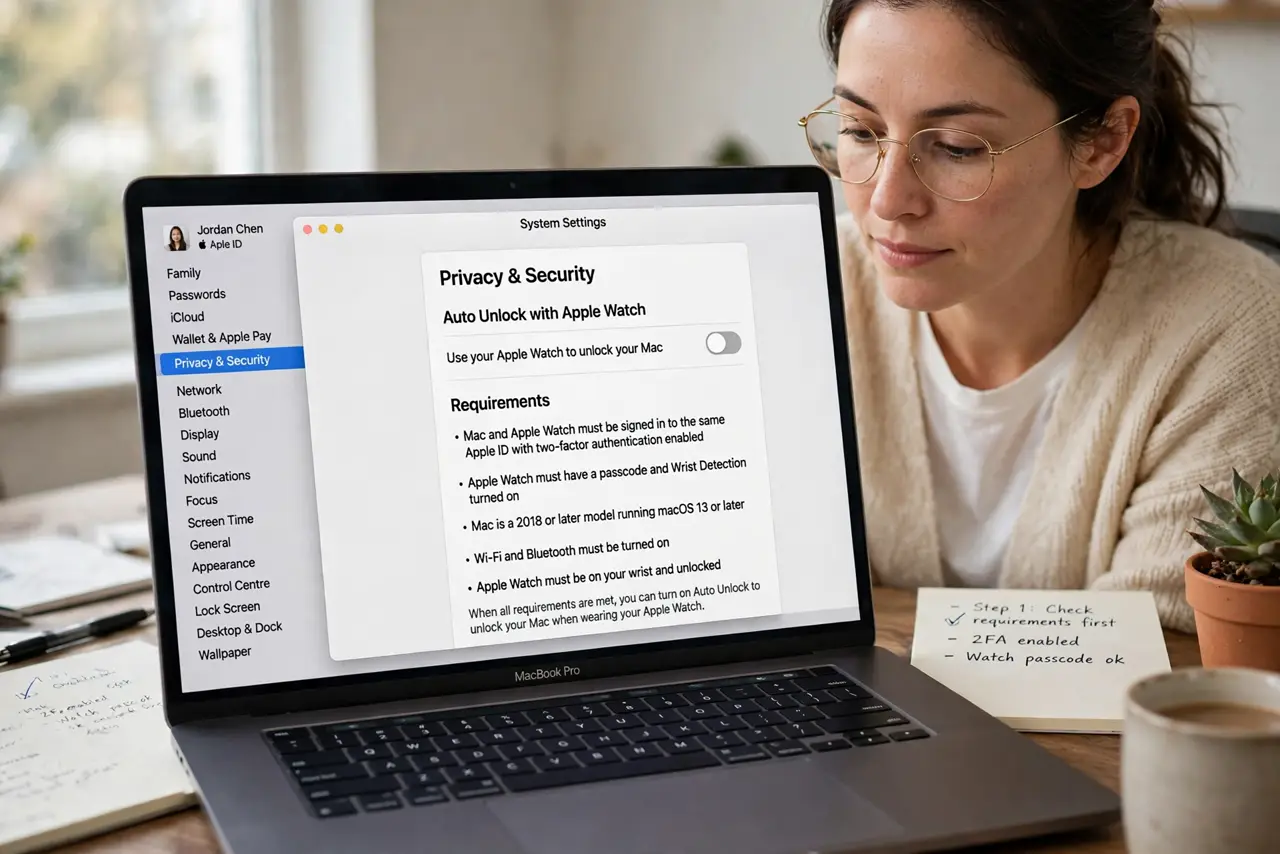
- Check the requirements first. You need a Mac from 2013 or later running macOS Sierra or newer, and an Apple Watch Series 0 or later with watchOS 3+. Both devices must use the same Apple Account with two-factor authentication turned on.
- Turn on Wi-Fi and Bluetooth on both. Auto Unlock talks over Bluetooth and Wi-Fi, so both radios must be on — not in Airplane Mode. The devices also need to be within a few meters of each other.
- Enable Auto Unlock on the Mac. On your Mac, open System Settings > Touch ID & Password (or Login Password) and switch on your Apple Watch under the Auto Unlock list. Approve with your password or Touch ID once.
- Unlock your watch with its passcode. Auto Unlock only works when the watch is on your wrist and unlocked. If you take it off, wrist detection locks it and Auto Unlock stops until you enter the passcode again.
- Approve system requests too. The same setup also lets you approve Mac requests with your watch — double-clicking the side button authorizes app installs and password prompts without typing.
- Troubleshoot the common failures. If it stops working, uncheck and re-check the watch in settings, restart both devices, and confirm neither is in Airplane Mode. See the Apple Watch unlock troubleshooting guide for the stubborn cases.
What NOT to do
- Do not disable your Apple Account two-factor authentication to 'simplify' things. Auto Unlock requires it, and turning it off weakens everything.
- Do not expect it to work at long range. The watch must be close to the Mac — across the room is too far.
- Do not forget the watch passcode. Without wrist detection and a passcode, the security chain breaks and Auto Unlock stays off.
- Do not panic if it fails once in a while. Occasional misses happen after updates; re-enabling in settings fixes most of them.
Frequently asked questions
Is Auto Unlock secure?
Yes — it only works when your unlocked watch is on your wrist and near the Mac, and it requires your Apple Account's two-factor authentication. It is far stronger than no password.
Why does my Mac ask for the password on first login?
After a restart or long sleep, macOS requires the actual password once before Auto Unlock takes over. That is by design, not a bug.
Can I use it with more than one Mac?
Yes — each Mac can be paired with the same watch. Enable Auto Unlock separately in each Mac's settings.