Autocorrect Uses the Wrong Language on Mac
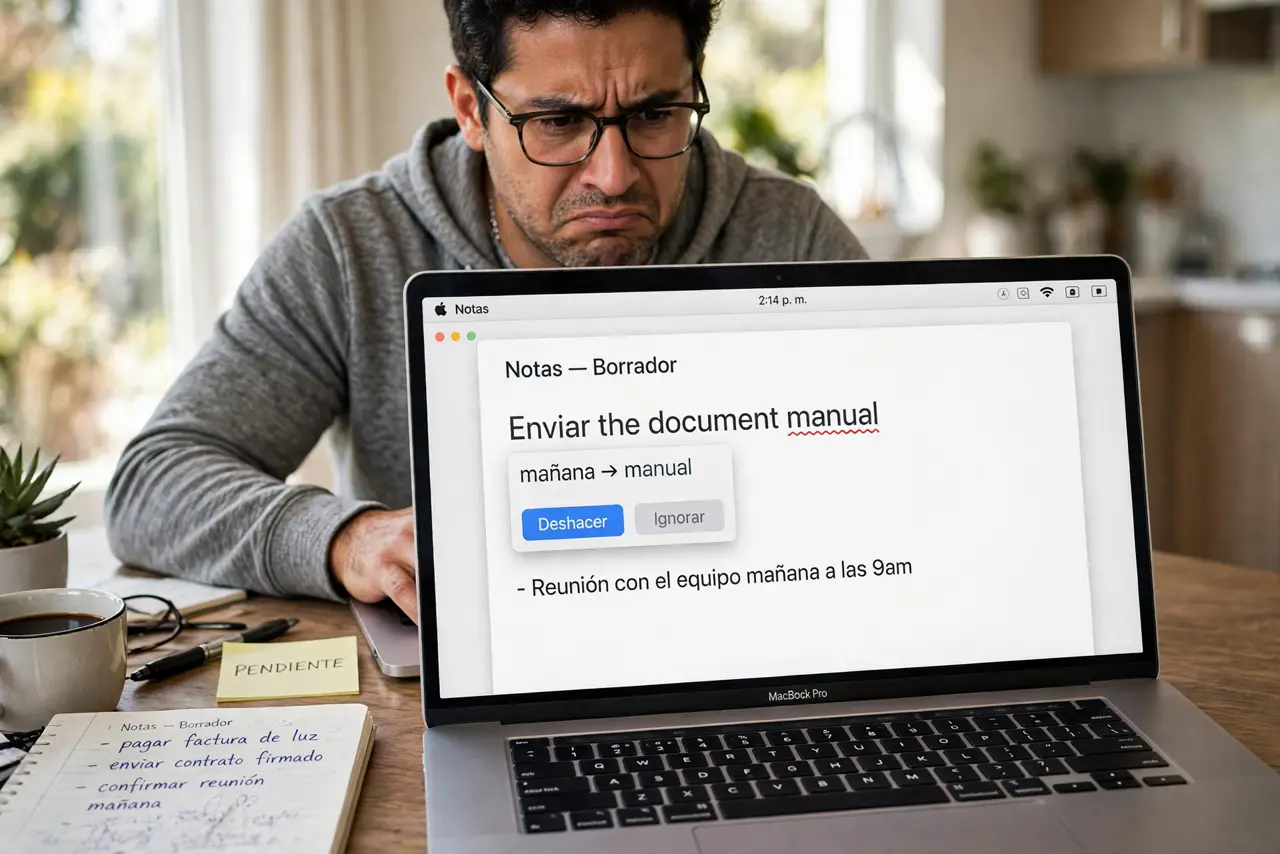
You type in Spanish and autocorrect insists on fixing words into English, or the reverse. The Mac is correcting against the wrong dictionary because the language order or keyboard input source is off. This guide puts the right language first.
TL;DR / Quick Fix
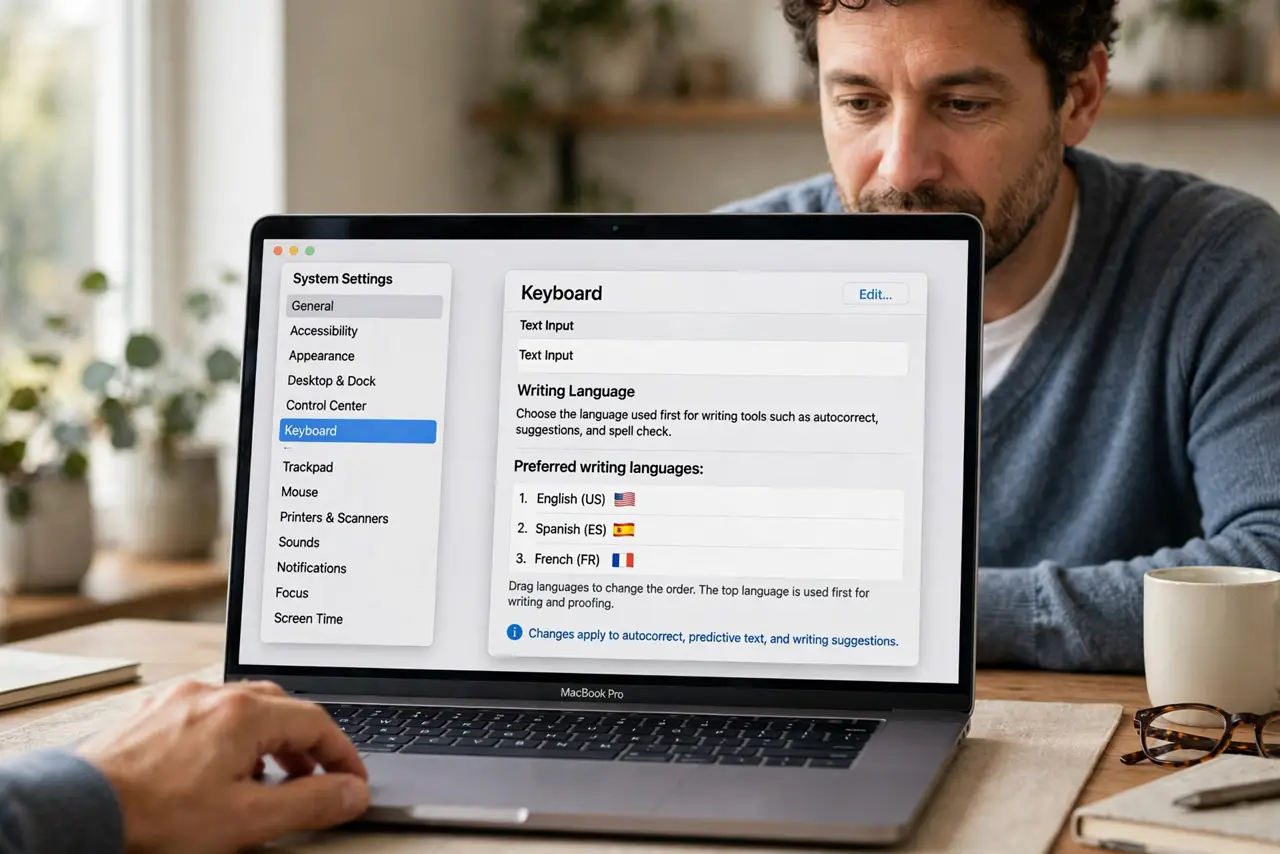
Quick fix: open System Settings, go to General, then Language and Region, and drag your main writing language to the top. Then check that the keyboard input source matches the language you are typing in, and fully restart the app to apply it.
Follow these steps
- Put your writing language first. Open System Settings, then General, then Language and Region. Drag the language you actually write in to the top of the preferred list; autocorrect follows that order.
- Match the keyboard input source. Check the input menu in the menu bar. Typing Spanish with a U.S. English input source confuses the corrector, so switch to the matching layout.
- Check per-app language settings. Some apps remember their own spell-check language. In the app's Edit menu, look at Spelling and Grammar settings and set the right language there.
- Teach it your common words. When autocorrect changes a word wrongly, undo it immediately a few times. macOS learns from corrections and stops changing words you repeatedly restore.
- Check that text replacements agree. Your text replacements also carry language assumptions. A replacement built for one language can fight autocorrect in another.
- Restart the app after changes. Language changes do not always apply to already-open documents. Quit and reopen the app so the new dictionary takes effect.
What NOT to do
- Do not turn off autocorrect entirely in frustration. Fixing the language keeps the useful corrections while stopping the wrong-language ones.
- Do not add every language to the preferred list. A long list makes macOS guess more, so keep only the languages you write in.
- Do not confuse the display language with the typing language. The menus can stay in English while autocorrect works in Spanish.
- Do not blame the keyboard hardware. This is purely a software language-order issue, never a broken key.
Frequently asked questions
Why is autocorrect in the wrong language?
Because your preferred language order or input source points at another language. Autocorrect always follows the top matching language.
Can I use two languages at once?
macOS handles multilingual typing reasonably if both languages are high in the preferred list, though occasional wrong guesses happen.
Why does it work in one app but not another?
The other app likely has its own spell-check language set. Check its Edit menu spelling settings.