Text Replacements Not Syncing to iPhone
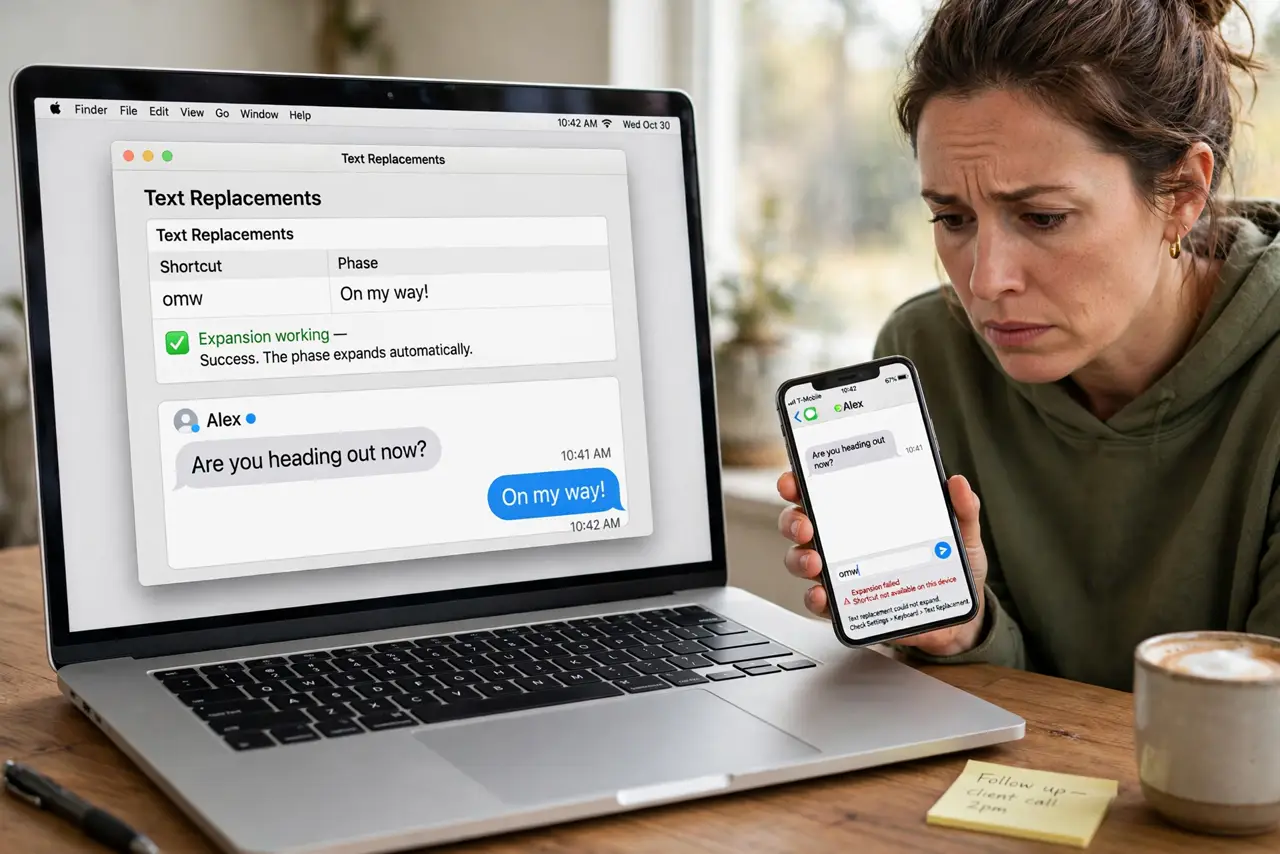
Your clever text shortcuts work on the Mac but never appear on the iPhone, so you keep typing everything out. Text replacements sync through iCloud, and the chain breaks when the Apple ID differs or the sync toggle is off. This guide reconnects the chain.
TL;DR / Quick Fix
Quick fix: confirm both devices use the same Apple ID, then on the iPhone go to Settings, General, Keyboard, Text Replacement and check the list. Toggle iCloud sync for the keyboard data off and on, and wait a few minutes on Wi-Fi.
Follow these steps
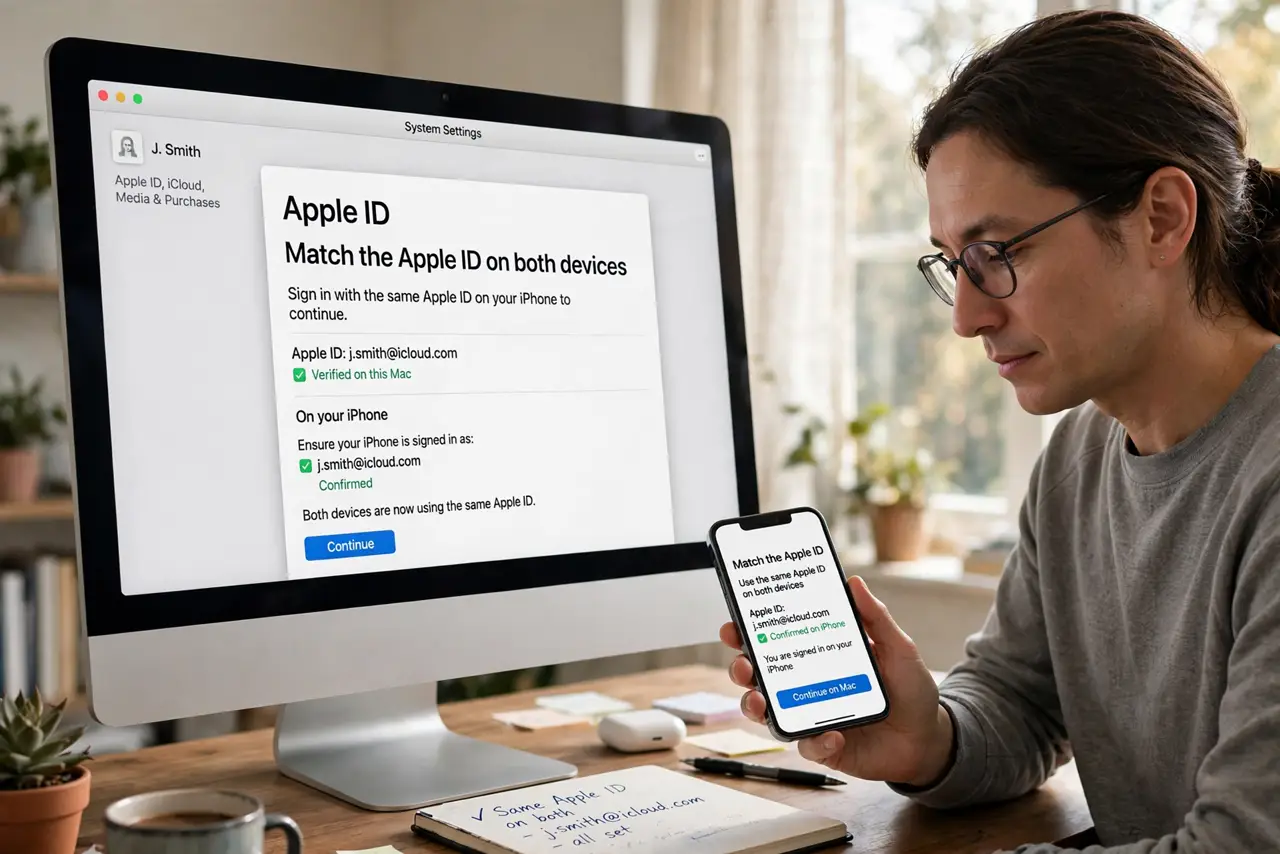
- Match the Apple ID on both devices. Text replacements follow the Apple ID. Check the signed-in account on the Mac and the iPhone; a mismatch means the shortcuts live in two separate worlds.
- Find the list on the iPhone. On the iPhone, open Settings, then General, then Keyboard, then Text Replacement. If the list is empty there but full on the Mac, sync is the problem, not the shortcuts.
- Toggle the sync off and on. On the Mac, open System Settings, then Apple ID, then iCloud, and toggle the keyboard sync. One clean toggle restarts a stalled sync.
- Check for the same gap in Messages. If Messages are also out of sync, the Apple ID or iCloud account is the shared root cause. Fix the account once and both problems clear together.
- Wait on Wi-Fi before judging. Text replacement data is tiny but syncs on Apple's schedule, not yours. Give it ten minutes on Wi-Fi before declaring it broken.
- Re-add one shortcut as a test. Create a brand-new test shortcut on the Mac and watch for it on the iPhone. A fresh entry often syncs when old ones are stuck, which confirms the pipe works.
What NOT to do
- Do not delete all shortcuts on the Mac to force a sync. Deletion syncs too, and you can wipe years of shortcuts everywhere.
- Do not use different Apple IDs for iCloud and the App Store across devices. The keyboard sync follows the iCloud ID specifically.
- Do not expect instant sync. Apple's sync can lag several minutes, so rapid toggling just restarts the wait each time.
- Do not confuse keyboard shortcuts with app autocorrect. Text replacements are the phrase-expanding shortcuts, a separate system from autocorrect.
Frequently asked questions
Where are text replacements stored?
In iCloud, tied to your Apple ID. That is why they should appear on every device signed into the same account.
Why did only some shortcuts sync?
Partial syncs happen when the sync stalls midway. The toggle-off-and-on step usually completes it.
Do text replacements work in every app?
Nearly every Apple app and most third-party apps. Some apps with custom text fields ignore them.