Automatic Updates? Manage Them
Updates that install overnight and reboot by morning — convenient, until one breaks your workflow on presentation day. macOS lets you split the difference: download automatically, install on your schedule, or go fully automatic. The right choice depends on how much surprise you can tolerate.
TL;DR / Quick Fix
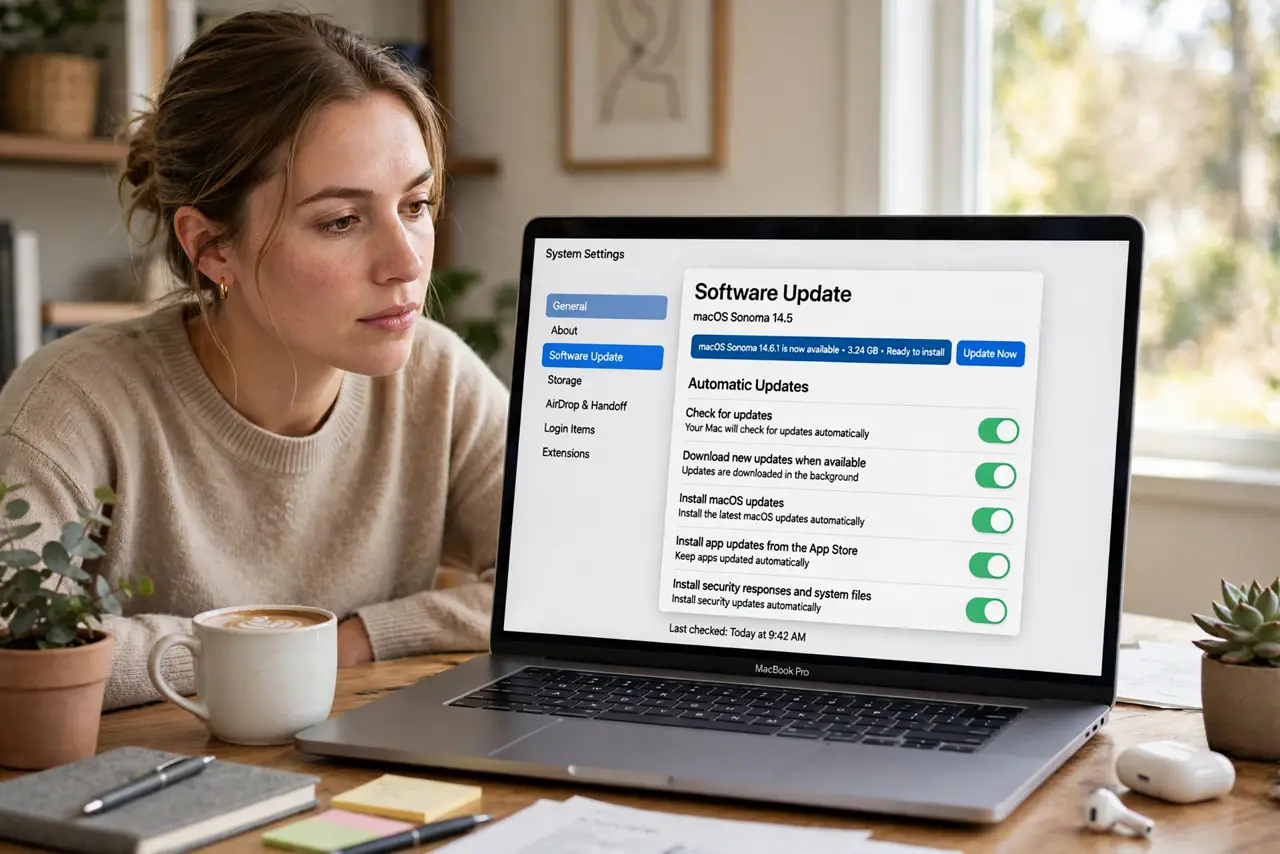
Quick fix: open System Settings, go to General, then Software Update, and choose whether macOS downloads and installs updates automatically. Automatic installs keep you protected with zero effort. If you prefer control, leave automatic downloads on but install manually after checking reports.
Follow these steps
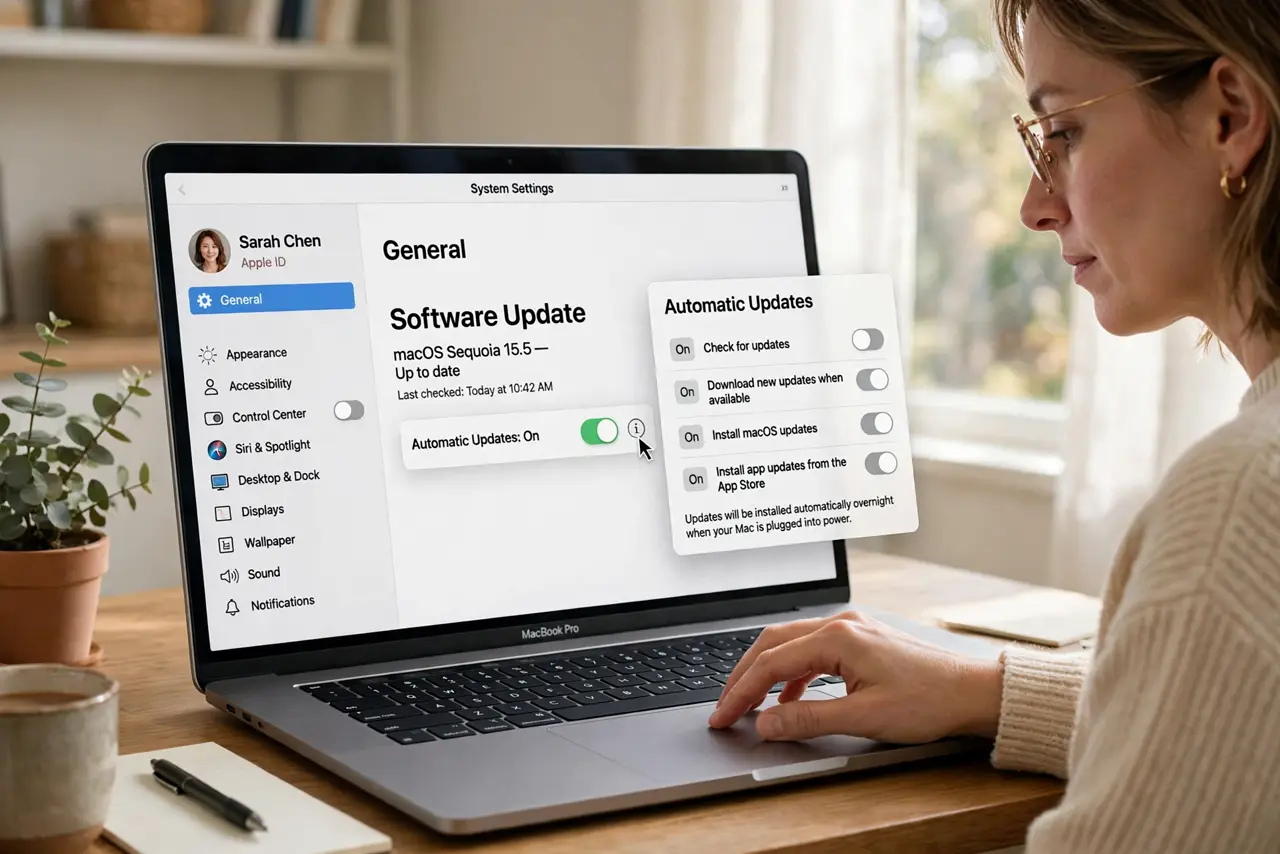
- Open Software Update settings. In System Settings, go to General, then Software Update. Click the info button next to Automatic updates for the detailed toggles.
- Understand the three layers. Download, install macOS updates, install app updates, and install security responses are separate switches. Mix them to taste.
- Go fully automatic for low-stakes Macs. Family and casual Macs benefit most from everything automatic — security patches apply themselves and nobody thinks about it.
- Choose download-only for work Macs. Automatic downloads plus manual installs give you the patch on disk and the choice of timing. Install Friday afternoon, not Monday morning.
- Leave security responses automatic. Rapid security responses are tiny and safe. There is no good reason to delay these — they are the seatbelts of updates.
- Reconsider the beta program separately. Betas are not ordinary updates. If you joined the beta, automatic updates pull beta builds — leave the program first for stable releases.
What NOT to do
- Do not disable all updates 'for stability.' Unpatched Macs are the actual instability — security holes do not pause for your schedule.
- Do not install a major macOS upgrade on day one for a work Mac. Wait a week, check app compatibility reports, then upgrade deliberately.
- Do not ignore the 'updates available' badge for months. A badge ignored becomes a vulnerability exploited — monthly attention is the minimum.
- Do not confuse automatic download with automatic install. Downloads just stage the update; installs reboot the Mac — know which switch does what.
Frequently asked questions
Will automatic updates restart my Mac unexpectedly?
Only if automatic install is on — and even then, macOS waits for idle time and warns you. Download-only never restarts anything.
Should I update immediately or wait?
Security updates: immediately. Major yearly upgrades: wait a week or two for the first bug-fix release and compatibility reports.
Do updates slow down older Macs?
Rarely meaningfully. The myth persists from the old days — modern macOS updates are tuned for the supported hardware list.