Leave the macOS Beta? How To
Beta macOS was exciting until your favorite app broke and the battery started draining by lunch. Leaving the beta program is easy — but there is a catch: your Mac stays on the beta until the next public release catches up. Here is how to exit cleanly without losing data.
TL;DR / Quick Fix
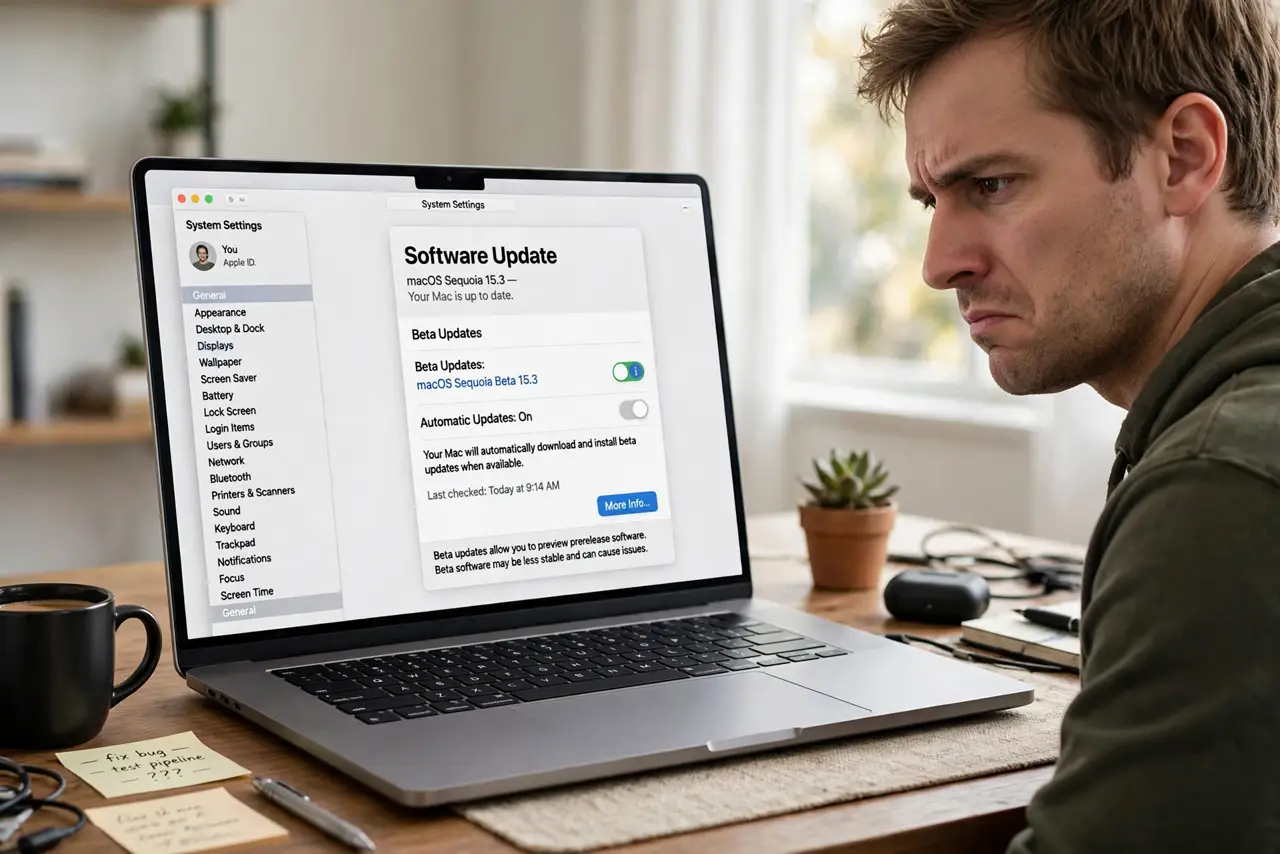
Quick fix: open System Settings, go to General, then Software Update, and turn off beta updates to stop receiving beta builds. Your Mac stays on the current beta until the next public release, which then installs normally. Back up first — downgrading to an older release requires erasing the Mac.
Follow these steps
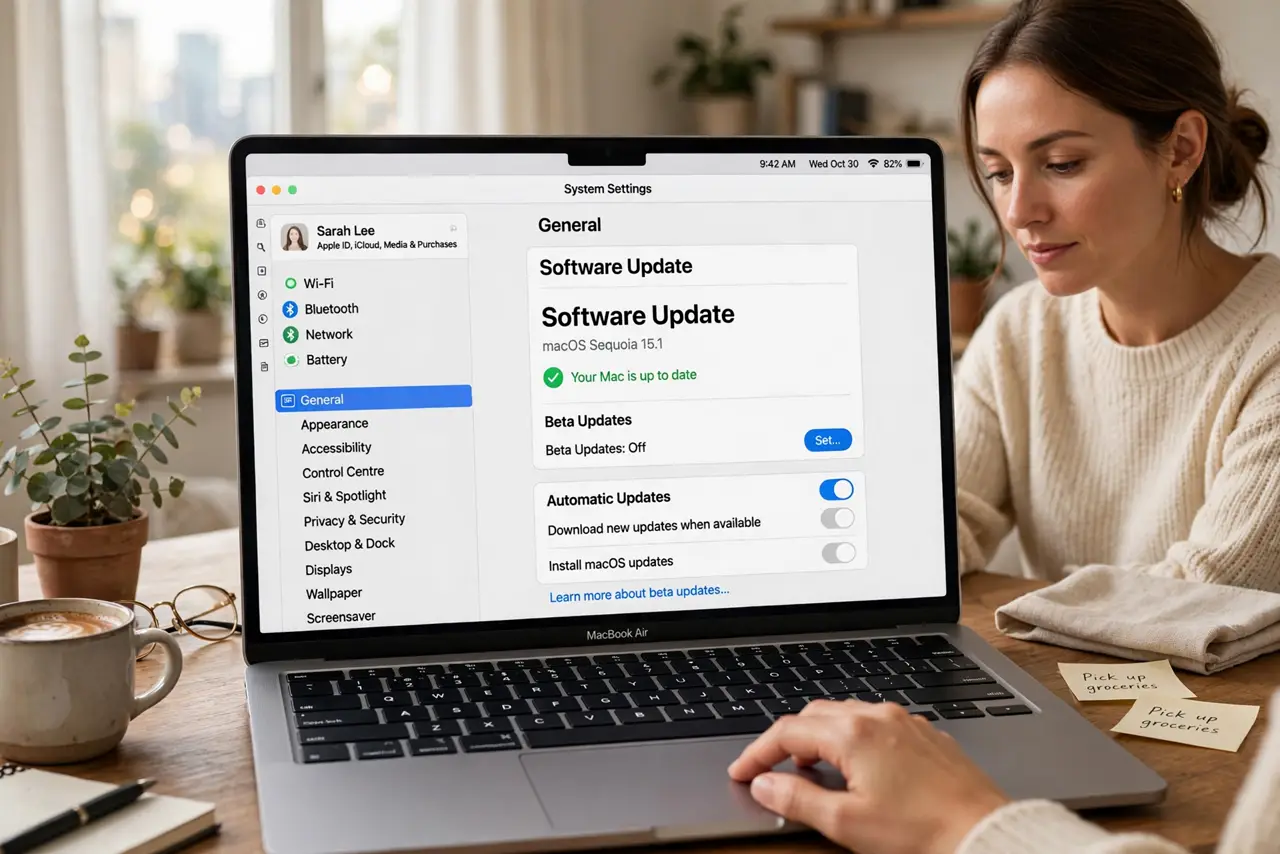
- Open Software Update settings. In System Settings, go to General, then Software Update. The beta enrollment control lives here.
- Turn off beta updates. Set beta updates to Off. Your Mac stops receiving beta builds immediately — no more surprise beta installs.
- Understand the waiting game. You stay on the current beta until the next public release is newer than your build. Then it installs like any normal update.
- Do not try to downgrade casually. Going back to an older release than your beta requires erasing the Mac and reinstalling — there is no gentle downgrade path.
- Back up before leaving. Make a fresh Time Machine backup before changing anything. Beta exits are safe, but backups make every exit safer.
- Reconsider automatic updates after. With betas off, decide your stable-release update policy — automatic or manual — so you are not caught off guard again.
What NOT to do
- Do not erase the Mac just to escape a beta. Waiting for the next public release is free and keeps your data.
- Do not install the next beta 'to fix' the current one. Stacking betas compounds instability — exit instead.
- Do not leave the beta enrolled and forget it. A year later you will wonder why your Mac gets weird early builds.
- Do not skip the backup because 'nothing will be erased.' True — but beta software is exactly when backups prove their worth.
Frequently asked questions
How long until I'm back on stable?
Usually the next public release — weeks to a couple of months. Major betas exit fastest at the yearly public launch.
Can I leave the beta immediately?
Only by erasing the Mac and reinstalling the public release, then restoring from backup. Most people prefer to wait it out.
Will my apps work better on stable?
Almost always. Developers target public releases — beta-only bugs in third-party apps vanish once you are back on stable.