Automate Tasks with Quick Actions
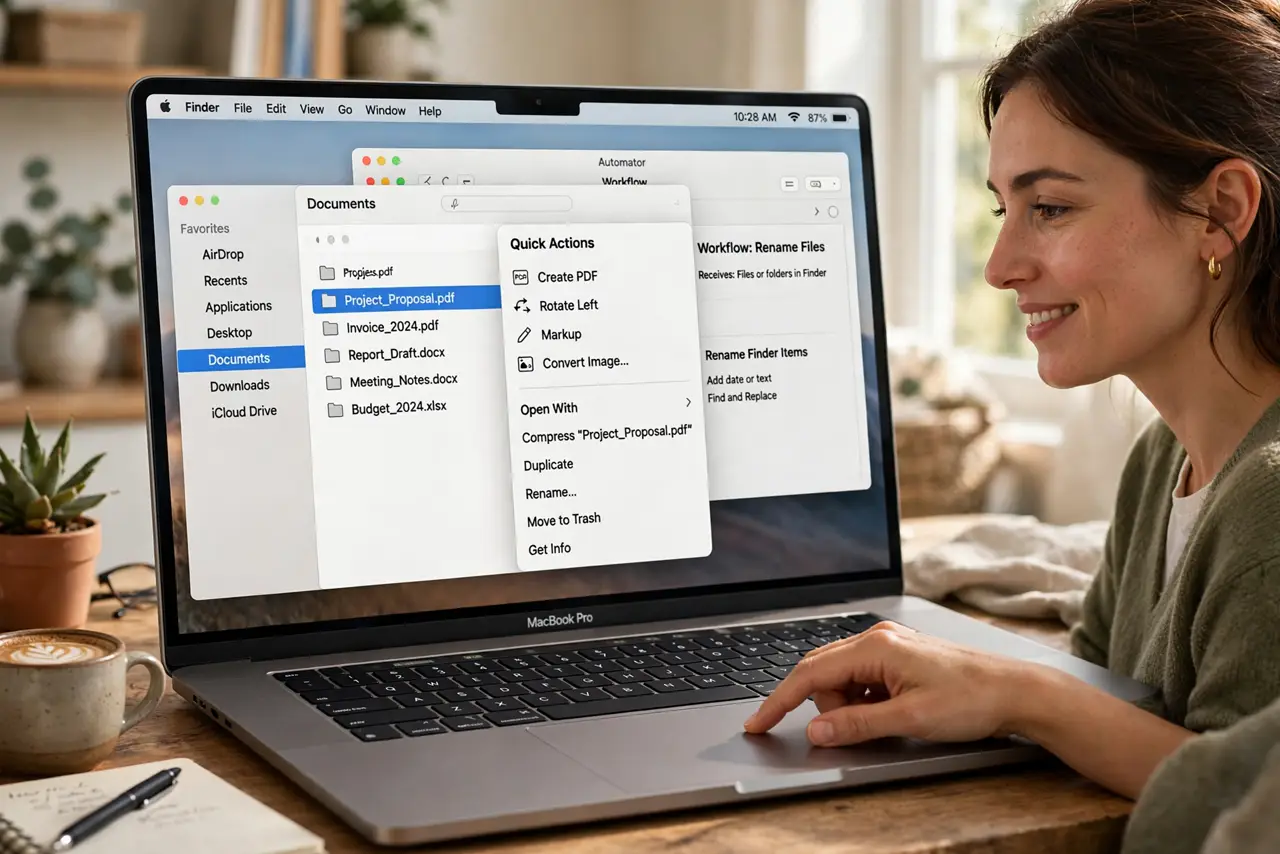
You rename fifty photos the same way every week, or resize every screenshot before sending. macOS Quick Actions — built in Automator — put your repetitive file chores one right-click away in Finder. Build once, use forever, no coding needed. Here is your first automation from scratch.
TL;DR / Quick Fix
Quick Actions are Automator workflows that appear in Finder's right-click menu. Open Automator, create a Quick Action, set it to receive image or text files, add actions like Rename or Scale Images, and save. The Shortcuts app is Apple's newer automation tool if you outgrow Automator.
Follow these steps
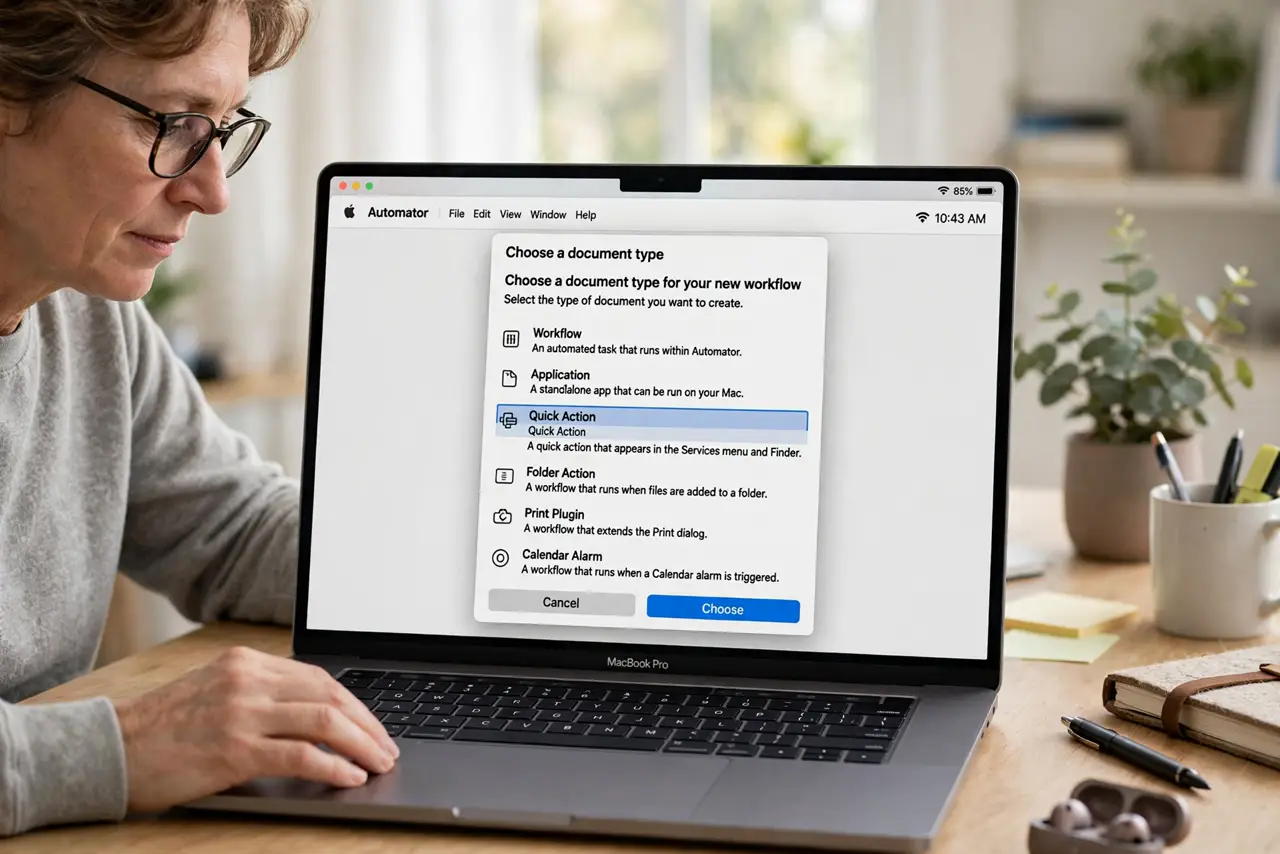
- Open Automator and start a Quick Action. Find Automator in Applications, launch it, and choose Quick Action as the document type. This is the template that wires your workflow into Finder's right-click menu.
- Set what the action receives. At the top, set 'Workflow receives current' to the right type — image files for photo chores, text for text chores. Wrong input type is why actions mysteriously do nothing.
- Add actions from the library. Drag actions from the left panel into the workflow: Rename Finder Items, Scale Images, Copy to folder. Stack them in order — they run top to bottom.
- Configure each action's options. Click each action to set its details: the rename pattern, the target size, the destination folder. Test mentally with a sample filename before saving.
- Save with a clear name. Save the Quick Action with a descriptive name like 'Resize for email'. The name is what you will see in the Finder menu, so make it obvious.
- Test on copies first. Right-click a few copied files in Finder, run your Quick Action, and check the results. Only unleash it on the real fifty files after the test behaves.
What NOT to do
- Do not test a rename workflow on originals. A bad pattern renames fifty files wrong just as fast as it renames them right — copies first.
- Do not stack conflicting actions. Two rename actions in one workflow fight each other; keep the chain simple and logical.
- Do not forget where you saved it. Automator saves to a system folder — if it vanishes from Finder, the lost workflow guide shows where it went.
- Do not automate destructive steps without a backup. Workflows that delete or overwrite should only run on backed-up folders.
Frequently asked questions
Automator or Shortcuts — which should I learn?
Shortcuts is Apple's future and syncs to iPhone; Automator still rules Finder file chores. Learn Quick Actions for files, Shortcuts for everything else.
Can Quick Actions run on folders?
Yes — set the input type to folders and the action appears when you right-click folders too. Great for batch-organizing project directories.
Why doesn't my Quick Action appear in Finder?
Usually the input type does not match the selected files, or Finder needs a relaunch. Check the workflow's 'receives' setting first.