Automate with Quick Actions
Every week you rename forty photos, resize a batch of images, or convert files one by one in Finder. macOS has a built-in cure: Automator workflows saved as Quick Actions appear right in the Finder right-click menu. Build once, then trigger your chore with two clicks forever.
TL;DR / Quick Fix
Quick fix: Quick Actions put Automator workflows one right-click away in Finder — rename file batches, resize images, or convert formats without opening an app. Build the workflow in Automator, save it as a Quick Action, and it shows in the Finder menu. Start with one repetitive chore.
Follow these steps
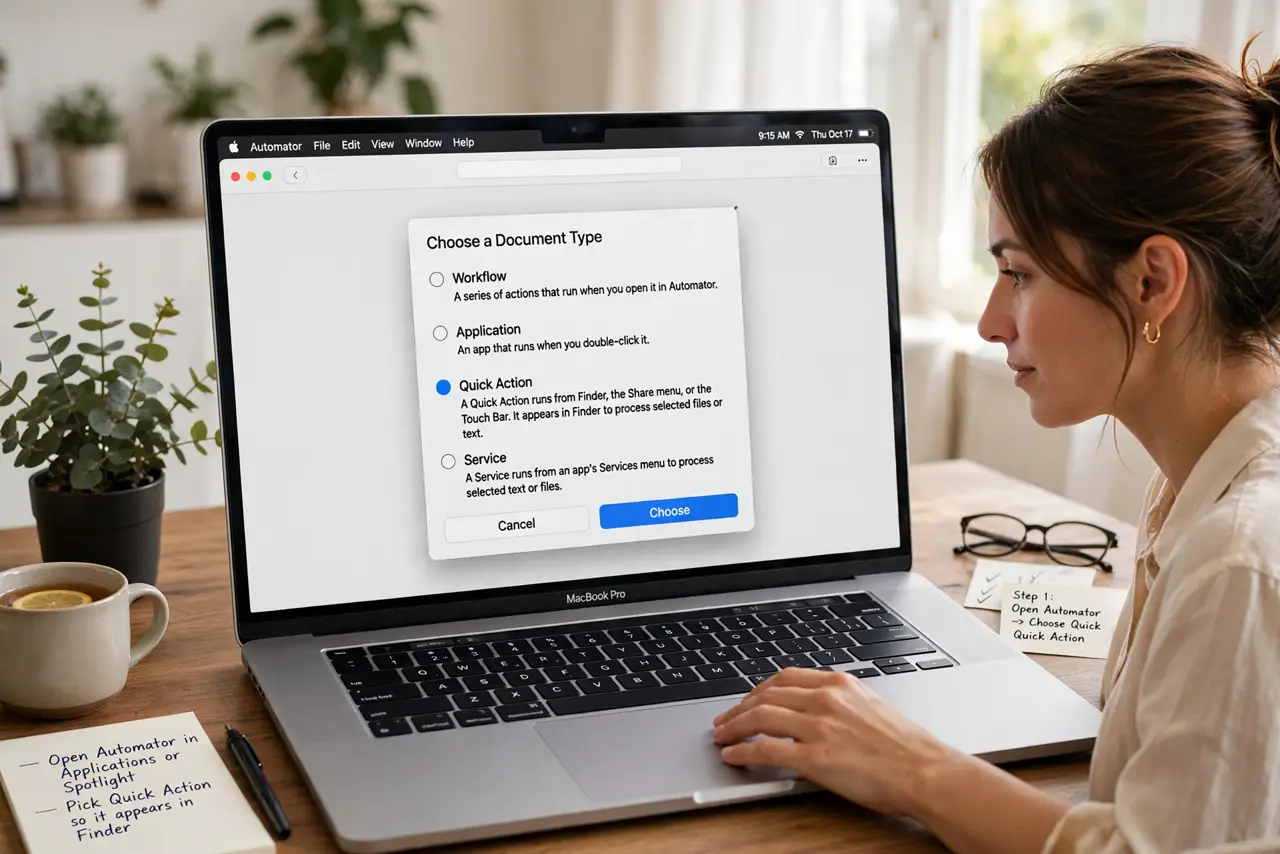
- Open Automator and pick Quick Action. Find Automator in Applications or Spotlight. When it asks for a document type, choose Quick Action — this makes the workflow appear in Finder instead of running as a standalone app.
- Set what the action receives. At the top of the workflow, set Workflow receives current to Files or folders in Finder. This tells macOS when to show your action in the right-click menu.
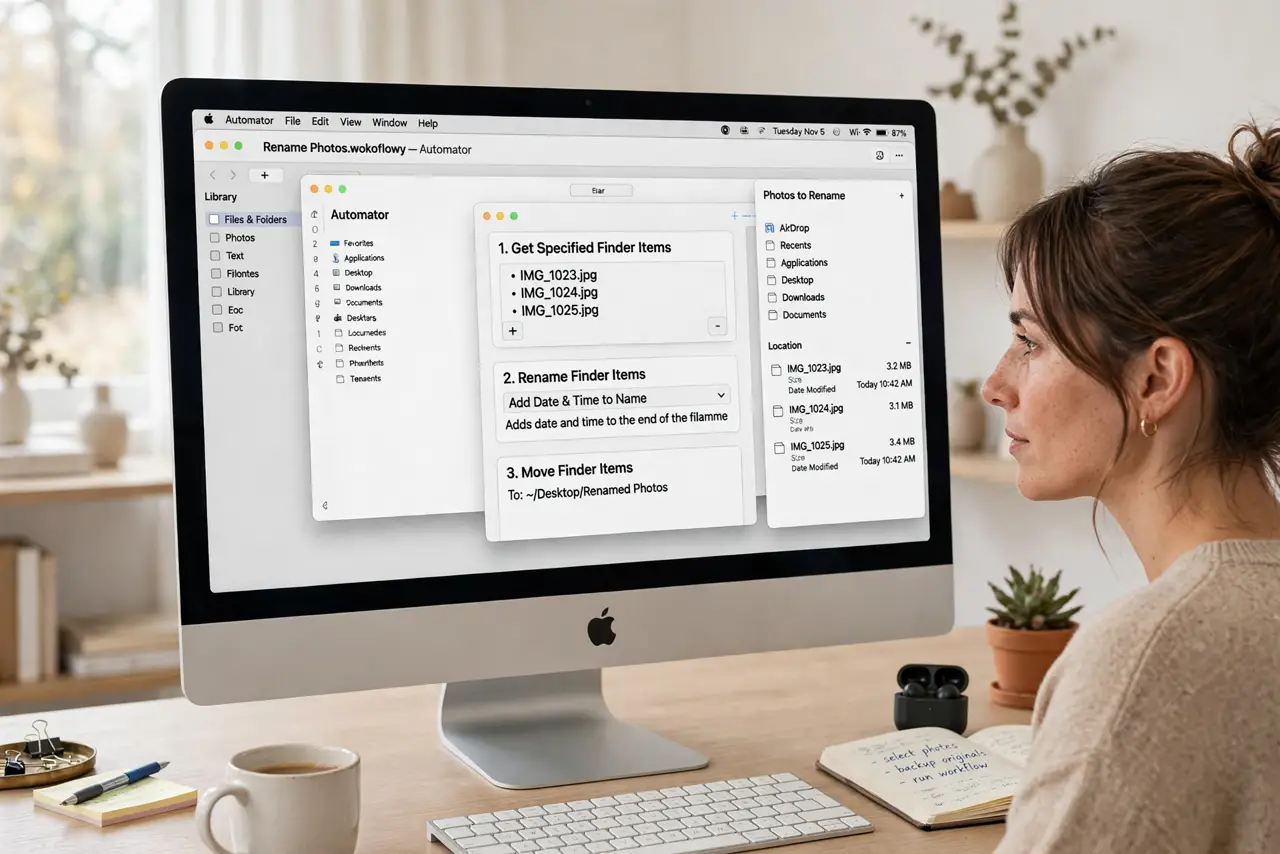
- Drag actions into the workflow. From the library on the left, drag building blocks like Rename Finder Items or Scale Images into the main area. Chain them in order — each action feeds its result to the next.
- Test with a copy first. Before unleashing it on real files, duplicate a few test files into a folder and run the action on those. Automator renames are not one-click undoable.
- Save with a clear name. Press Command-S and give it a descriptive name like Rename Photos by Date. It now lives in Finder: right-click files, open Quick Actions, and there it is.
- Refine and reuse. Tweak the workflow any time by reopening it in Automator. One well-built Quick Action can replace a weekly chore — and Apple's newer Shortcuts app handles the same idea for broader daily routines.
What NOT to do
- Do not test a rename or move workflow on your only copies. Duplicates first — bulk file actions are hard to undo.
- Do not build one mega-workflow for everything. Small single-purpose Quick Actions are easier to debug and reuse.
- Do not expect Quick Actions in every app. They shine in Finder; some apps ignore them.
- Do not skip the input type setting. A workflow set to receive text will never appear when you right-click files.
Frequently asked questions
What is the difference between Automator and Shortcuts?
Automator is the classic Mac automation tool, deep in Finder workflows. Shortcuts is Apple's newer cross-device system. For Finder batch chores, Automator Quick Actions remain the simplest path.
Can Quick Actions resize images?
Yes — the Scale Images action is a classic. Set the pixel width once, save it, then right-click any batch of photos to resize them all.
Where do my saved Quick Actions live?
In your Library Services folder as workflow files. Delete one there to remove it from the Finder menu.